Category: Keyboards⌨️

  • 2026 MC1 Mouse keys🖱️

    2026 MC1 Mouse keys🖱️

    ⏱️Overview

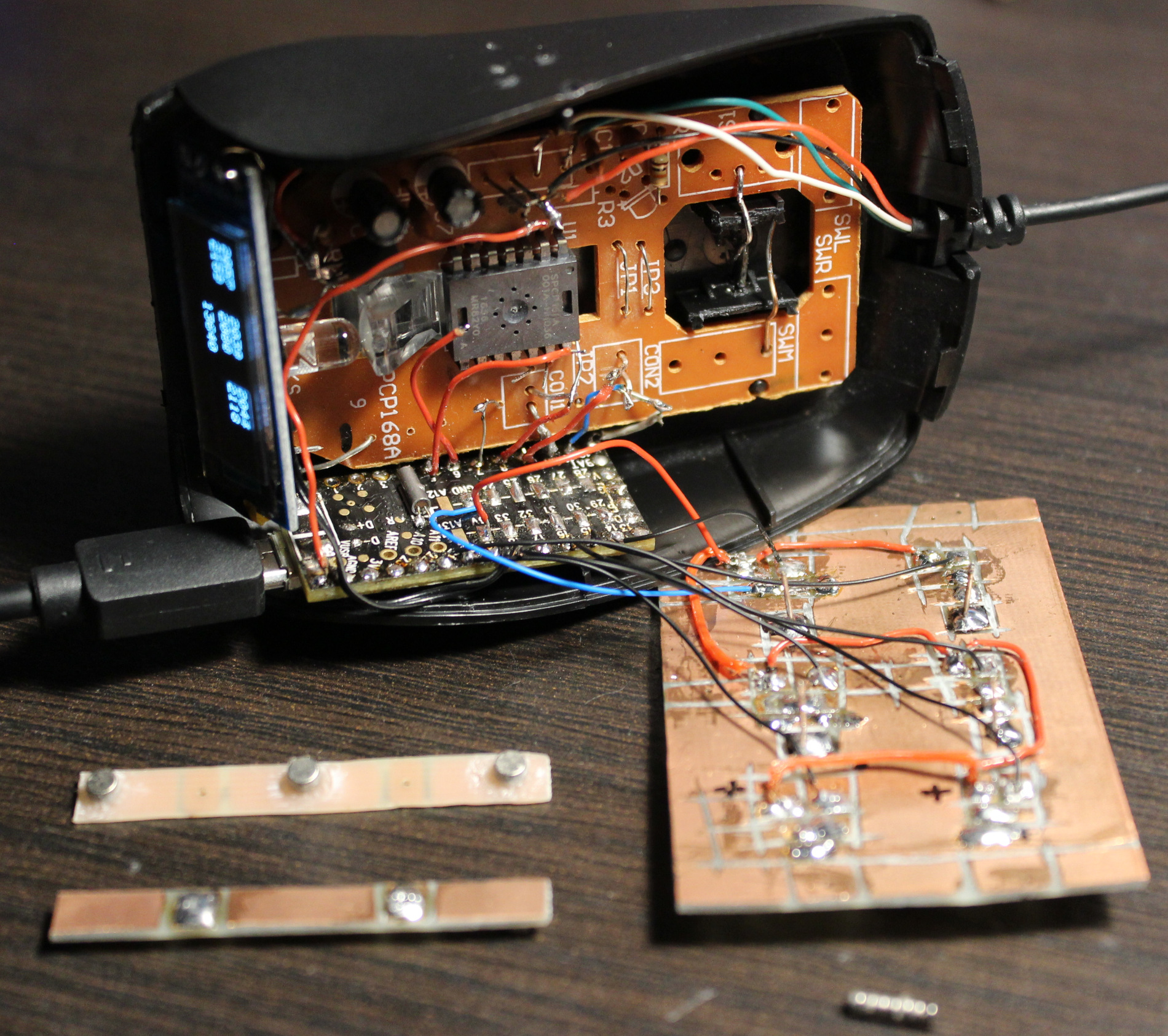
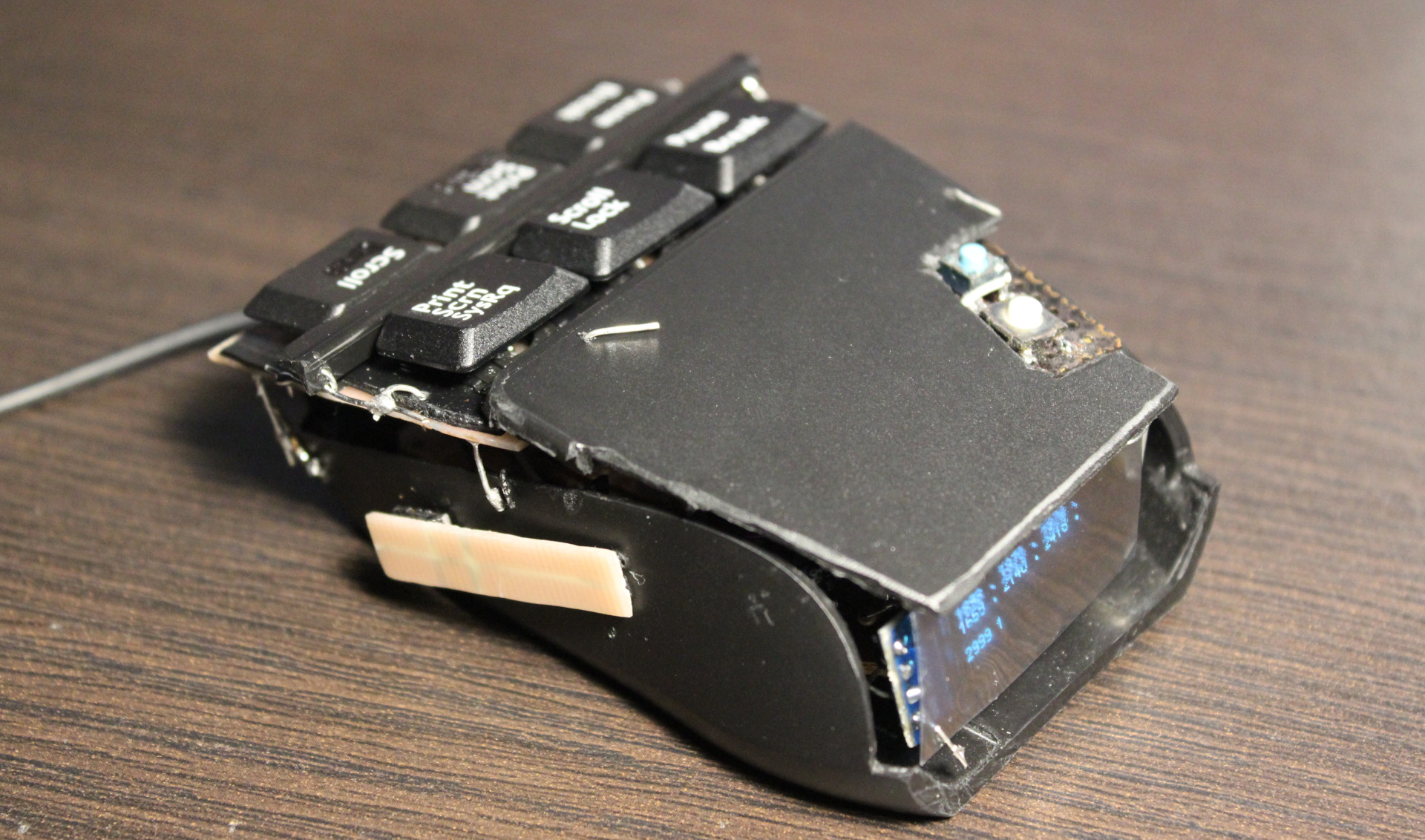
    This project is a PC mouse modification with very light press keys, using mini magnets.

    📝Motivation

    I have been using my keyboards with modified keys since 2004. They have been nice and a joy to use, less tiring too, since I cut off the rubber domes to reduce force. Still there are limits from the foil beneath.
    They are better also from medical reasons, less force means: less fatigue, less likely injuries, etc.
    It’d be good if the freaking old industry didn’t sell old crap for 50 years. As with keyboards now just with added RGB lights or even big display under, or small for for each key, etc. To maximize cost and profits and cash on the stupidity and looks instead of functionality, ergonomics, productivity. Yeah whatever, that’s why I do it myself (DIY).

    Since years I’ve been using my latest keyboard (has a display and my own firmware) with Layer 2 having keys for mouse buttons, mouse move and mouse wheel with acceleration. It is much better to use (than those real from a mouse) because these are now light press keys (about 20 gram).

    It’s been way too many years (over 30) of me using the default PC mouse with those ancient old microswitches. It’s just retarded for me nowadays. They usually need like 75 gram force (gf or cN) to press, have that old click sound. And the button under mouse wheel needs even more, like 100 gram.
    At least that’s what my previous (20 year old) mouse Logitech G5 has: OMRON D2FC-F-7N (10M) which says 0.74N (N to gram convert), cool websites with that switch here or here, video here, images.

    ▶️Video

    Video here. Shows inside, weights testing, and at end blowing air to press.

    🔍Details

    Here I write (a lot) more detail of my approach for keys, with comments.

    Keys

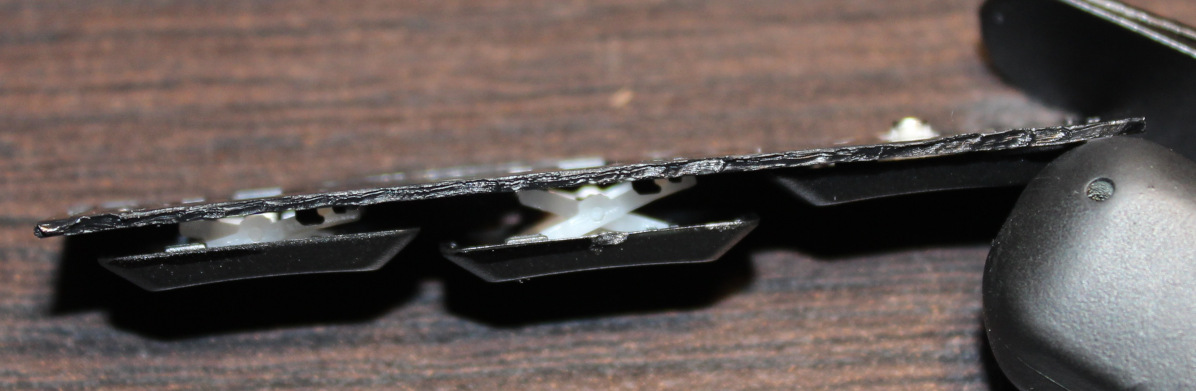
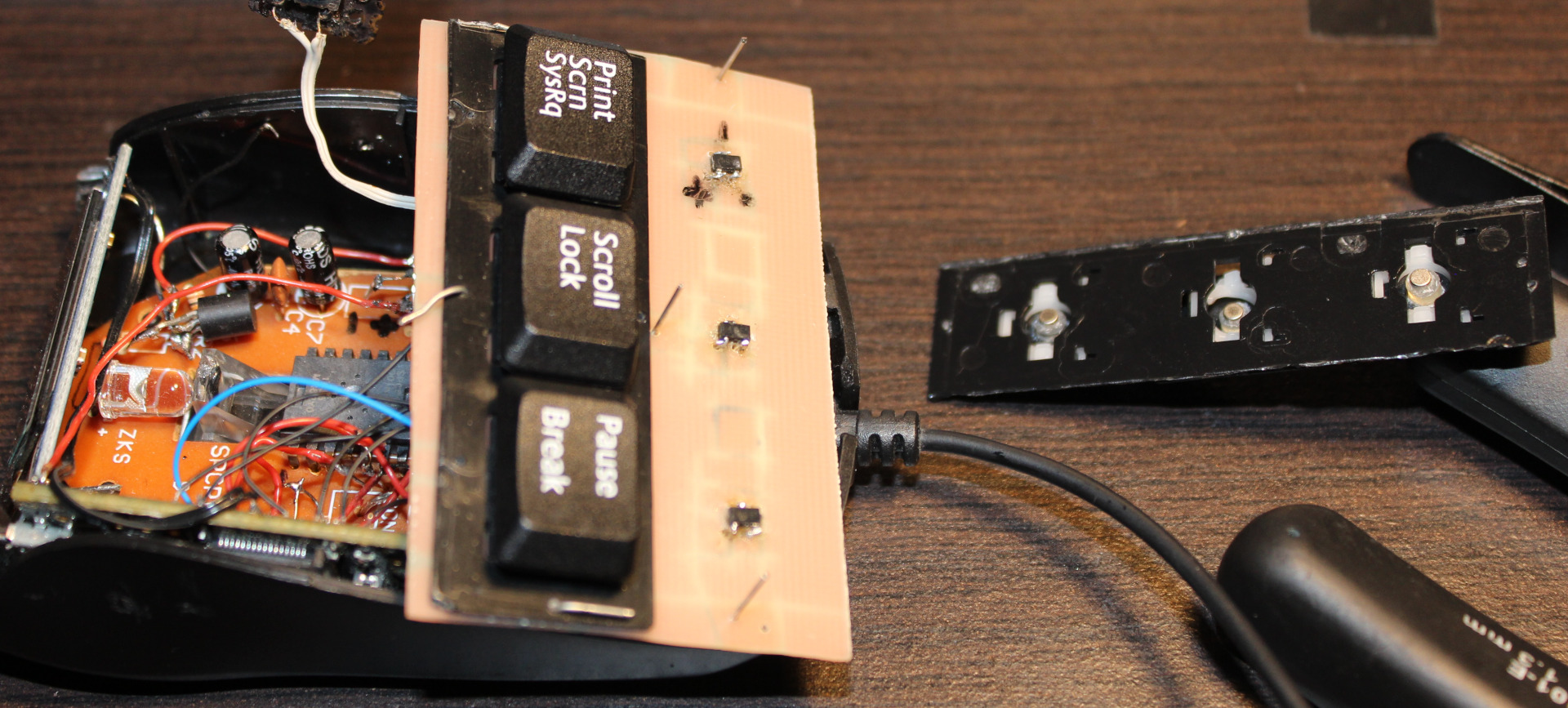
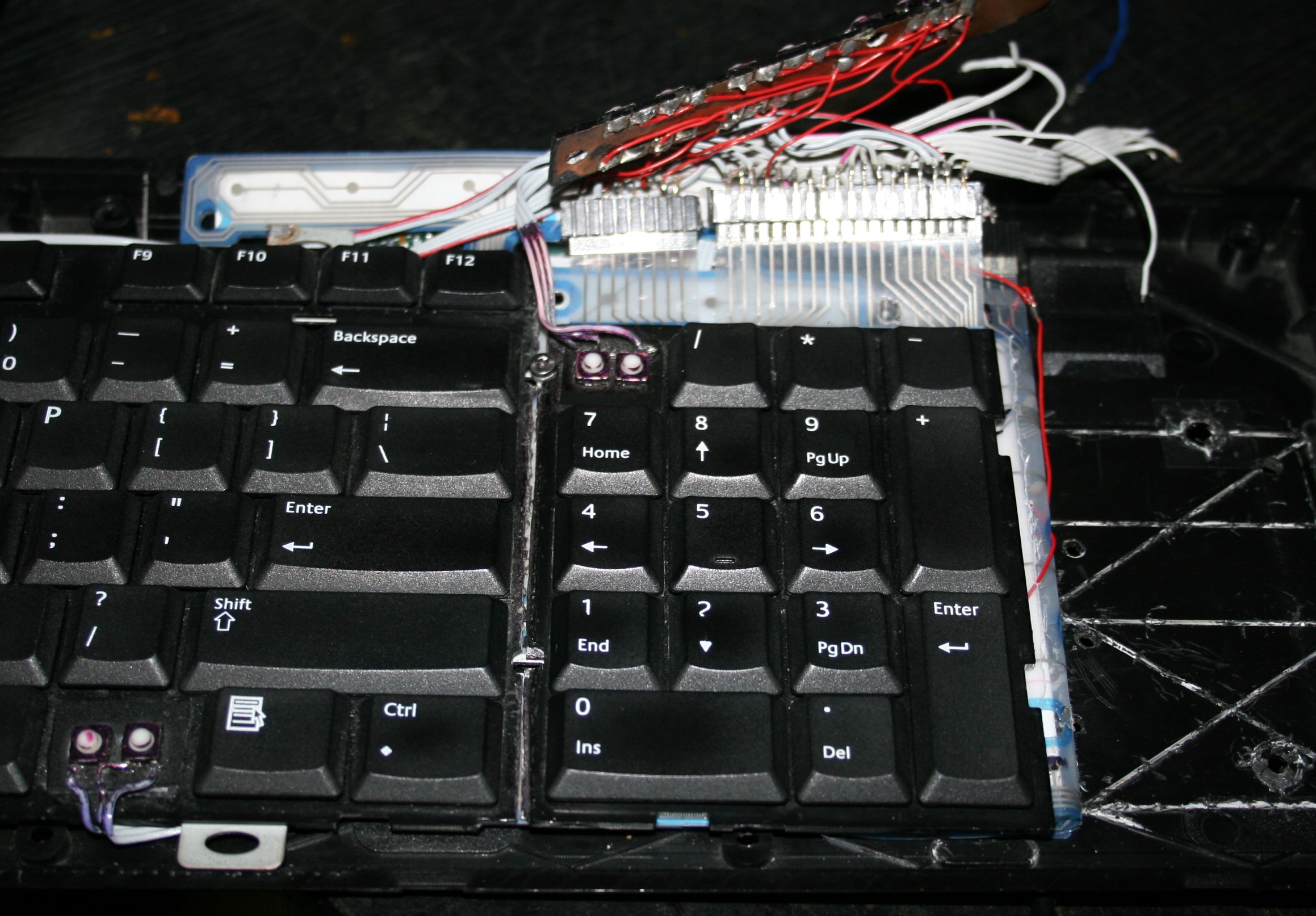
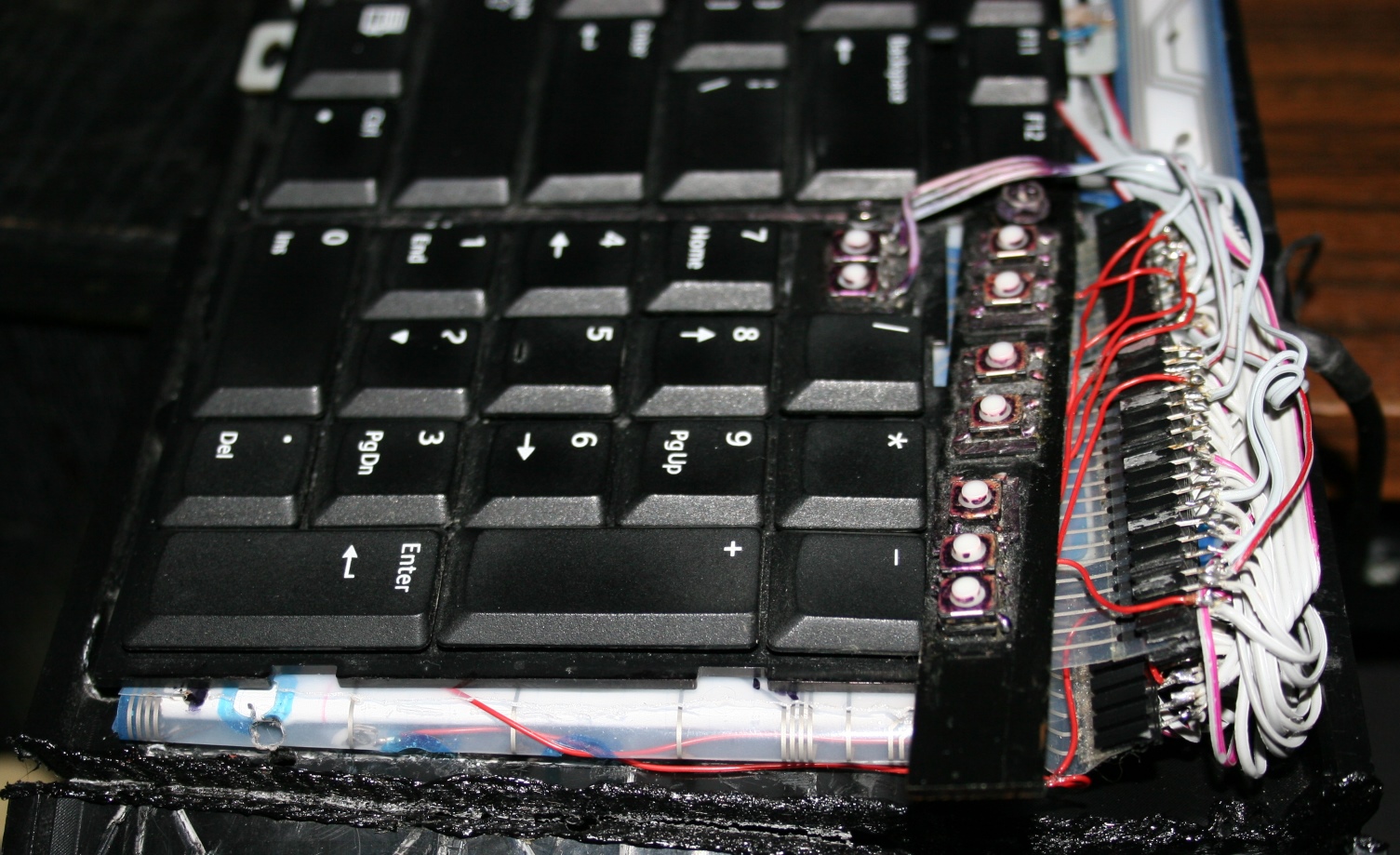
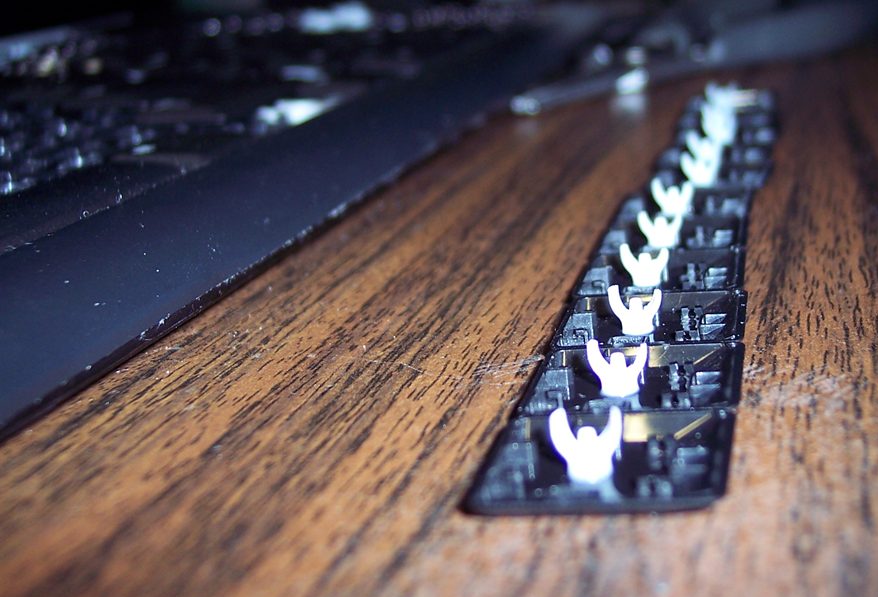
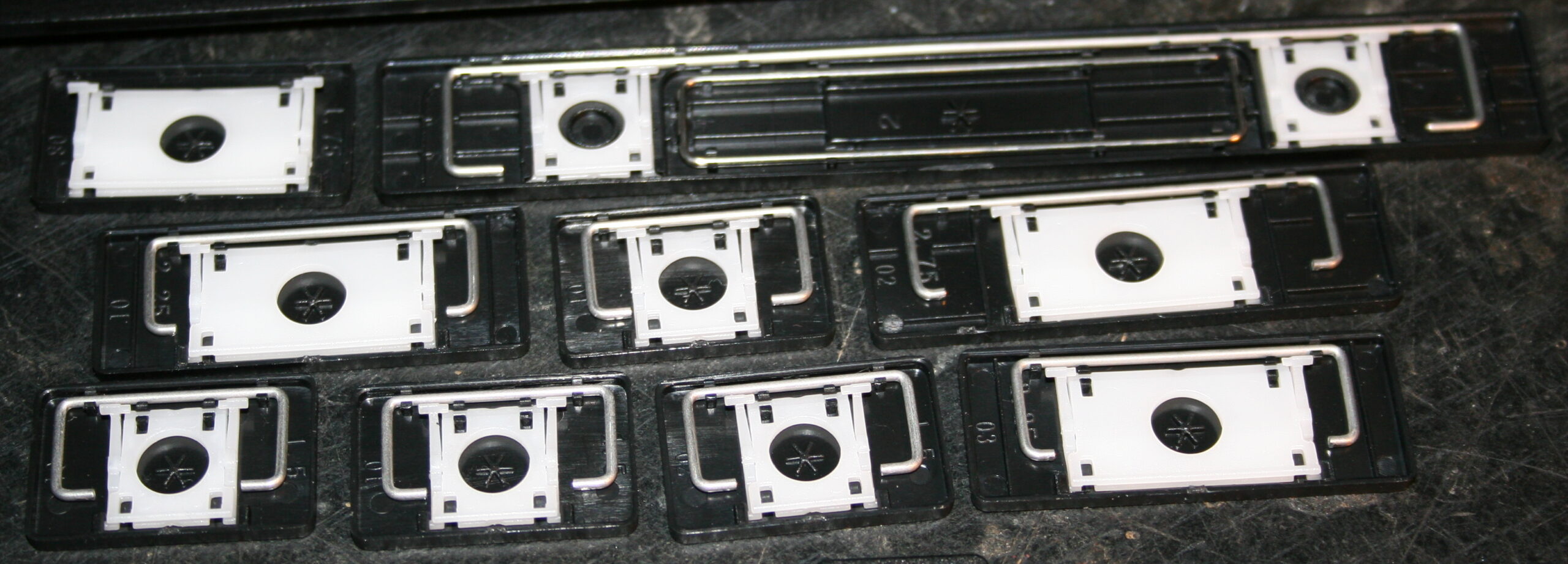
    Keys are from keyboard (scissor switches), those narrow (like F12).
    But now for each key I use a Hall sensor (CS49E, SMD) and 2 tiny magnets.
    Thus so called mag-lev (levitation), since these magnets push each other out.
    There is no spring, no rubber just small magnetic force, making it much lighter and IMO say more reliable.

    I saw earlier this page with video of another such way. And also there are a few keyboards already produced with such design. It’s just that they still have long travel and way too high press force, some still non linear press too. Obviously a nope for me.

    Result

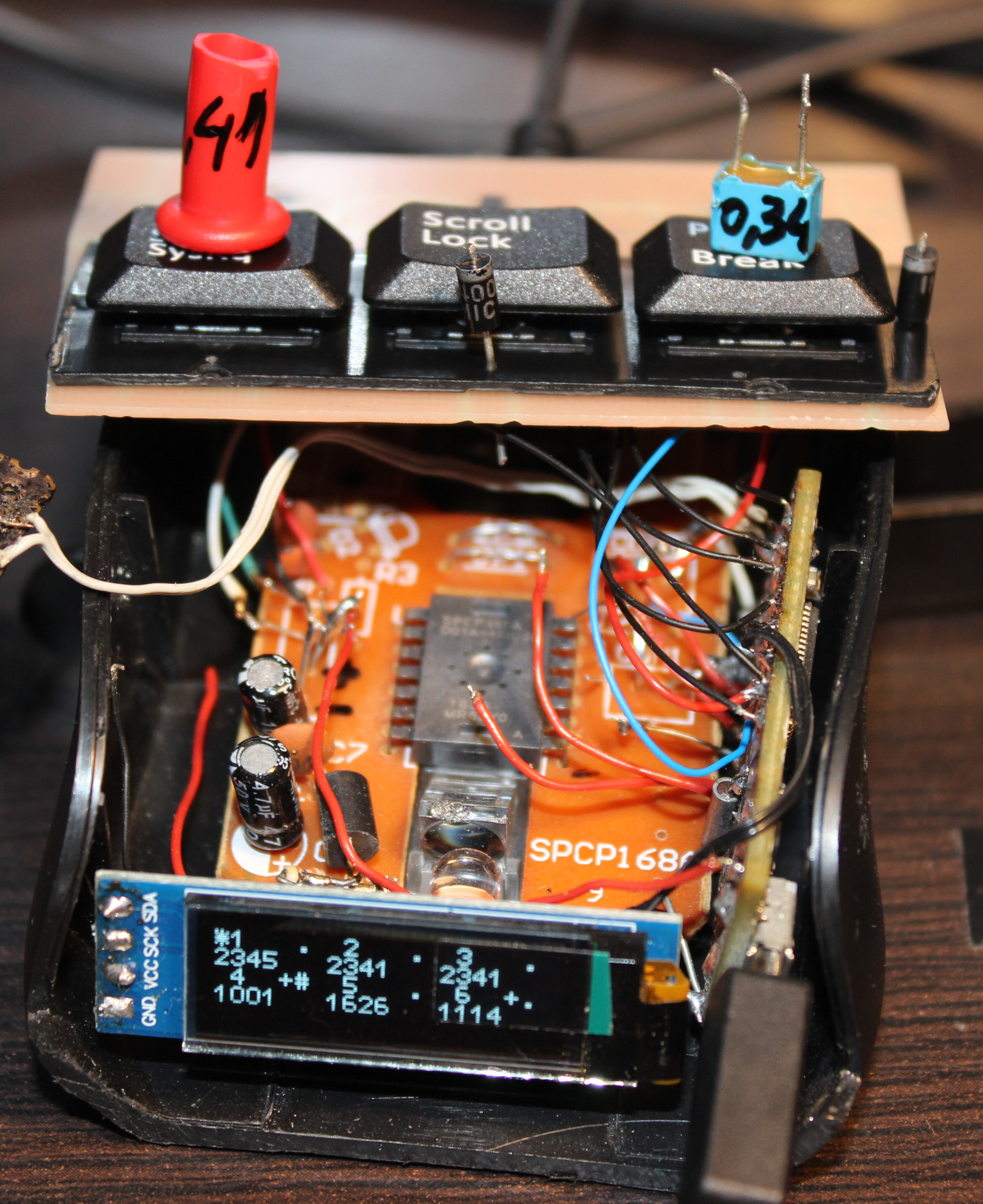
    The resulting press force is way lower. I managed to get it even to 0.34 gram. It’s incredibly low, you can just put a tiny M3 screw on key to press. Or even blowing air to press works🌬️.
    I set it later to around 0.7 or 1 gram force.
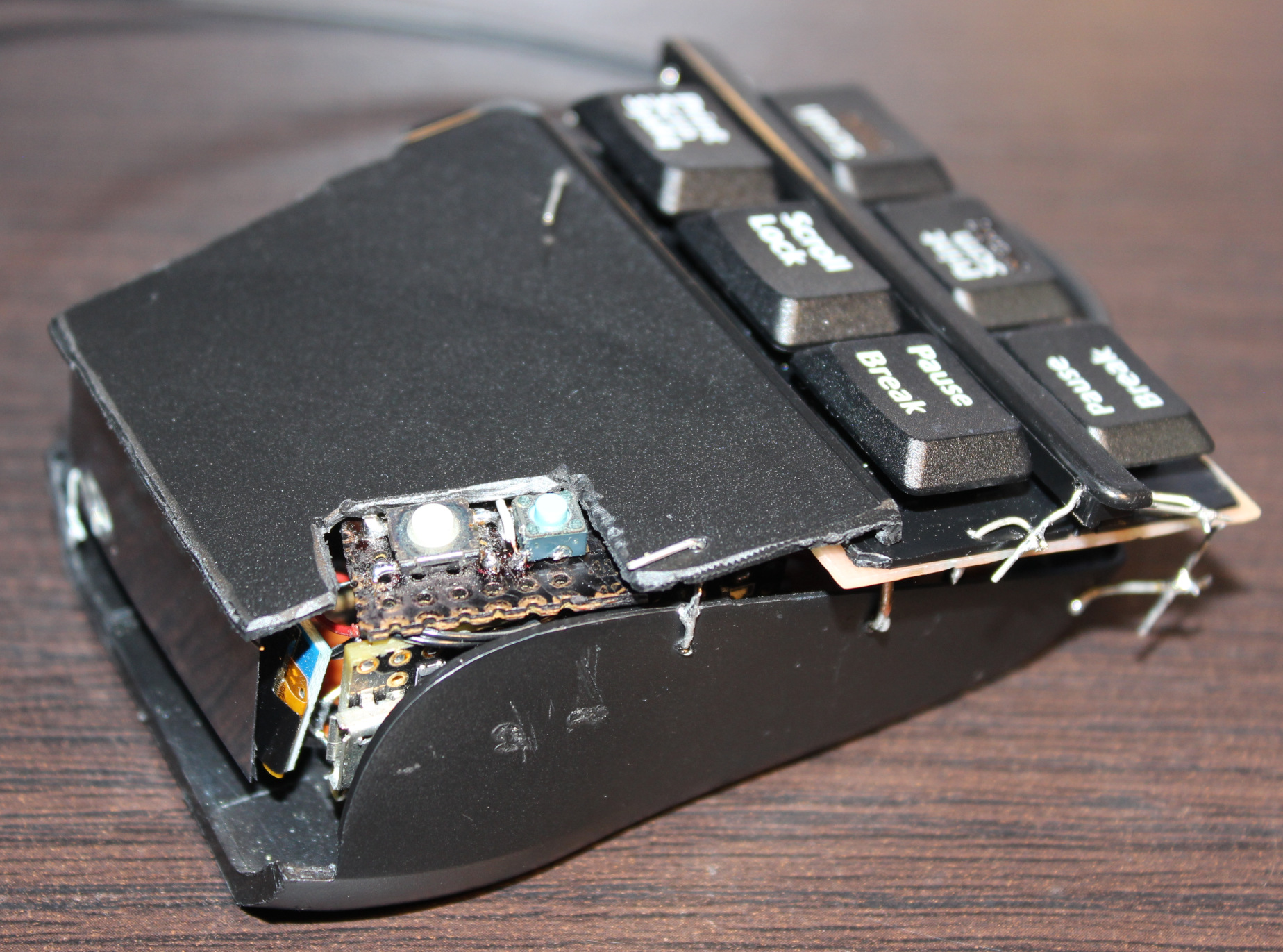
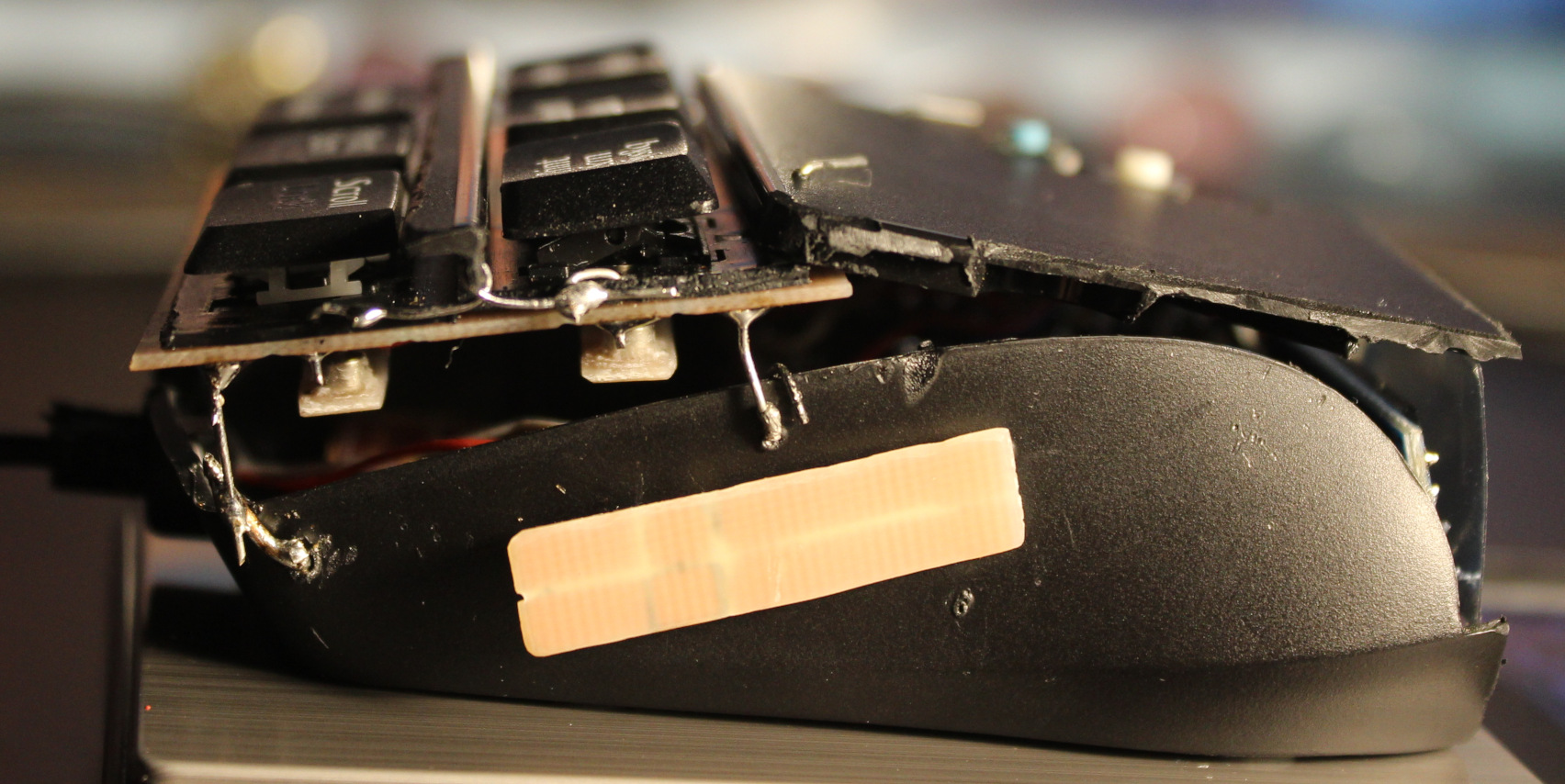
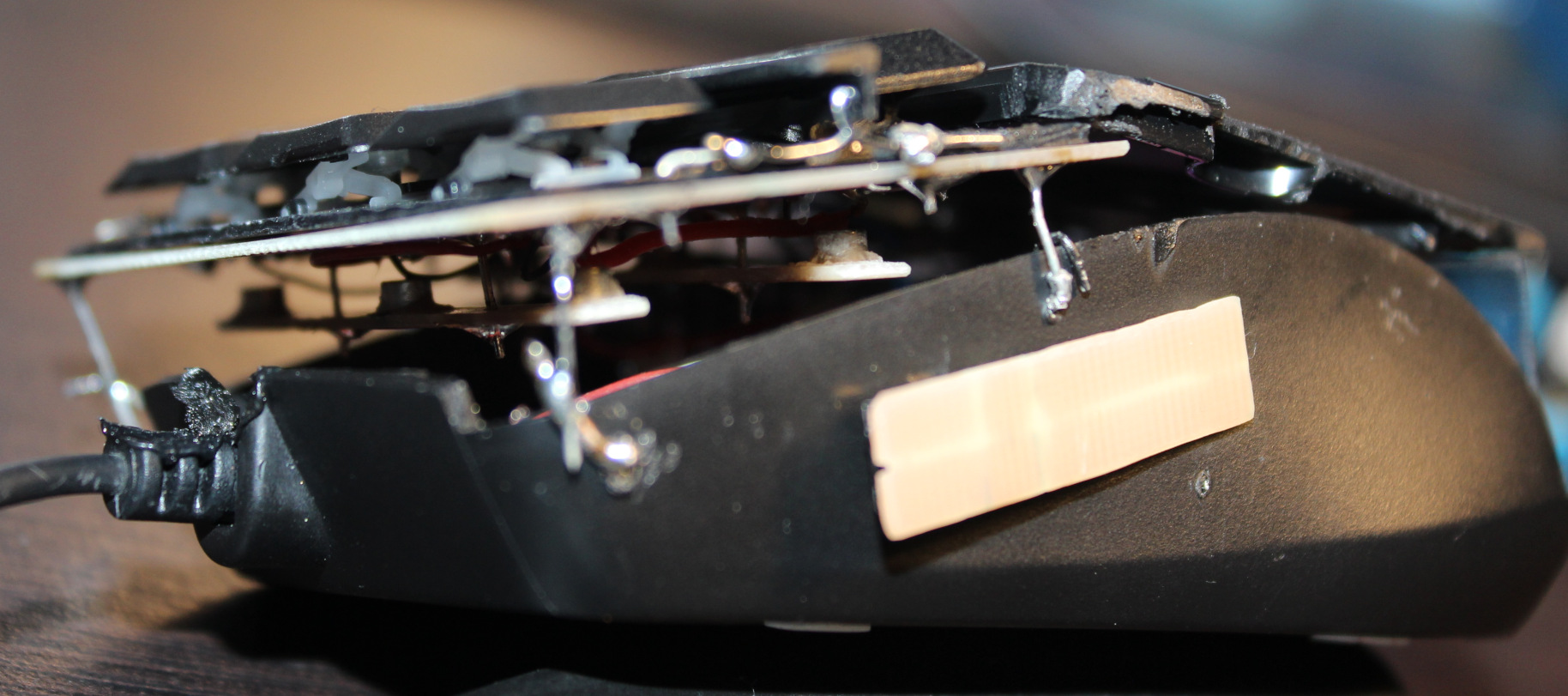
    Of course this creates another problem, that you can’t rest your fingers on keys now. That’s why I put this plastic bar between keys for fingers to rest.

    Silicone cylinder🛢️

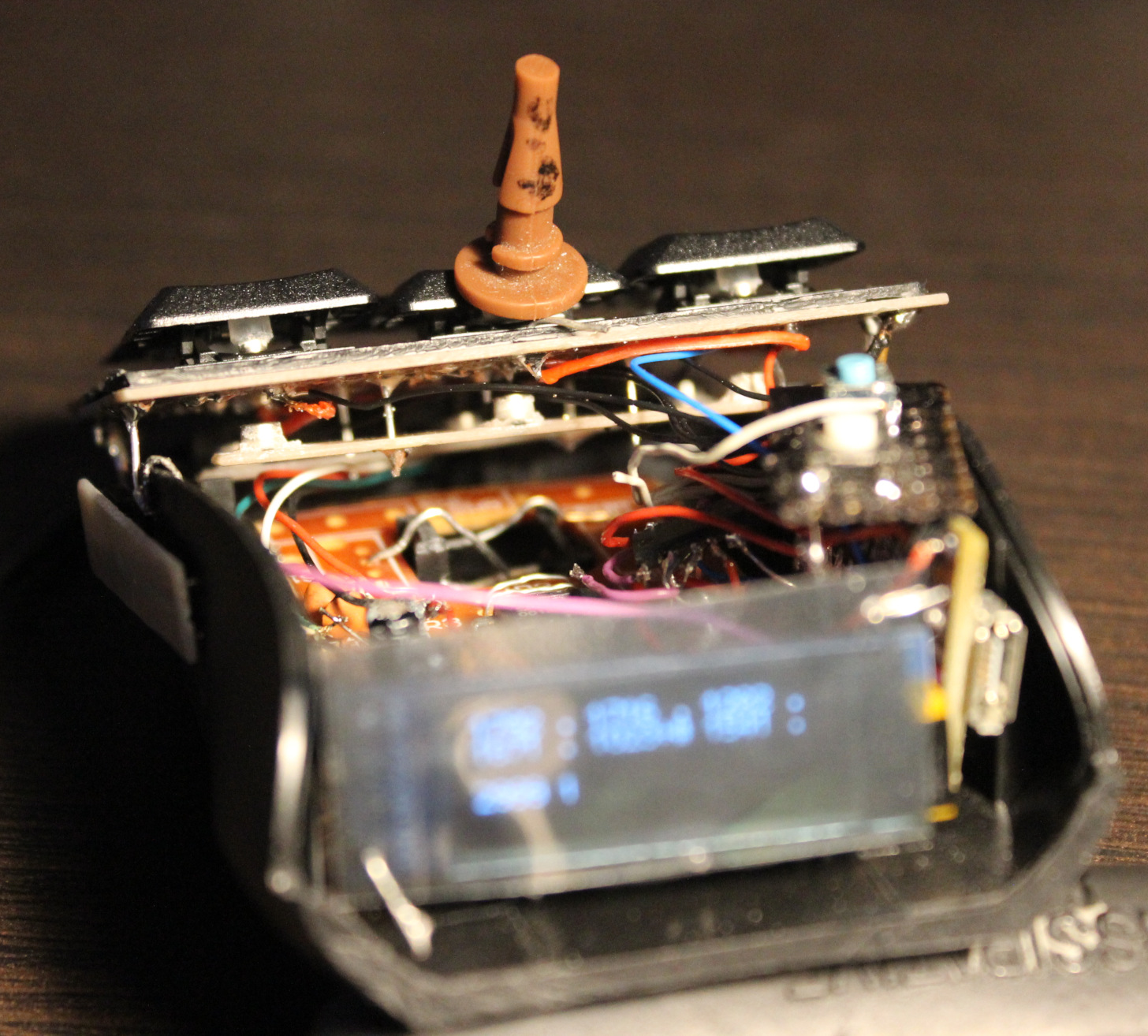
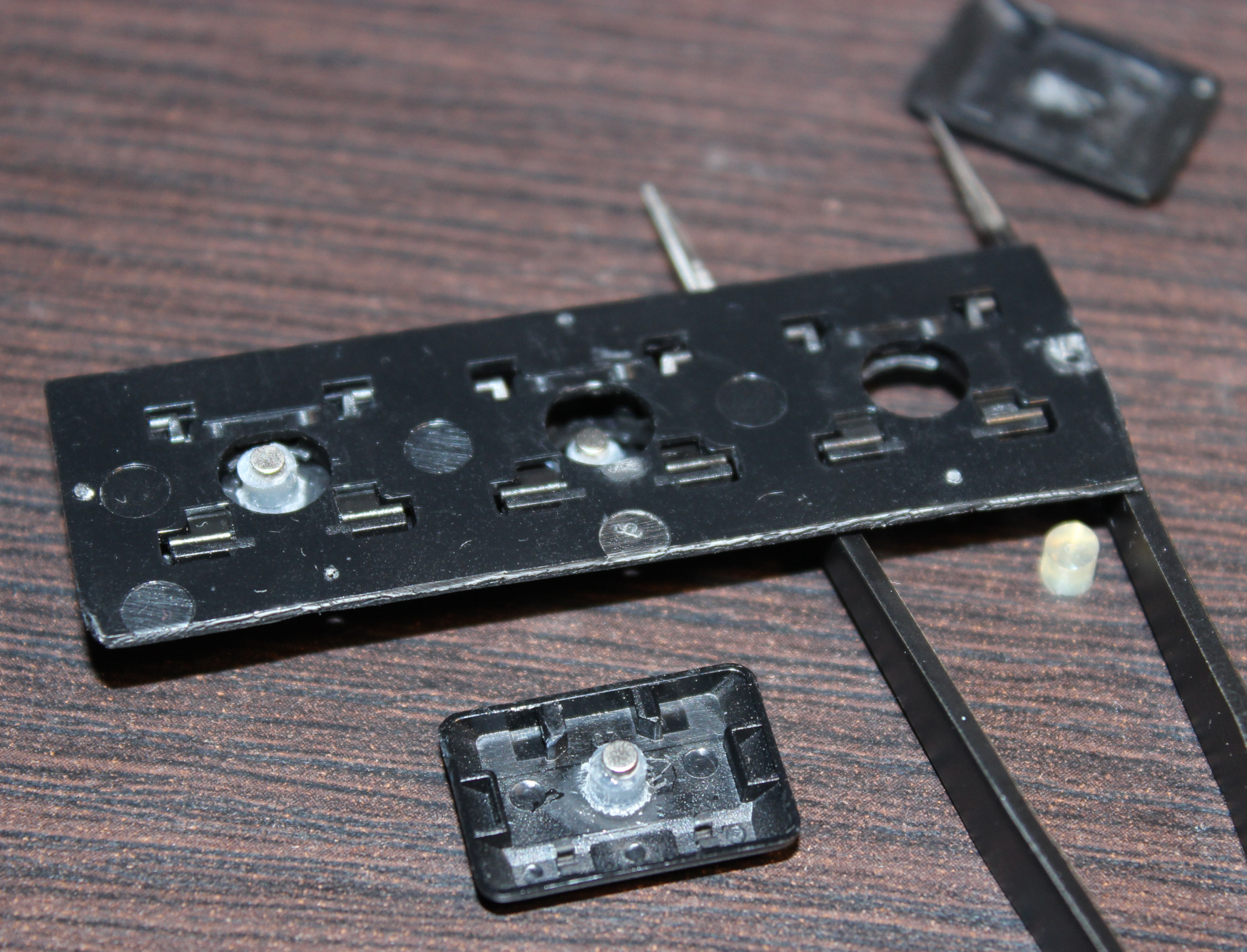
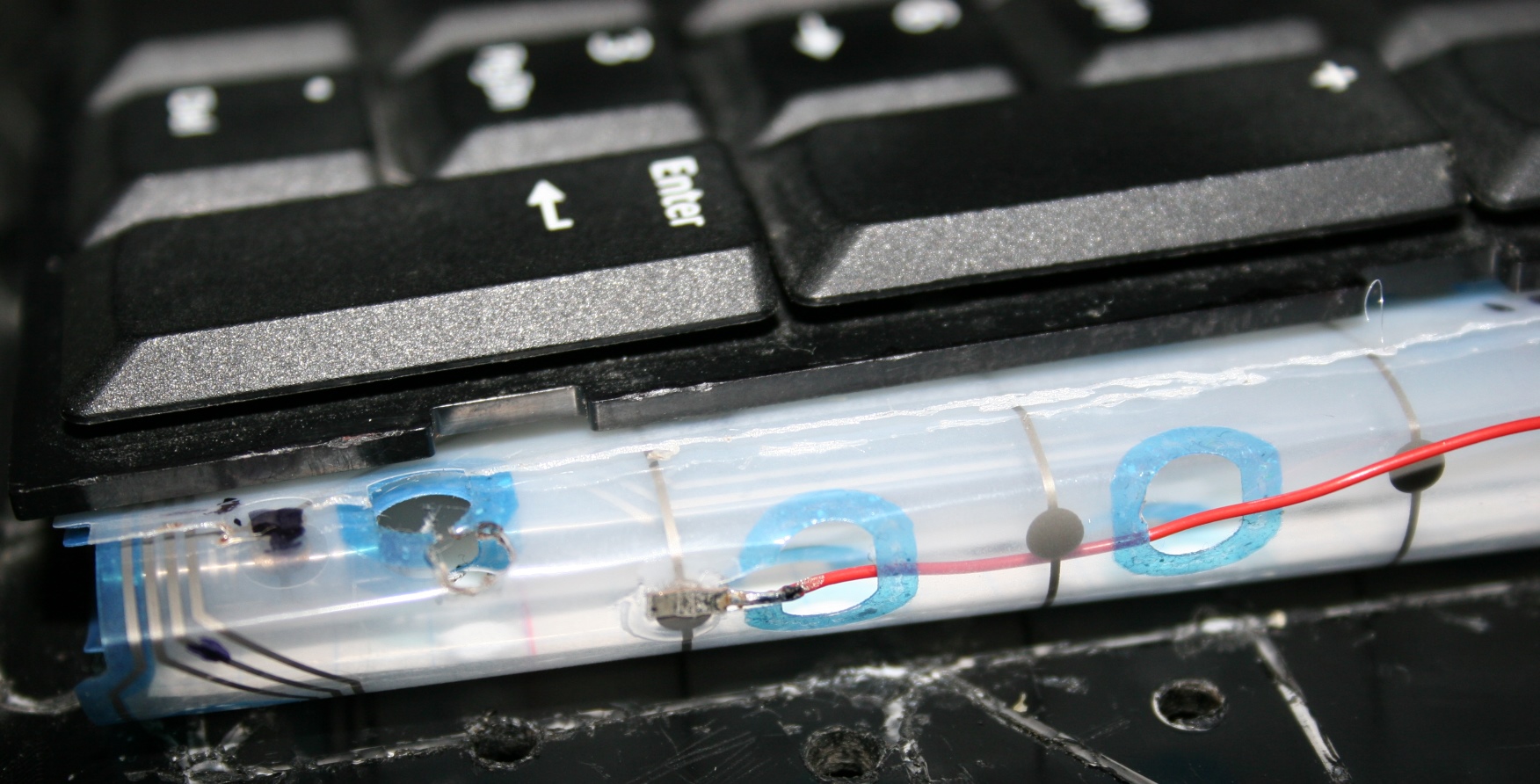
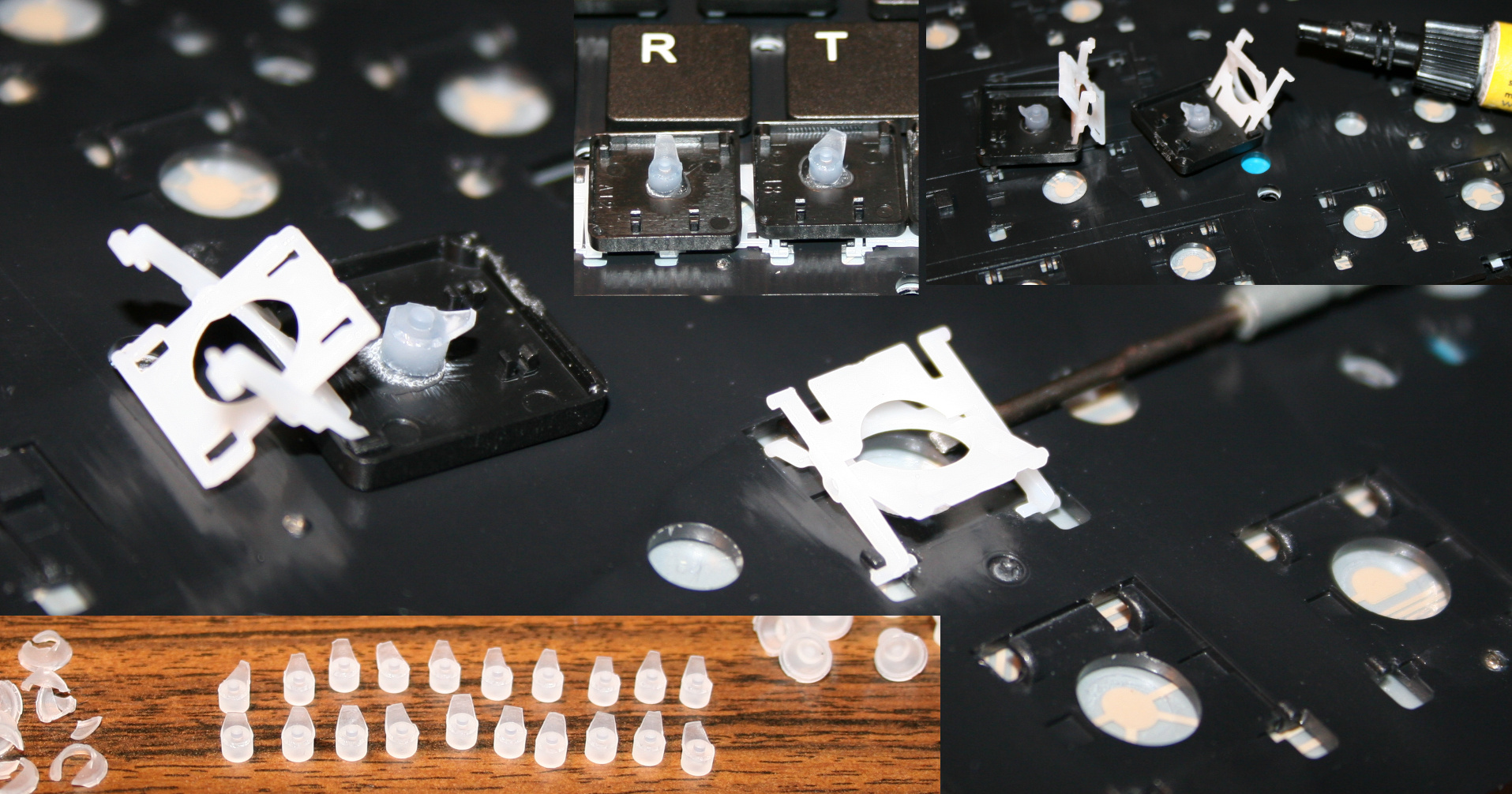
    The top of key has beneath a (super) glued silicone pad (3mm diameter cylinder (I bought silicone rope and cut it), *height about 2.5 to 3.1 mm).
    Then on top of it glued the first mini magnet 2×1 mm (diameter x height). I think the default N42 neodymium🧲. This magnet when pressed touches the CS49E SMD Hall sensor which is on PCB.
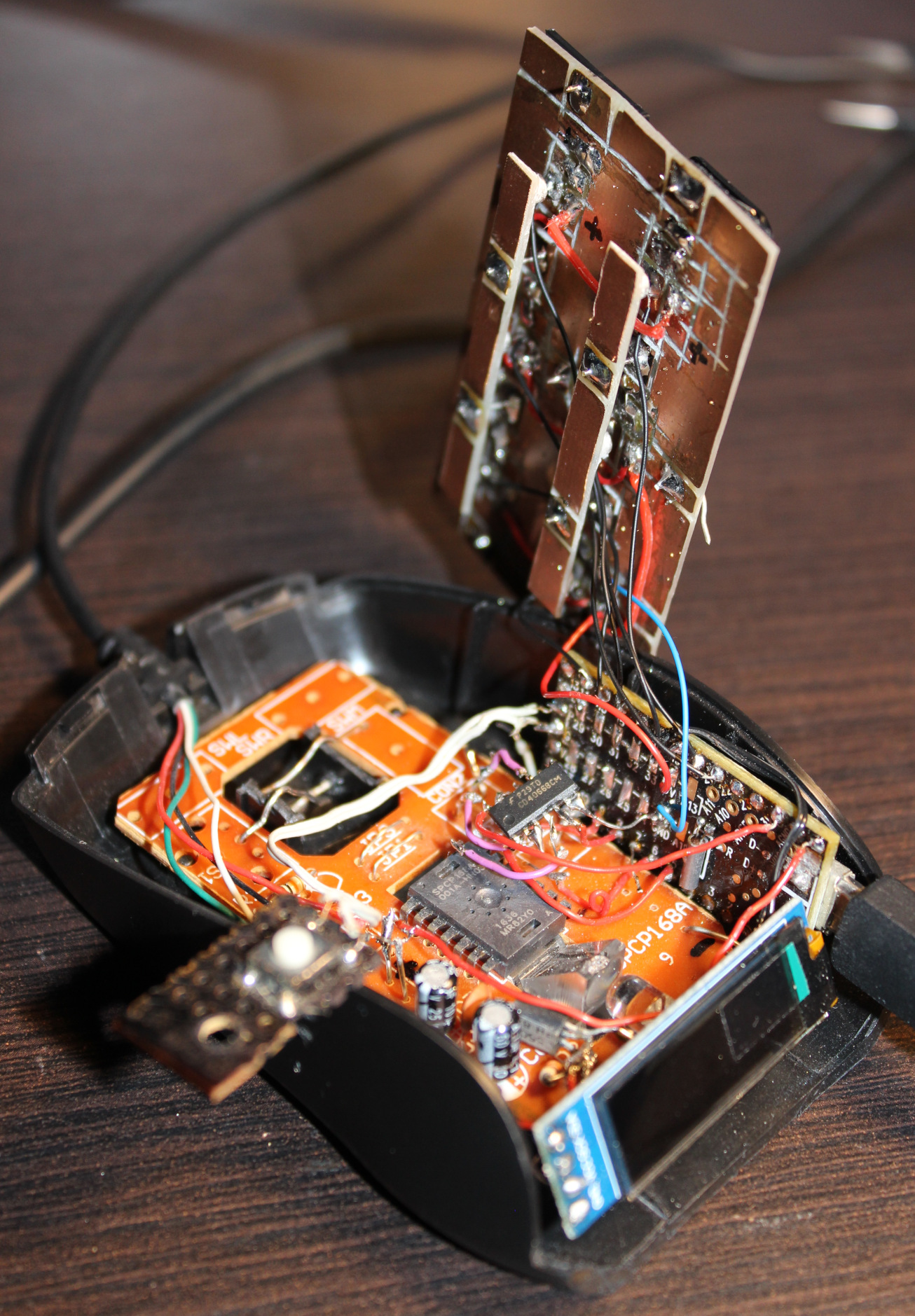
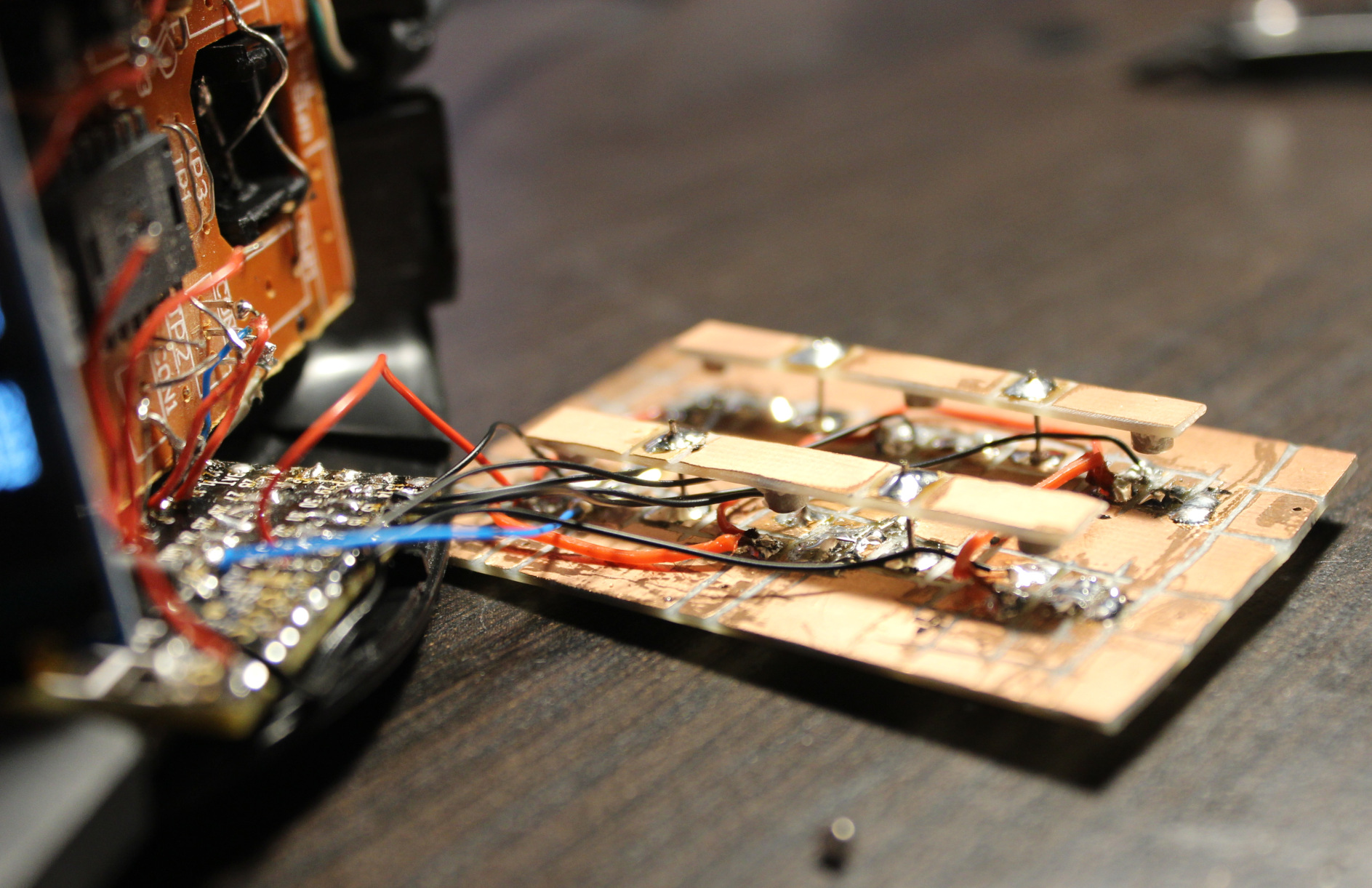
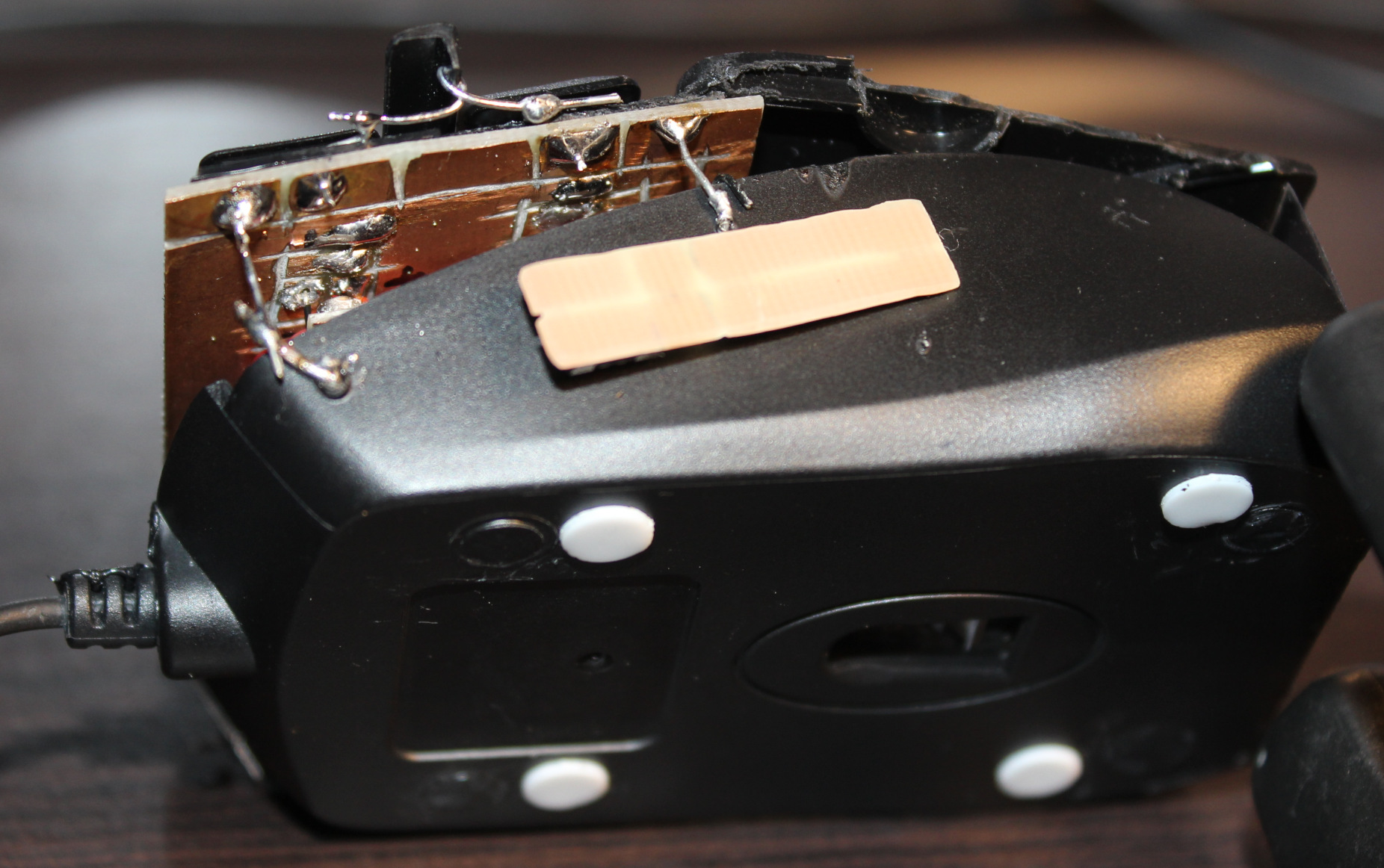
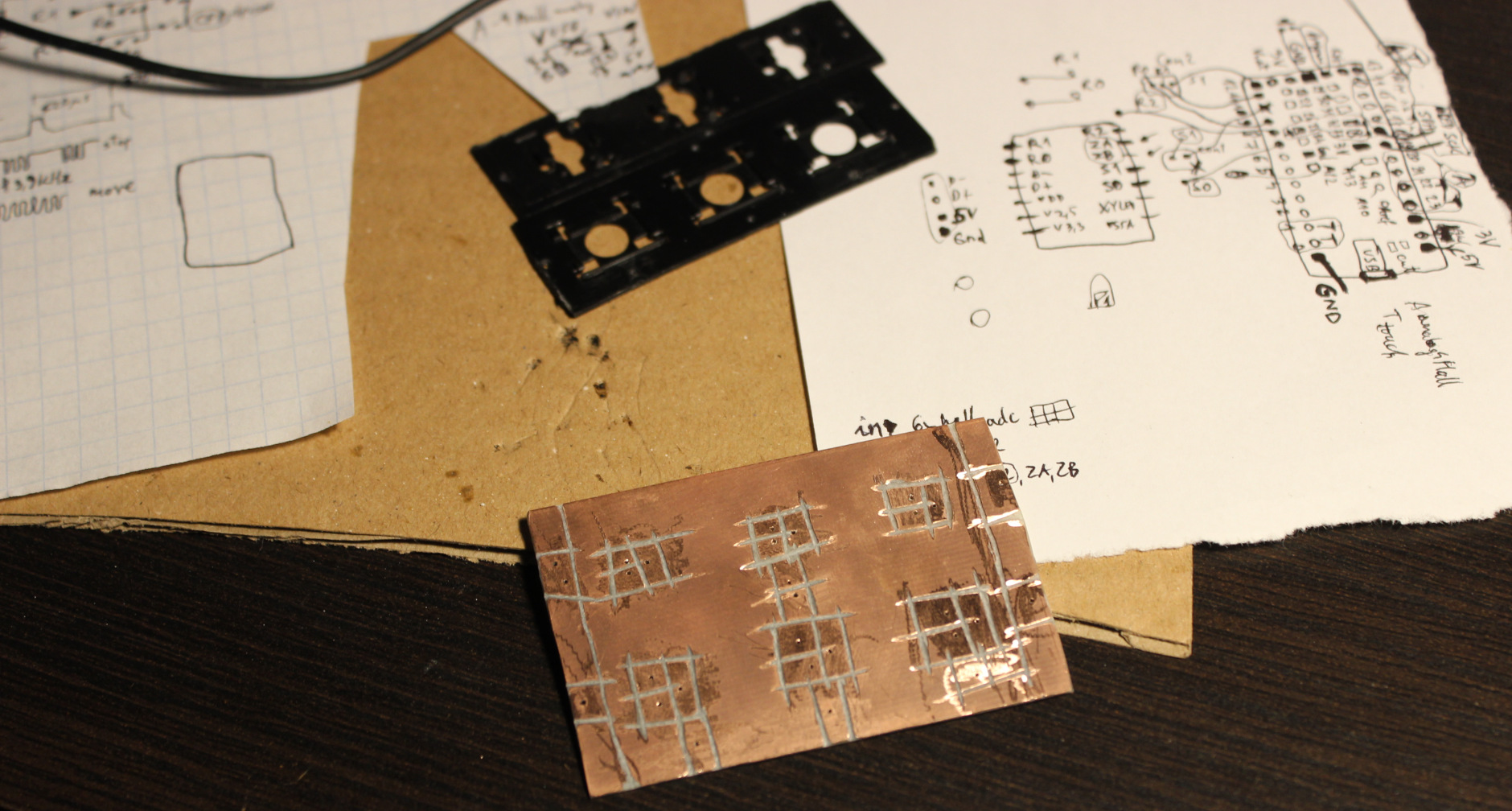
    It could be a 2 layer PCB, but since I got 1 layer, this SMD chip is glued onto it, in right place (middle of plastic circle hole), then through drilled holes, tiny wires are soldered to sensor chip’s 3 leads.

    Travel

    Travel distance can be changed, but needs cutting *height of that cylinder and glueing magnet again. Or just scraping cylinder and doing a new one with other height. It’s not that precise even if measured, there can be some tolerances in scissor keys etc. So getting exactly 0.5 or 1 mm travel would be hard. It is also possible to add just small tape pad⚫ (from e.g. black isolation tape) for a thin layer on top of sensor. It would decrease travel and also sound less when hit with magnet (2×1) from key. Less sound is also the reason why cylinder is from silicone.

    Sensitivity👈

    Also the less travel the less sensitivity and value change from Hall sensor.
    So MCU’s ADC is 12 bit, meaning it could get values from 0 to 4095. But it won’t since CS49E has 3.3V supply and its output has limits, doesn’t go below 1V or higher than 3.3V – 1V. Doesn’t really matter.

    So I get about 1000 when pressed (magnet closest) and about 1500 for lightest (0.35 g) setup if done right. But it can be tricky if there is friction in scissor key, I had to slightly cut off a bit. If I didn’t do it you can get 1100 or so, sometimes if key gets stuck (while otherwise it’d go much higher) and that’s a problem (it’s unusable).

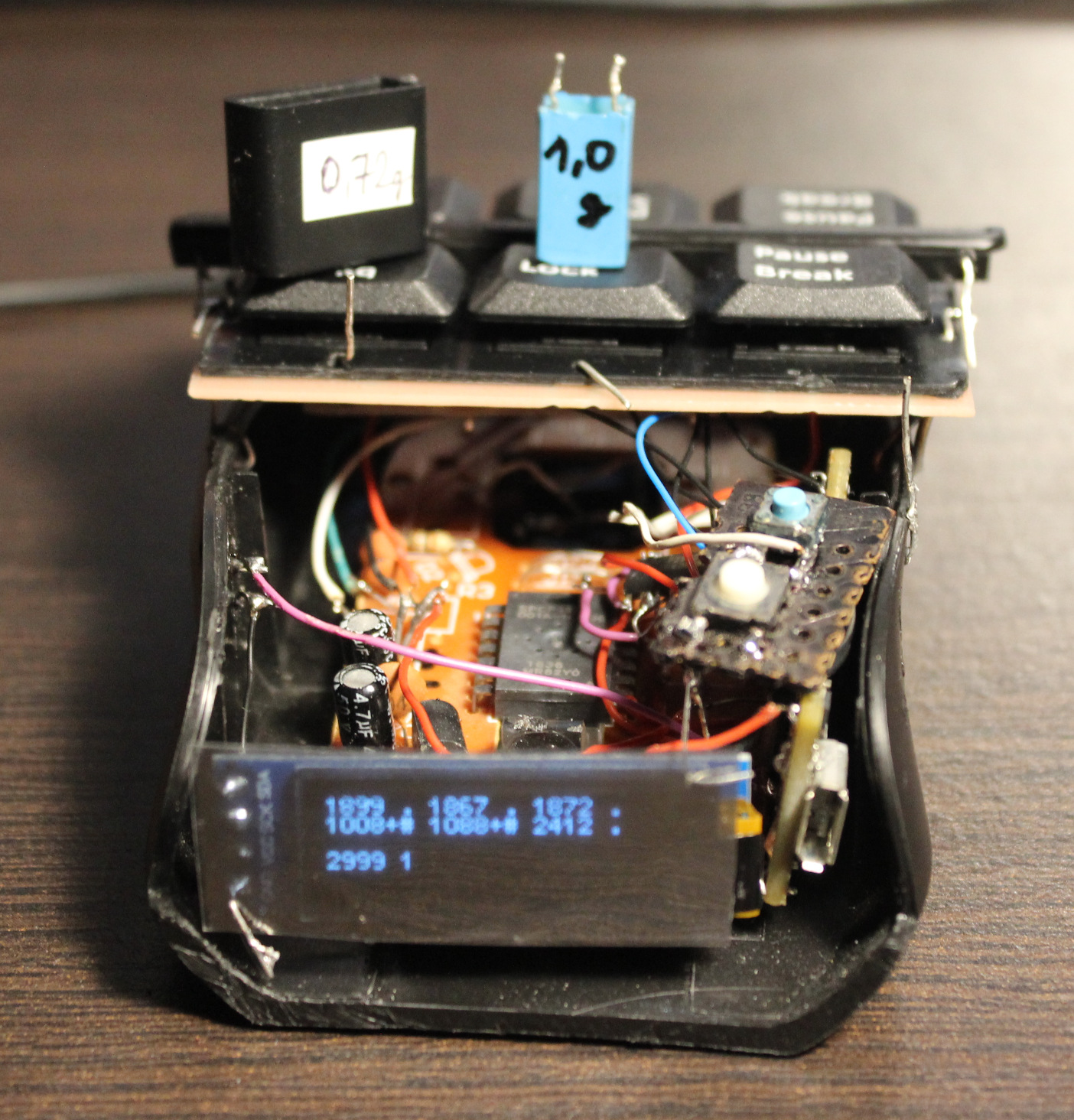
    As for the regular keys there is no issue: 1742 for 0.72 g, 2146 for 1 g, 2416 for 2.23 g. This is plenty difference from about 1000. Each keys/sensor will have some minor difference too. Not required but could be set up with some calibration for each key in practice.

    Magnets🧲

    The two magnets distance affects mainly actuation force and sensitivity (max value). The closer they are the more force one needs to press and higher value if not pressed.
    There was a “interactive 2D magnetic field lines simulation applet” I used before to test best location of sensor and 2 pushing magnets (1 stronger), but I can’t find the website anymore (e.g. this).

    In general the first magnet (2×1 on key) needs to be closer to sensor, and get closest when pressed, and the second (3×2) should be far. This way I get most sensitivity. The second magnet when far should not affect the value from first (too much). It’s just there to levitate the key after all.

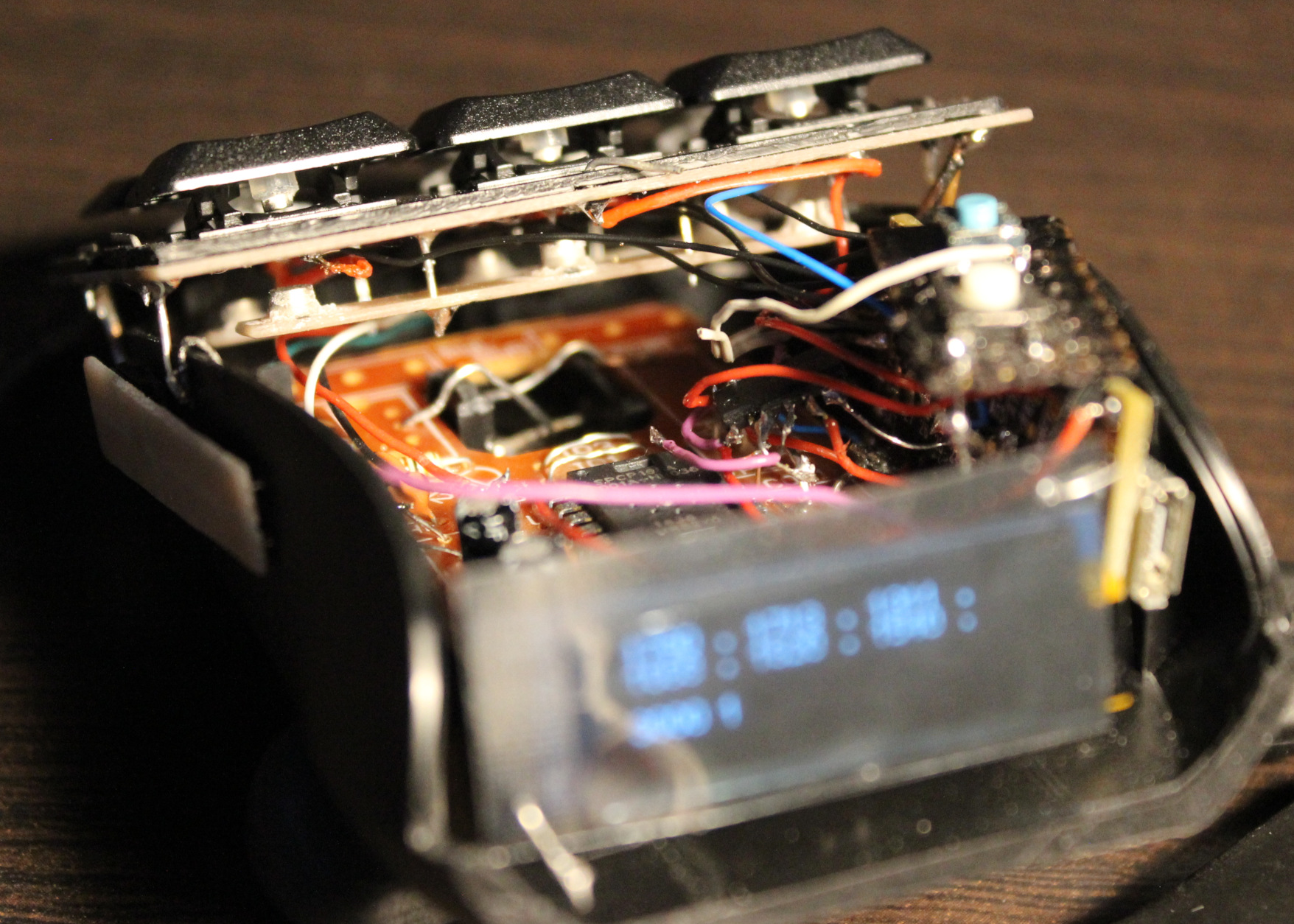
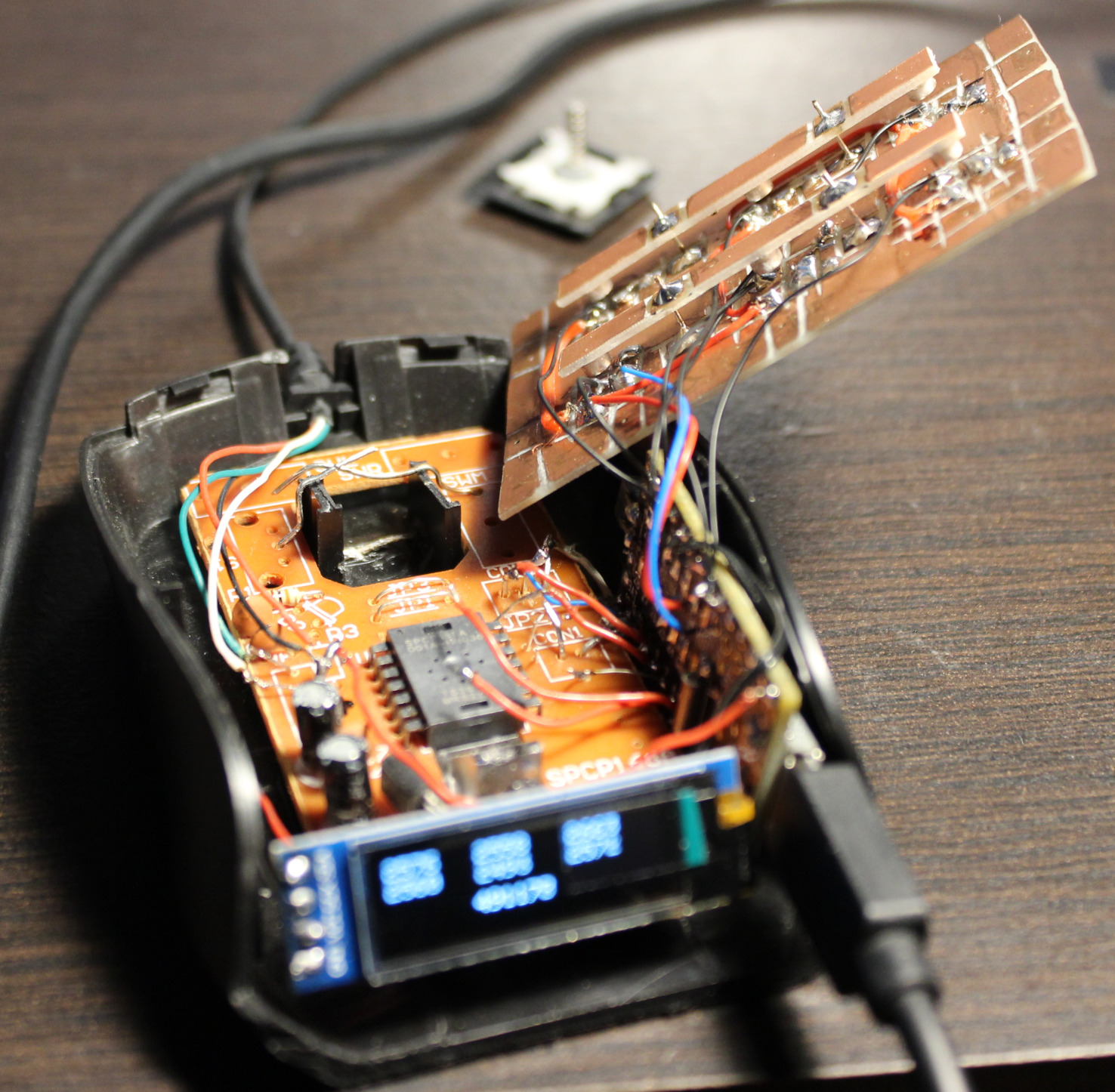
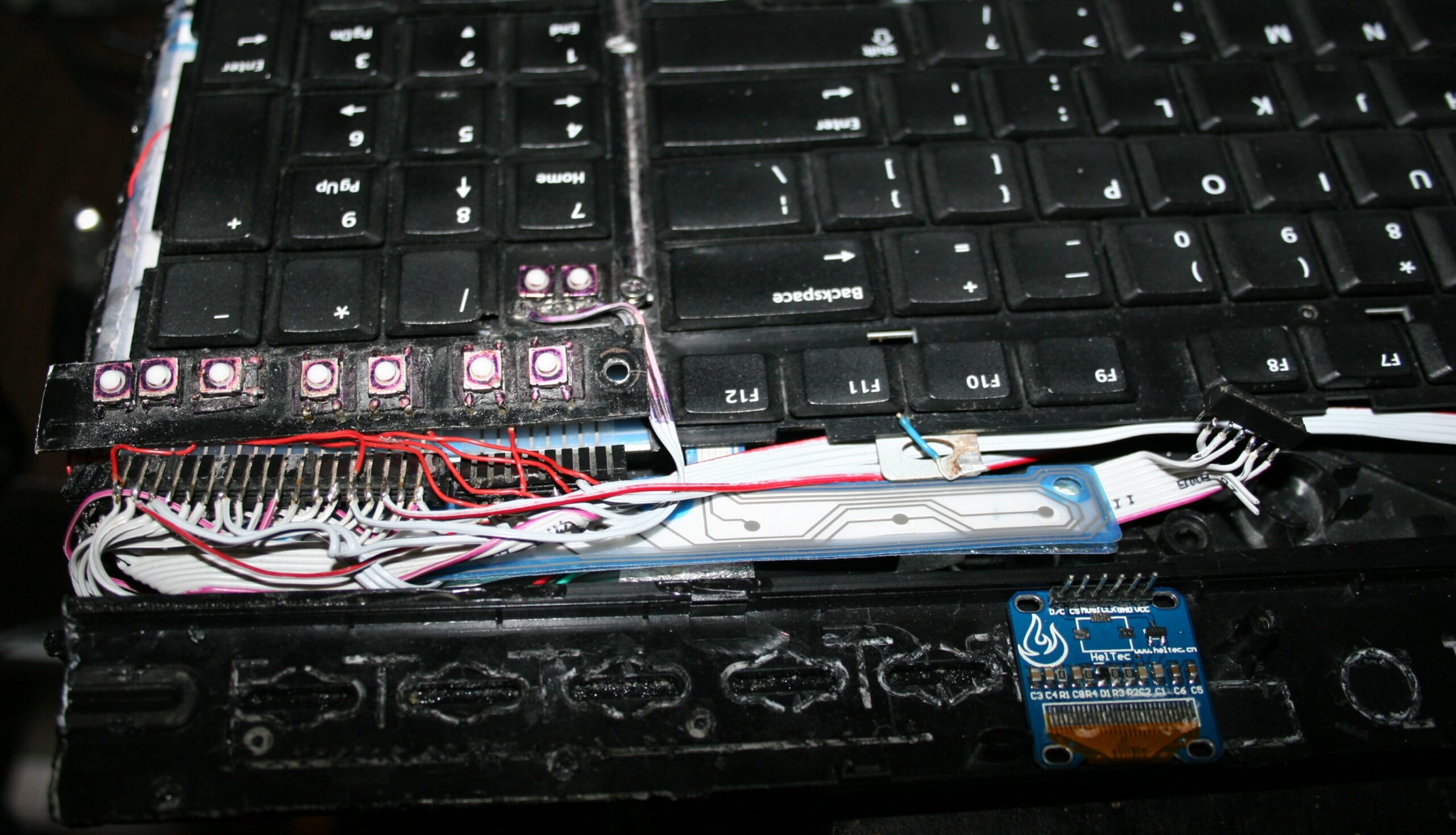
    I glued second magnet (in row for 3 keys) to a narrow PCB, which is held by solder and small wires, above the PCB with sensors. This way I can adjust distance of second magnets and so the force for keys. The key resting values (1742 for 0.72 g, 2146 for 1 g, 2416 for 2.23 g) are increasing, because I did shorter distance of narrow PCB on right (last key value) for Right mouse button and did longer distance (on left) and thus lighter press for the (most commonly used) Left mouse button (first key value).

    Customizable🔩

    As explained above, the actuation (pressing) force is customizable. Not too easy, but easier than travel. One way is resoldering that narrow board closer (more force) or further away (less).

    It’s also possible other way, by adding more magnets (3×2) to the one already there. Makes magnetic push force stronger and so needed actuation force higher. It’s a worse idea since magnets aren’t cheap and one is enough. But it’s surely easier and quicker to adjust this way. So more user friendly.

    Mouse

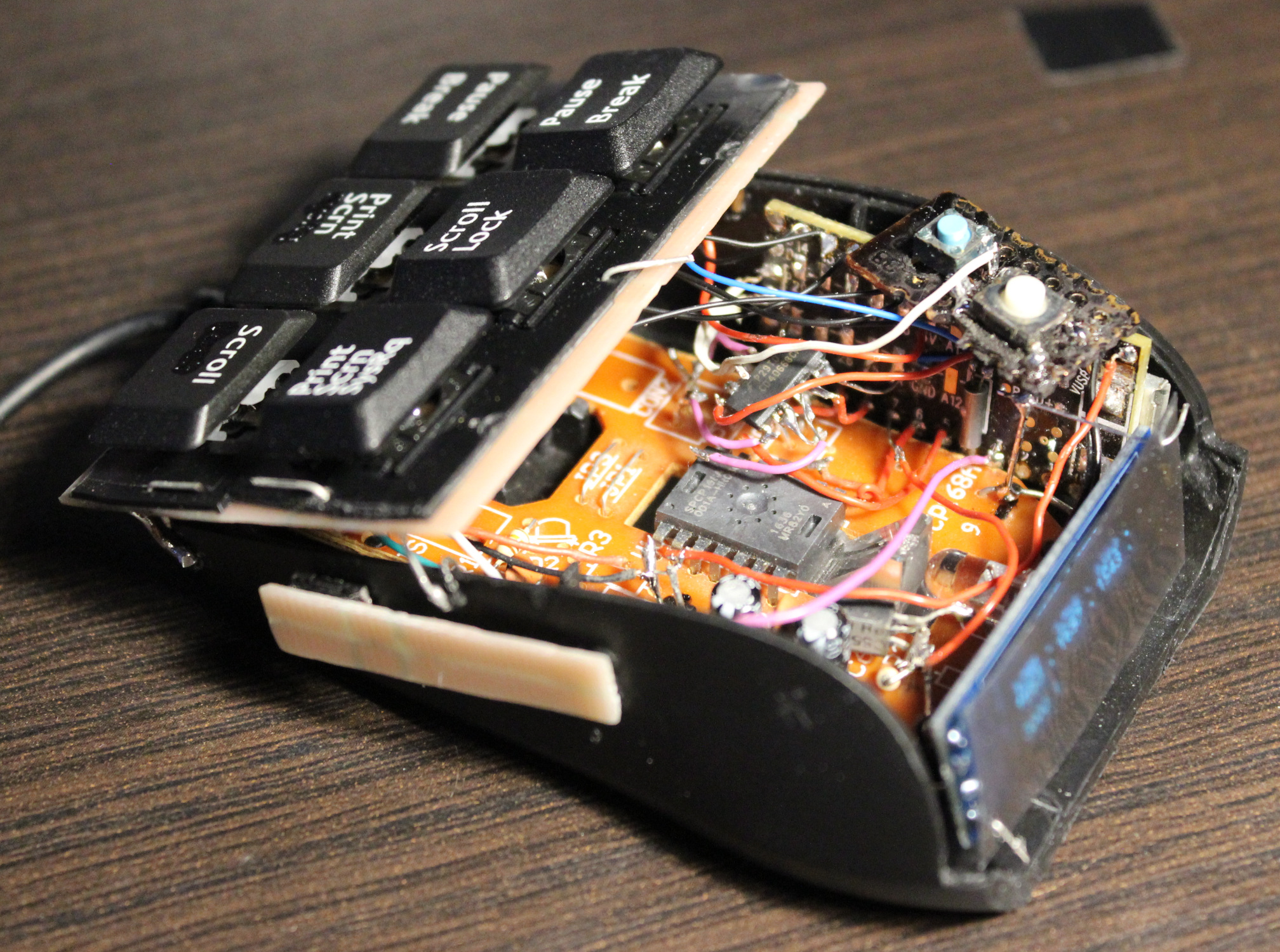
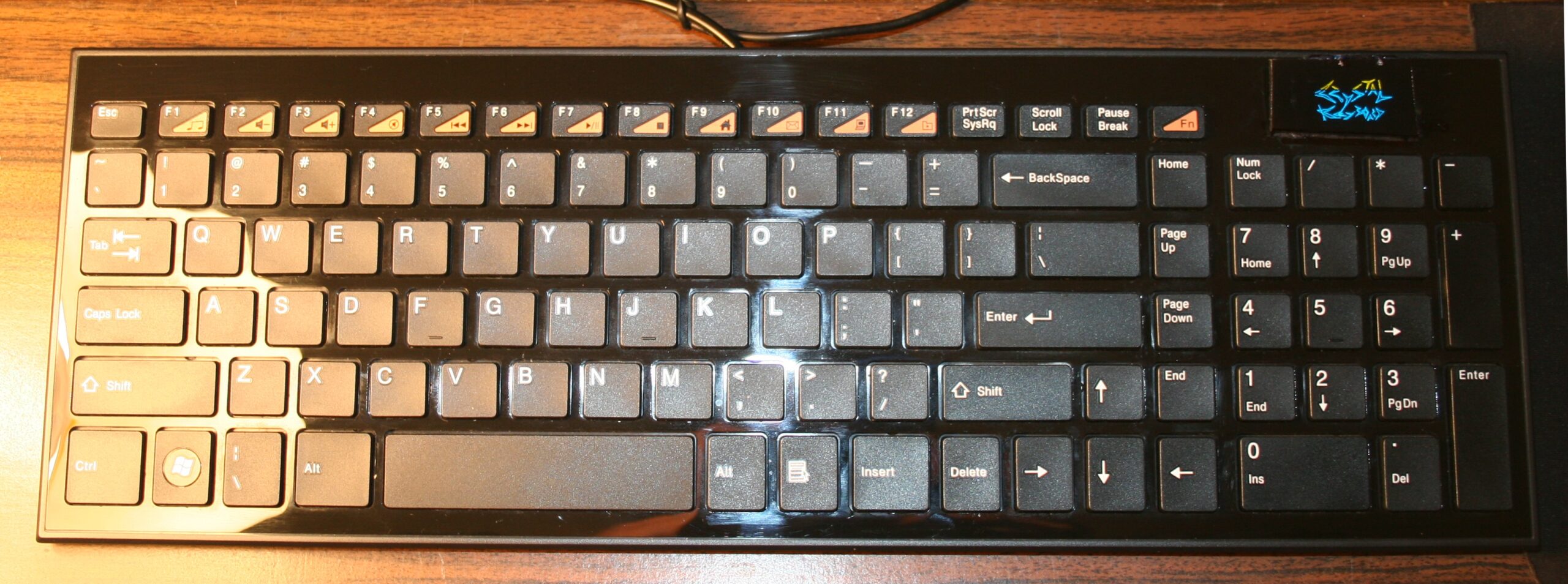
    Mouse is an old Gembird model, it is small. Not very recognizable anymore after modifying.
    It has a SPCP168A optical mouse chip. It’s old (from 2010), so not very high dpi. Neither fast pooling, I even saw that L,M,R buttons are checked (by S0 signal) at about 370 Hz only (could mean a 2.7ms delay).

    MCU

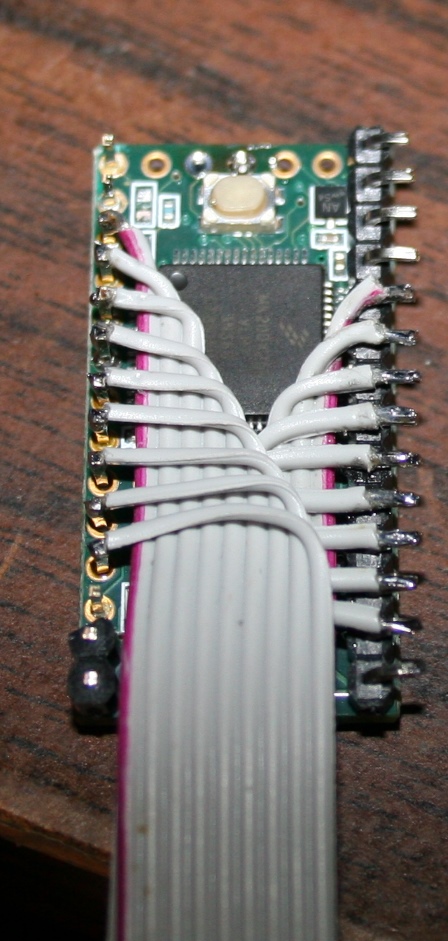
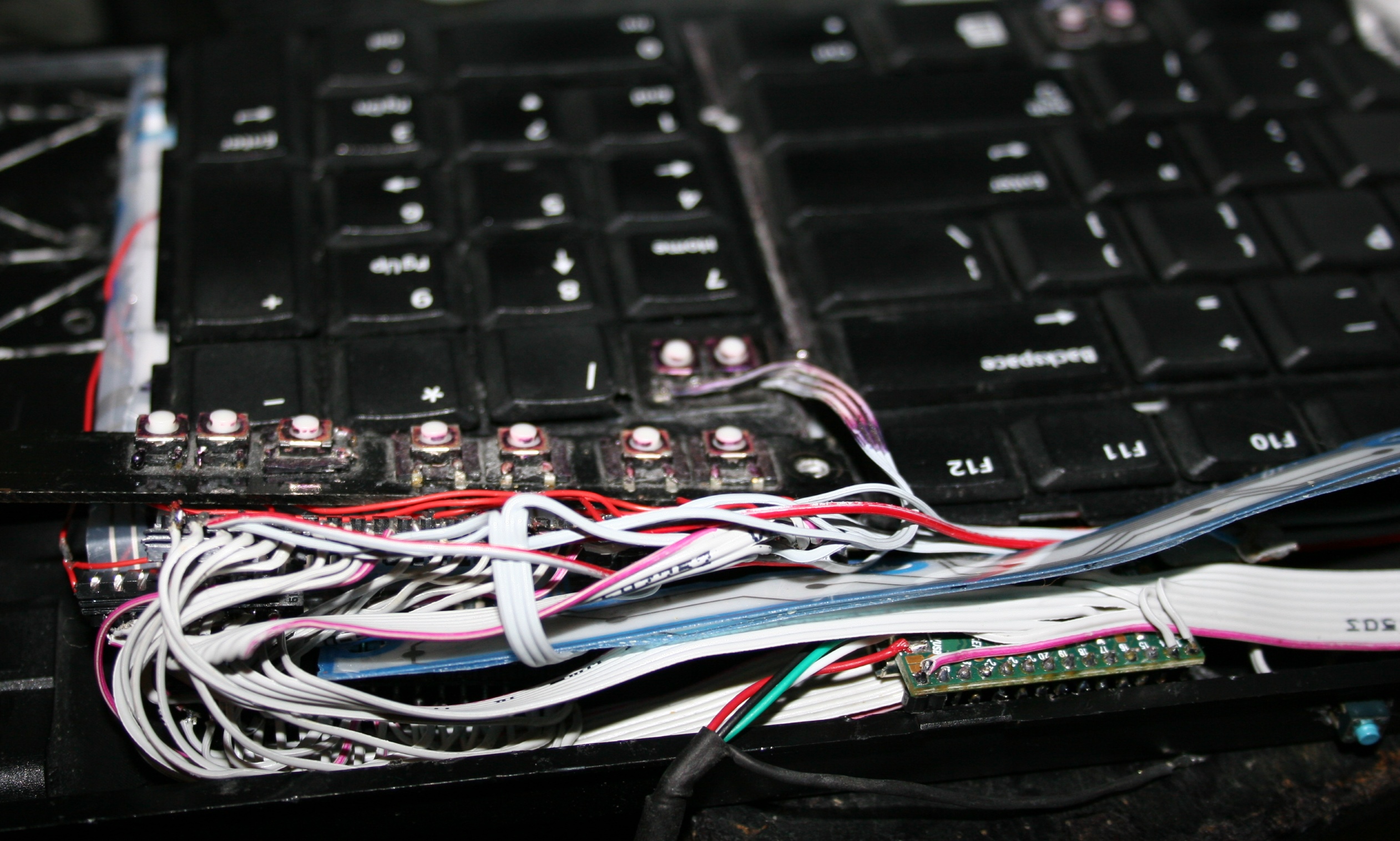
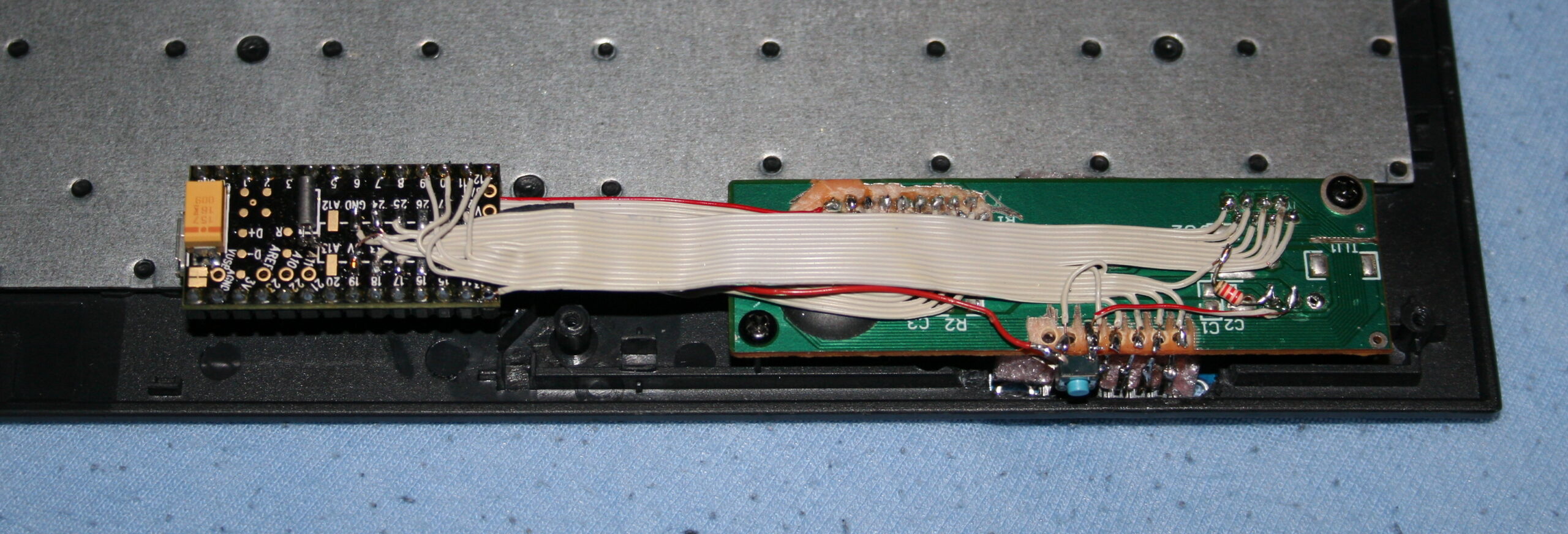
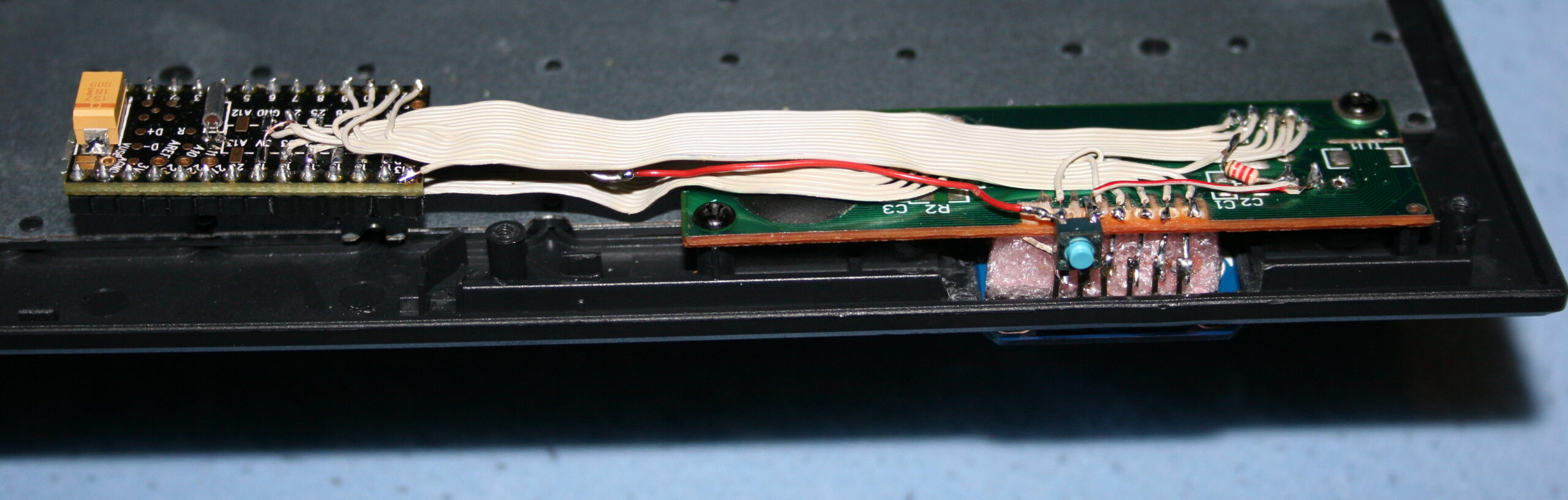
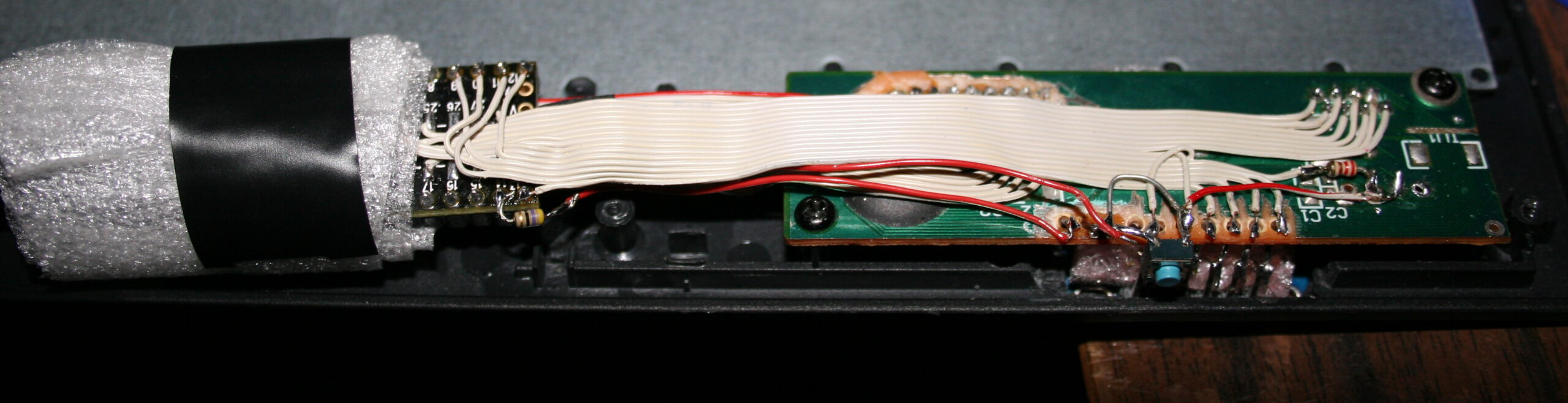
    For MCU I used an old Teensy 3.1 I had from my old keyboards. Surely an ESP32-C3 could be a cheaper and better choice. And likely most MCU could do the job here: just read analog value from ADC from 6 hall sensors.
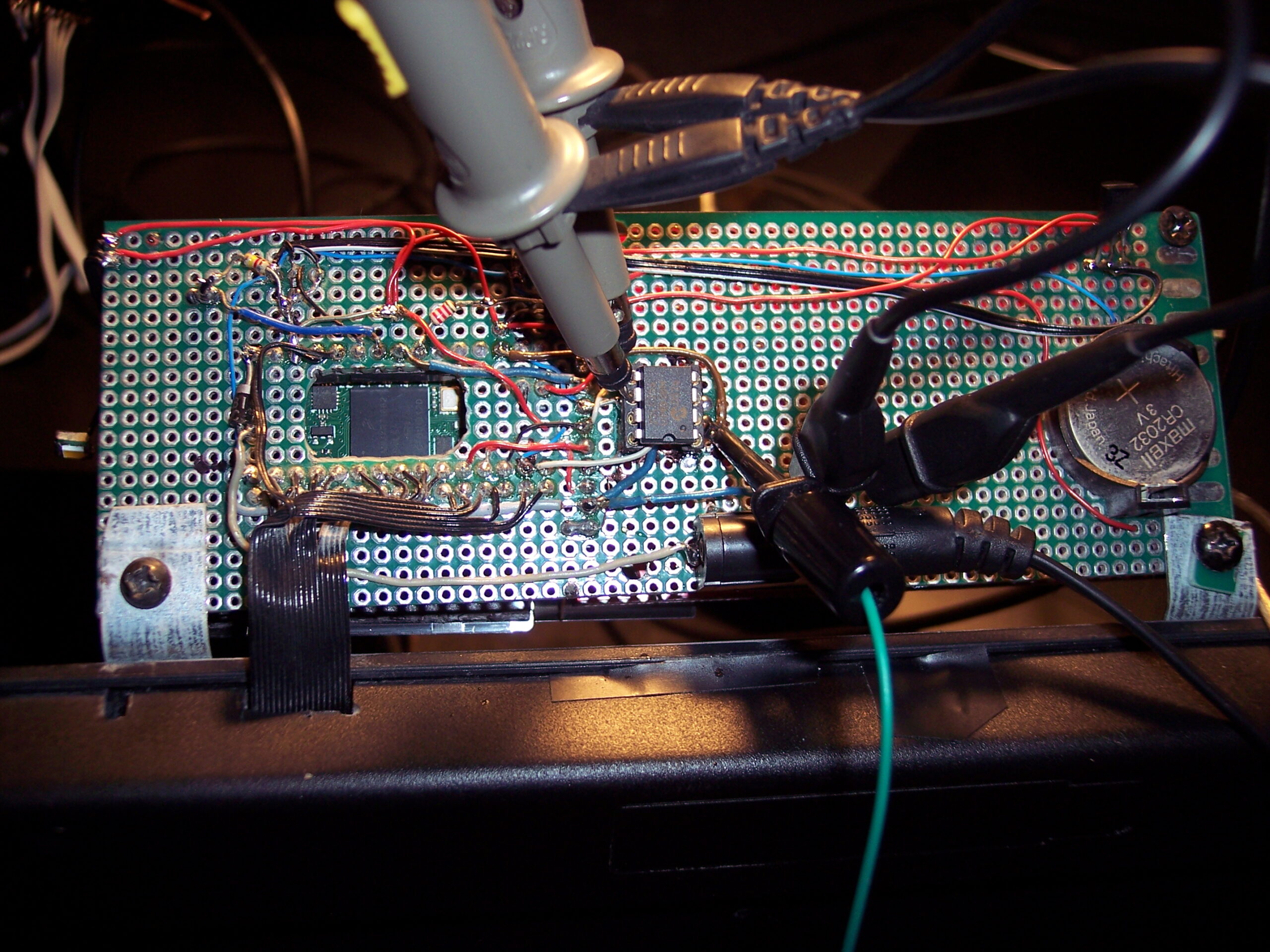
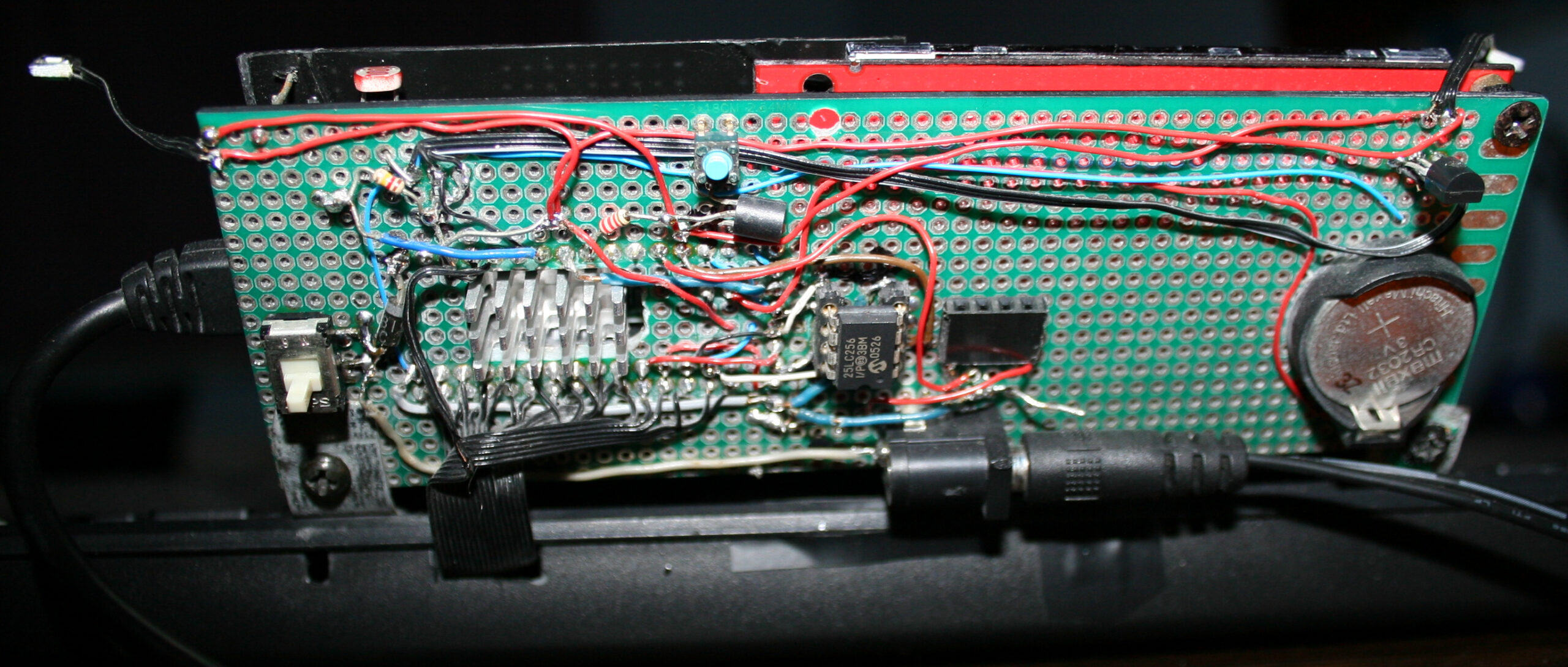
    Next I use a CD4066 (SMD, Quad Bilateral Switch). Its 3 analog switches are used instead of old mouse buttons microswitches. Triggered from MCU which reads hall sensors values with some of my code.

    📊Features

    So the mouse now has a few extra things:

    • 🎹Hall sensor keys, 3 x 2, so total 6. These are used for:
      – Left, Middle, Right mouse buttons – bottom row,
      – Double left click, mouse Wheel down and up – top row.
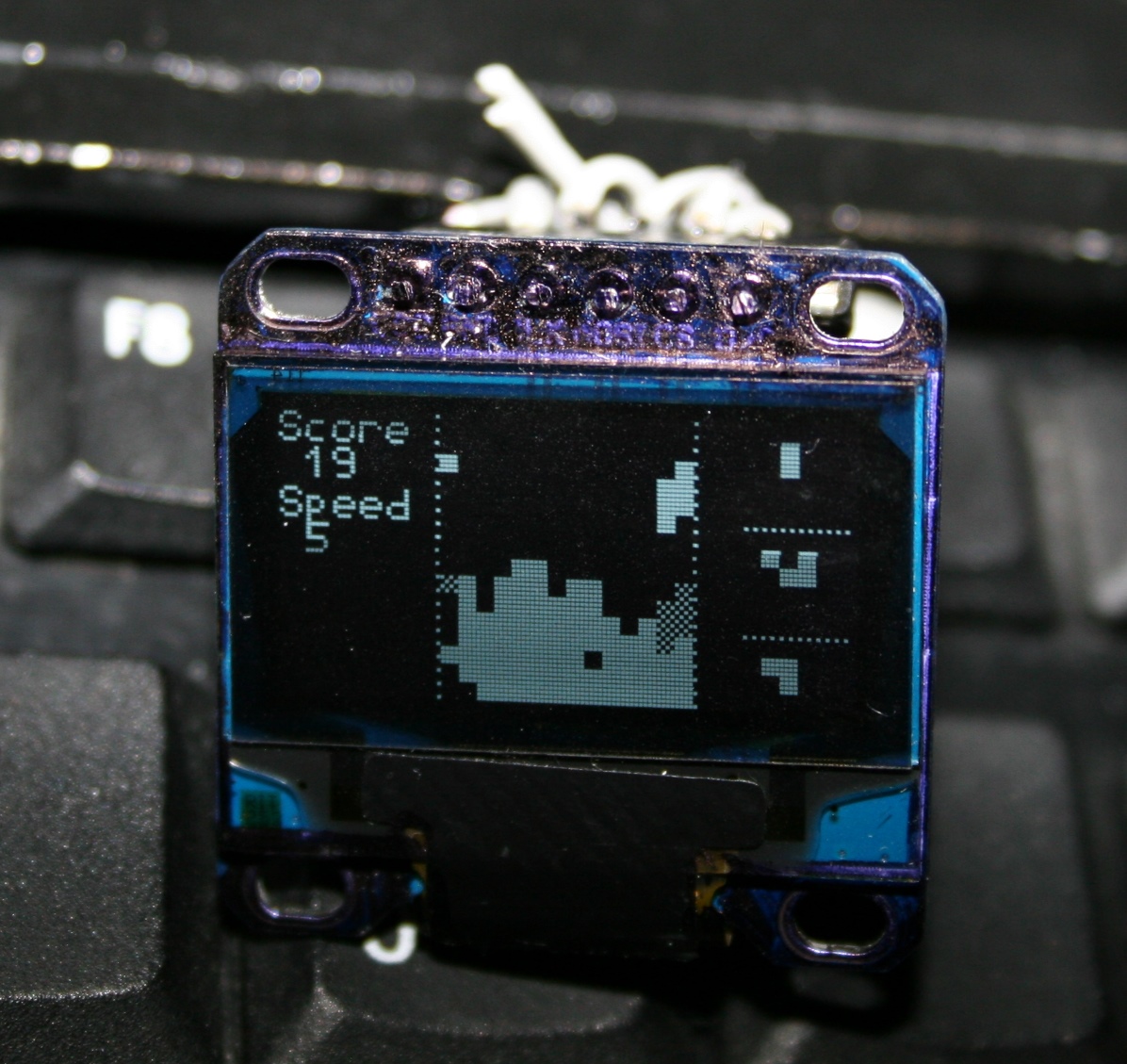
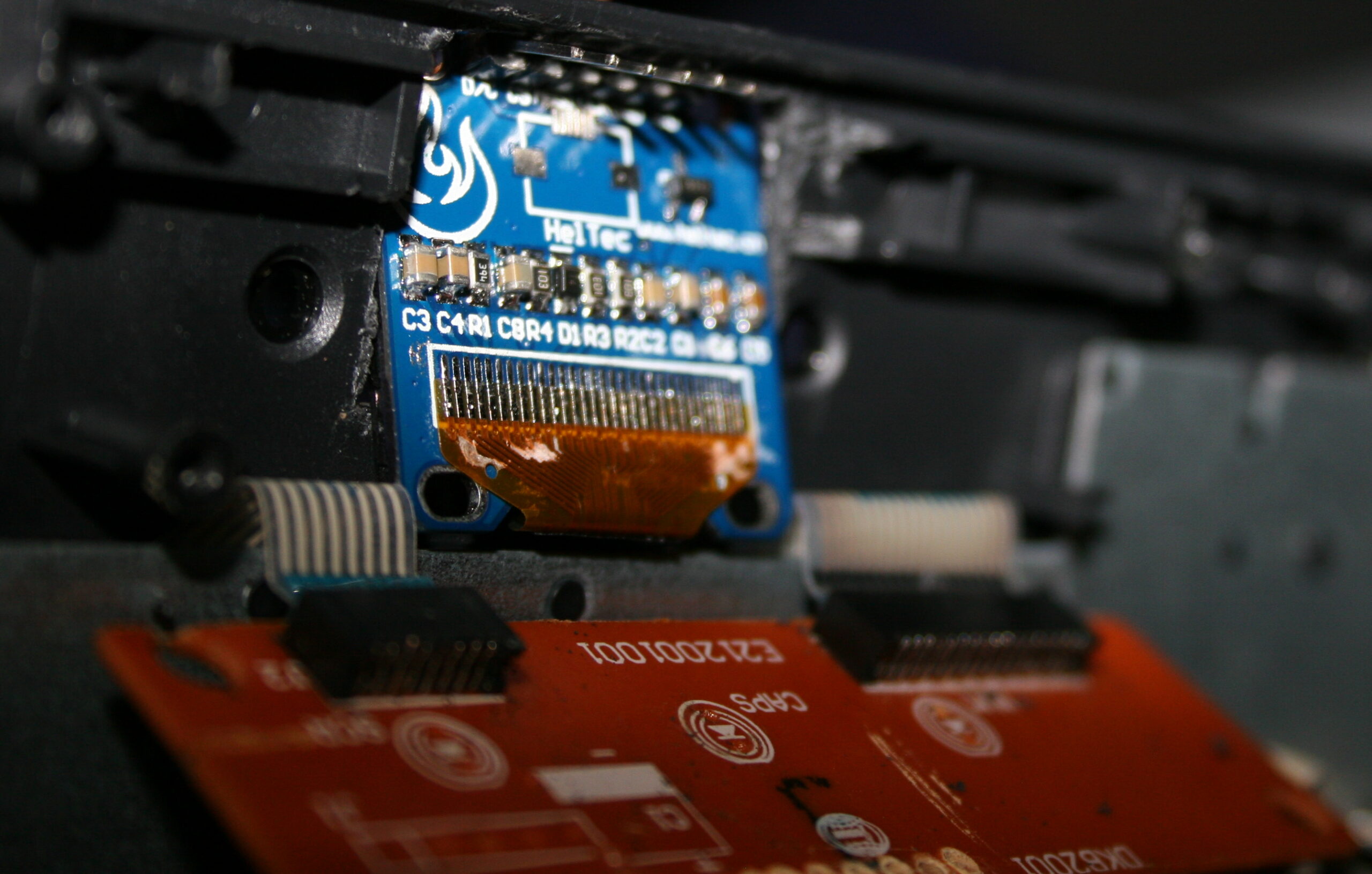
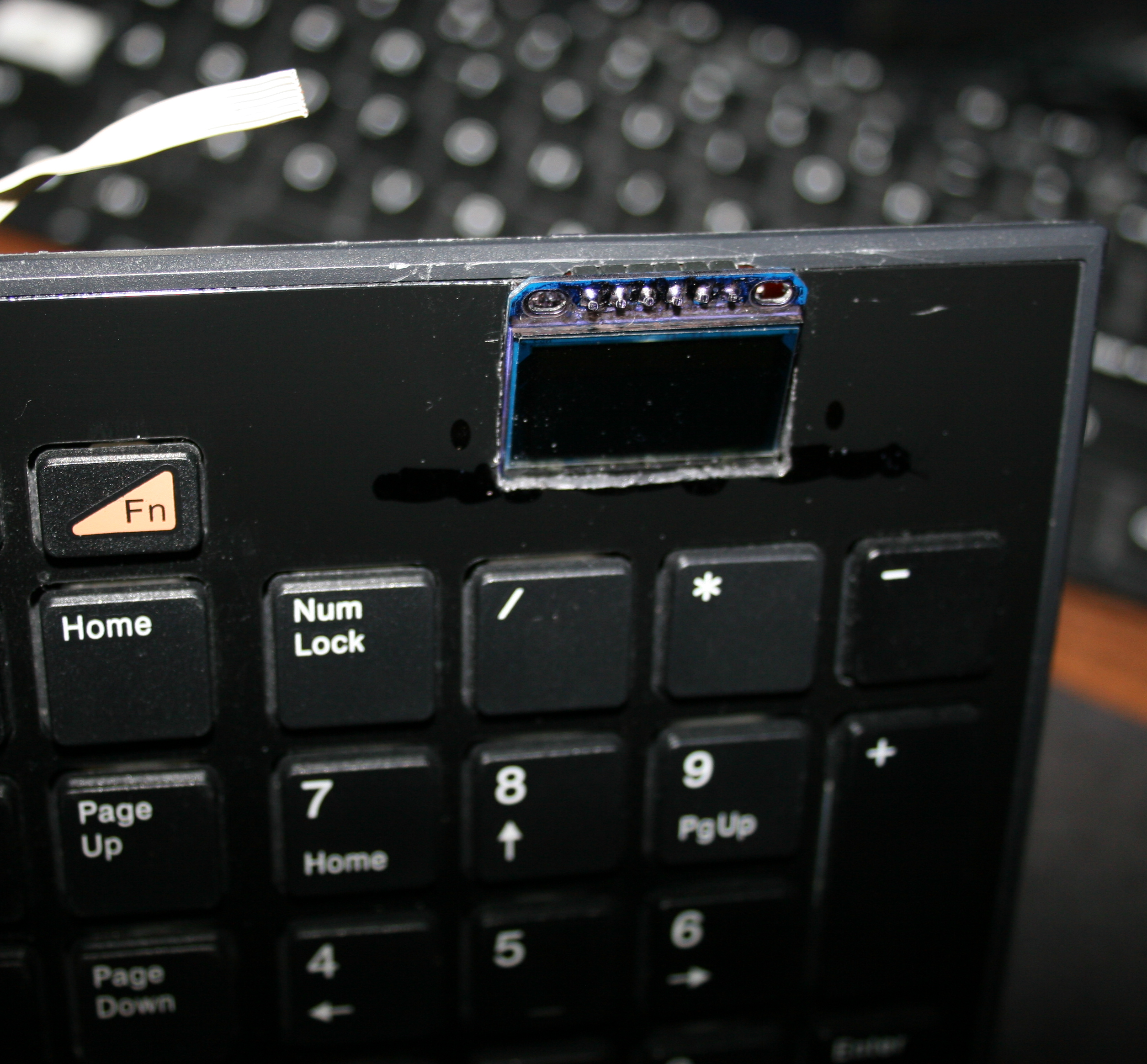
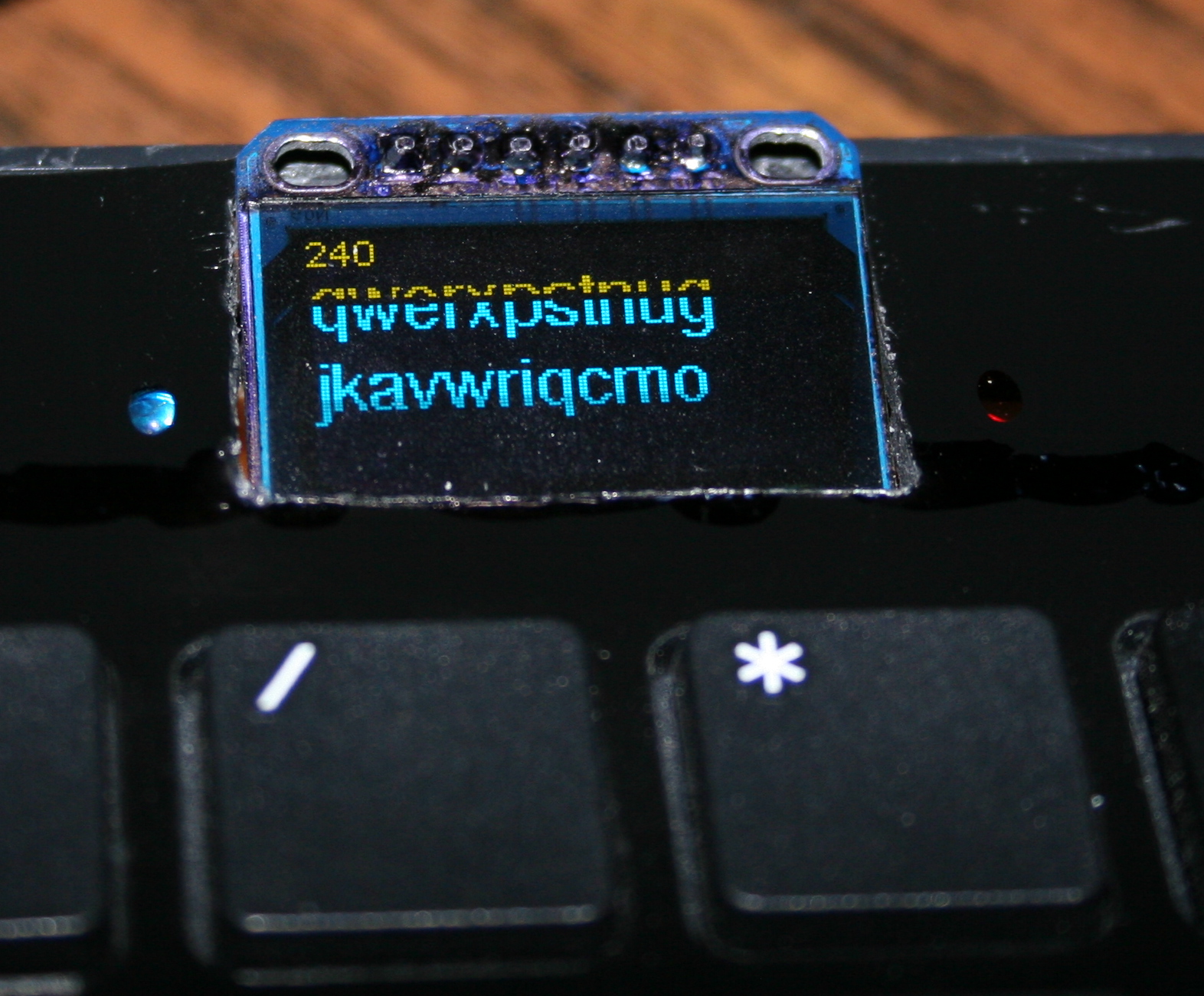
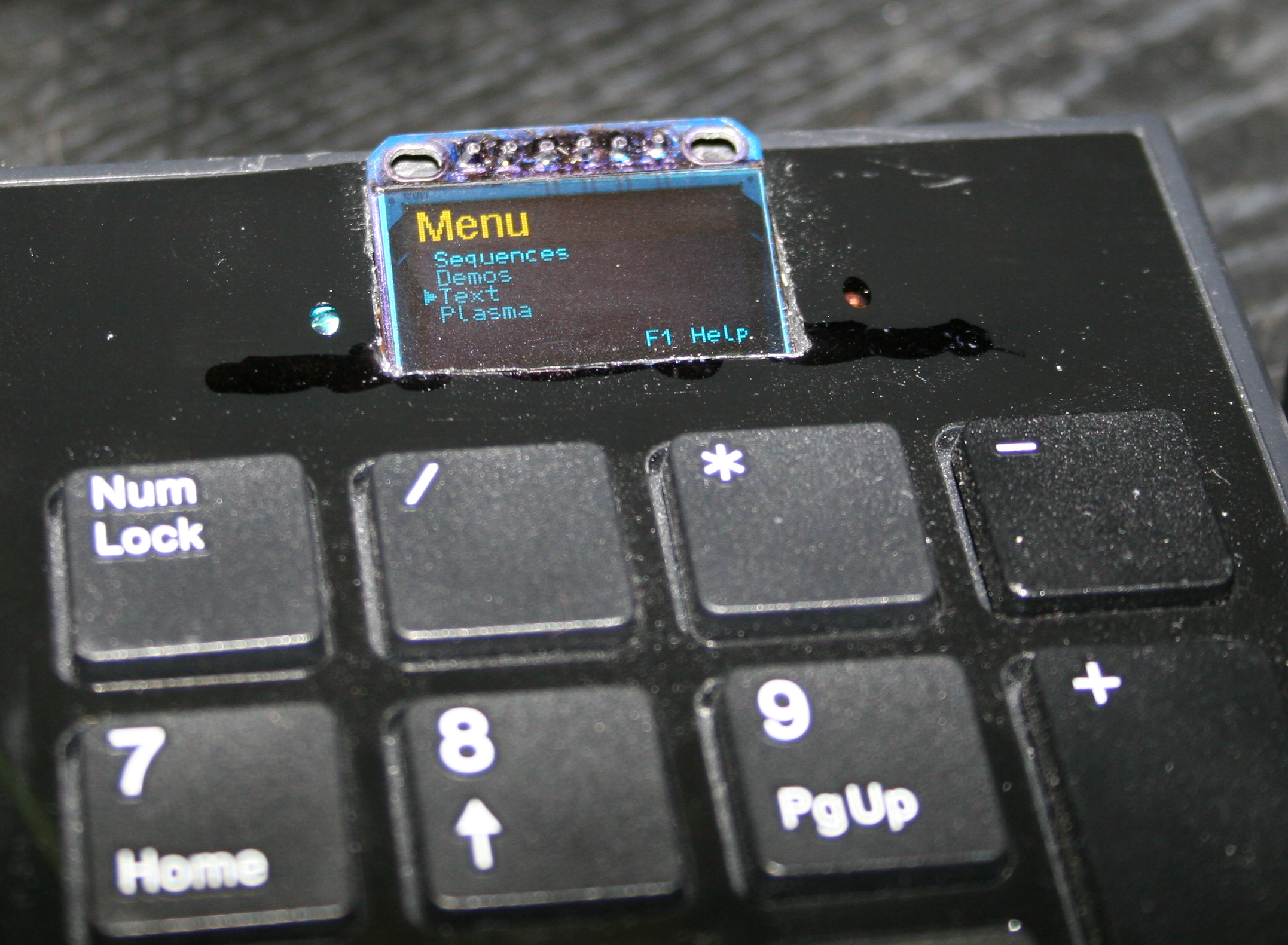
    • 🪟A small OLED display, 128 x 32 (SSD1306), mono (1 color only).
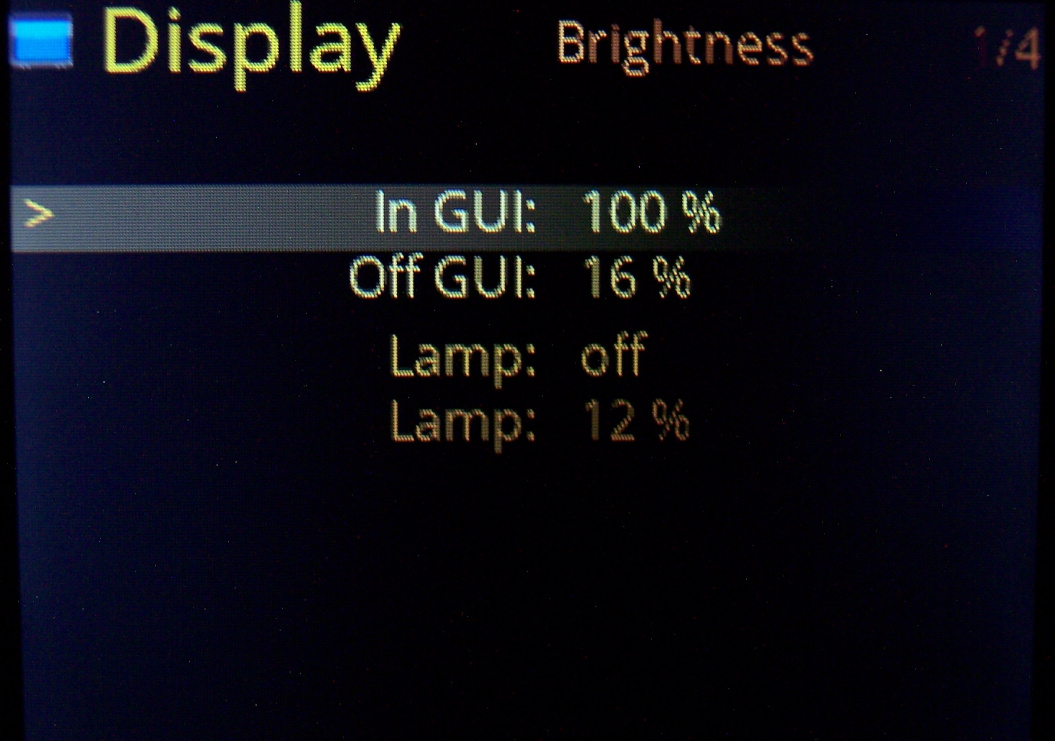
      Only has 1 dim option, it’s always way too bright. I covered it with some foil. It’s usually off anyway.
      It is used to show hall sensor values for testing, and for future Gui with settings.
      It’s optional. It could surely work without it.
    • 🖱️”Lift off” key.
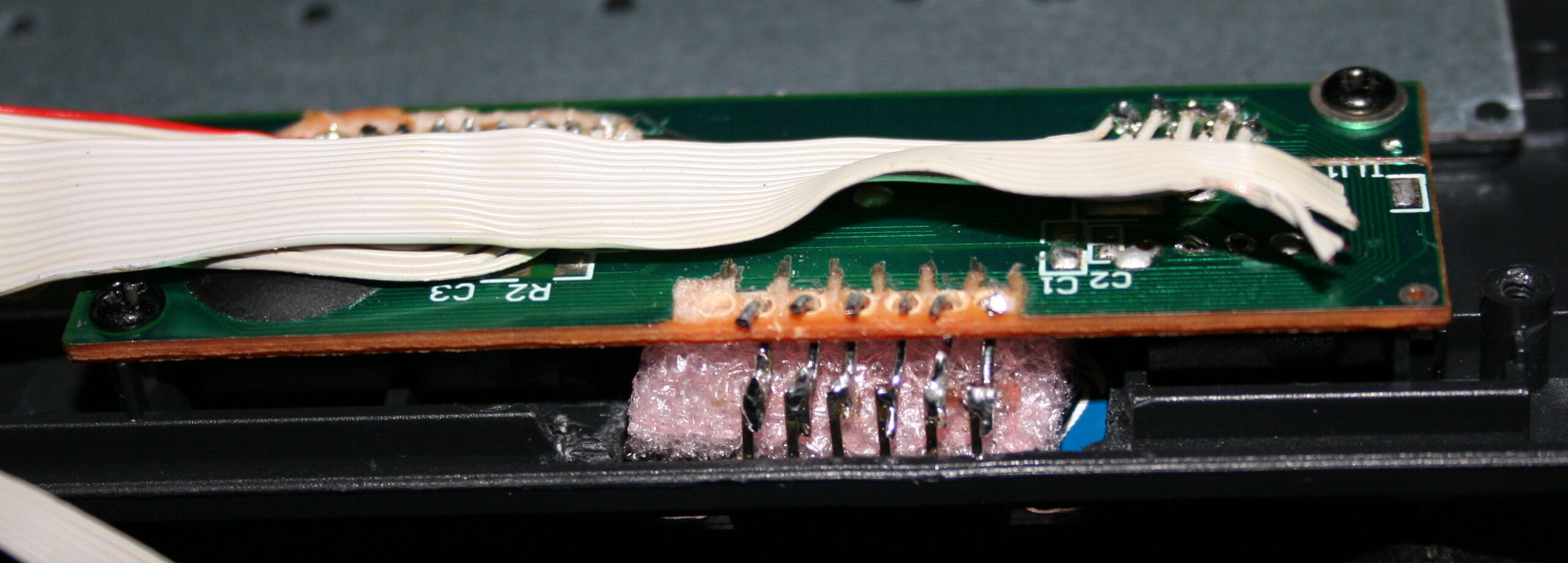
      That narrow PCB on left side with has tactile switch (SMD, 0,5N force). When held it disables move movement (on PC) and any mouse keys.
      It is easier to press it than lifting a mouse. I mean seriously and it’s not common in mice yet.
    • 👇2 extra tactile switches:
      – 1st for toggling display / Gui on/off
      – 2nd tiny blue for programming new code.
      There is also a micro USB socket for Teensy 3, needs to be there to upload new code.

    📂Sources

    Code for this “firmware” is here.
    Schematic image here.
    I called it MC1, from mouse controller, even if it’s not really one. Just code for those keys

    📷Gallery

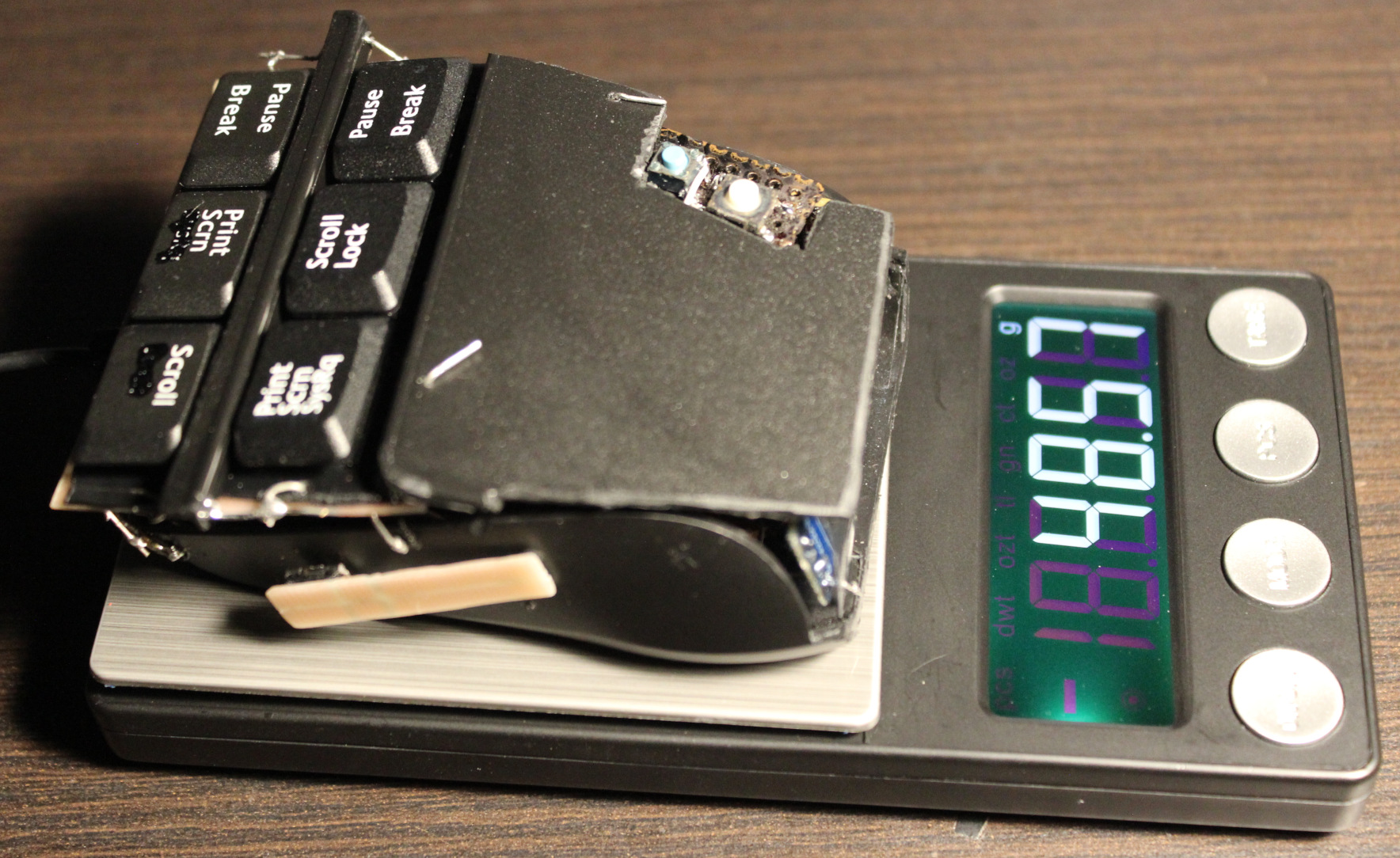
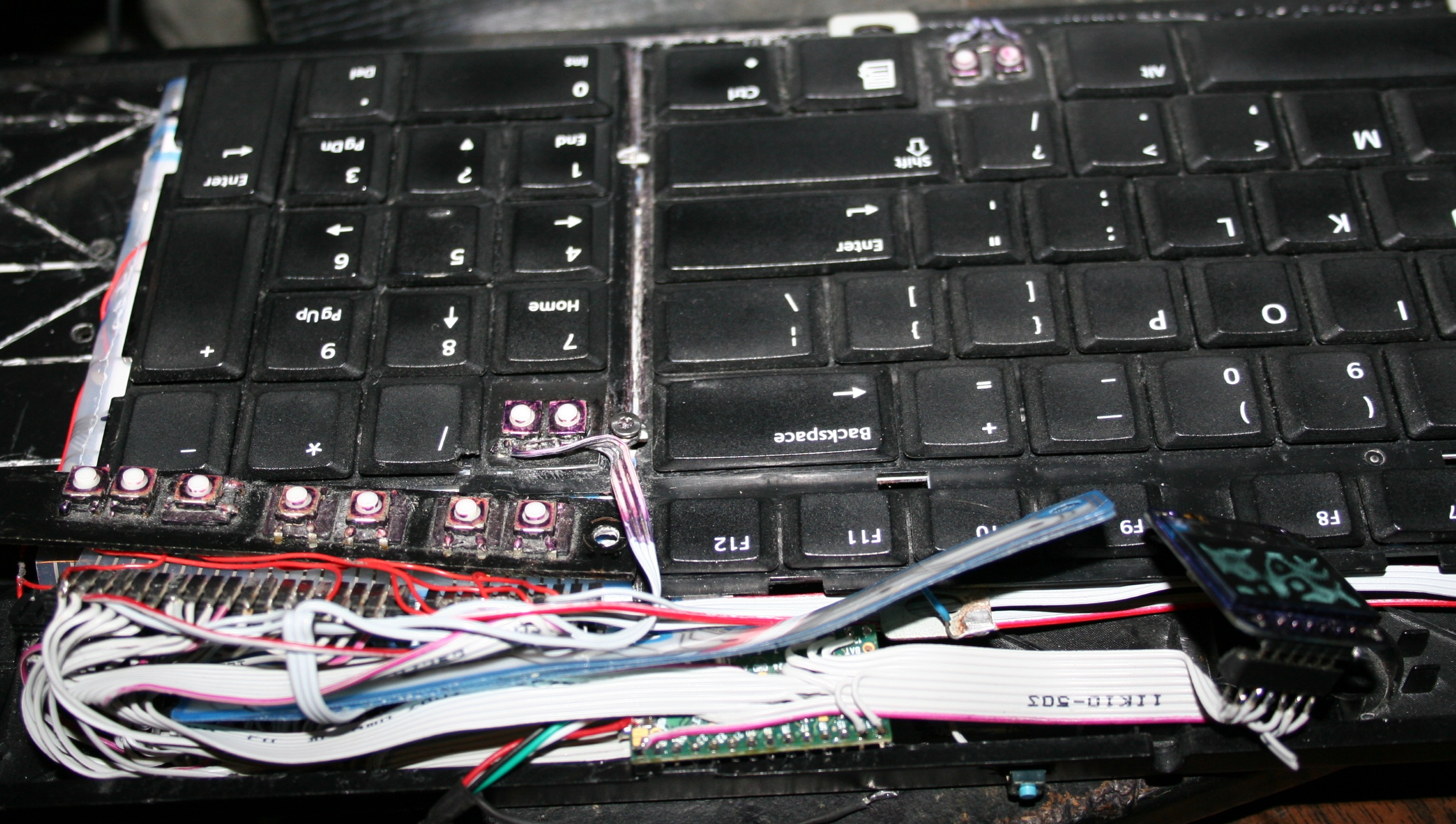
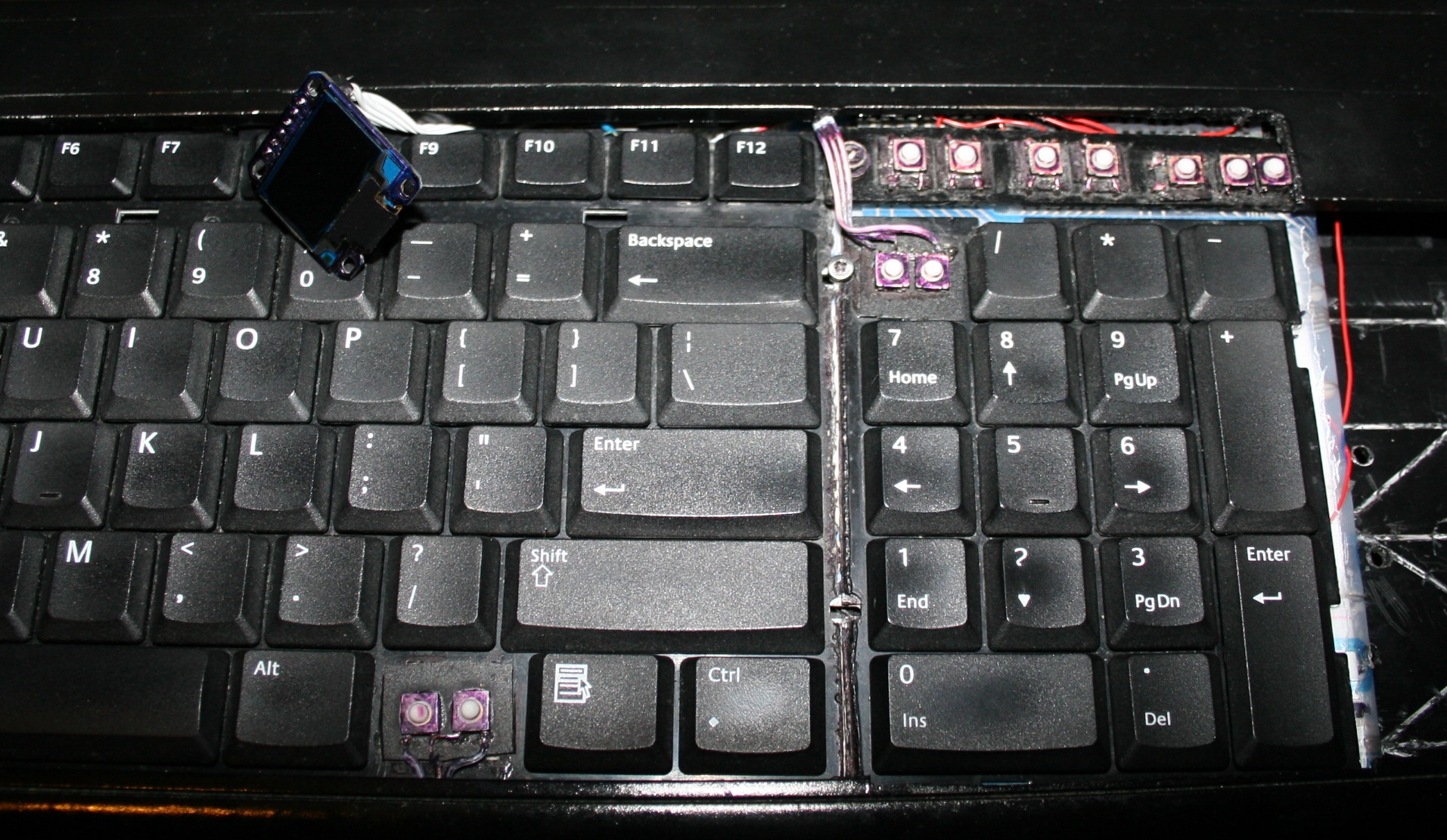
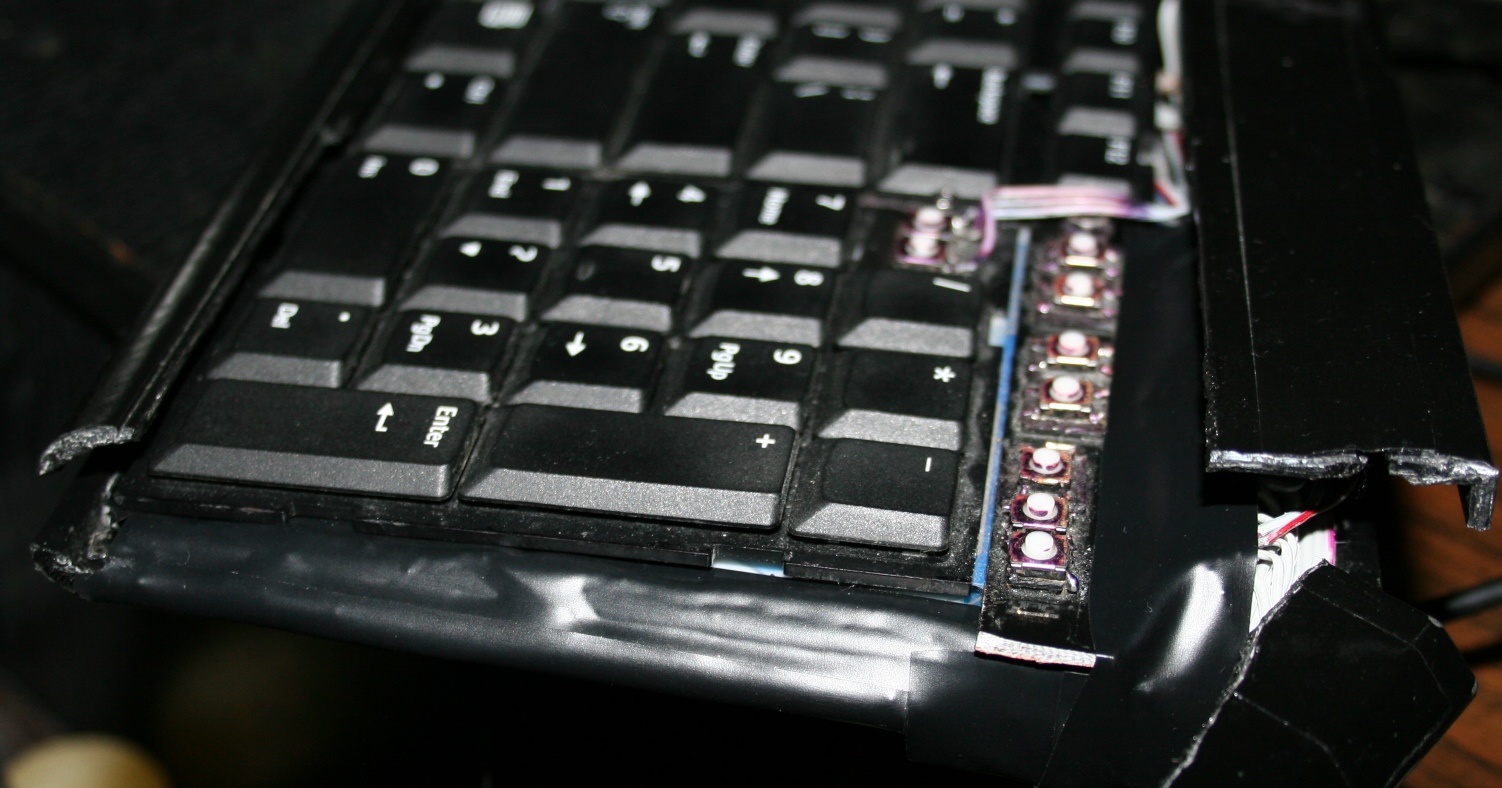
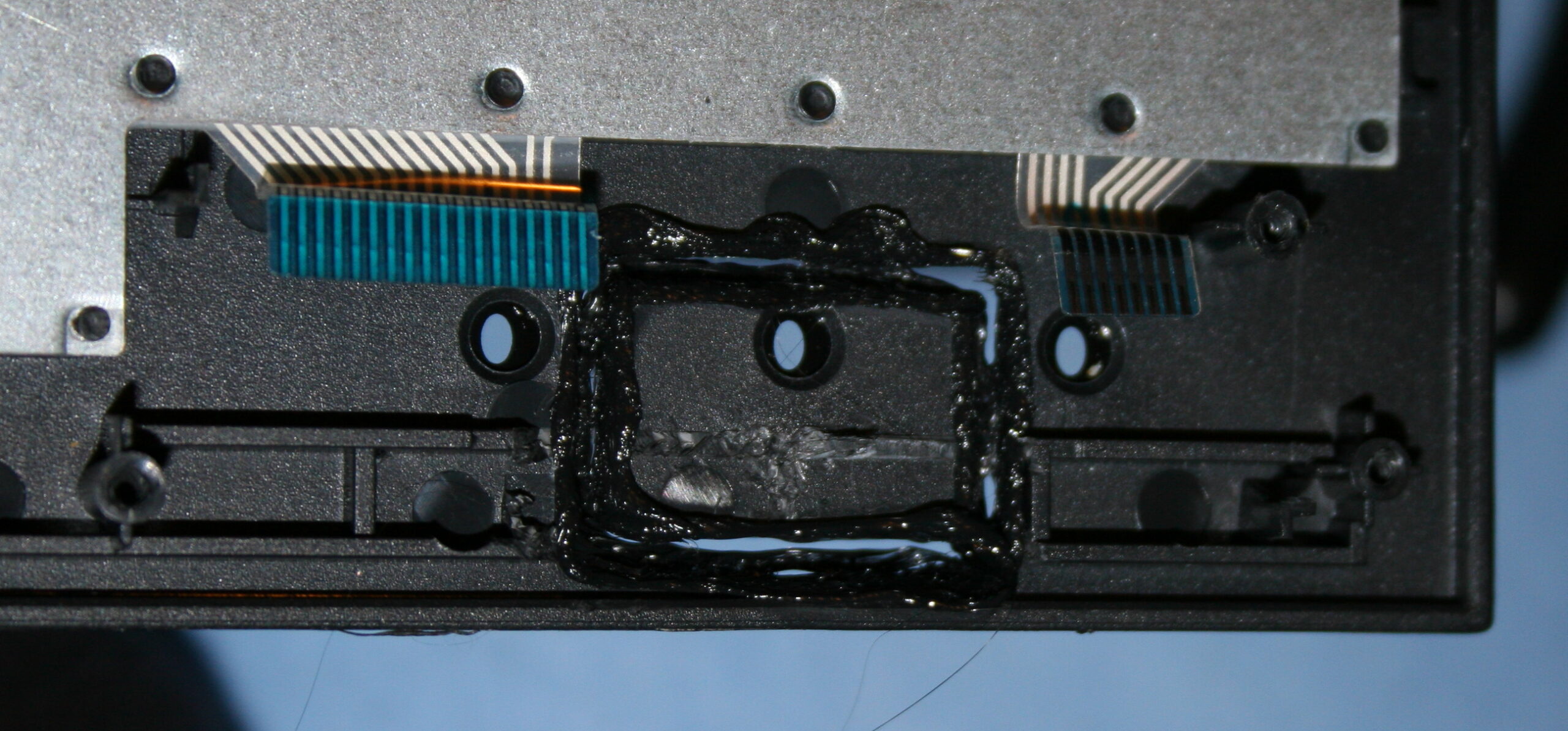
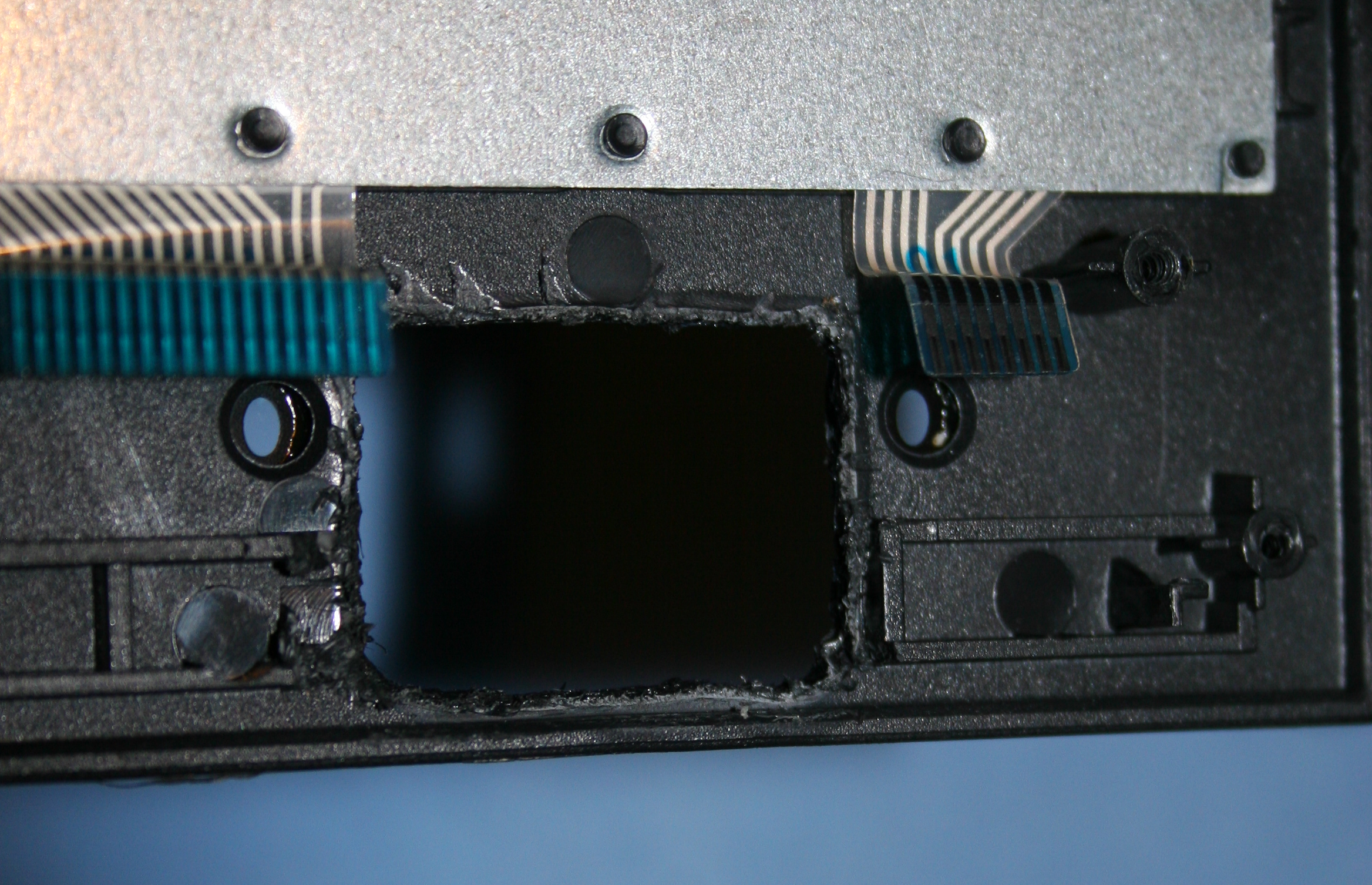
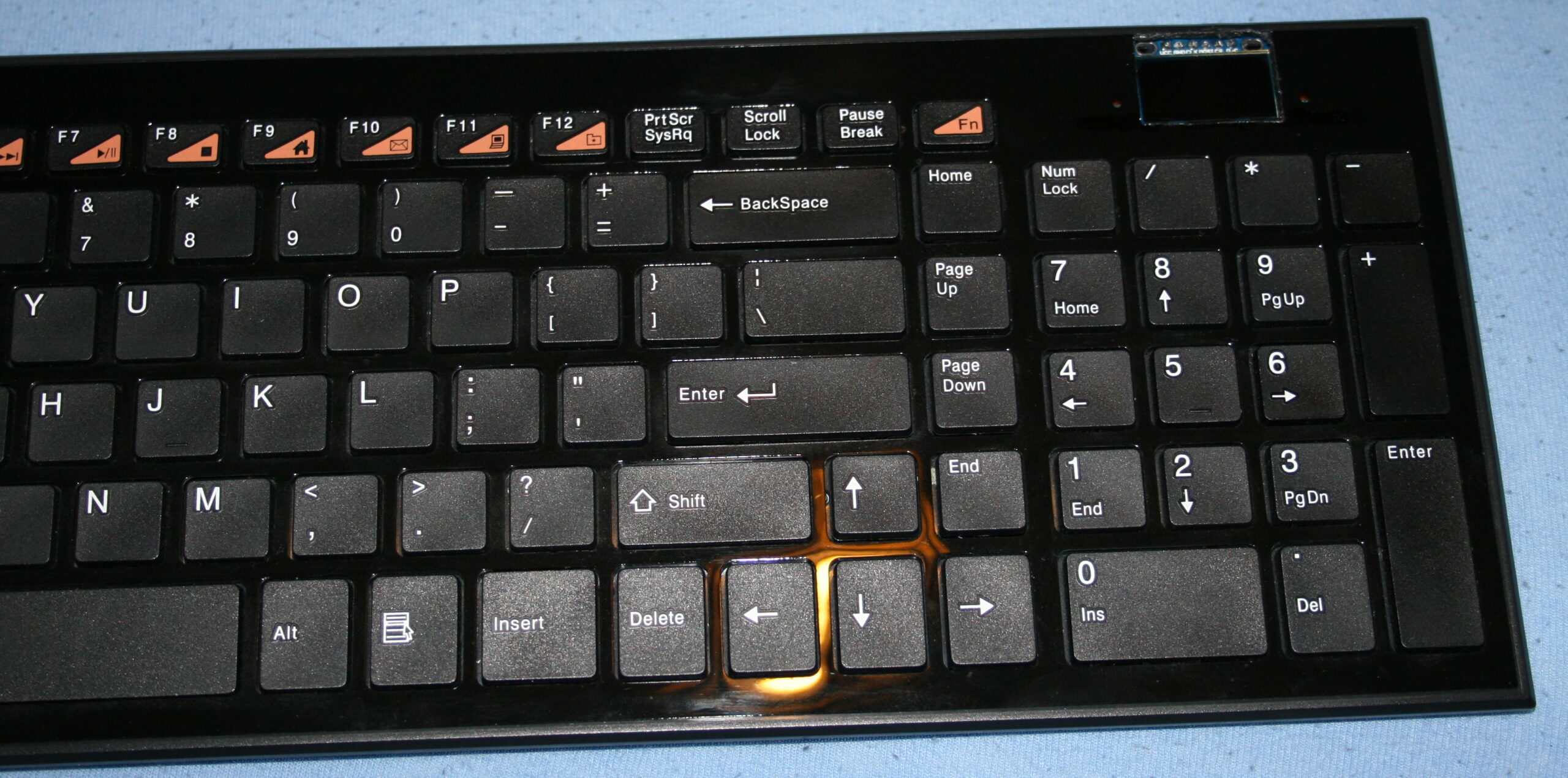
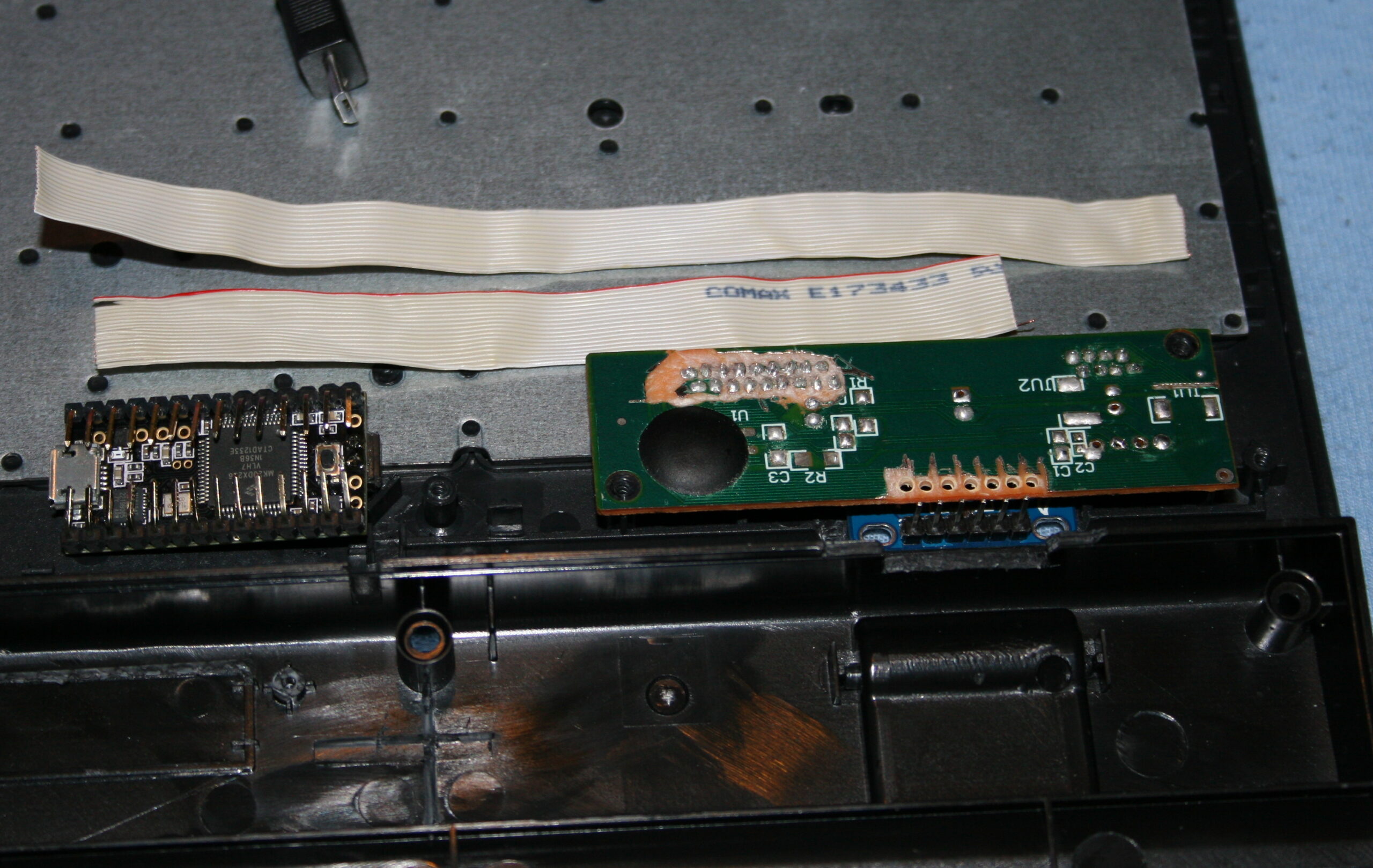
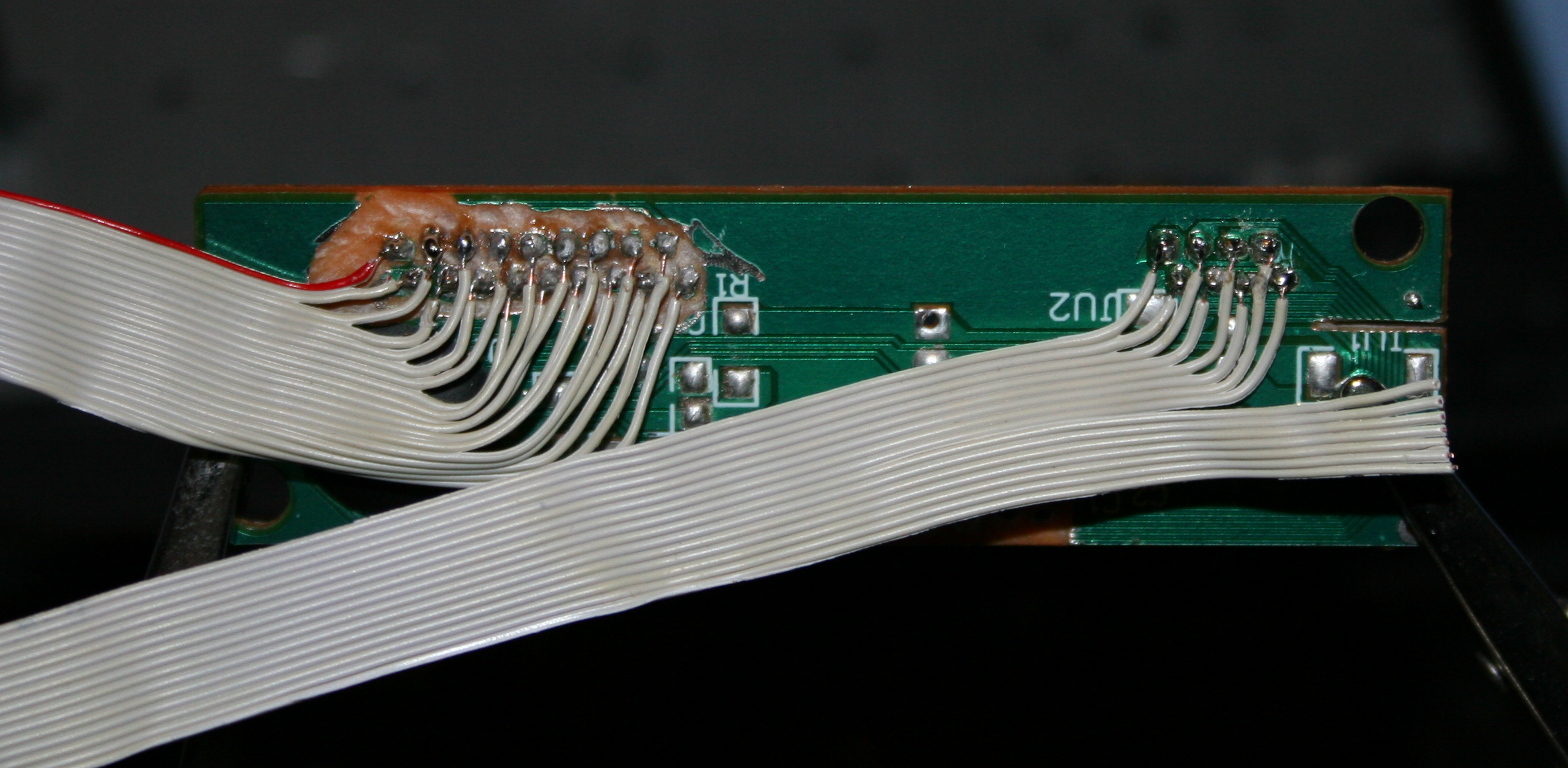
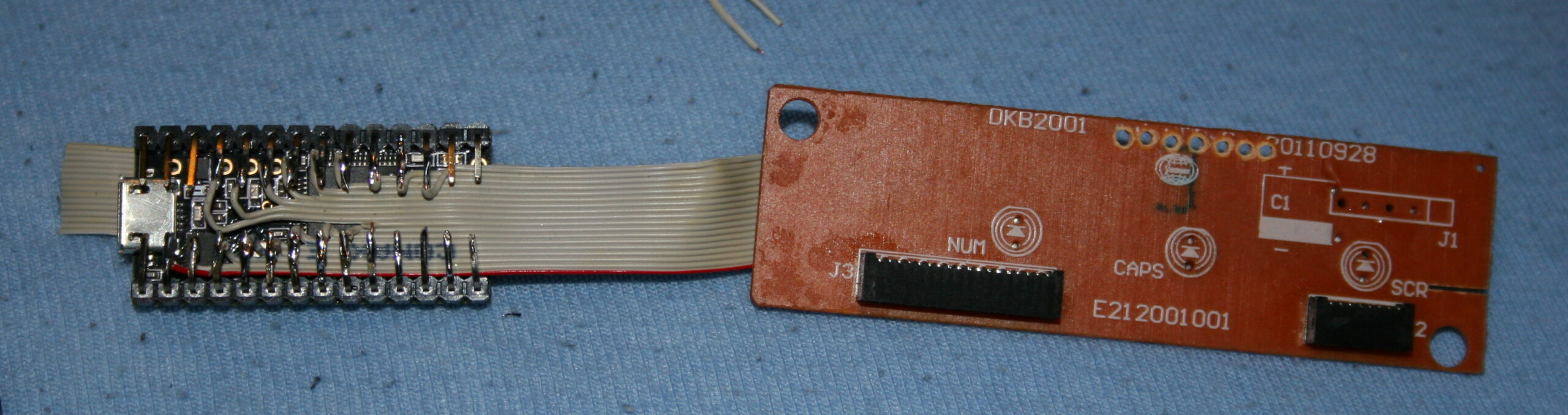
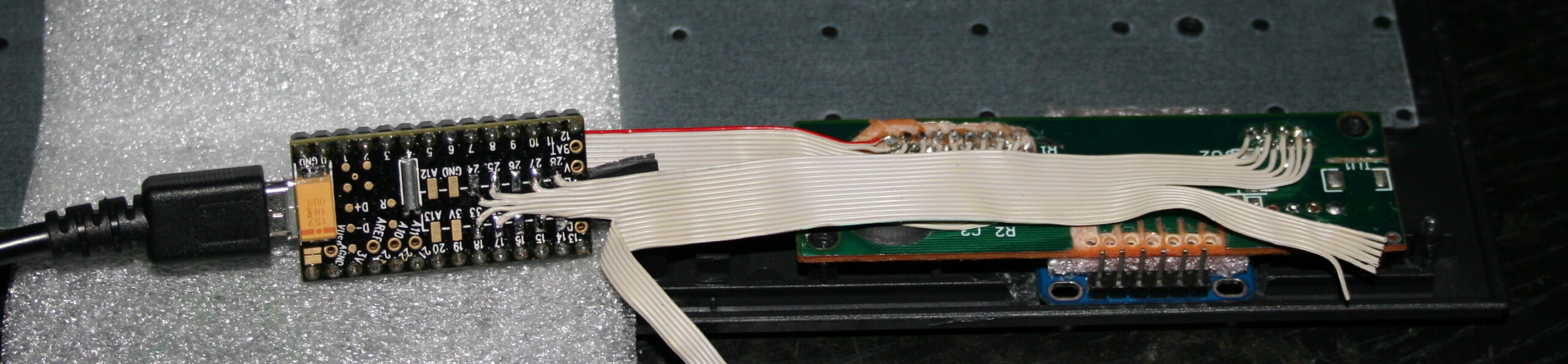
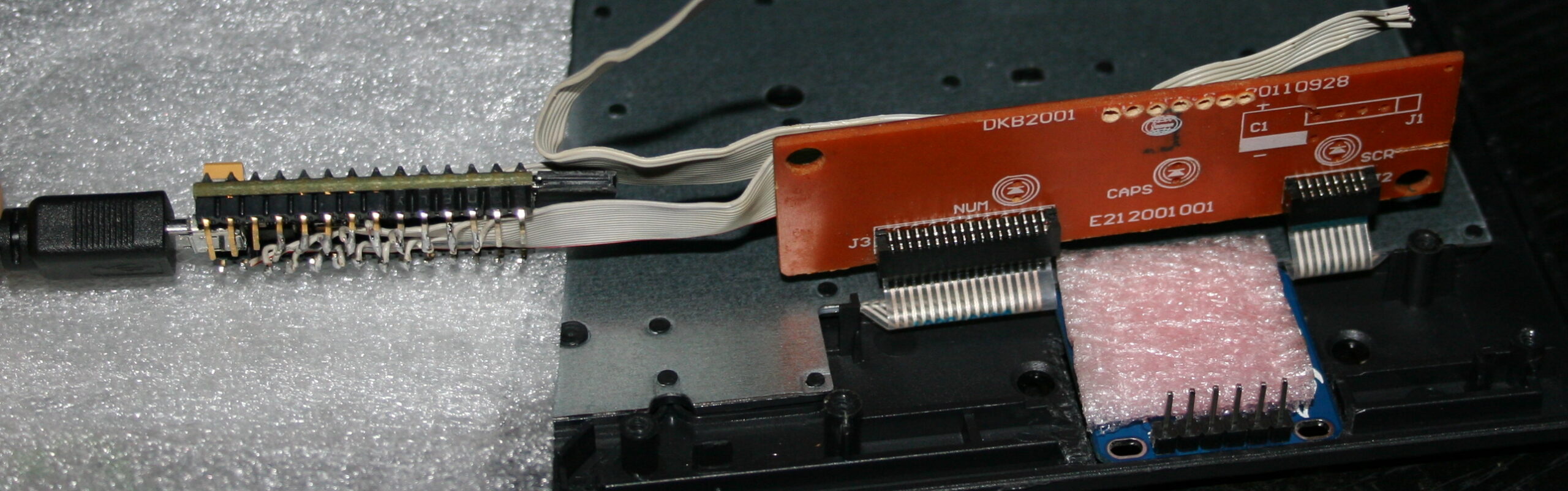
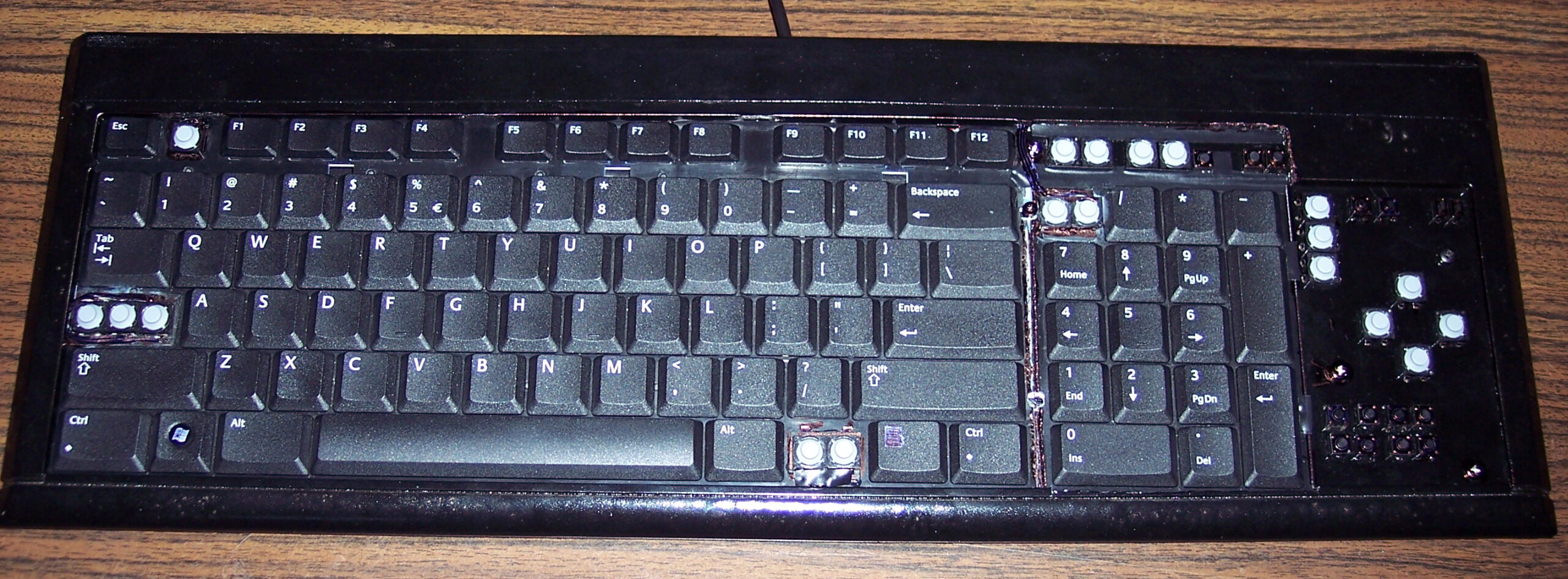
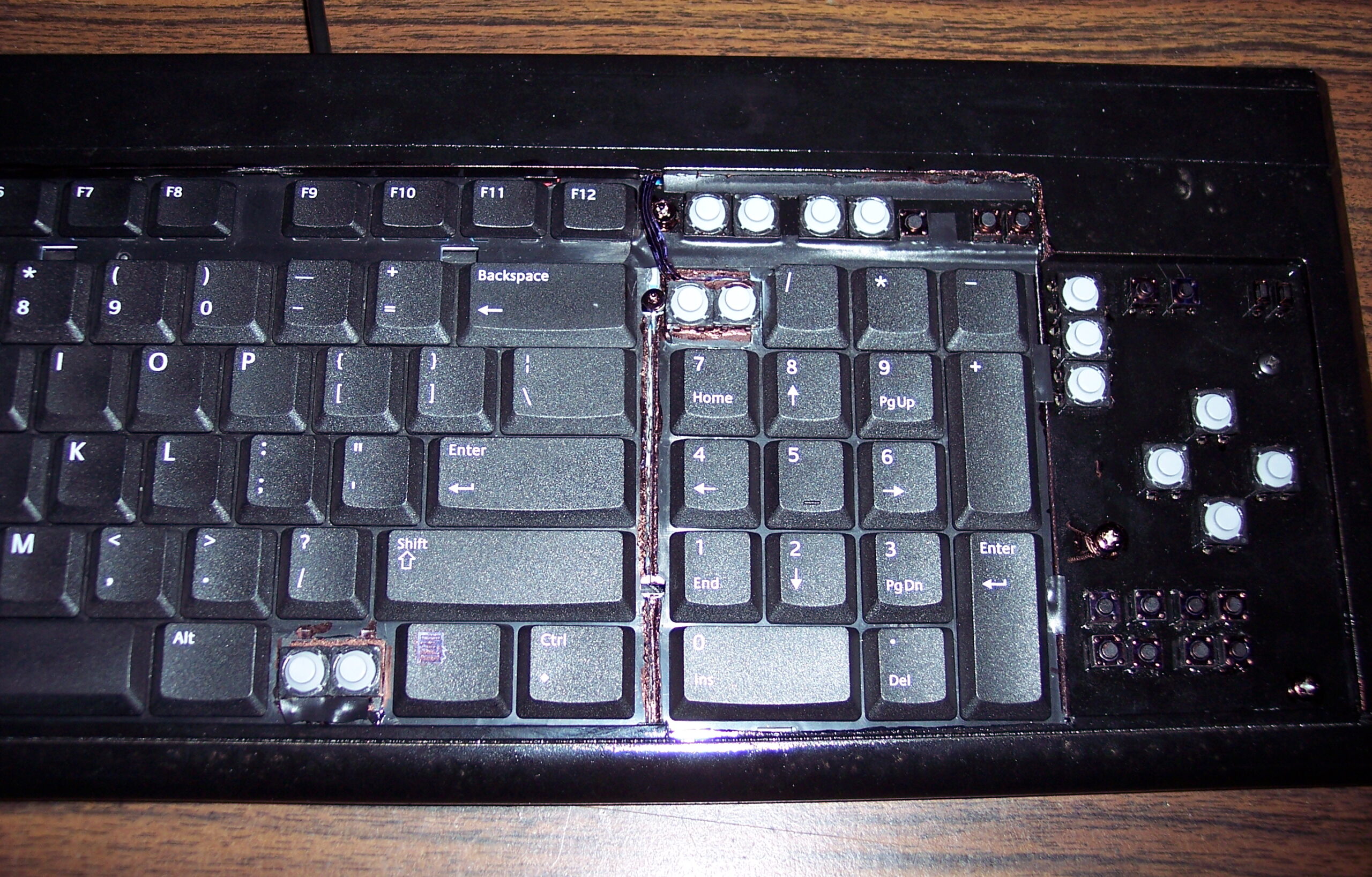
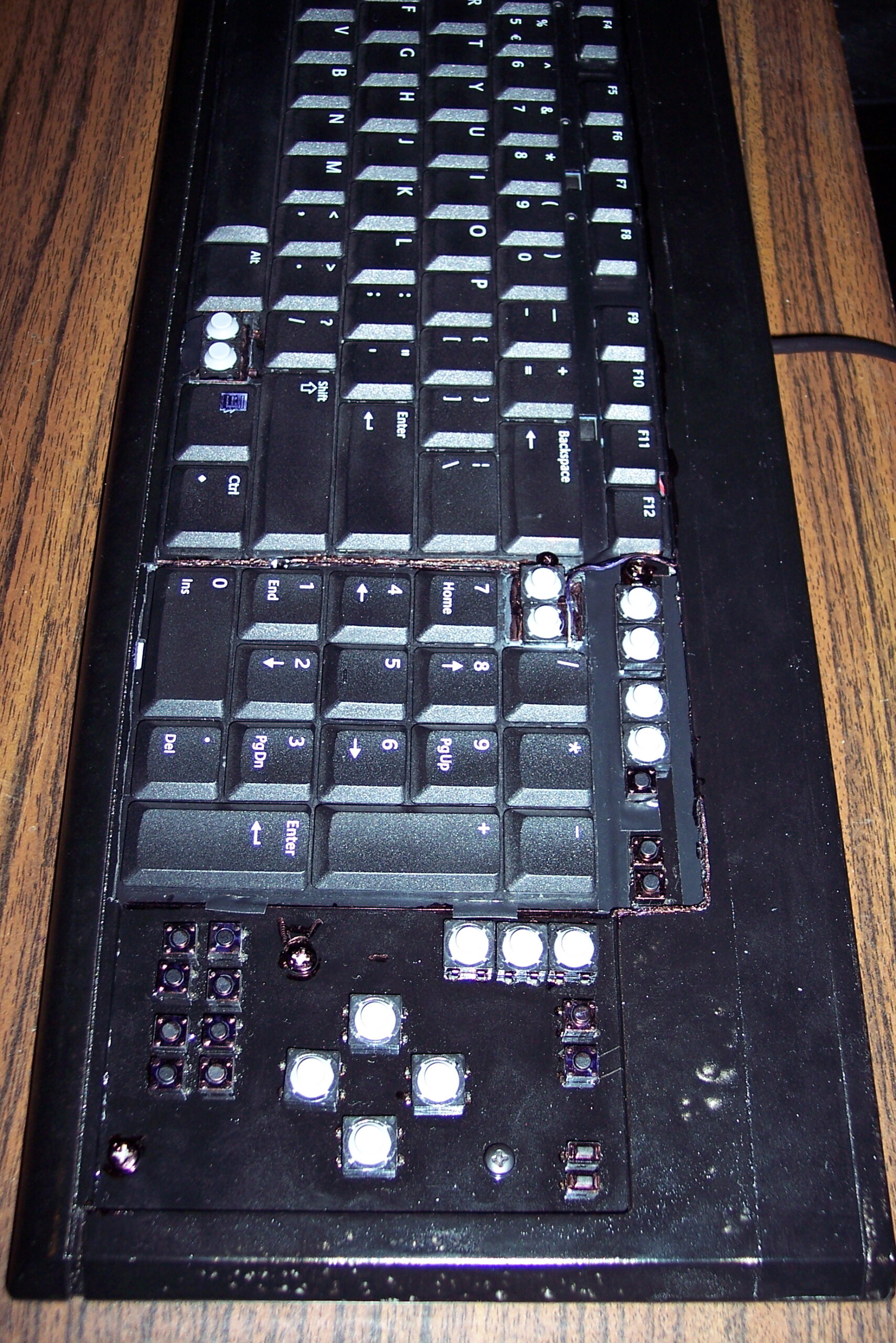
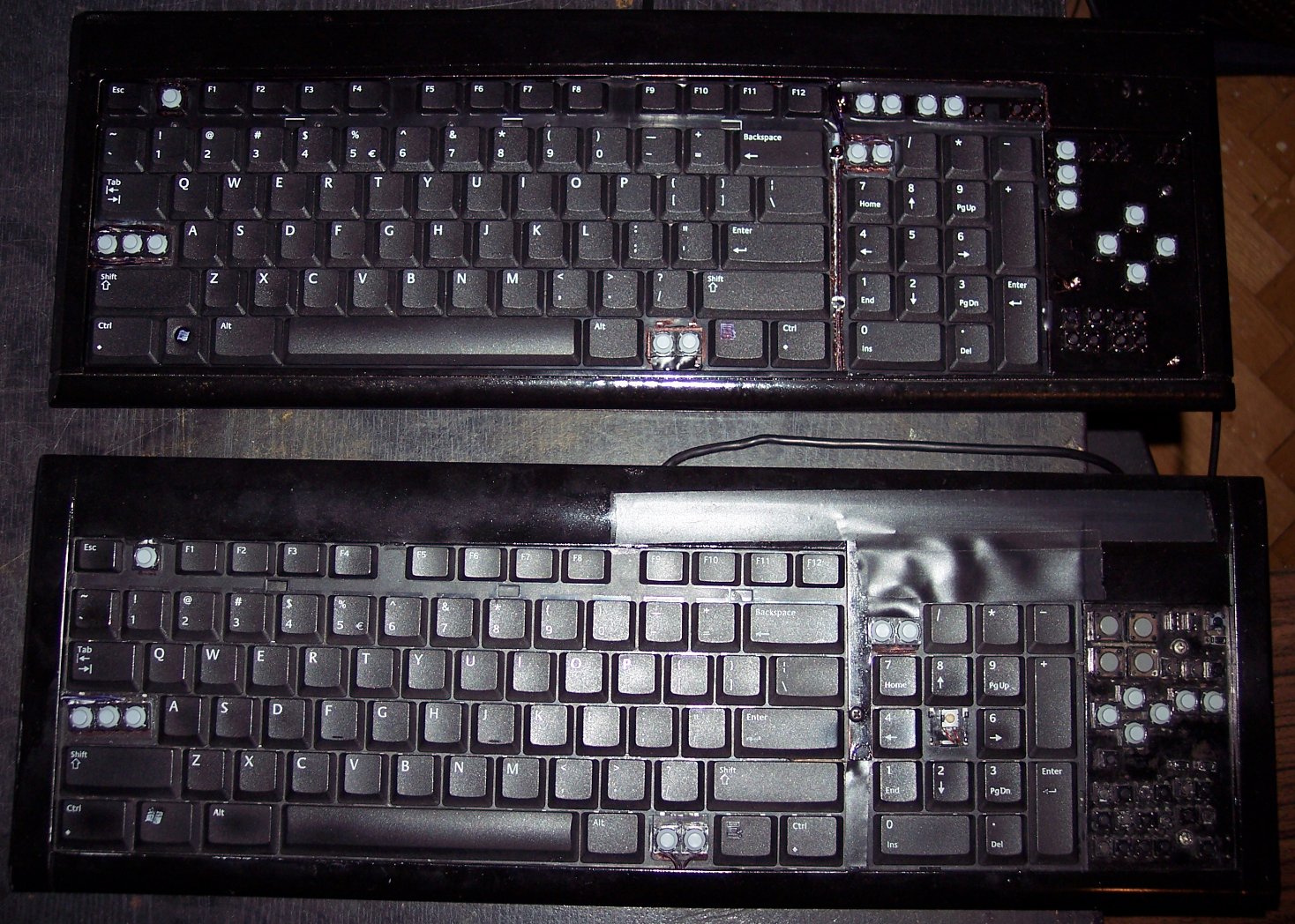
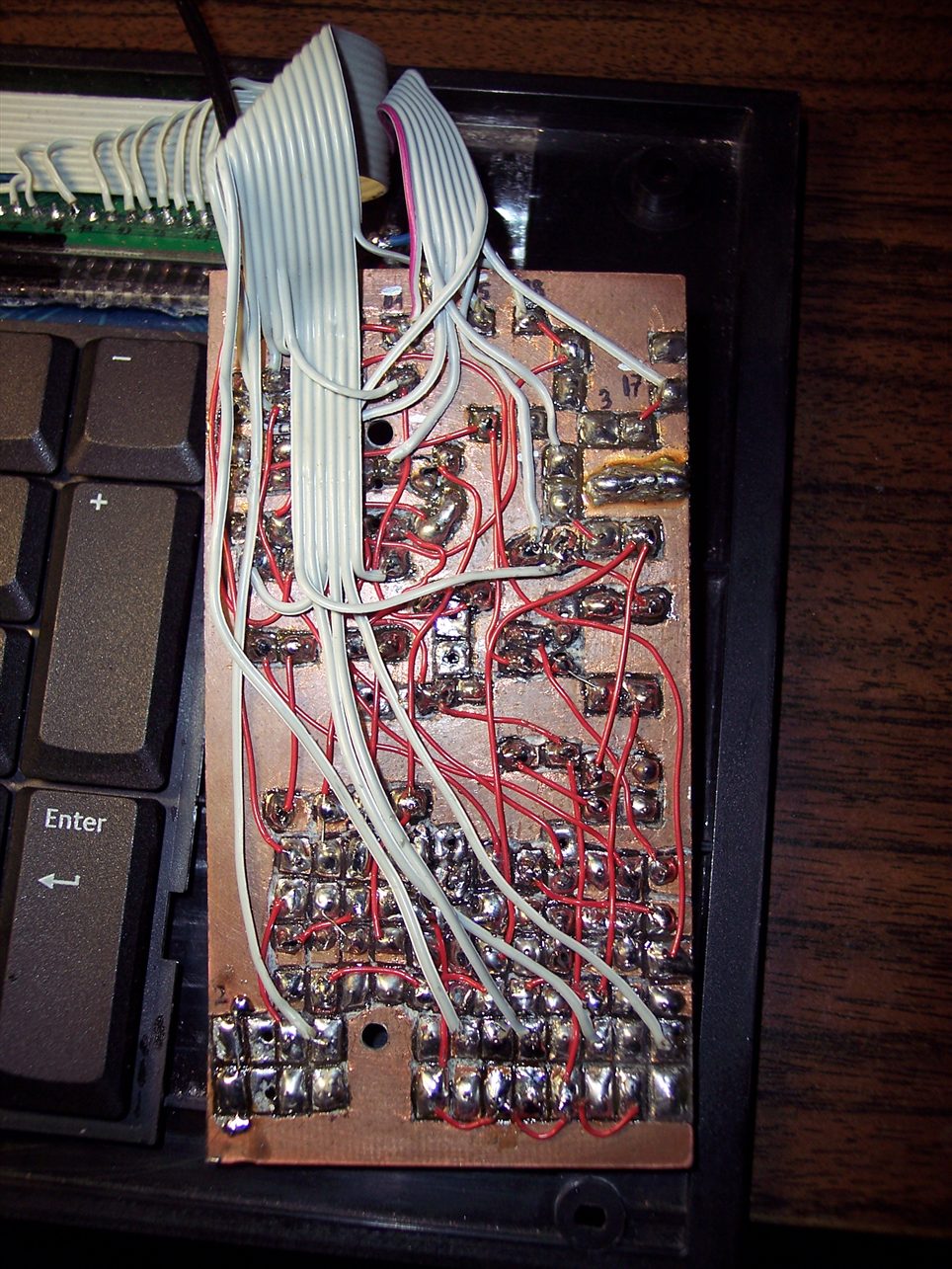
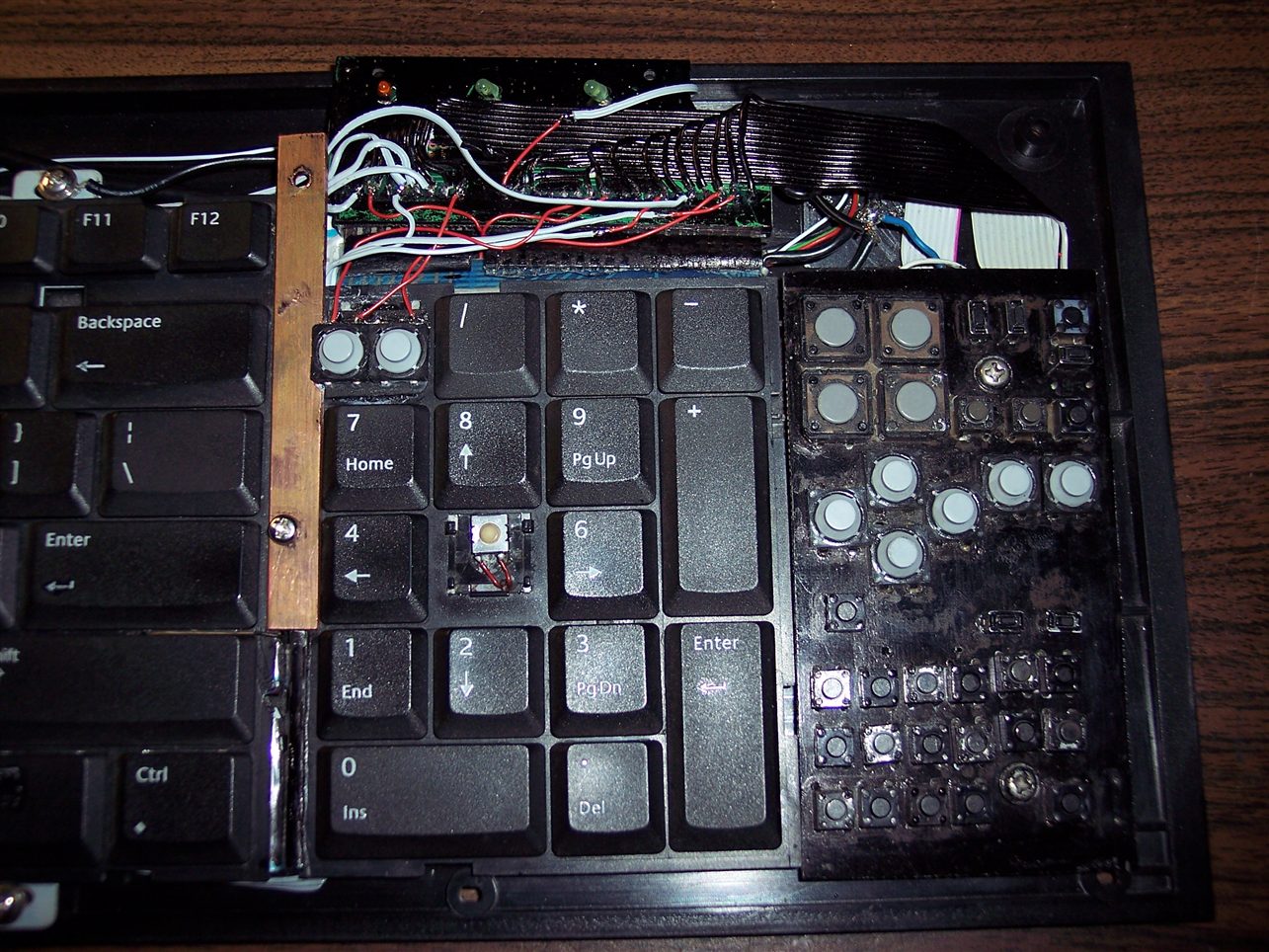
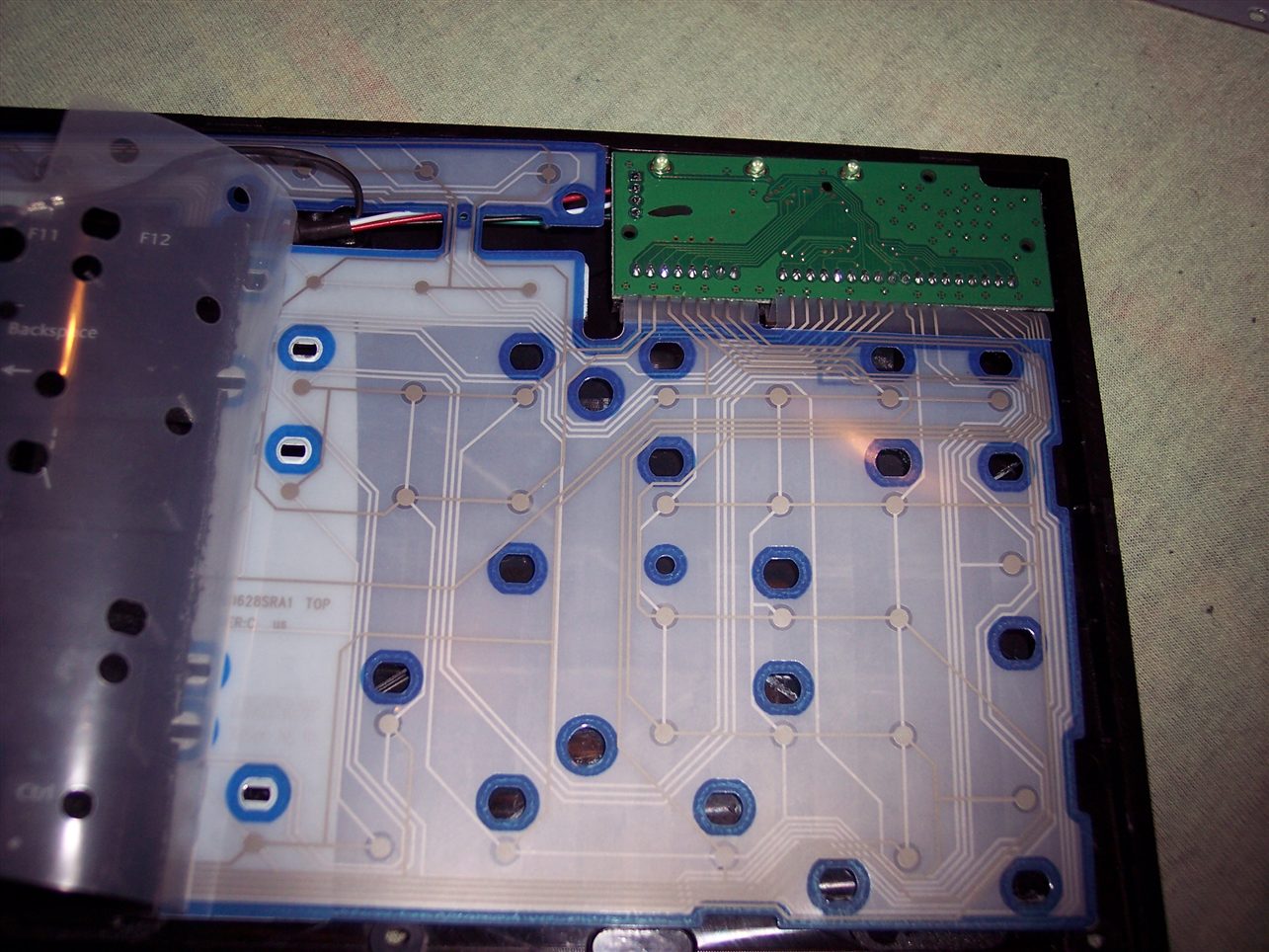
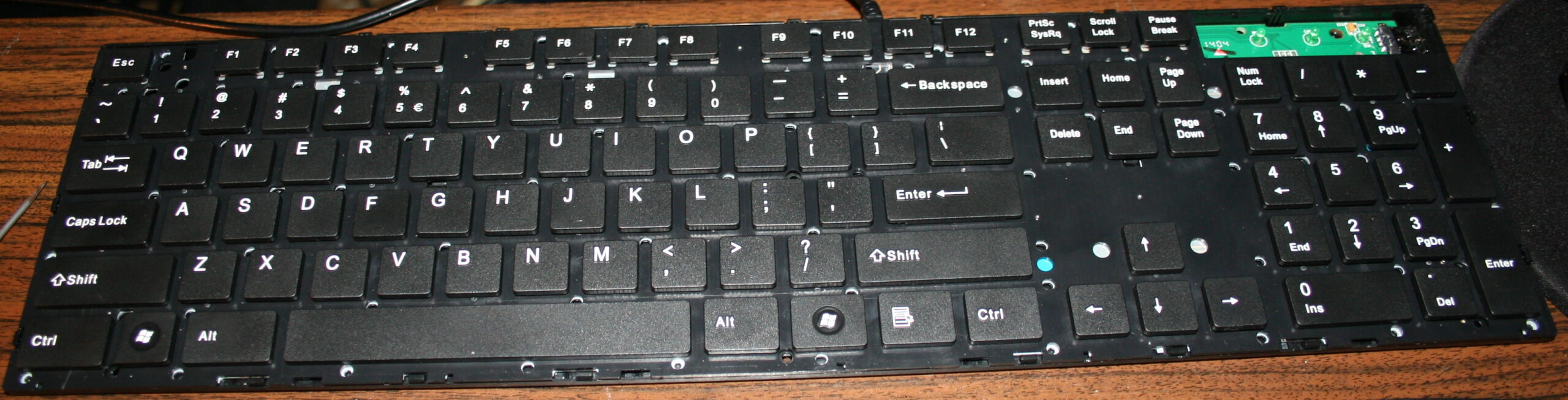
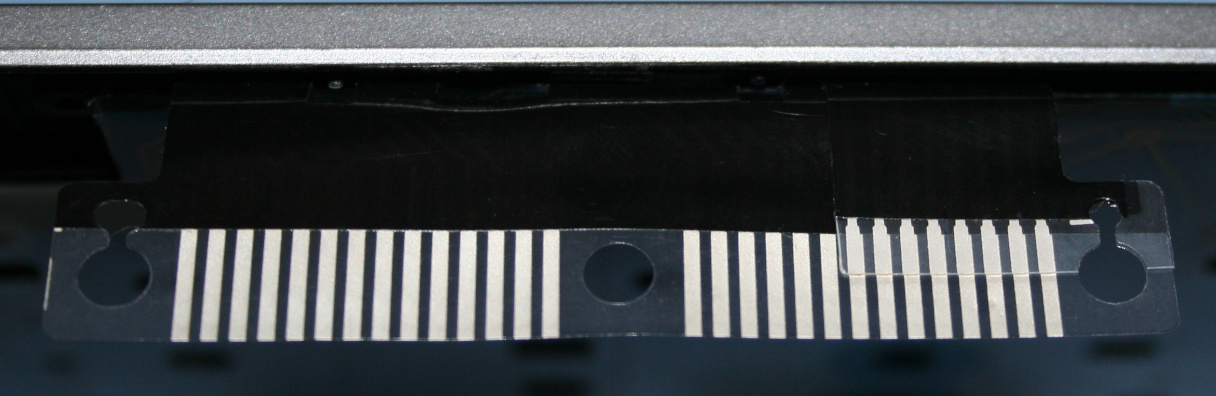
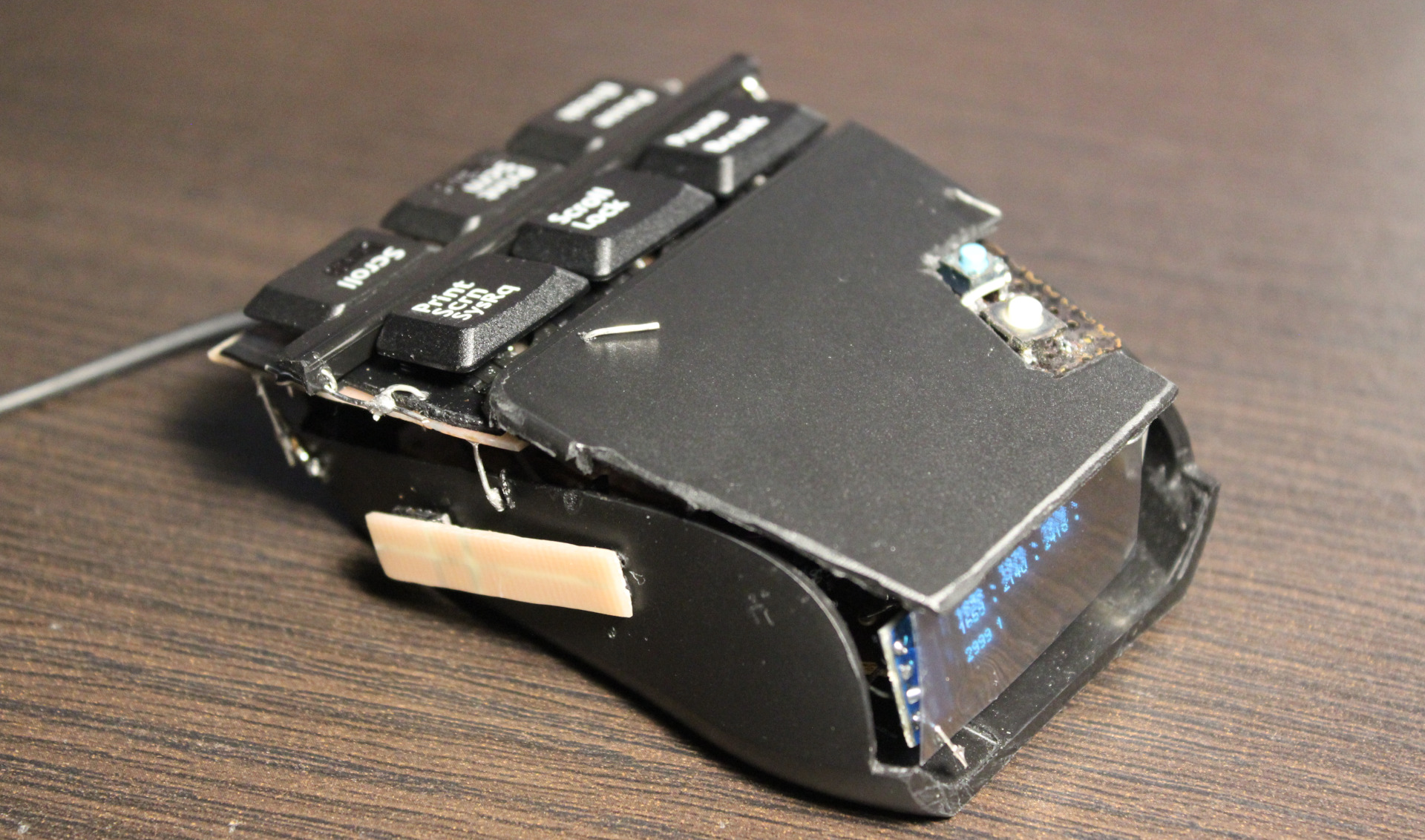
    Pictures: outside, then inside, weights, keys. Later pictures show earlier versions, work in progress.
    Video here.
    ⌛Conclusions

    Well, it surely is hard to get used to using it. I mean e.g. moving my hand from keyboard to mouse I can’t touch it or place fingers on these new keys, because that would already press them. That’s why this black plastic bar in middle and plastic cover are crucial, it’s the best first place to touch and rest fingers on it.
    So it will take a while. But I don’t want to use my old mouse already. It was nearby for a day and then vanished.

    It was a good project for me. It also took me a longer while to figure it out and finish.
    I also wanted it done first before going after making a whole PC keyboard (100 not 6 keys) with such sensors. Probably my other design though, PCB made keys not this commercial scissor key crap.

    I’m pretty sure anyone using just a default keyboard and mouse (with stupid 50 gram switches or even mechanical ones, that don’t go below 30 g I think), would likely go nuts with this mouse.

    Would I recommend it? No. Unless you know for sure you’re after the lowest actuation force in keys. And that could be the case if you have an injury that makes it hurt to press the default (and so stupid) keys. As for me, I want to avoid injuries and fatigue (from using way too old, ancient switches and keys continued just for profits). That’s why I use it.

    It is a joy to use even if tricky (you can’t touch this🎵) and a relief, less tiring when repeatedly. It was way to many times of me pressing the freaking mouse wheel (instead of an extra button) or even tedious scrolling. Instead I got a touch-key (for middle mouse), same like all other 6 now. Also keys to touch and hold, when I want to scroll mouse, not turn wheel repeatedly like a knob or something. I can even touch the Left button on mouse nearby with my smallest finger if needed. Lastly the “lift off” button on side is honestly like a must for each mouse. I just need to move it closer for thumb.

    The mouse weighs about 48 gram now, less than my previous half of old Logitech G5 which was 62 gram (after cutting off, visible on right of picture here), so it’s also better for me.
    I have plans for G5 to also rework it same way. I already removed lots and checked that 25 gram is the minimum working stuff, that’d need my keys and other stuff.

    There is also one thing I didn’t do: making it more ergonomic, e.g. having tilted keys at some angle. Well that’s for future project or update.

    DIY

    Lastly, and obviously this thing ain’t pretty. Was never a goal for me.
    It rather screams DIY. And it’s IMHO the only solution, not anything commercial. With DIY I got parts reused, I can fix, adjust or modify it later, etc. I set the budget (or price).
    It gives freedom and low cost. It promotes learning, not addiction to buying (consumerism).
    And most importantly for me: it makes it possible to have stuff that isn’t commercially available, and probably won’t. Crucial everyday useful things and software.
    I recently found this channel (mainly DIY RC toys) very inspiring and enlightening. There are plenty of DIY projects now e.g. on hackaday.

    The project doesn’t require 3D printing or company making PCBs. Surely it could.
    But for me a 3D printer seems nowadays like a too popular, way too expensive tool, or toy even. And so many projects (e.g. here) just looking like a commercial for 3D printing. But yeah other times like a quick way of sharing your design with others.

    I did PCBs just with my small drill, used with a dremel diamond cutting disc. I use it for cutting PCBs and for removing/trimming copper.
    This way was cheapest, I didn’t need to pay any company, and I had all stuff already at home. Of course if I had to do 3 or more mice like this, I’d go the alternative way.

  • 2020-22 K.C.4 Controller ⌨️

    2020-22 K.C.4 Controller ⌨️

    ⏱️Overview

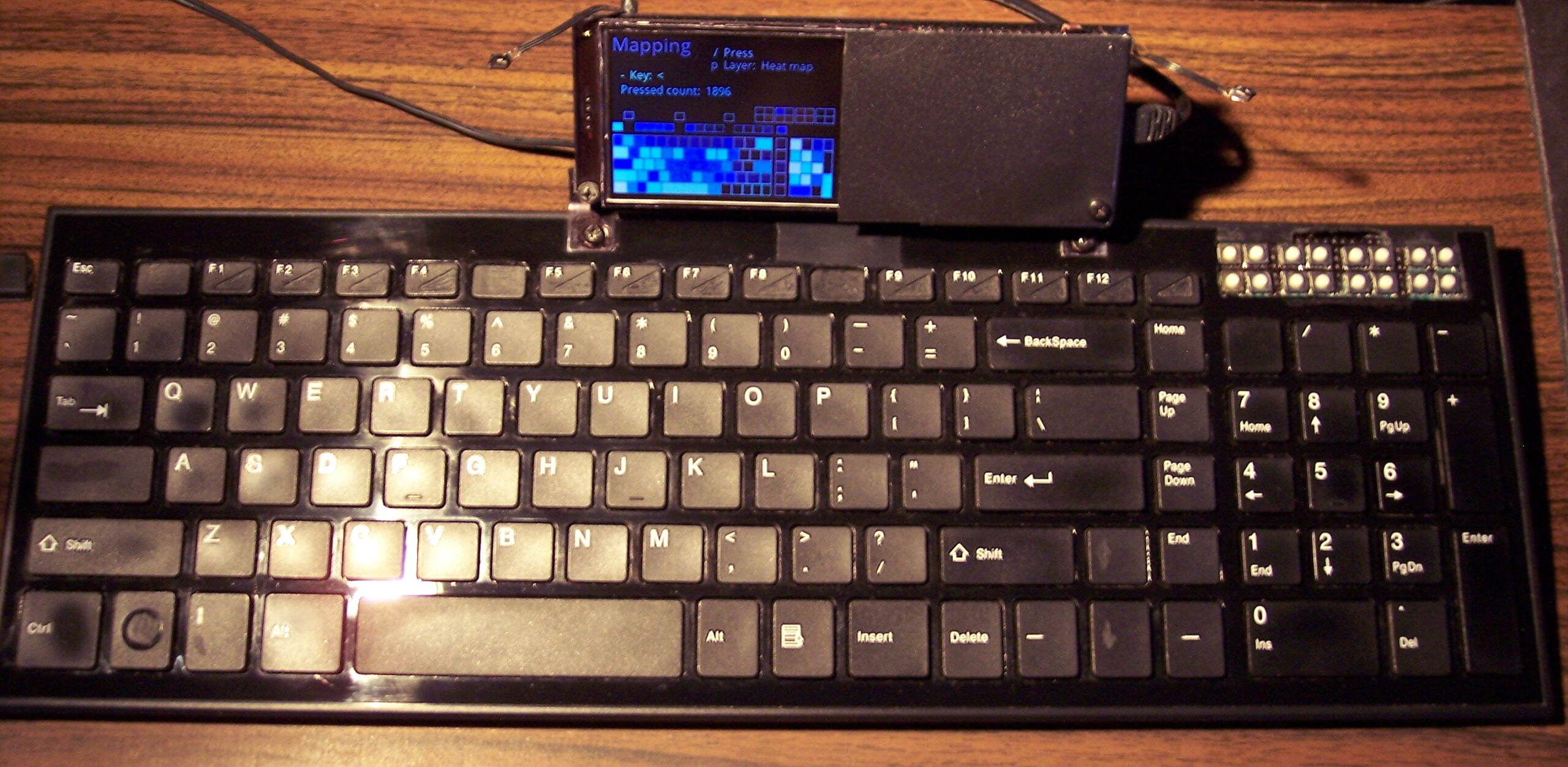
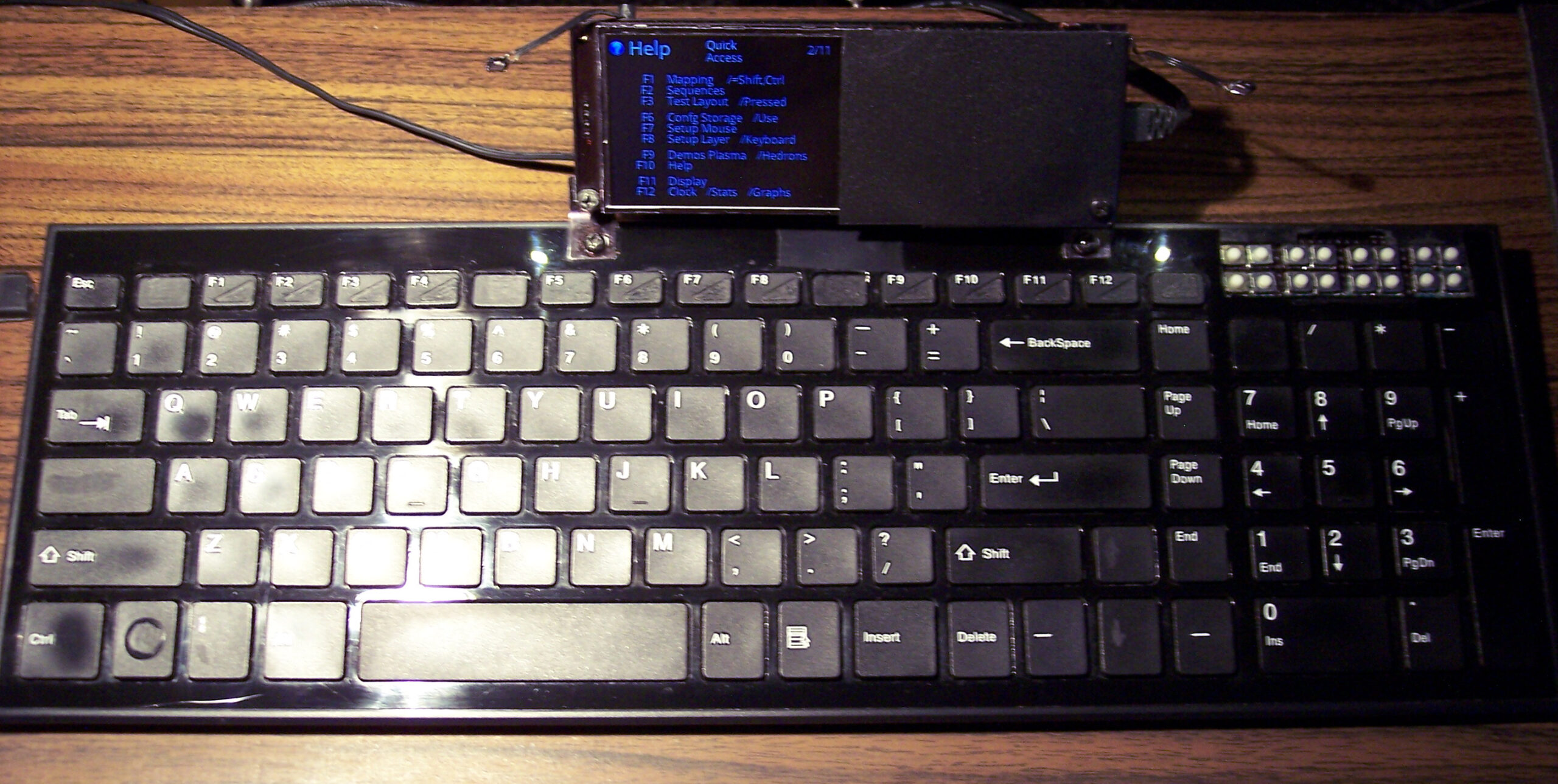
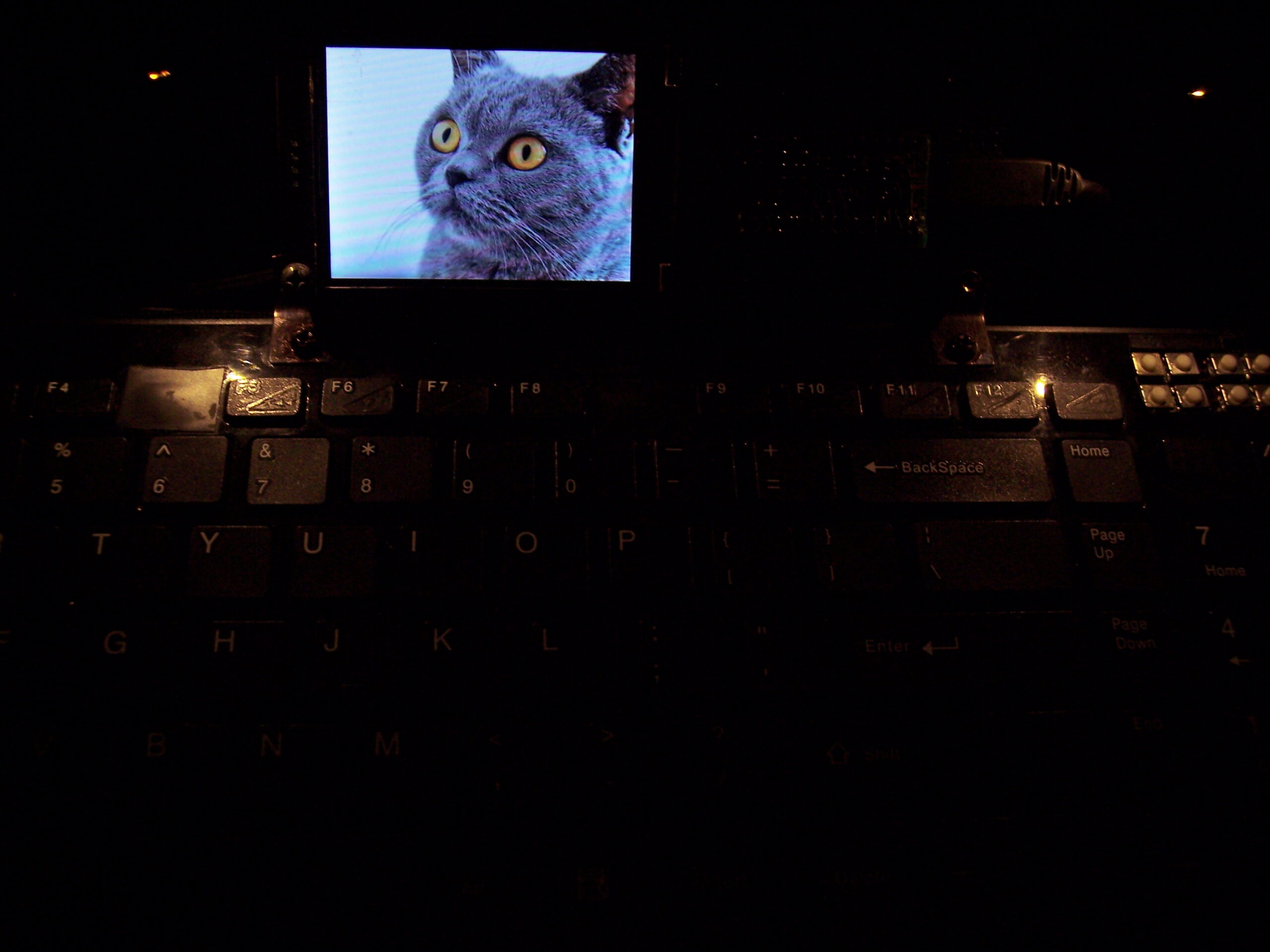
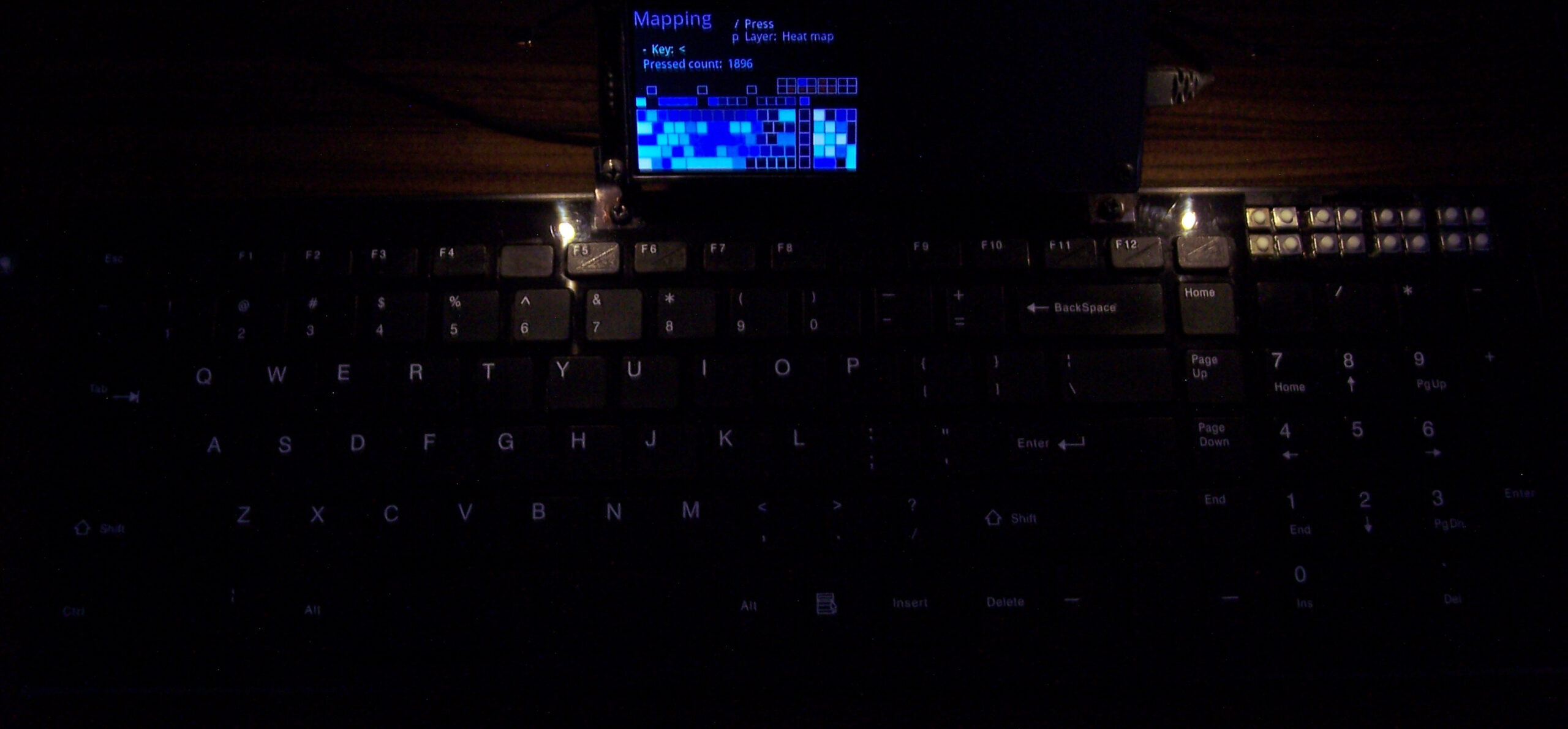
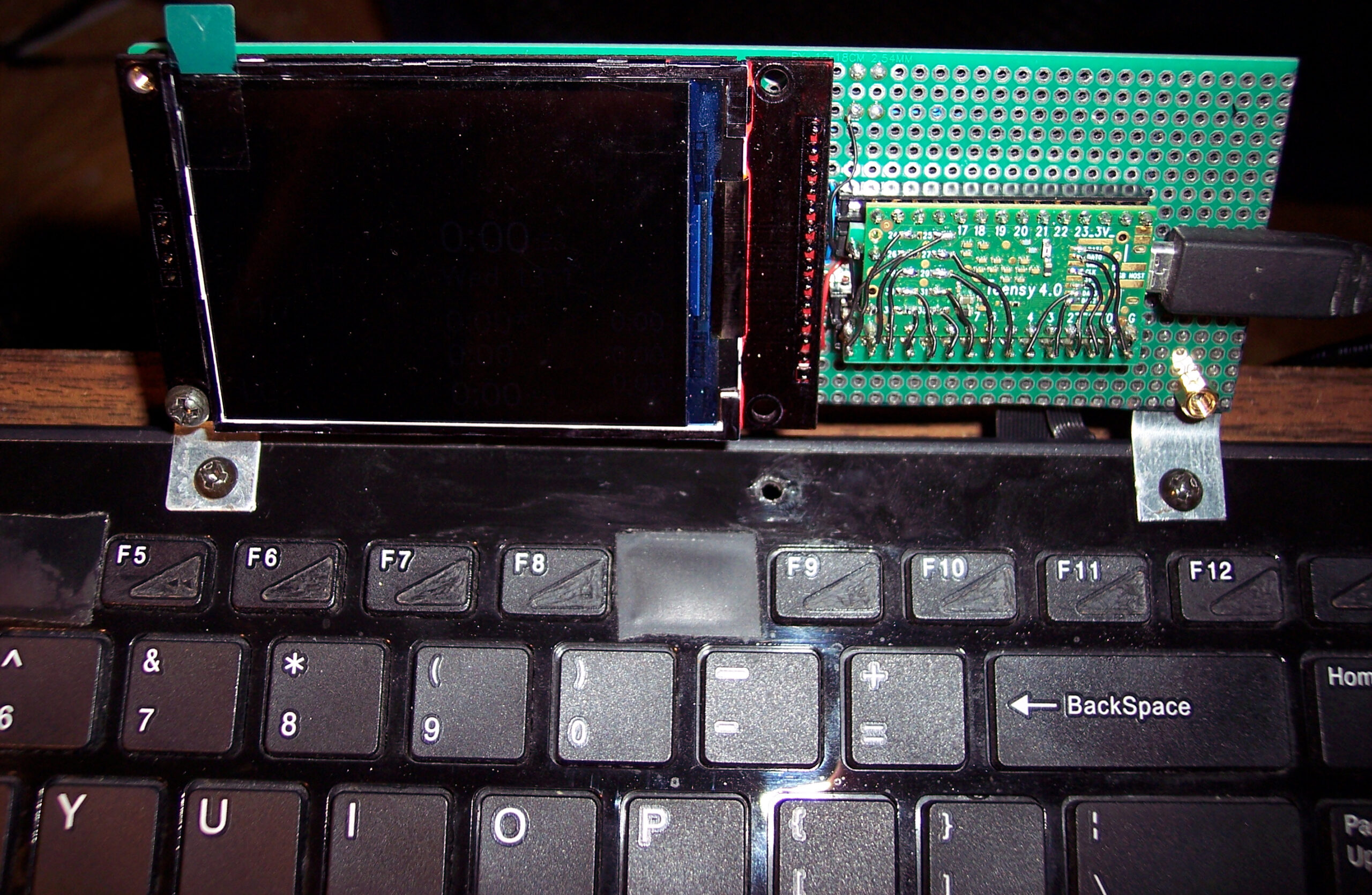
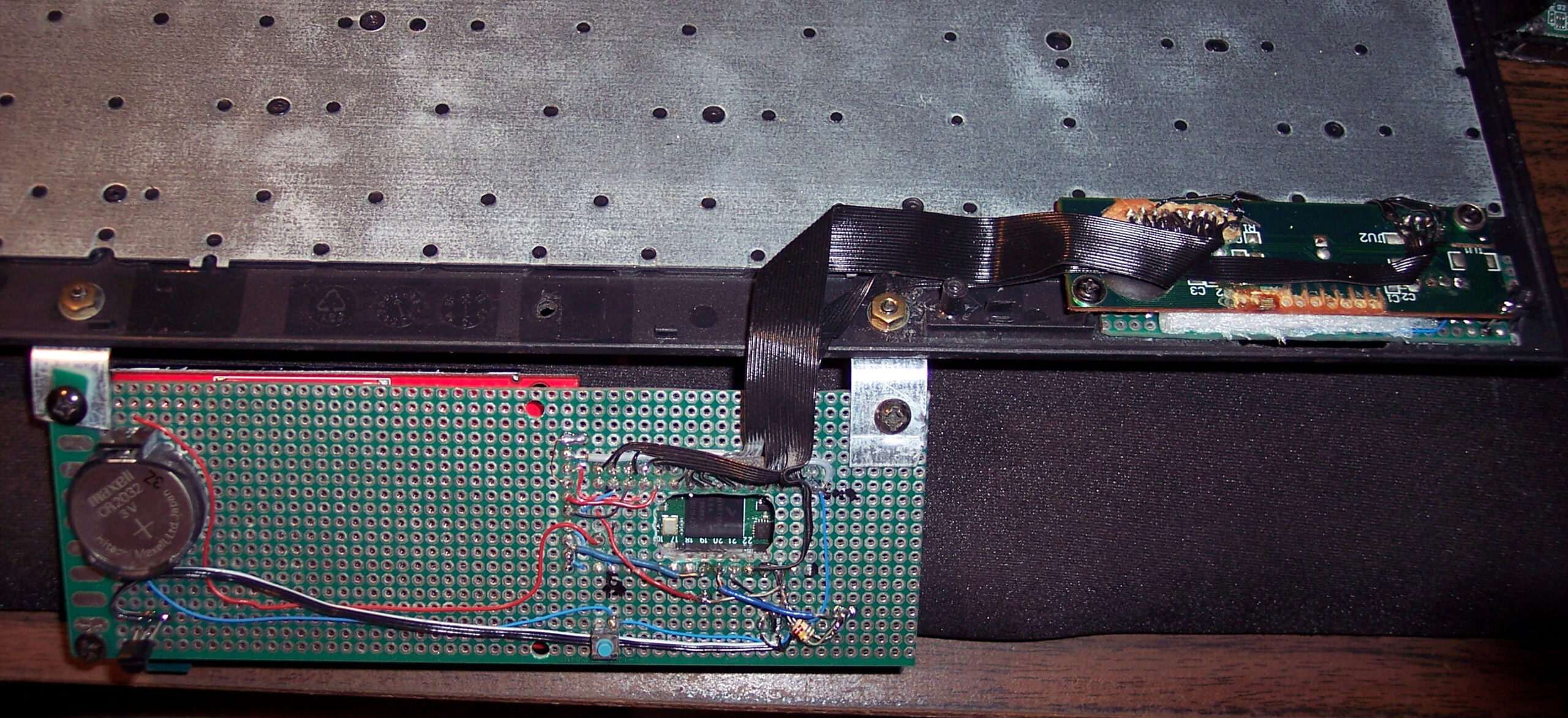
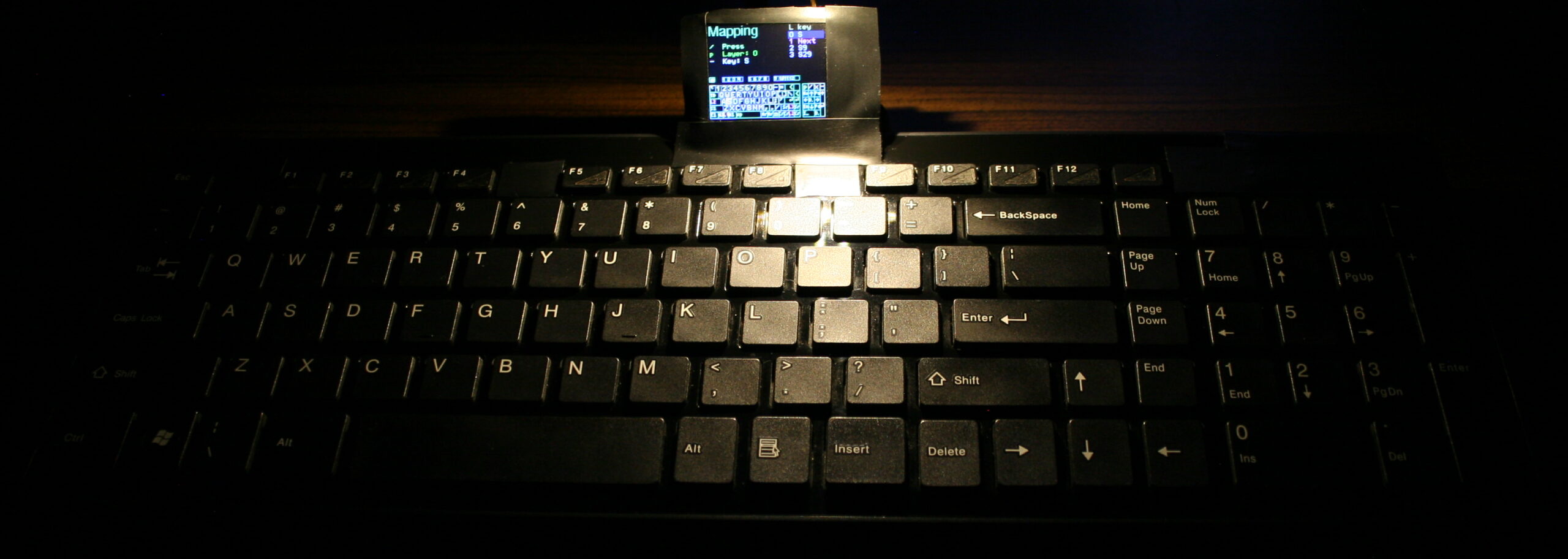
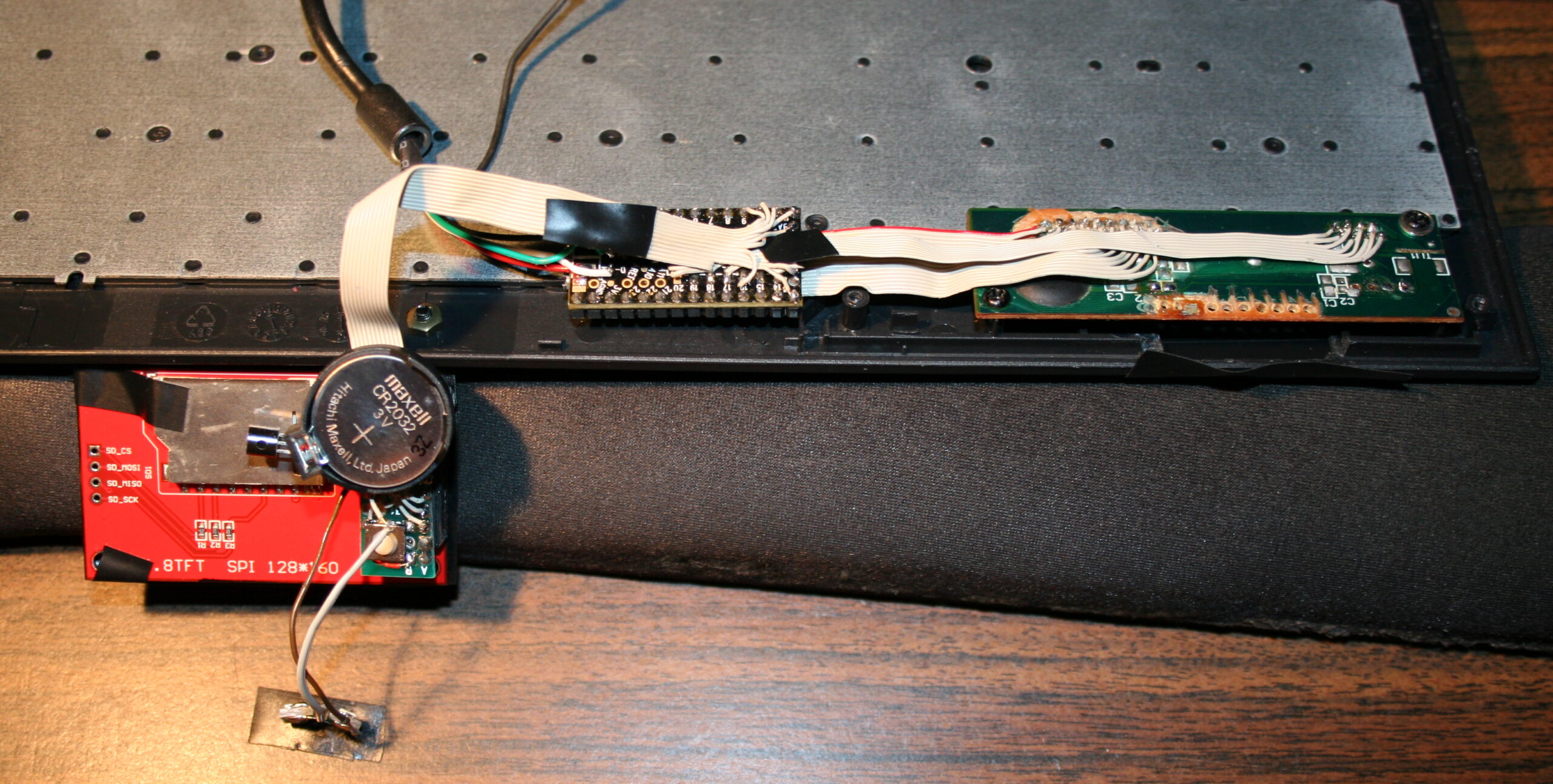
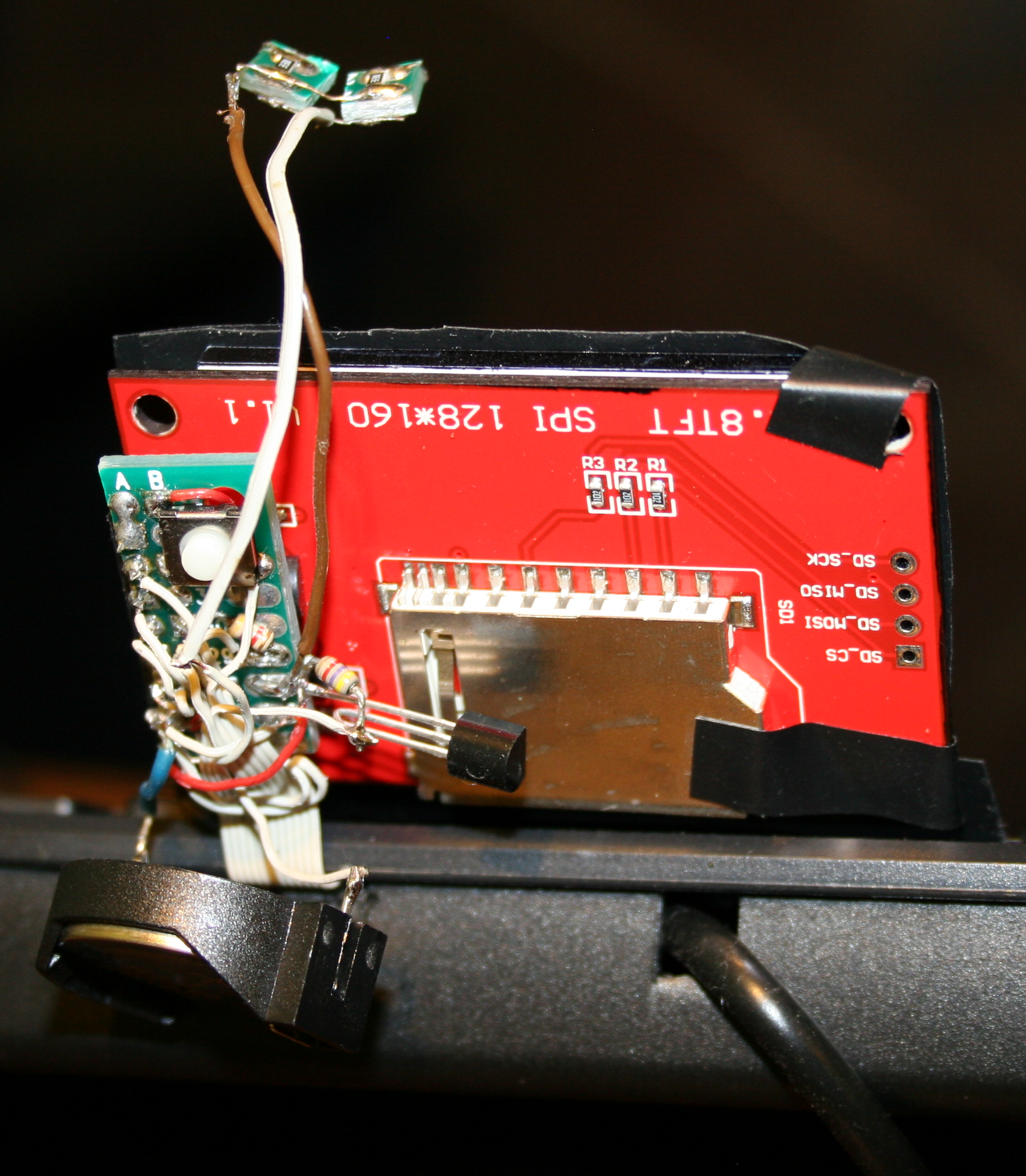
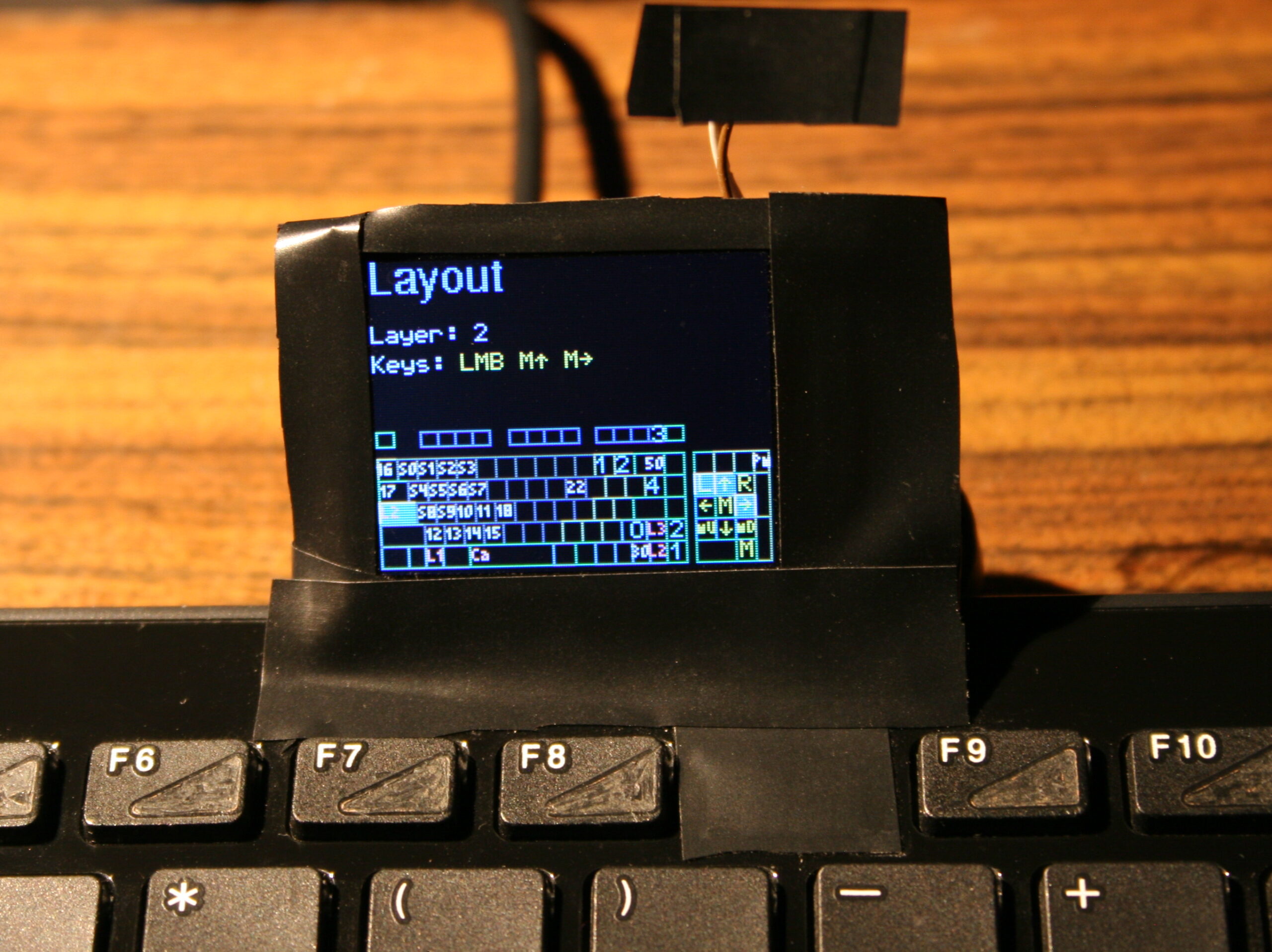
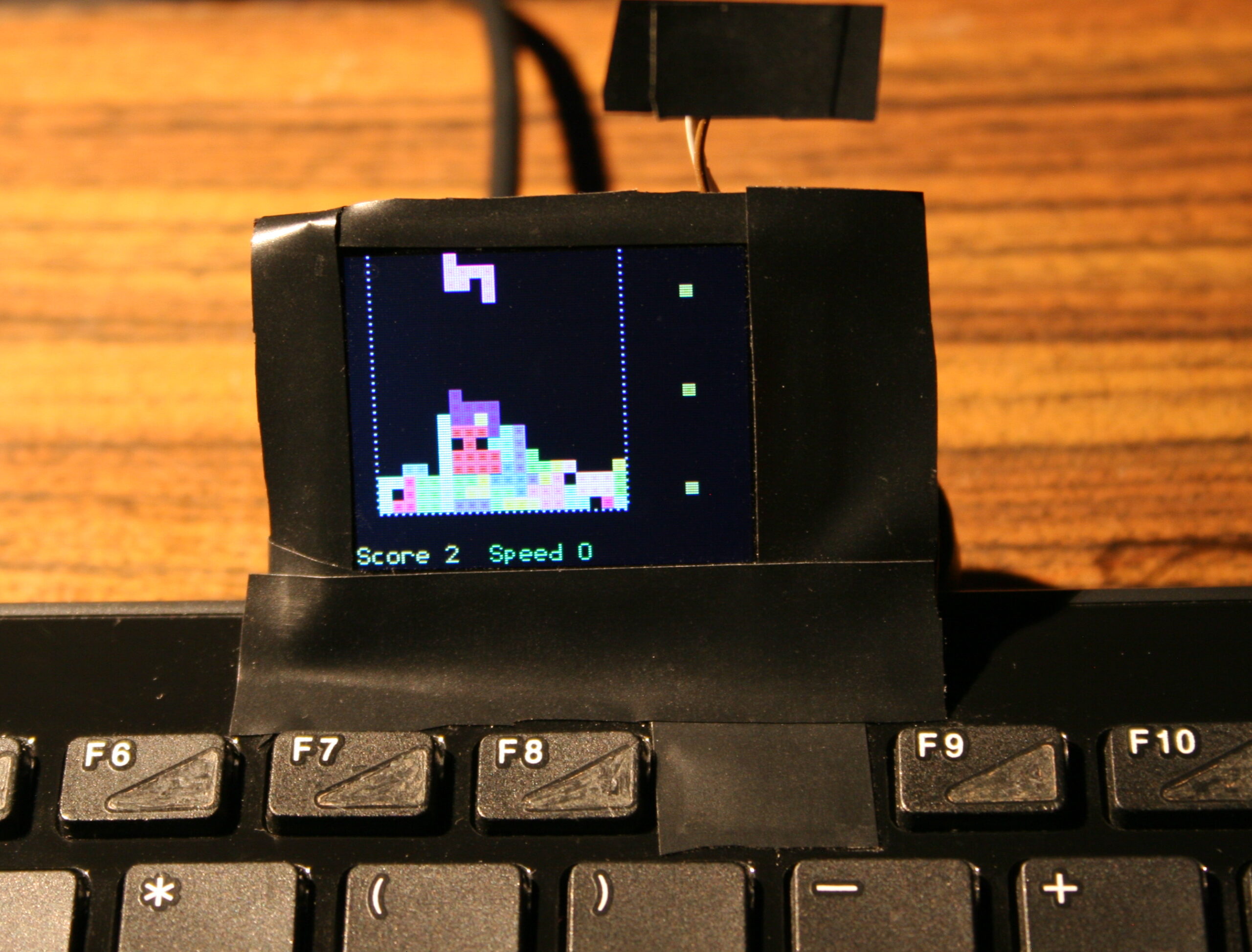
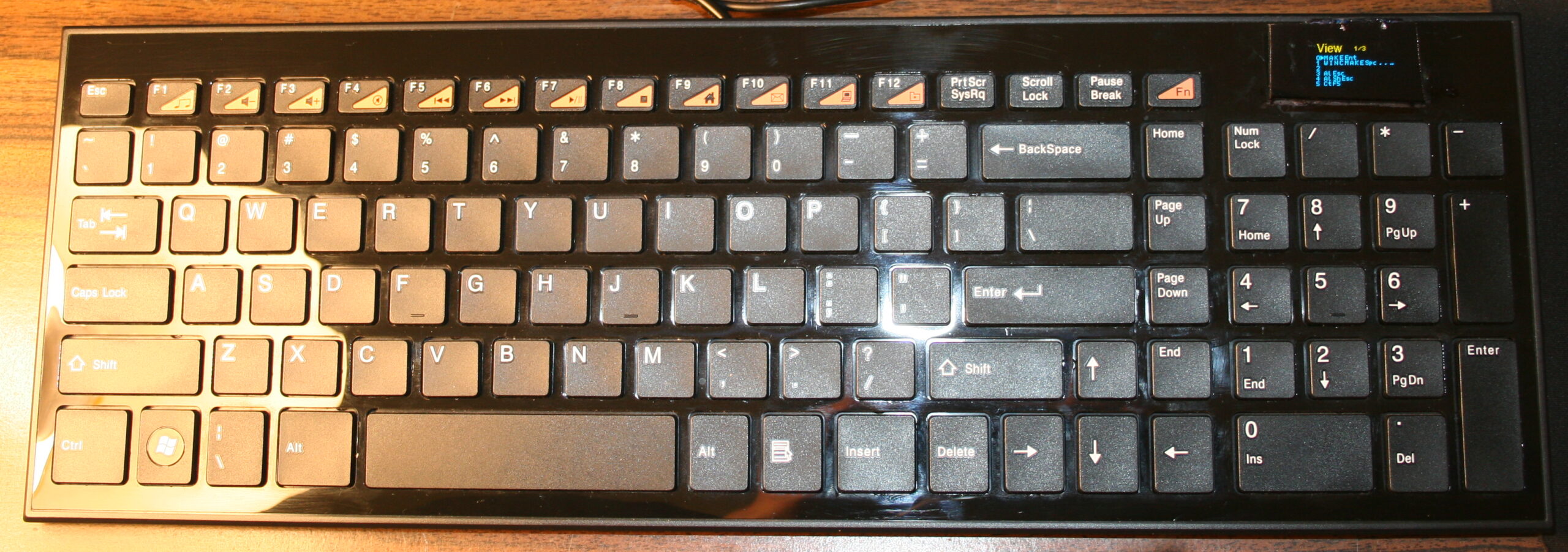
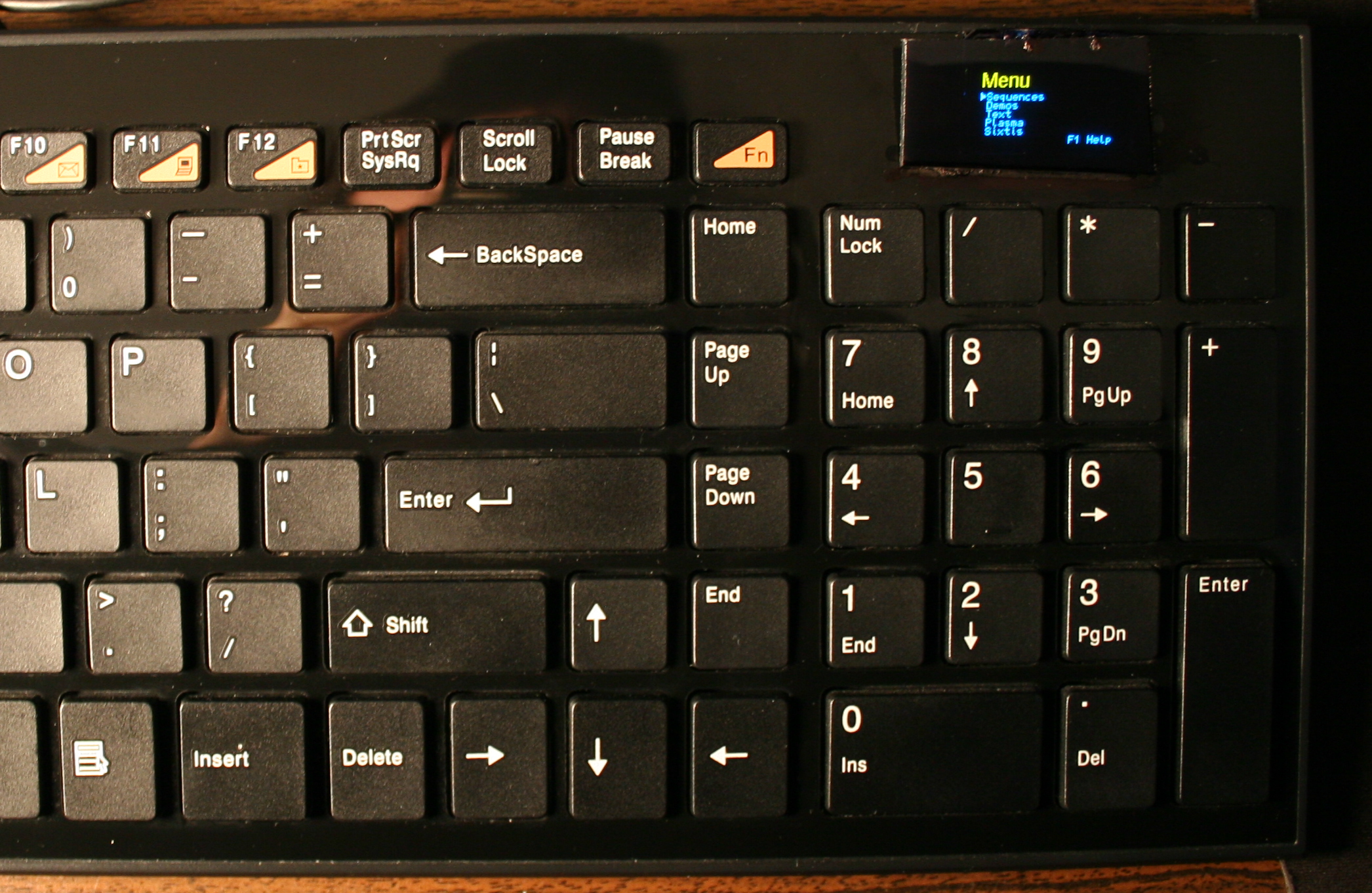
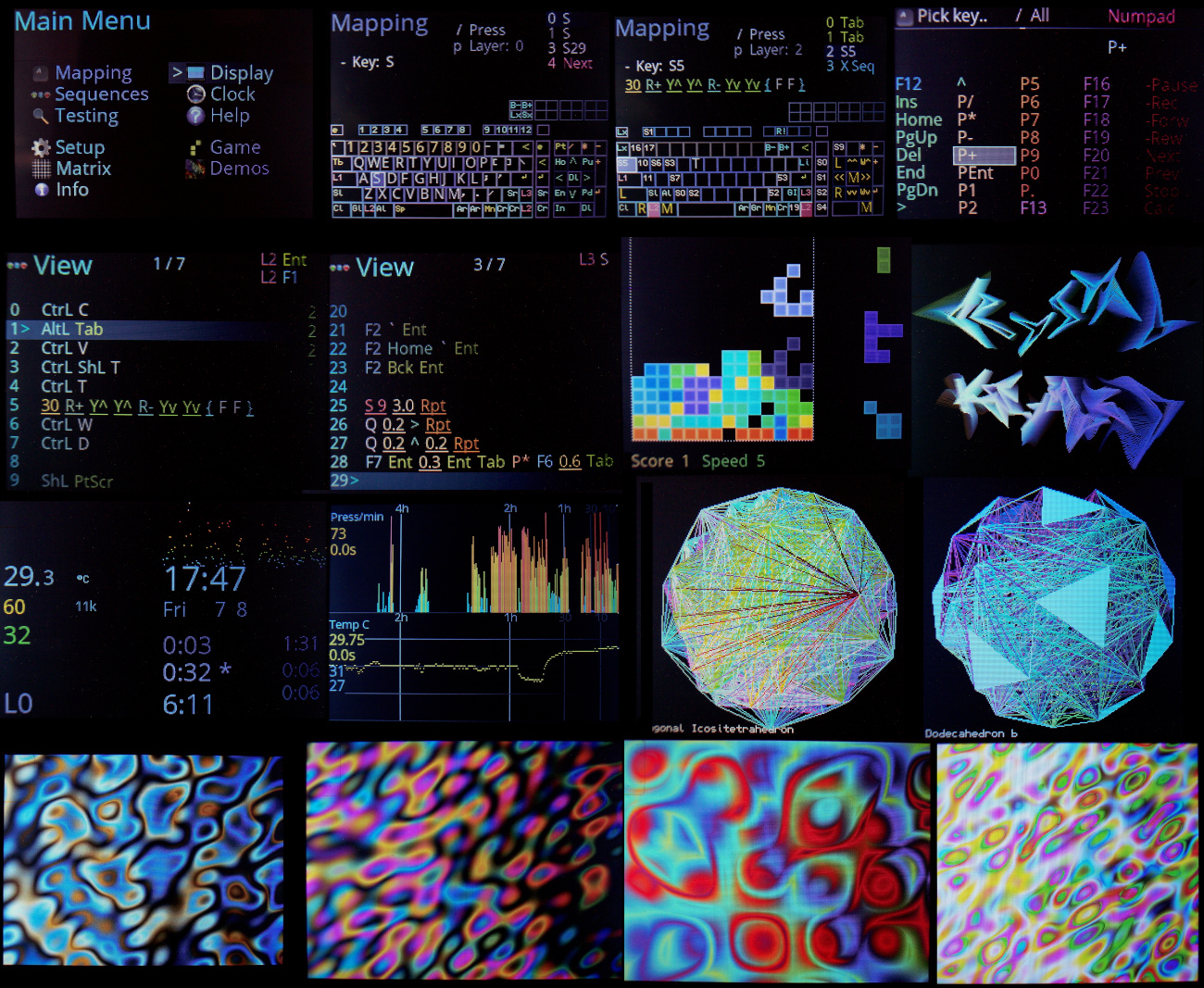
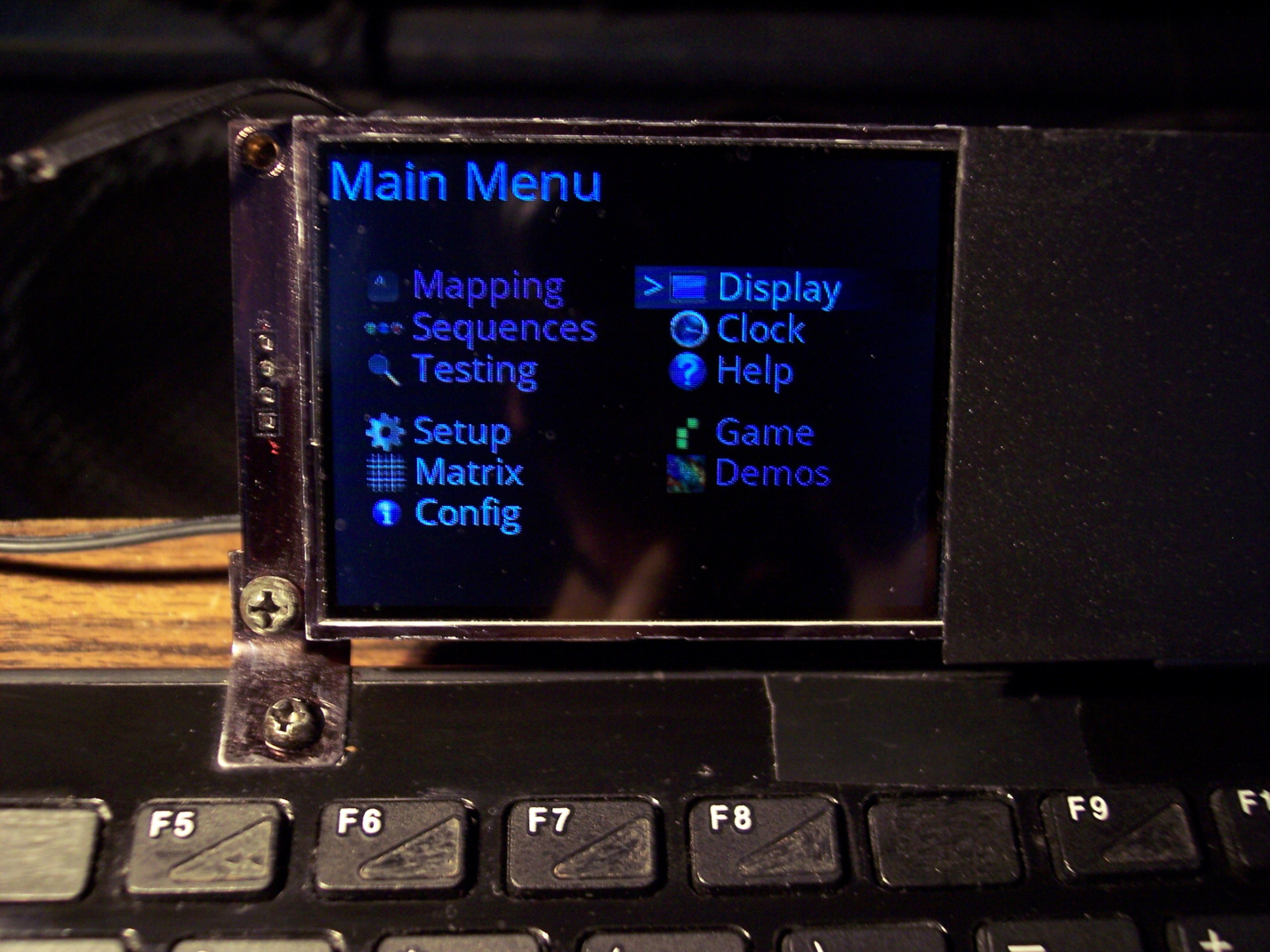
    This is my newest keyboard controller software (based on my previous one) used in my keyboard CK9 (upgraded CK6), running on Teensy 4.0 with a 2.8″ color LCD display (320×240, ILI9341 chip). It allows editing everything like key mappings, layers, sequences/macros in real time on its display (was already in previous one).

    ▶️Videos

    Here are videos of keyboard CK9, showing most of K.C.4 on its display:

    • View – Short video of keyboard and closeup at display.
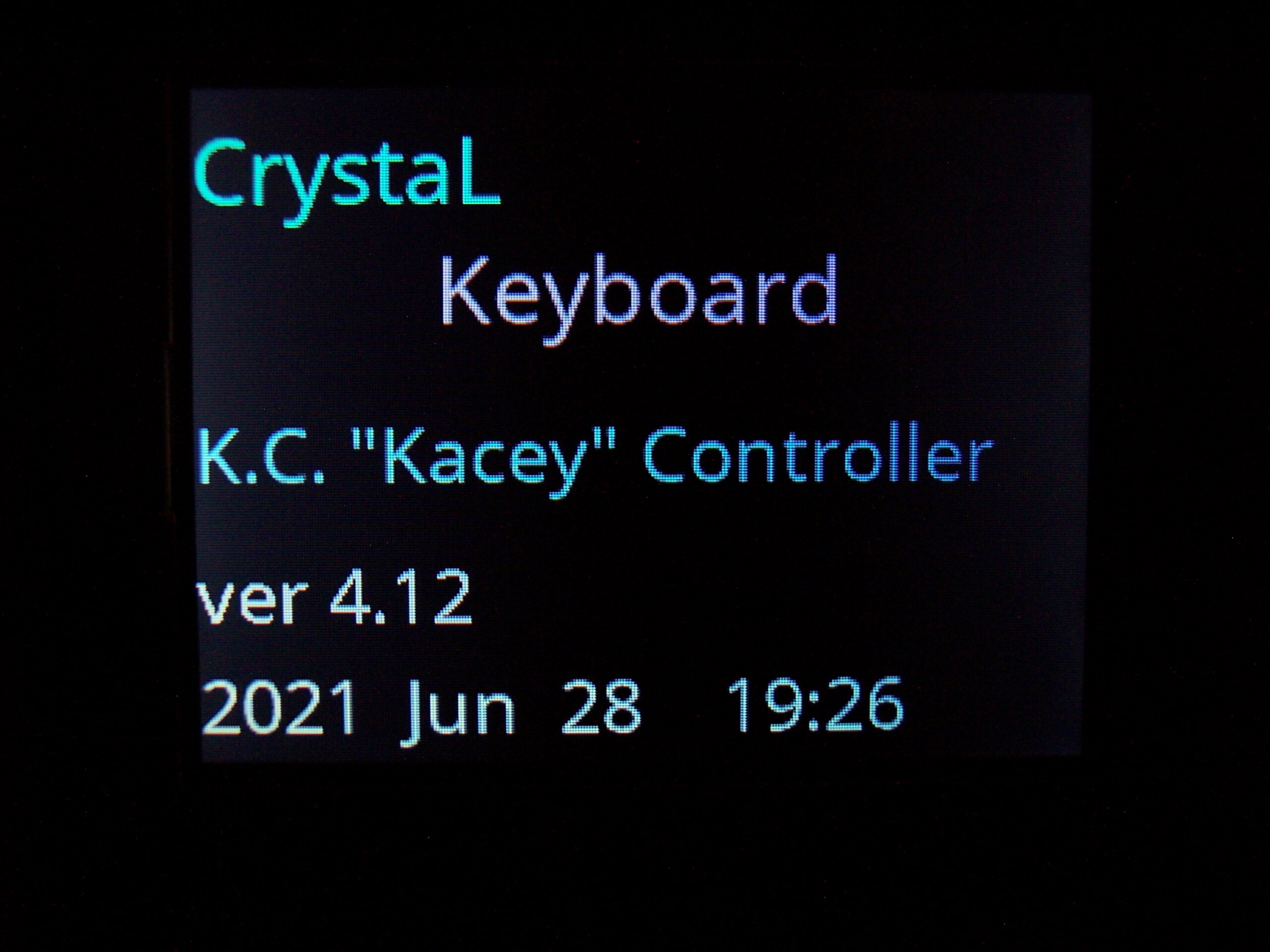
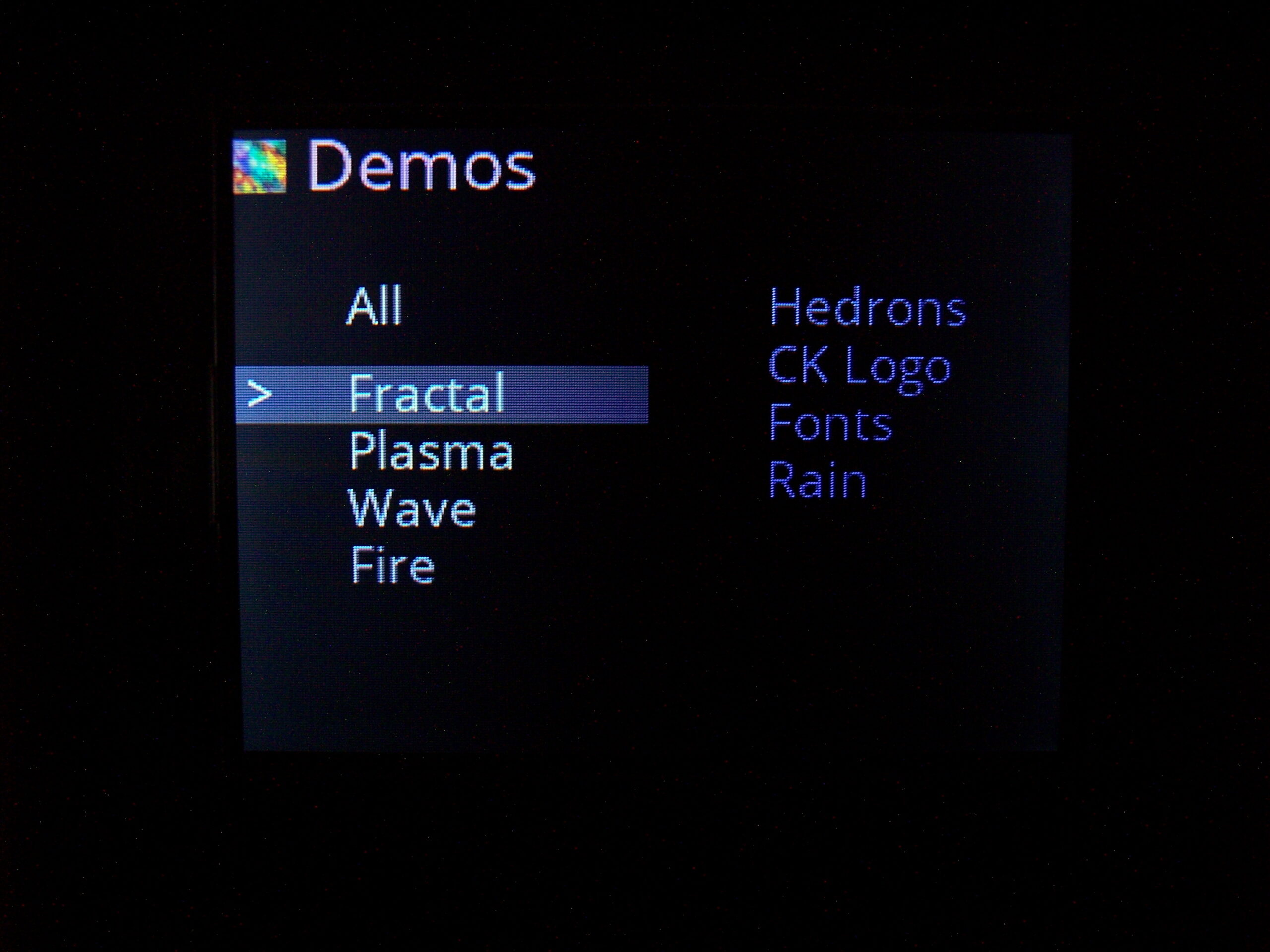
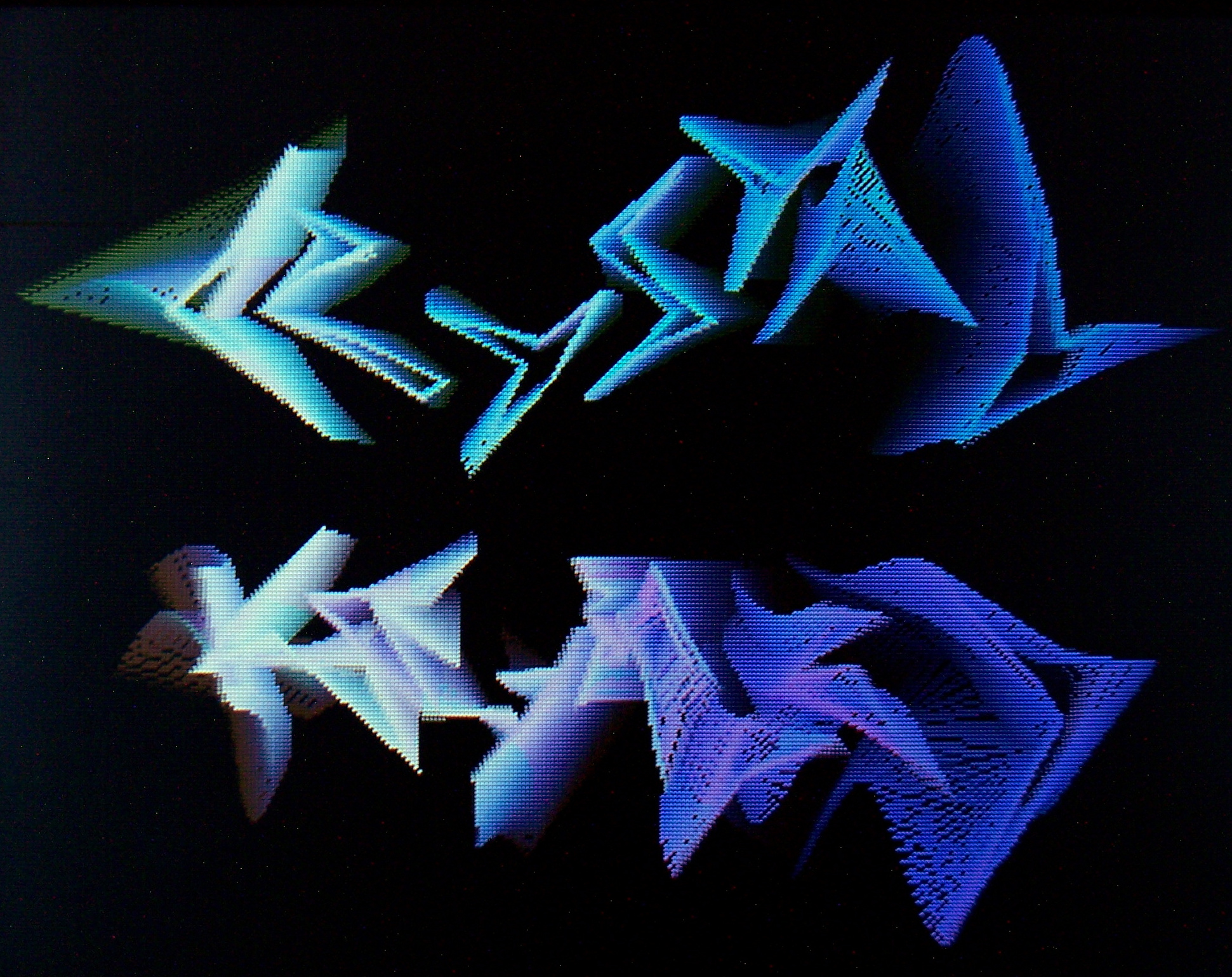
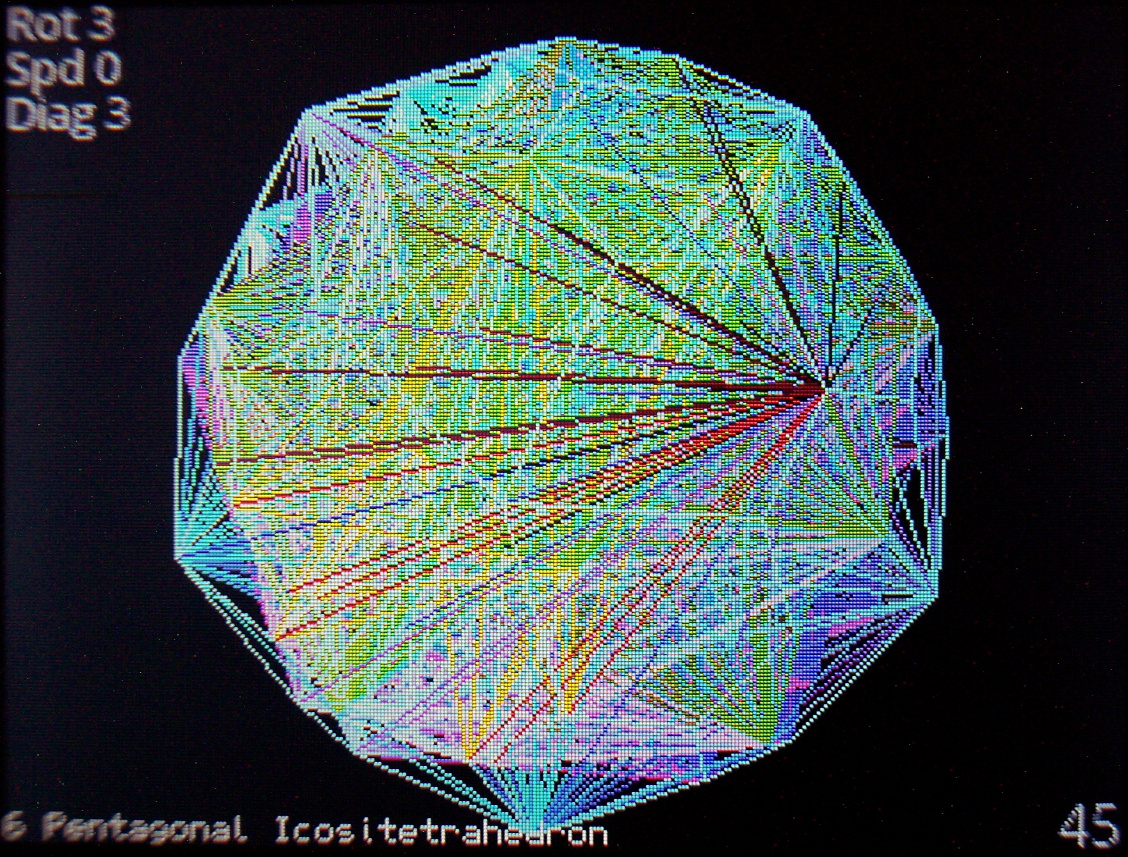
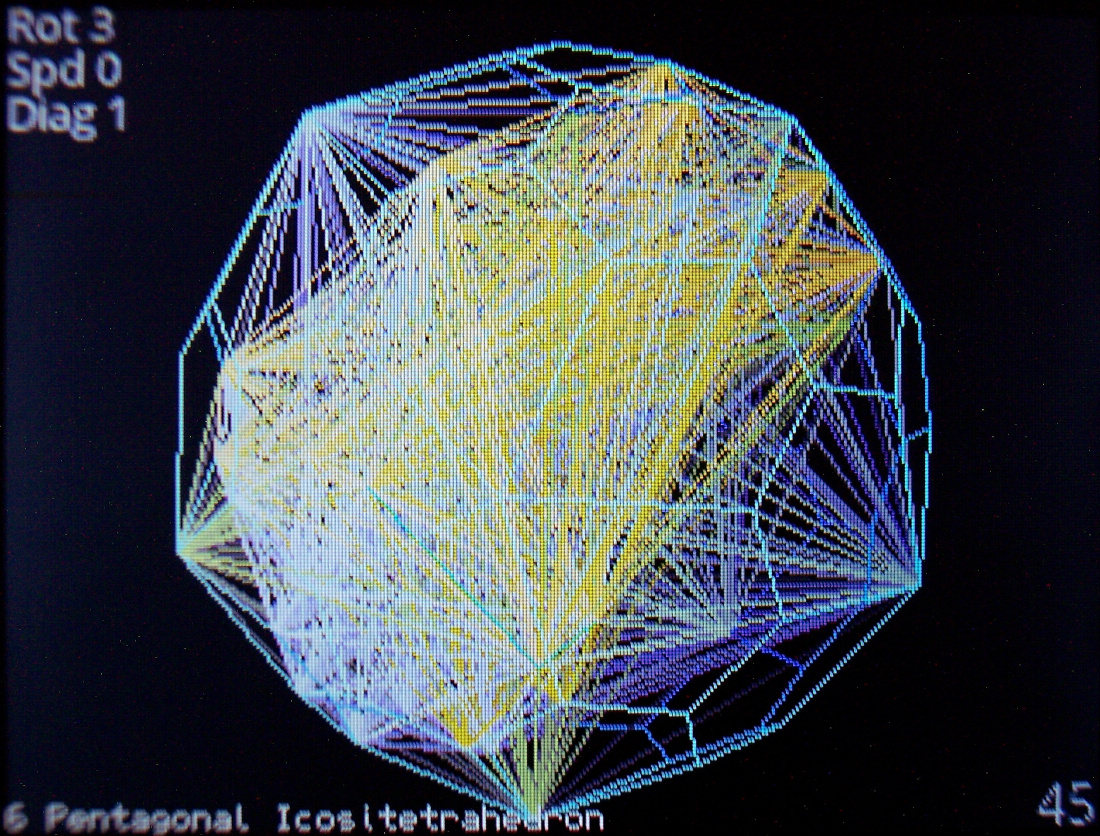
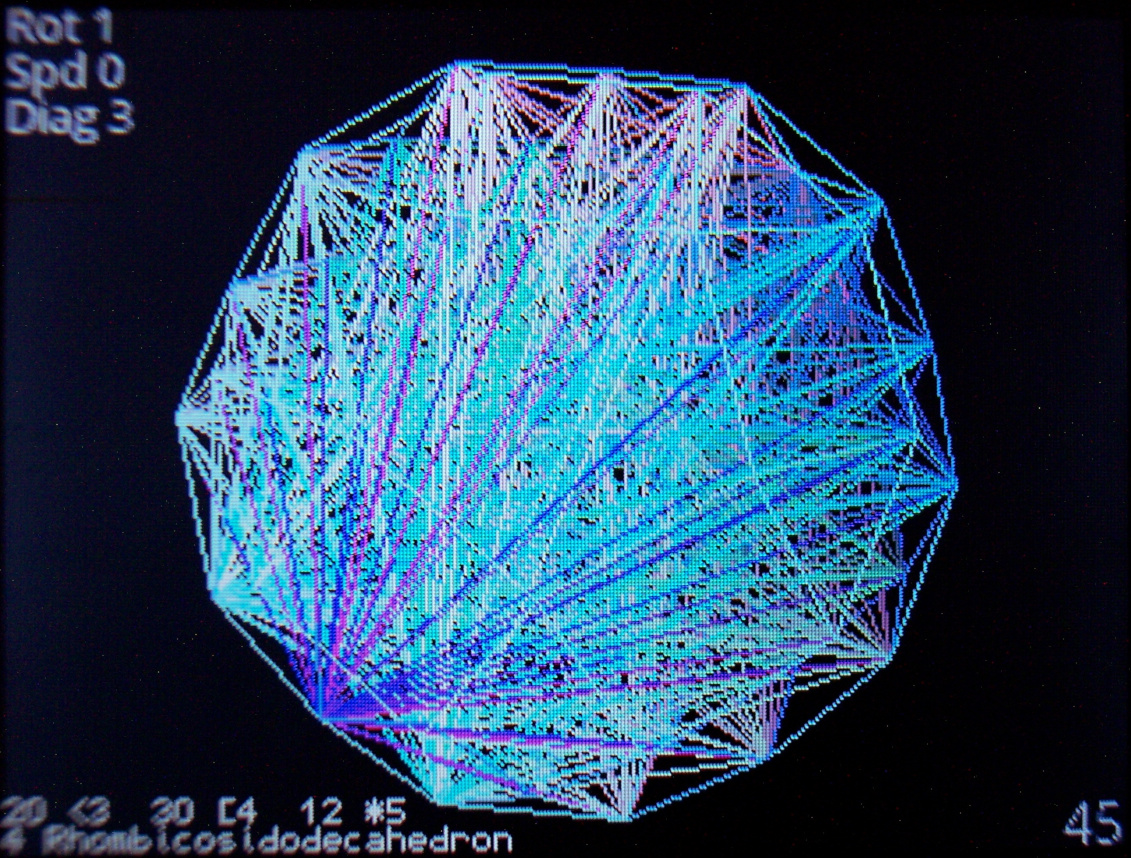
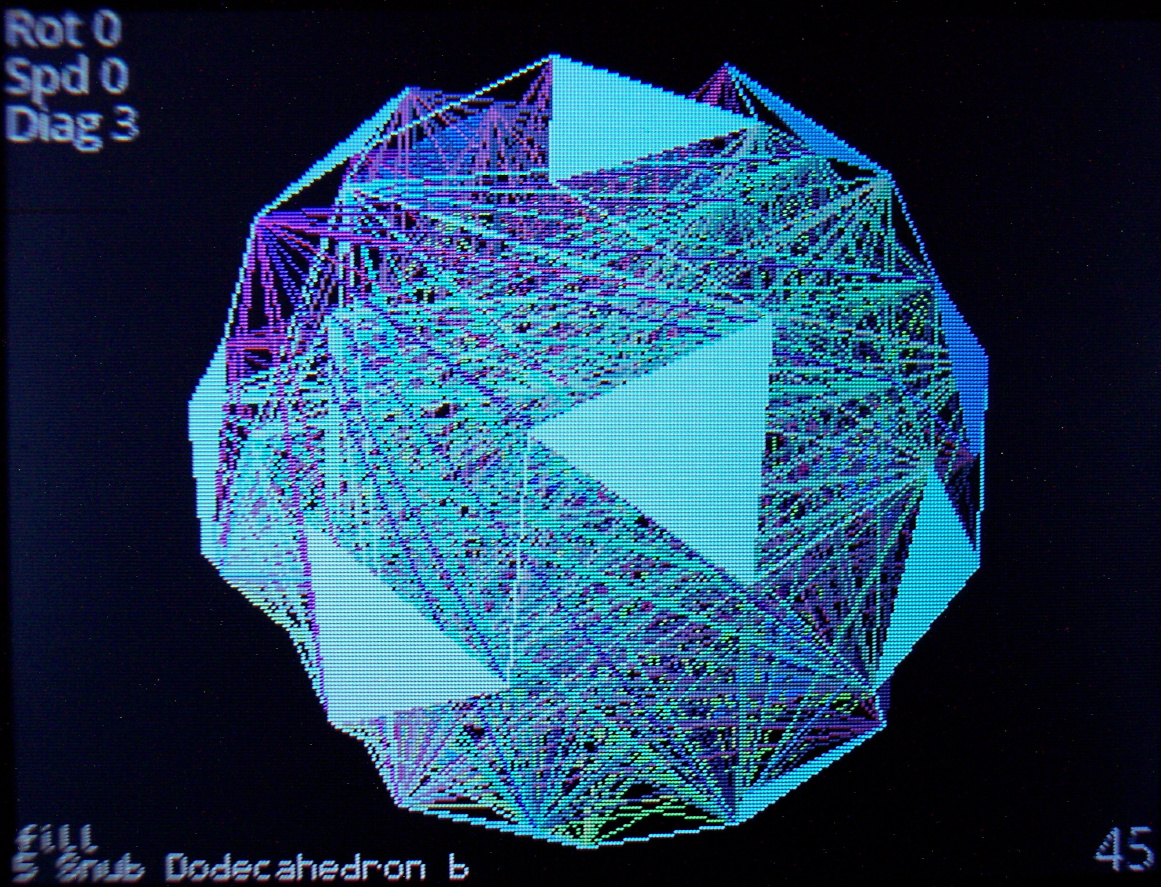
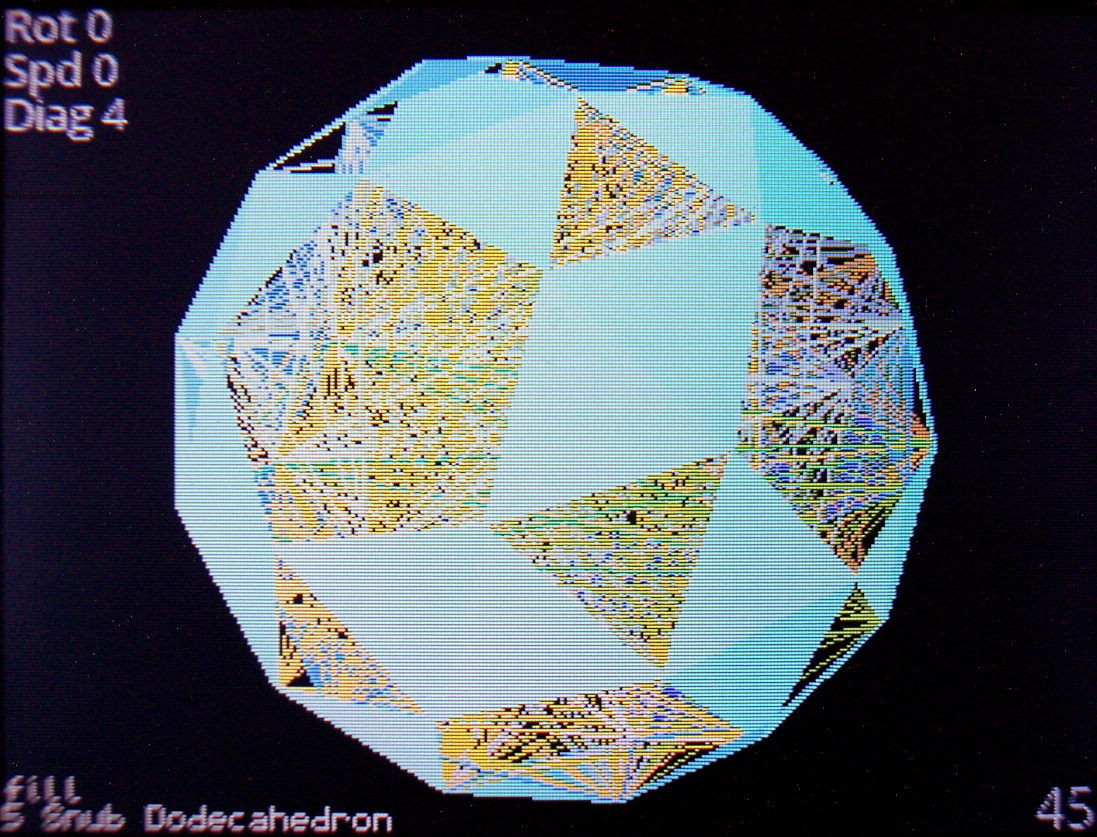
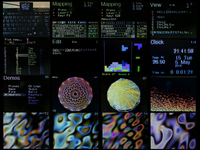
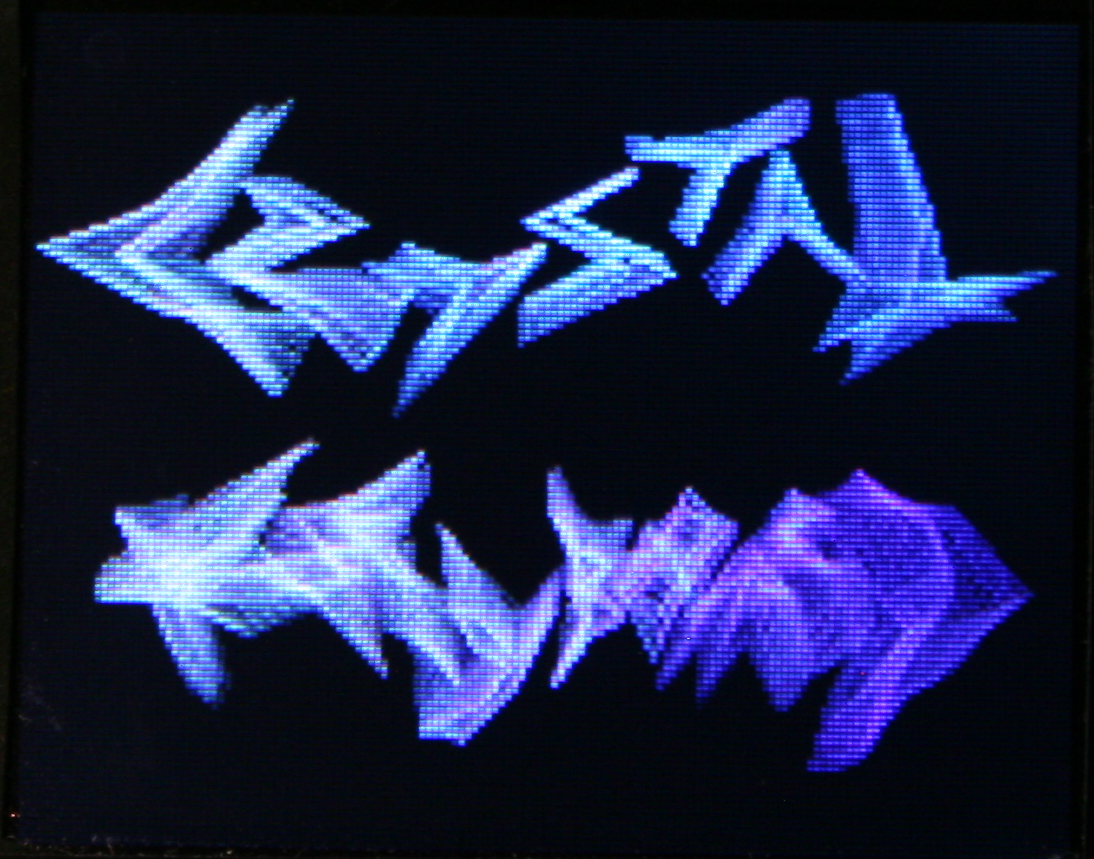
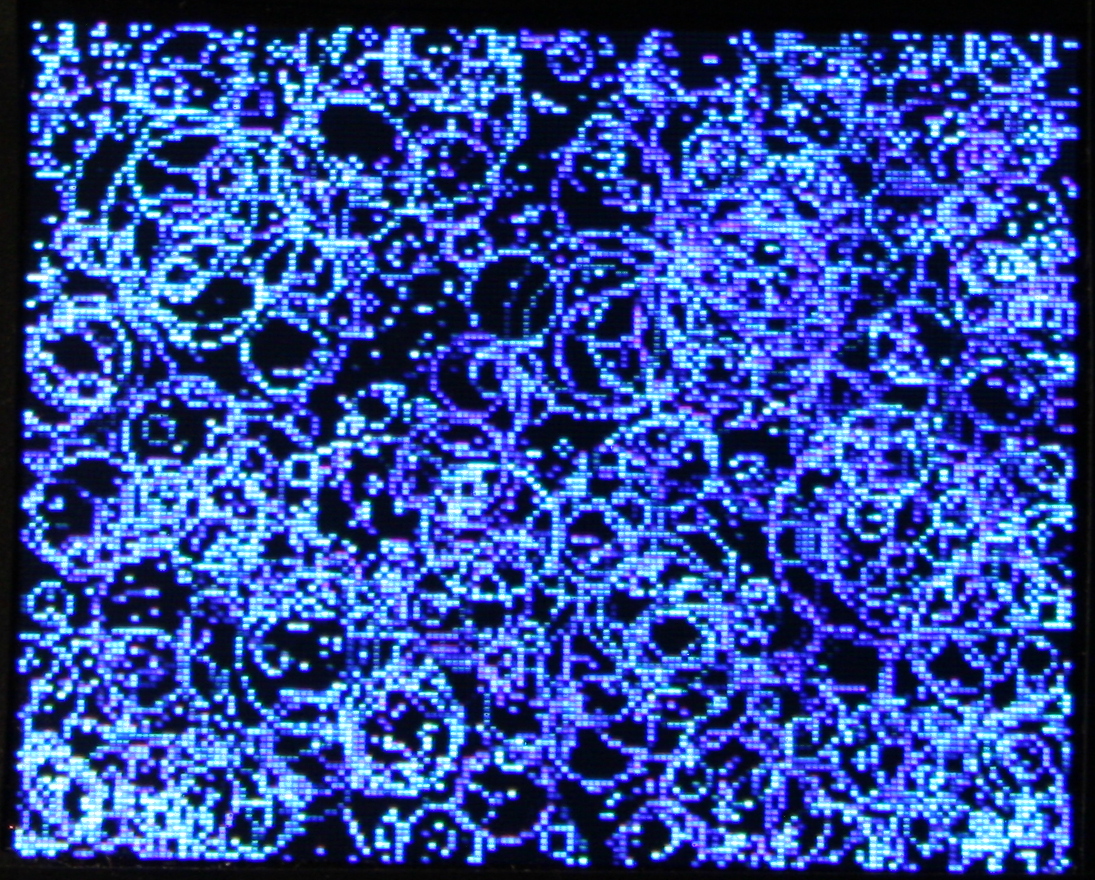
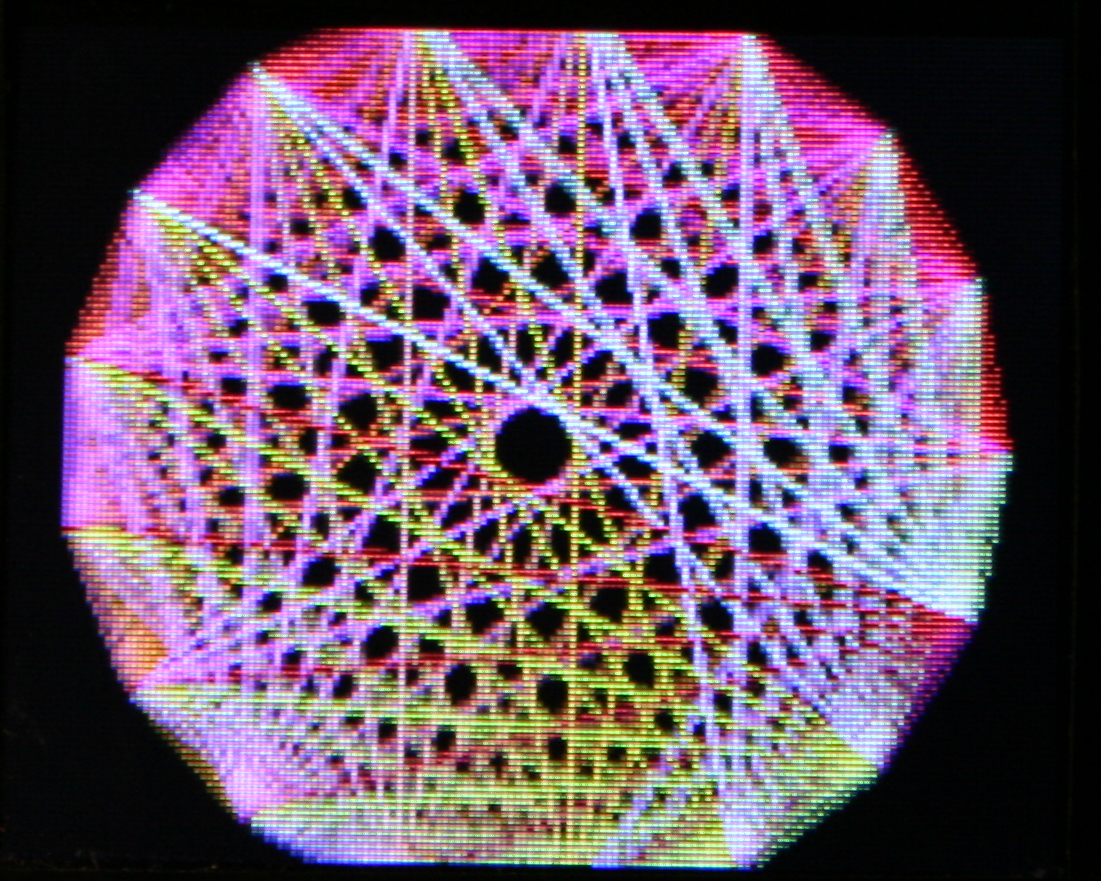
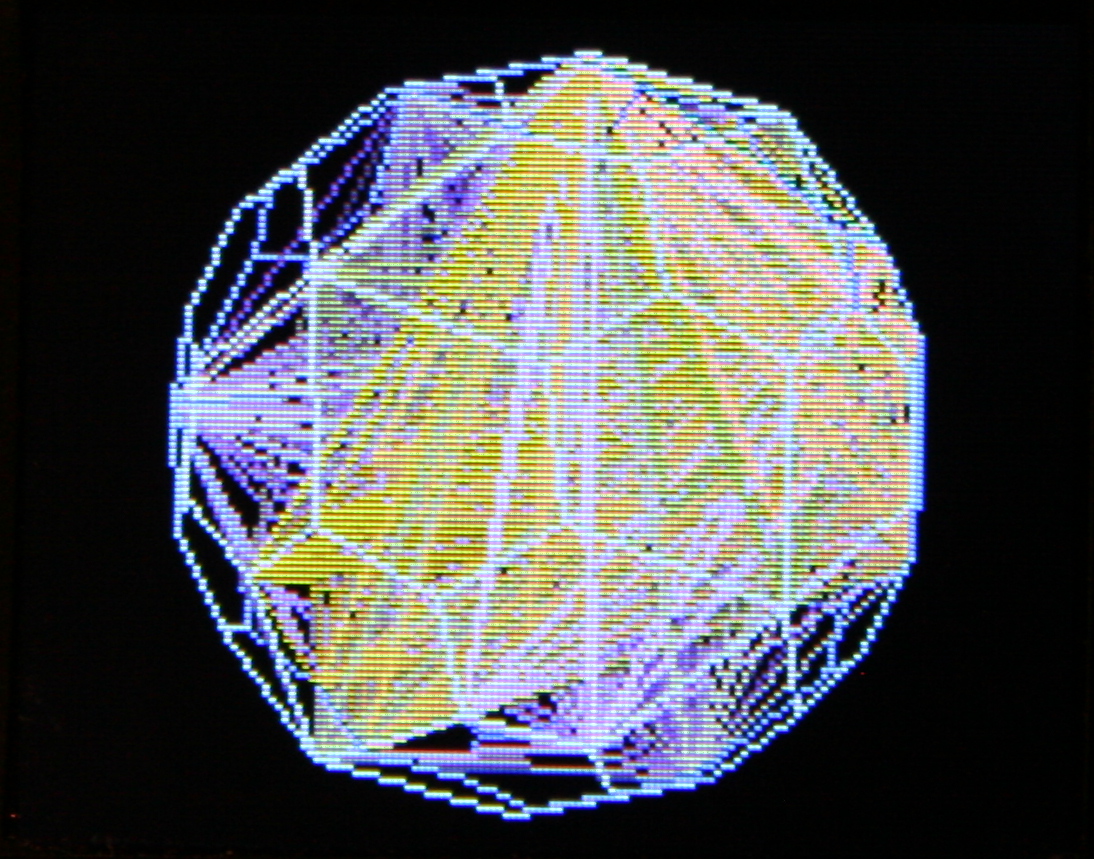
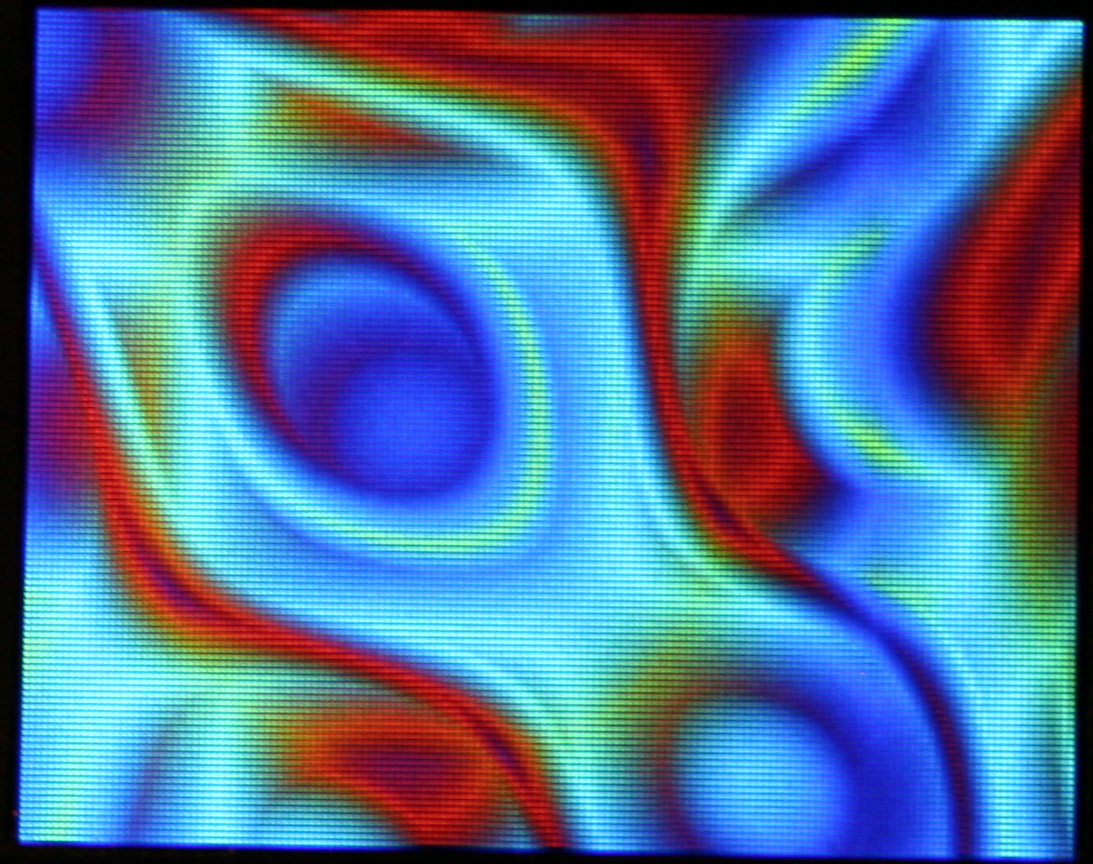
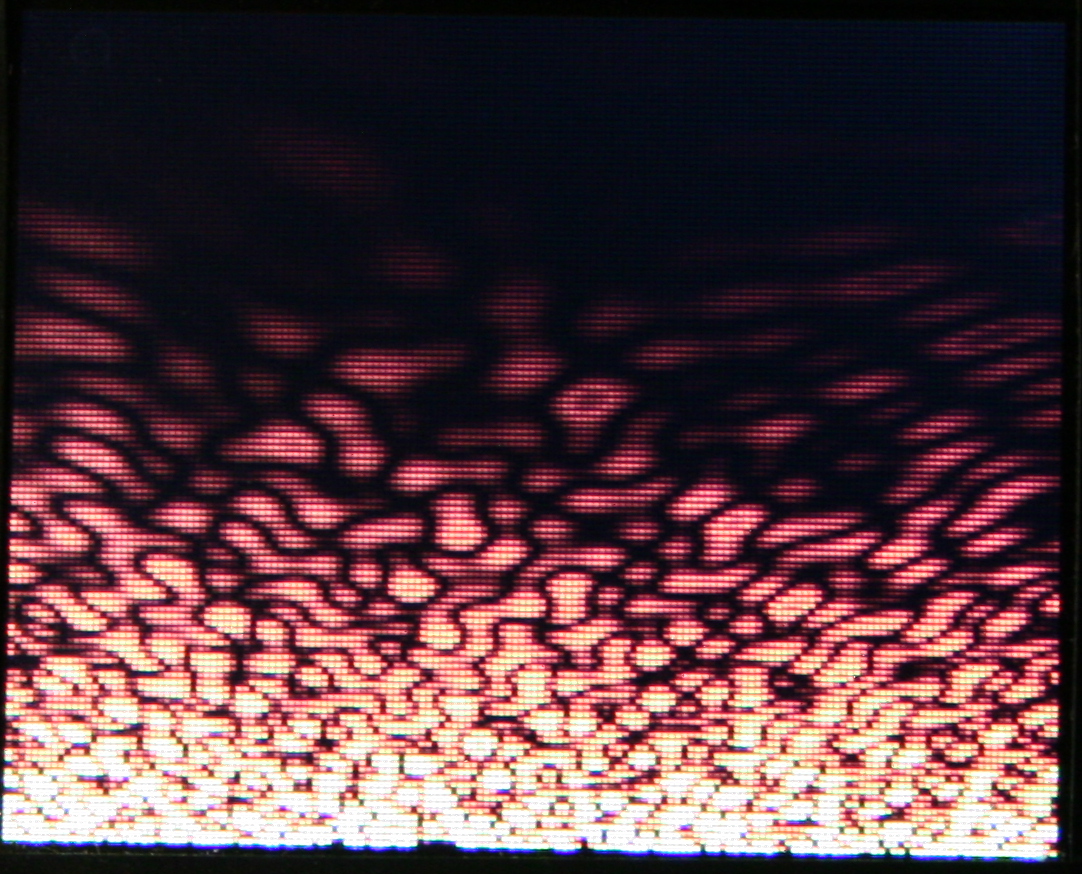
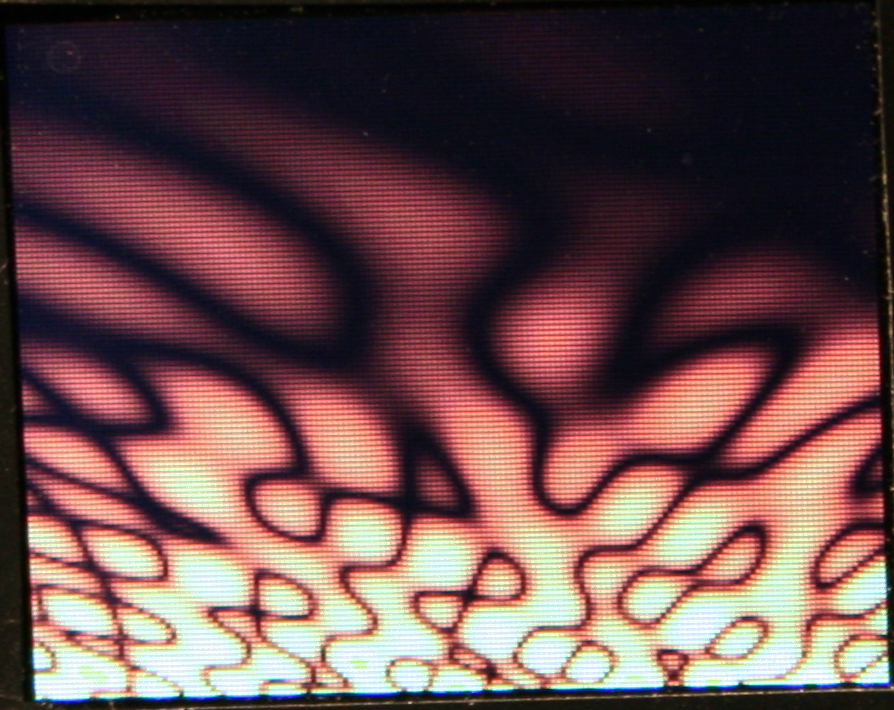
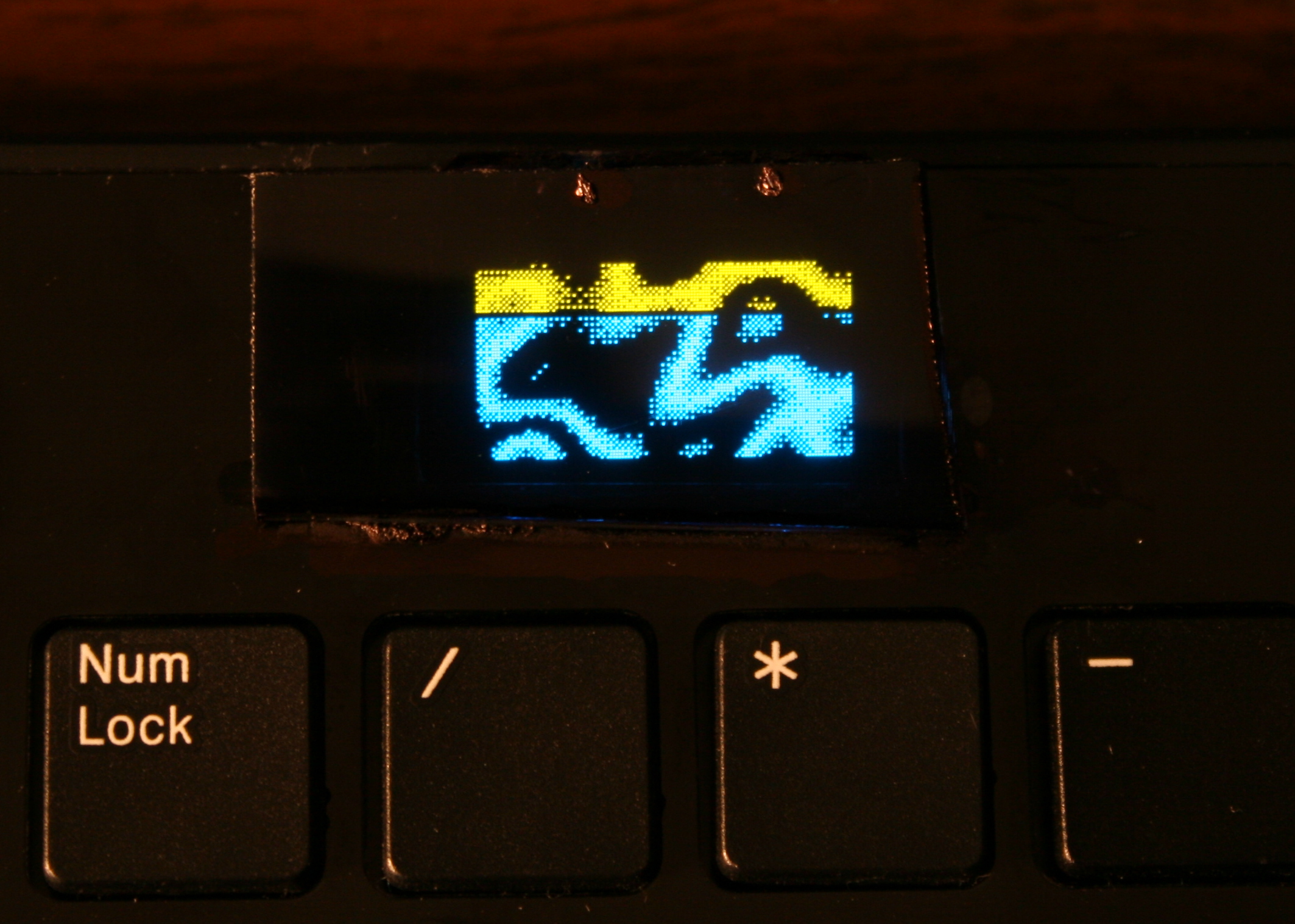
    • Demos – Showing all demos (in auto mode): Plasma, 3D Polyhedrons with diagonals, Wave, Fire (meh), 2D waving CK Logo with shadow, and old Rain.
    • Features – A detailed look at features, no voice or commentary though. Editing mappings, sequences, testing etc.

    Link to my channel with all keyboard videos so far here.

    📂Sources

    My firmware sources are here.
    It’s called K.C.4 (“Kacey”) simply from Keyboard Controller and 4 from Teensy version.

    The readme with all key features is visible on github. Here is more practical description.
    At end of page I wrote a comparison from my previous version (for Teensy 3.2) and quickly with other controllers / keyboards.

    📊Features

    The current code features are (and were mostly present in my previous K.C. version):

    🪟Display

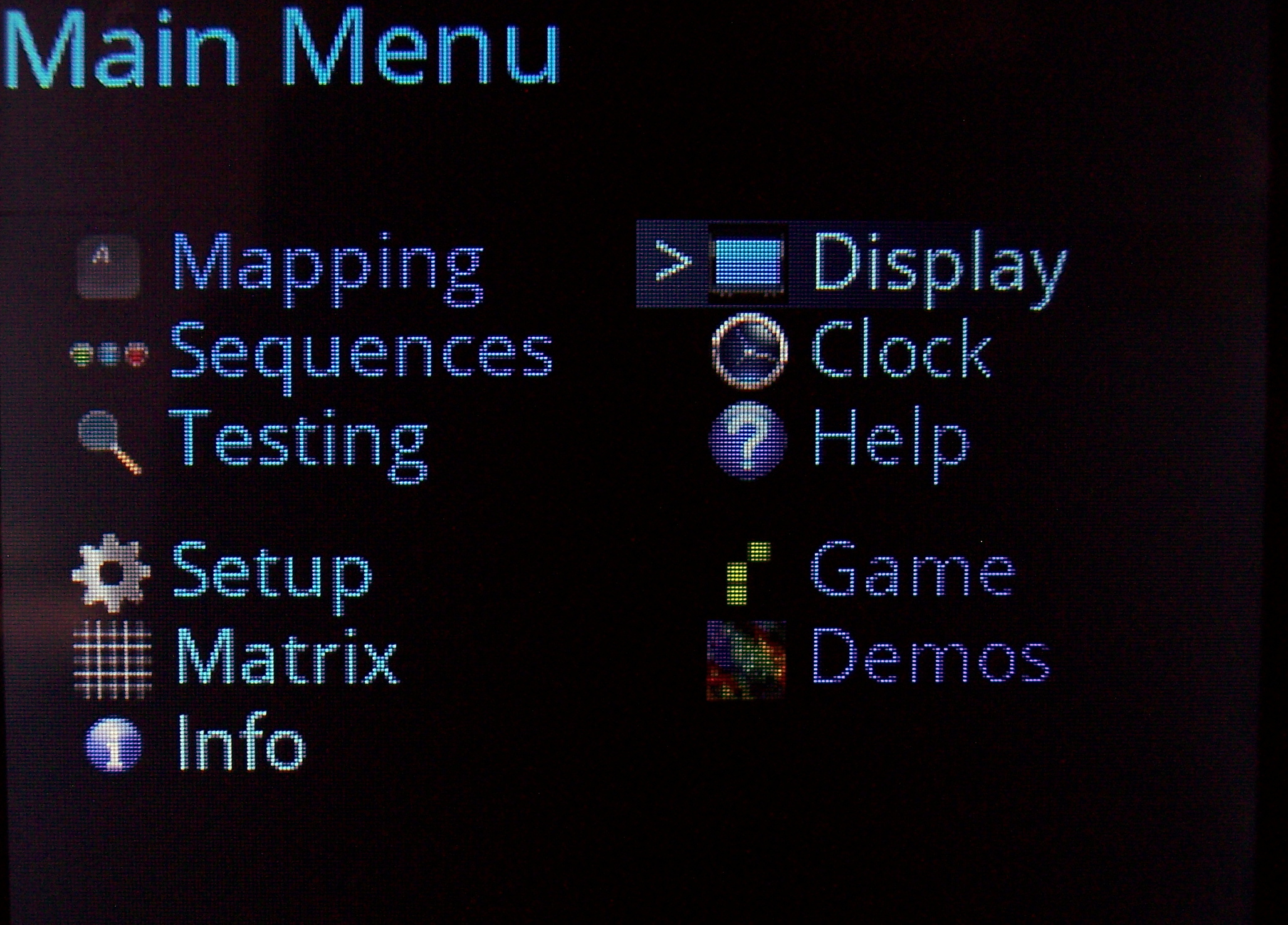
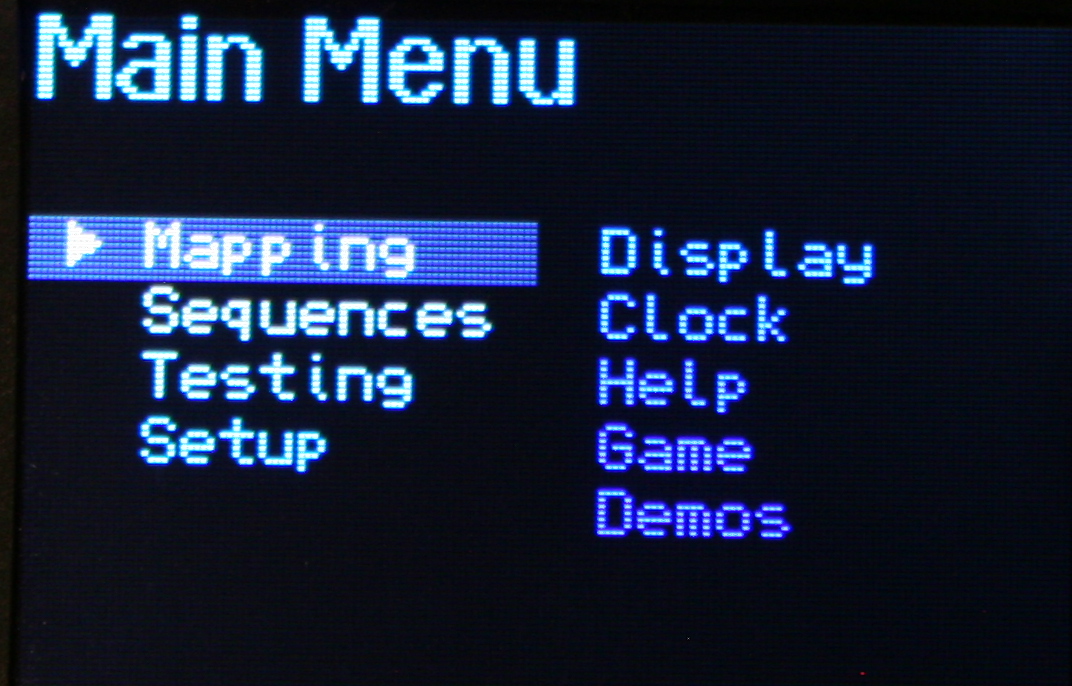
    With menu, where you can edit everything possible.

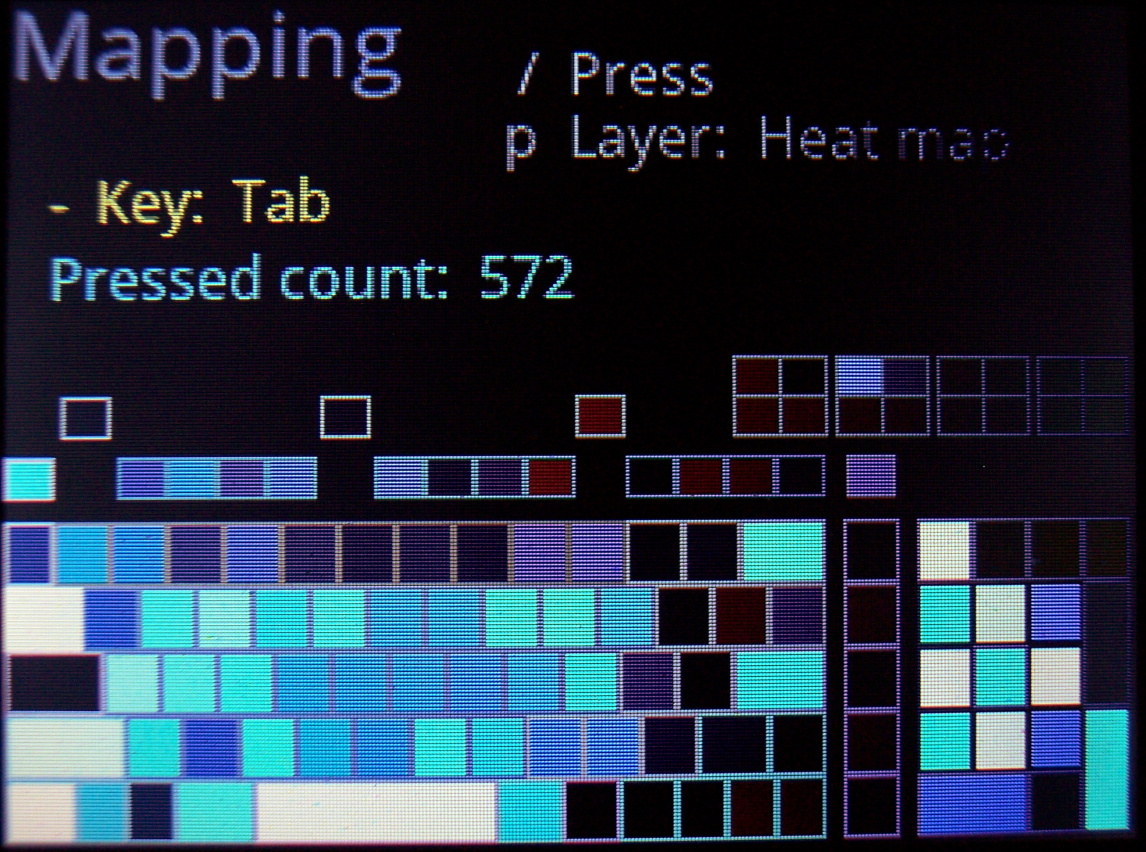
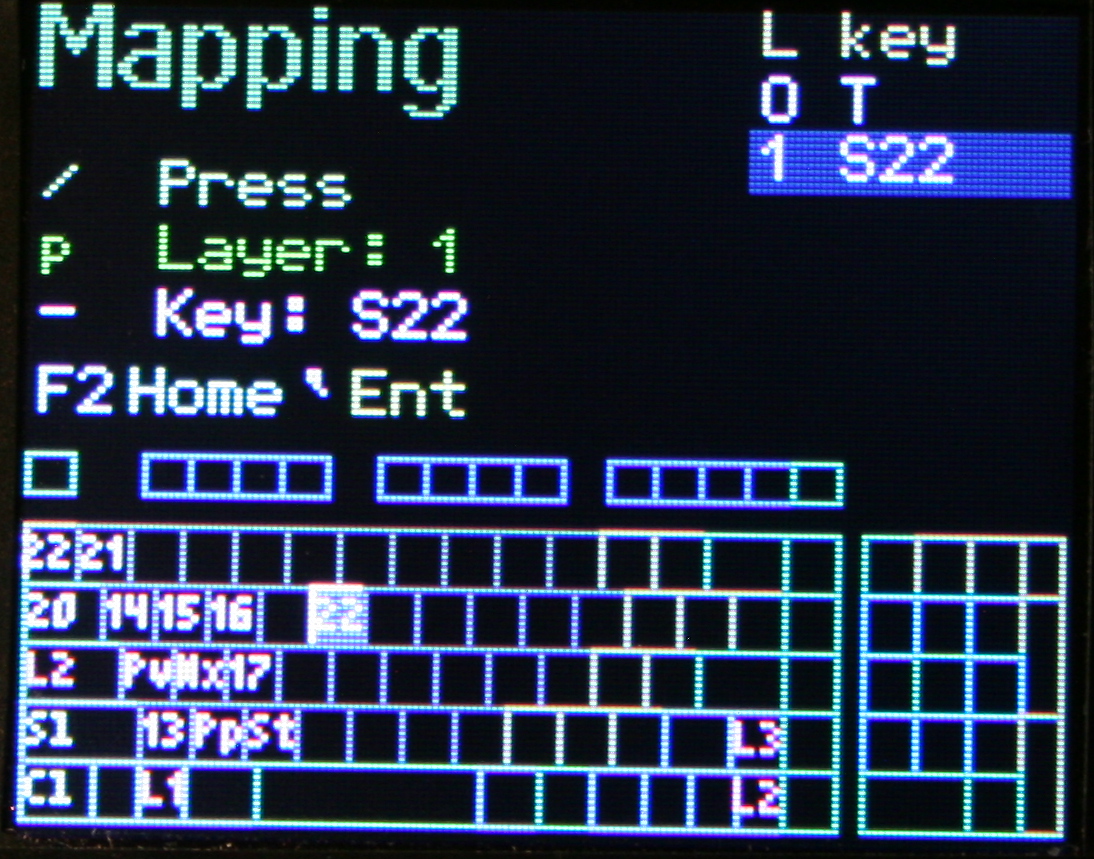
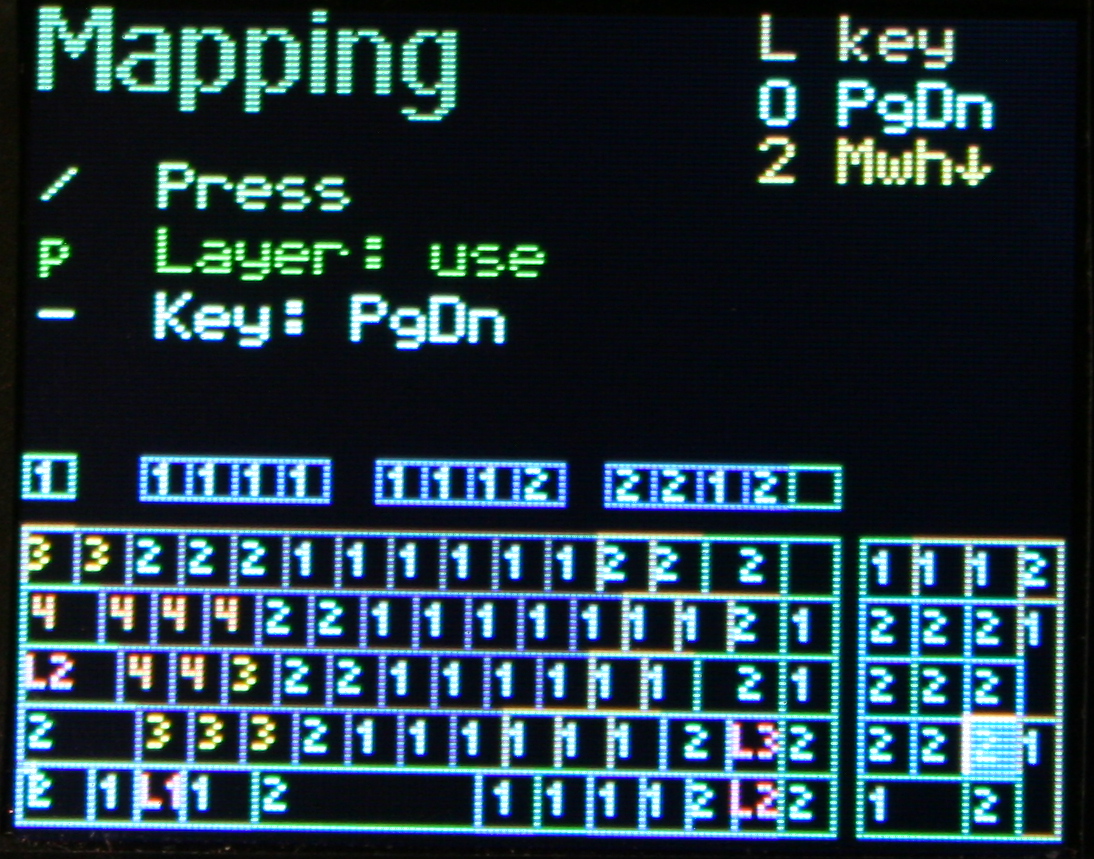
    🔠Mapping (key binding)

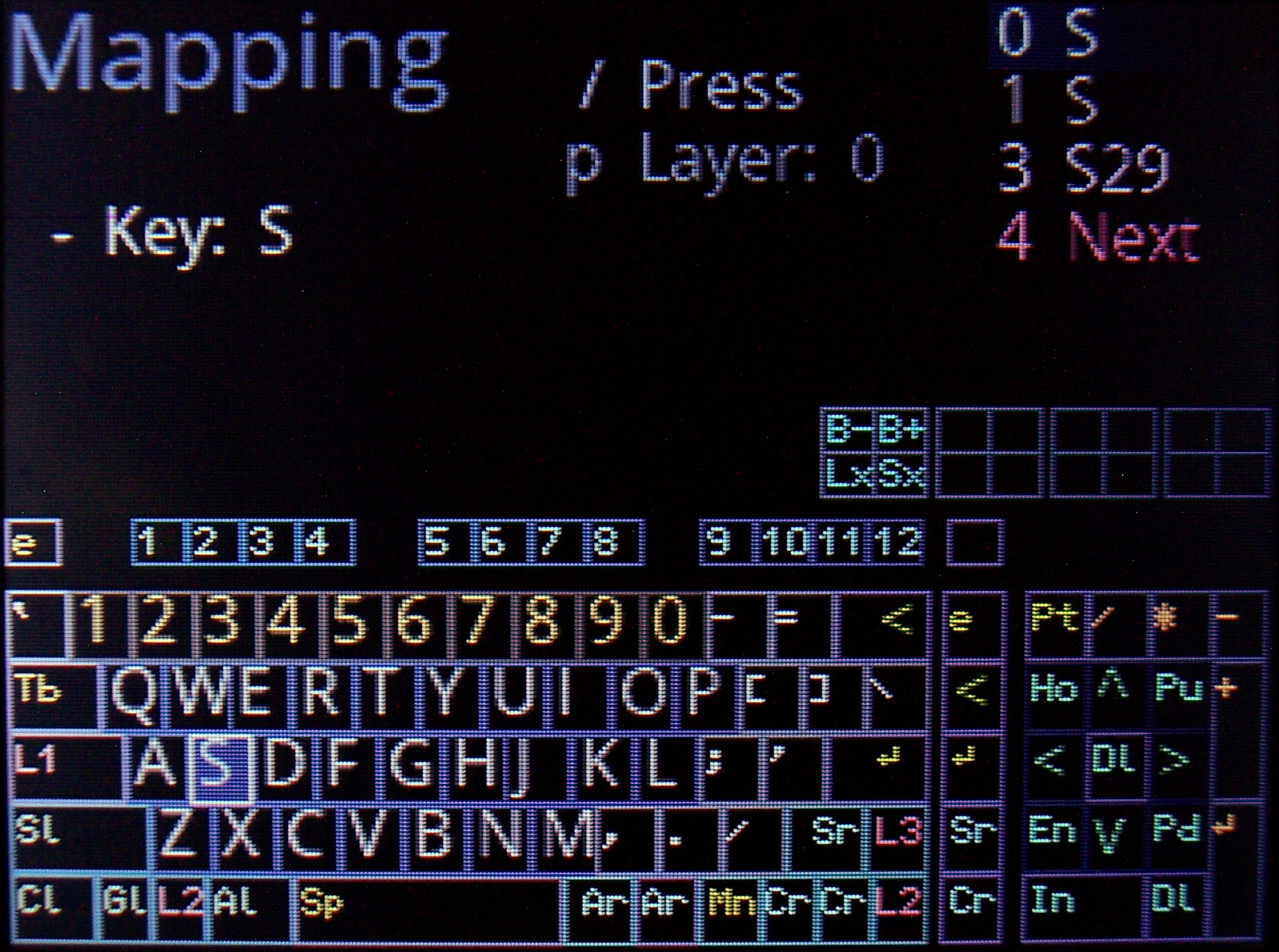
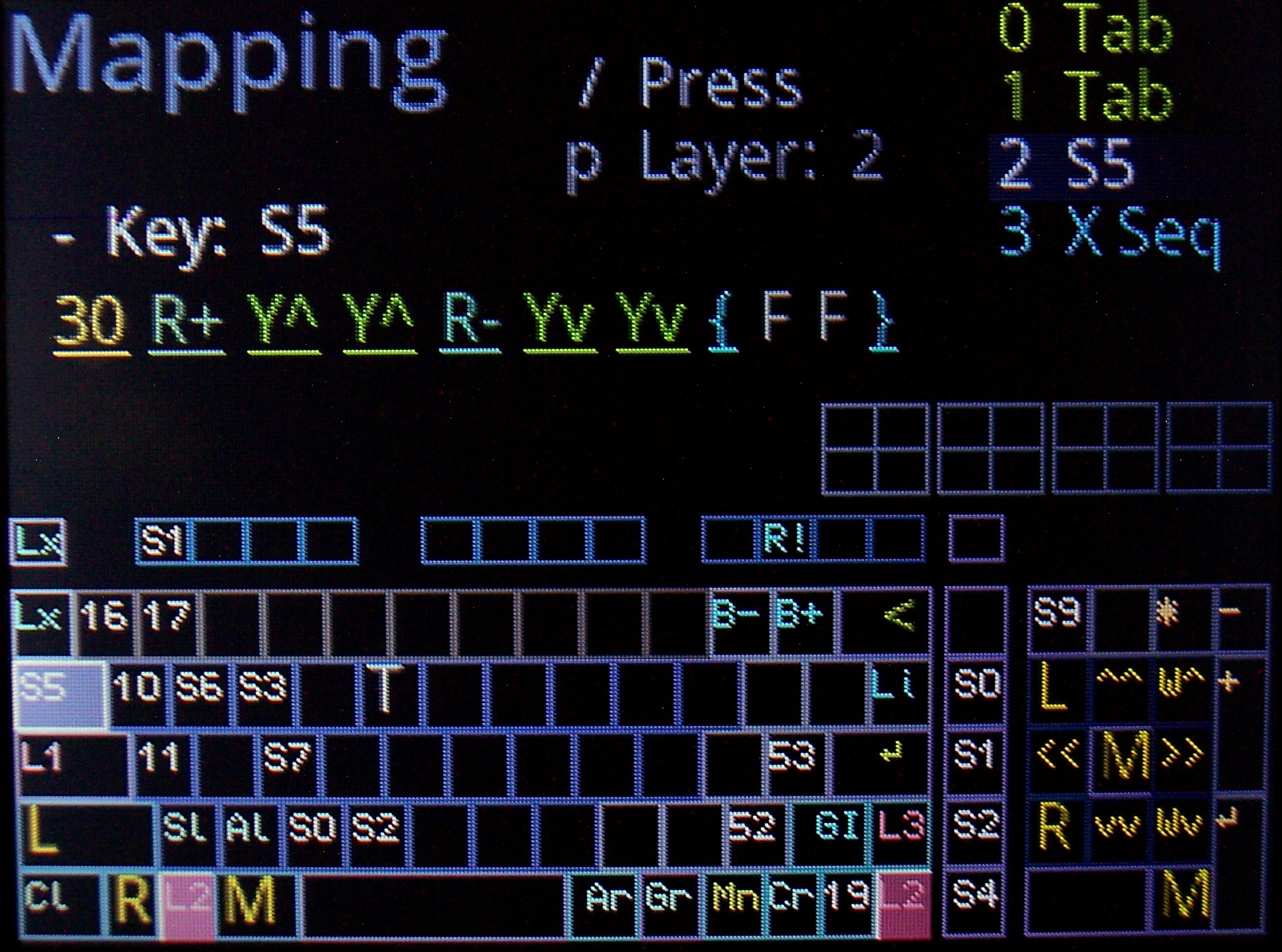
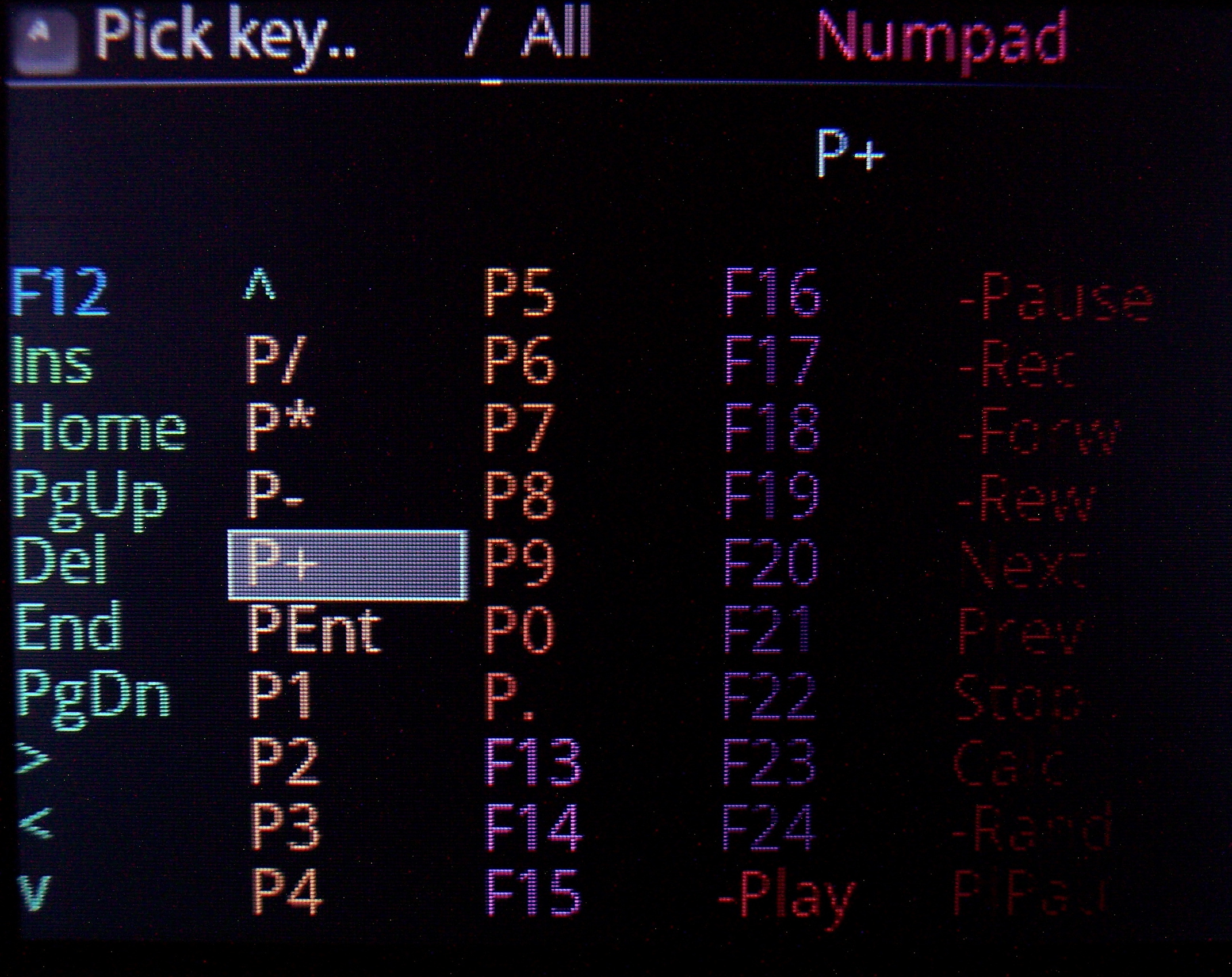
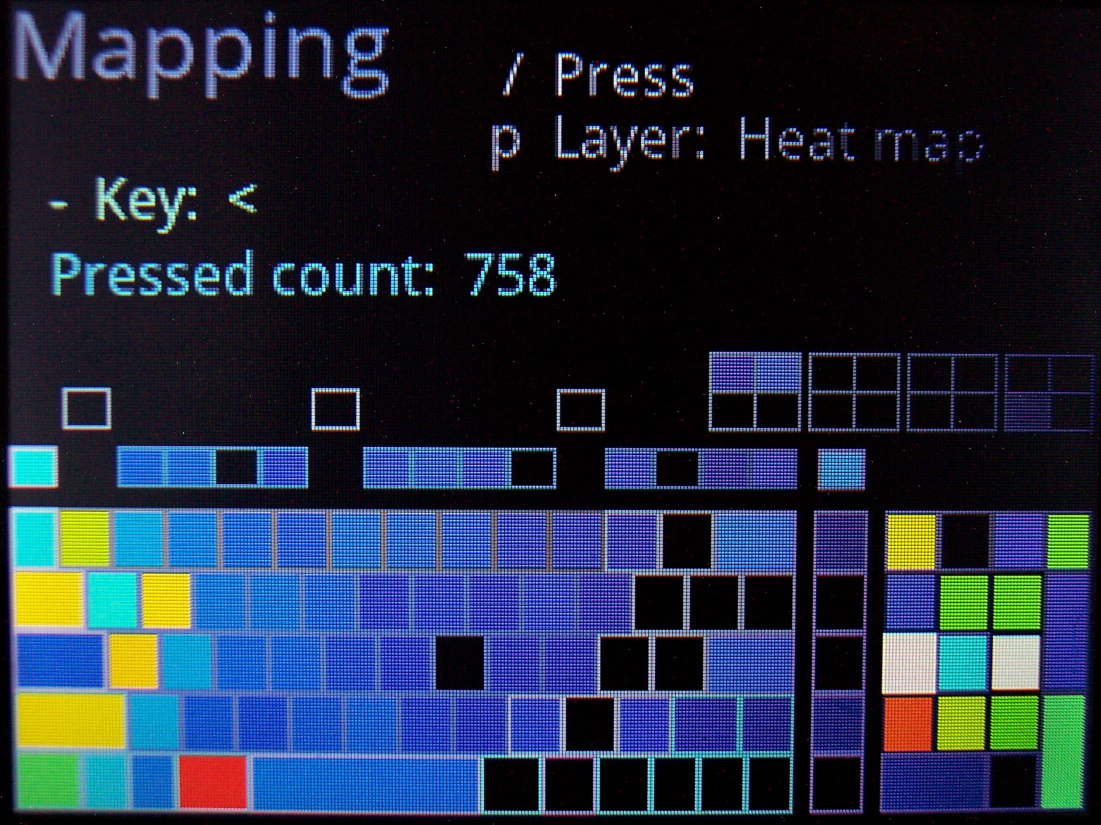
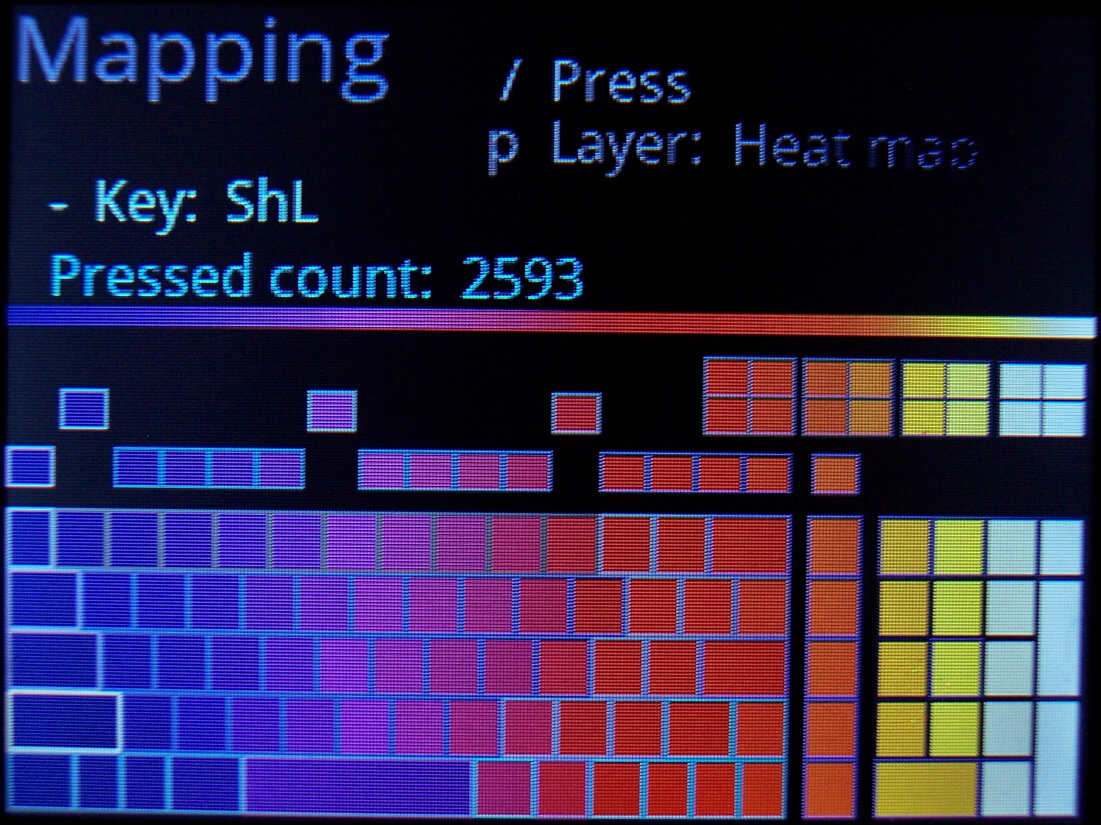
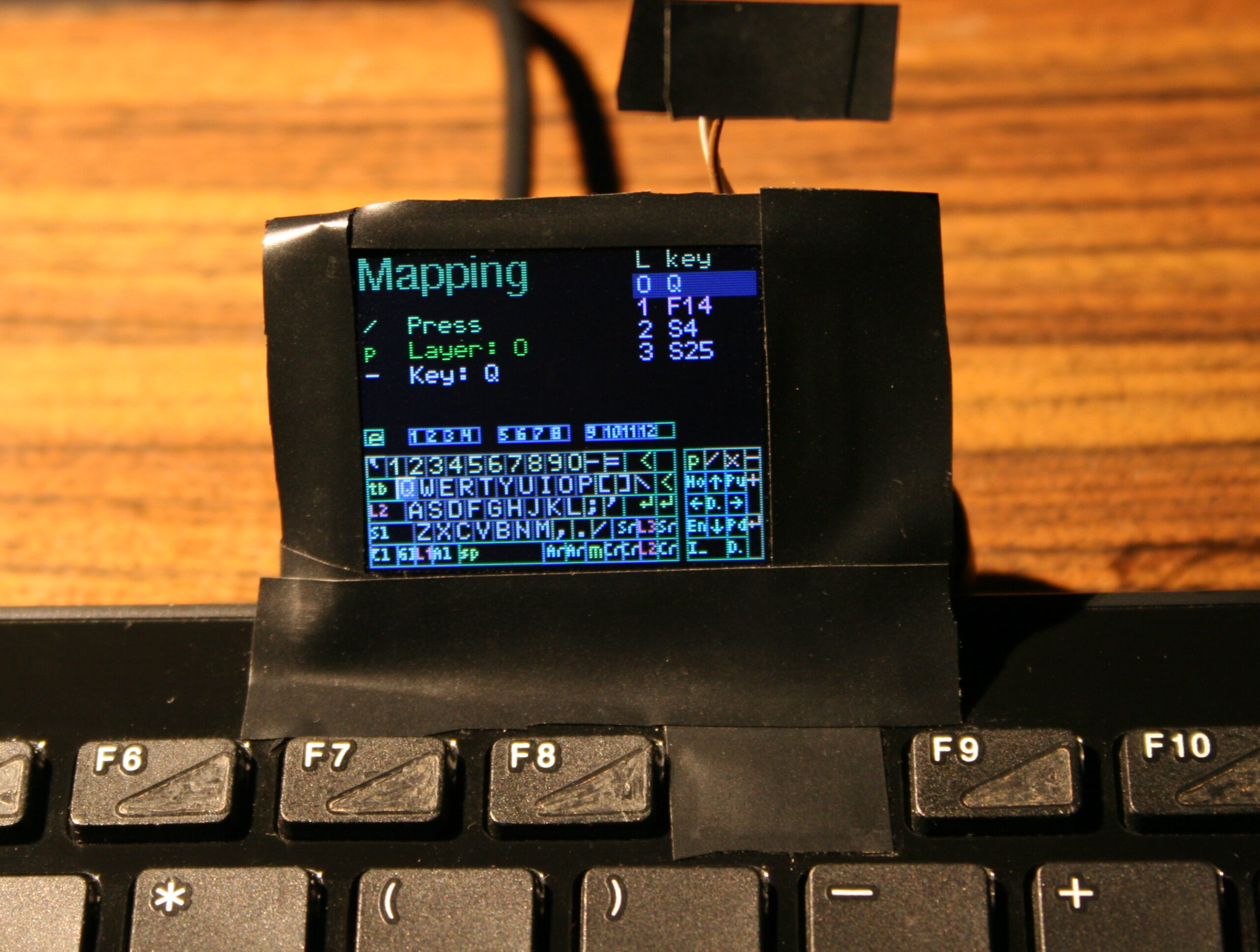
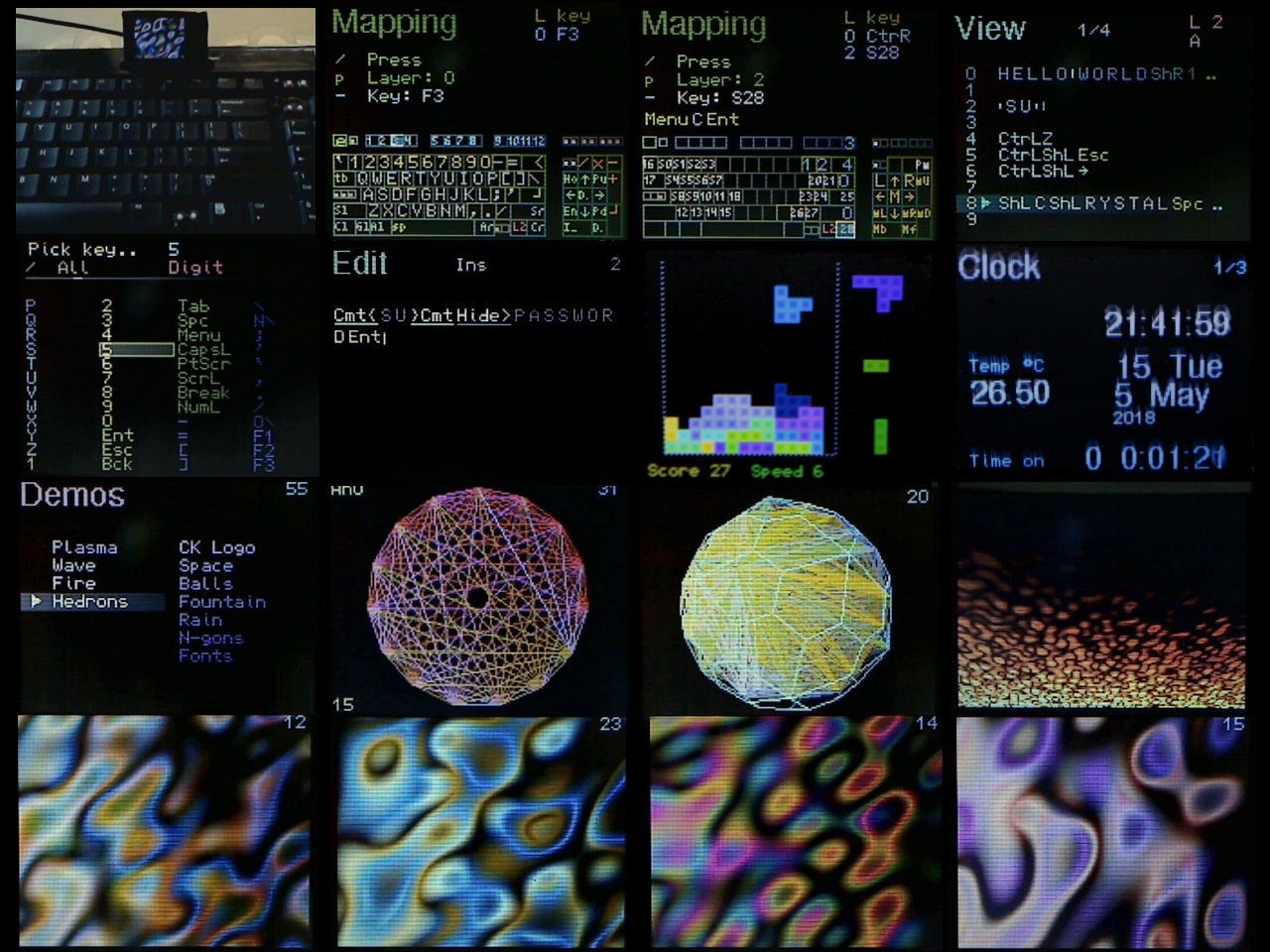
    So which USB code will the physical key send to PC when pressed. There is a pick list with all common keys (and internal functions, sequences, etc) to choose from when binding. It has group colors and group filter for easier orientation.

    ⌨️Keyboard layout

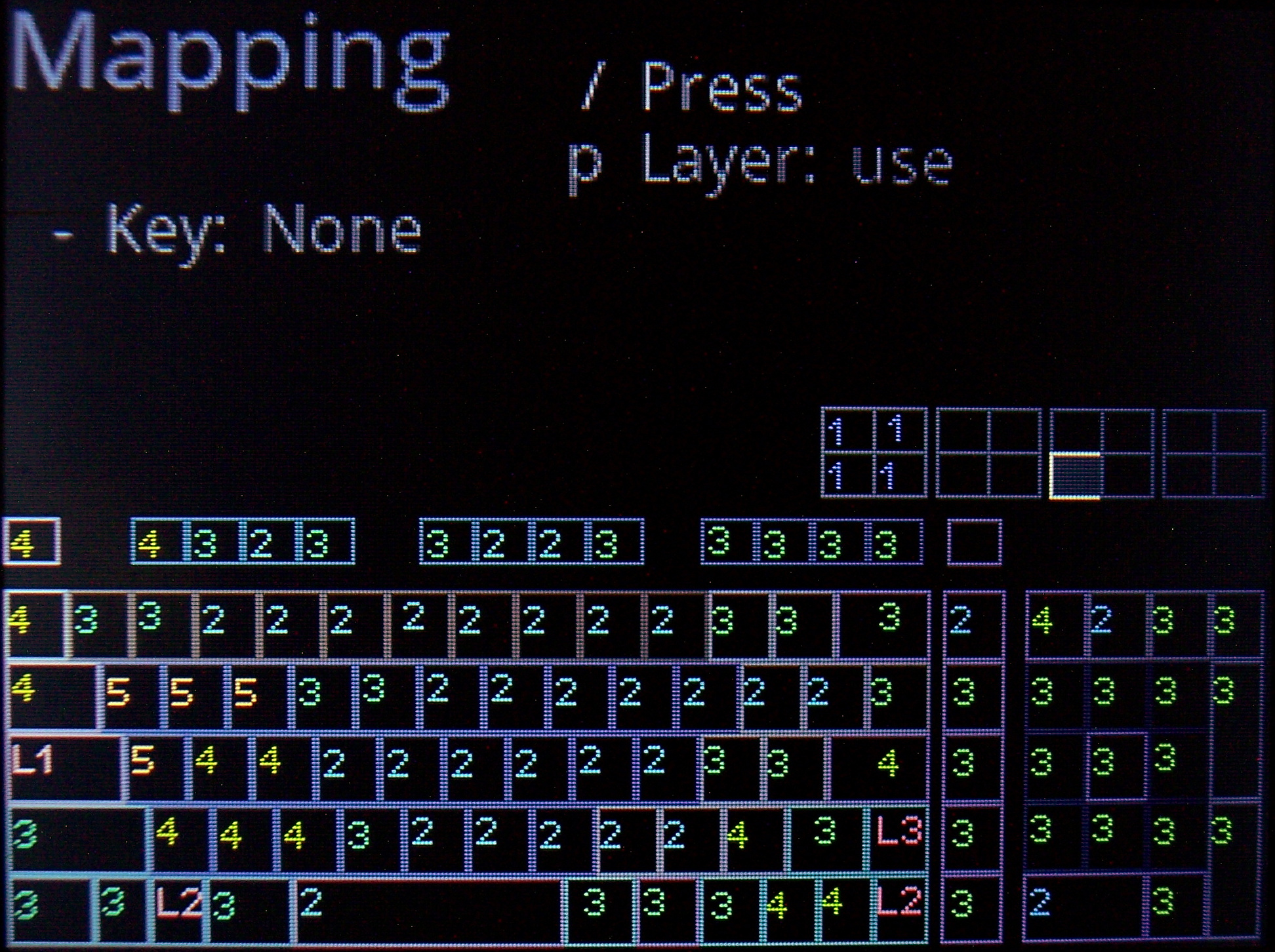
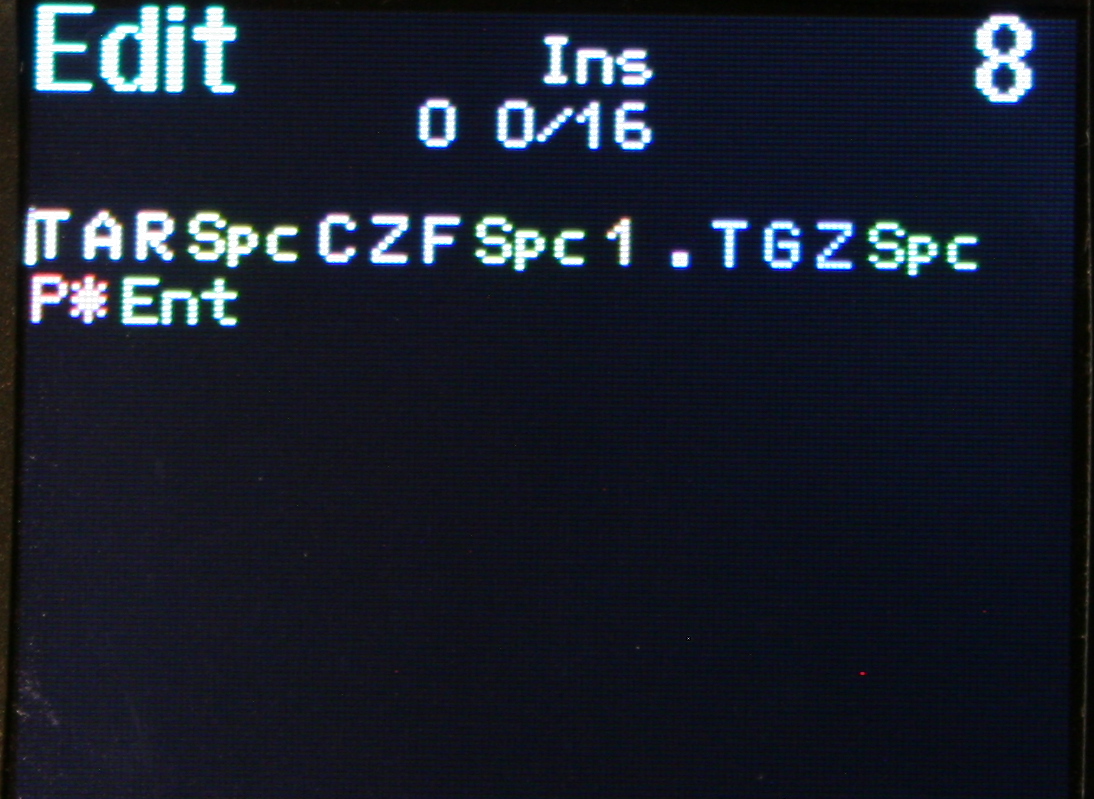
    Drawn on display. Shown when editing mappings (for currently chosen layer). Has a cursor to move around between keys. It’s also possible to jump to a key by pressing it.
    🧮Layers

    If you hold a key, whole keyboard layout changes giving you other keys. Kind of like the Fn keys on laptop but much more useful and customizable. A common feature of custom controllers.
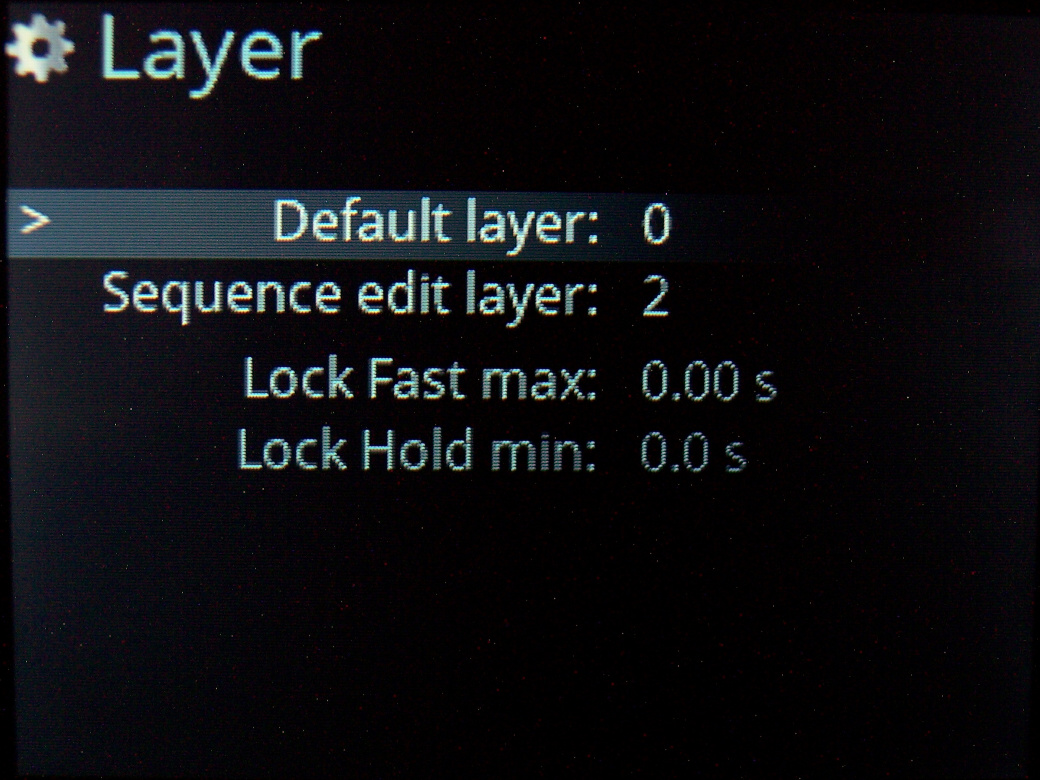
    Locking layers is also possible, either by lock/unlock key, tapping layer key fast or holding it for longer. Of course can be disabled and delay parameters are changeable.

    🖱️Mouse keys

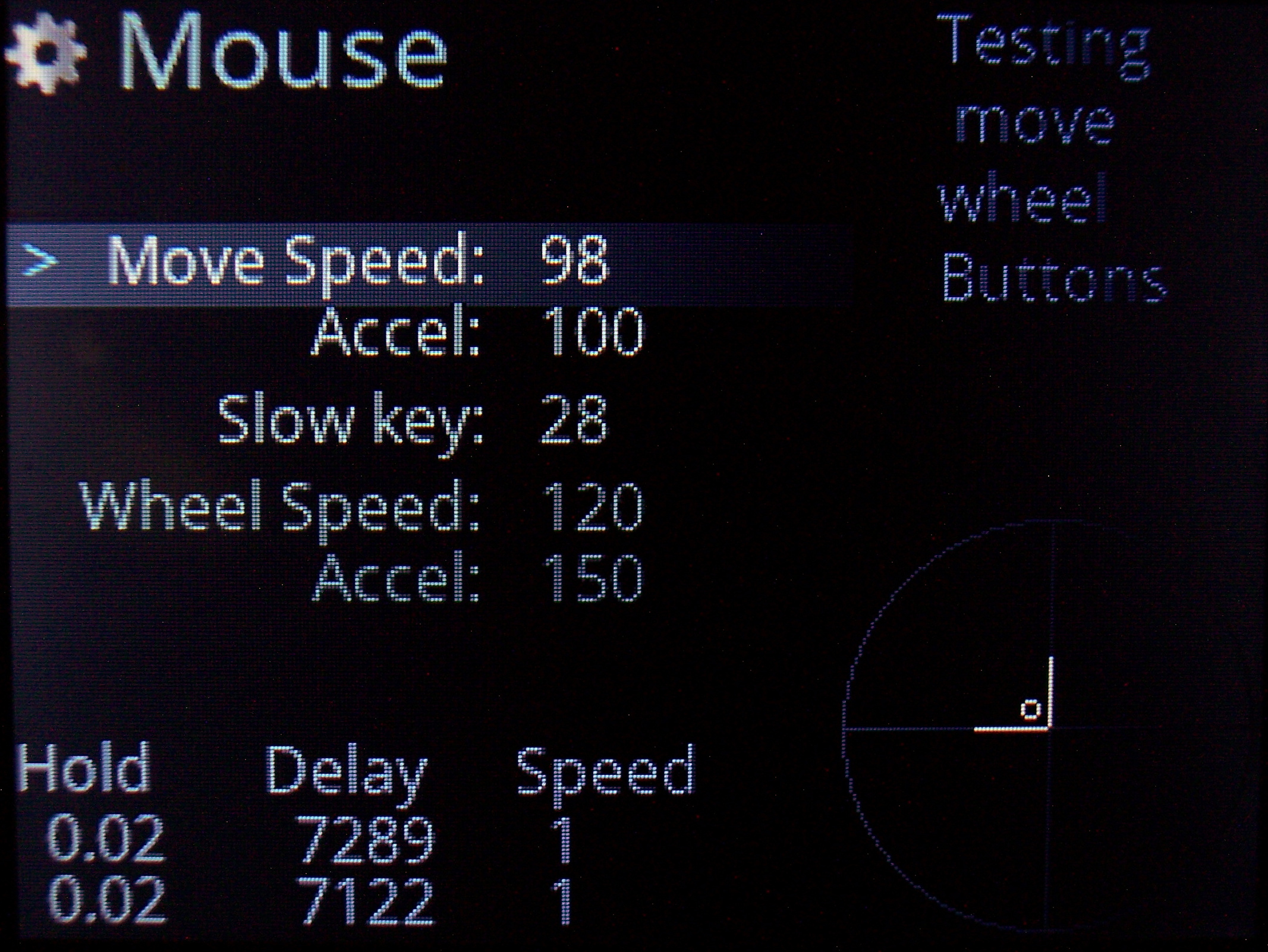
    Keys that will move mouse, press mouse buttons or scroll mouse wheel. Also featuring acceleration with parameters for it and speed in GUI.

    🔤Sequences aka Macros

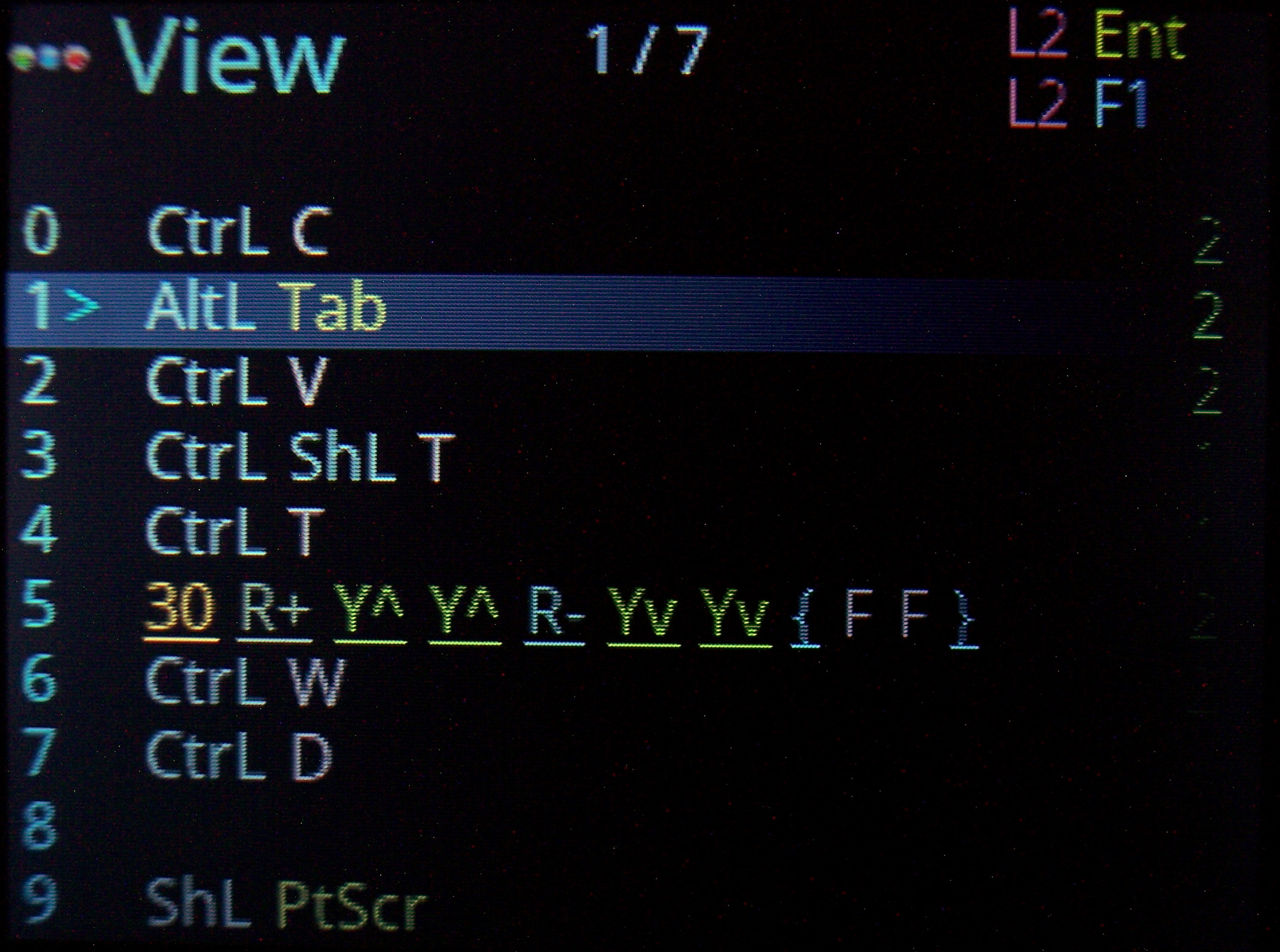
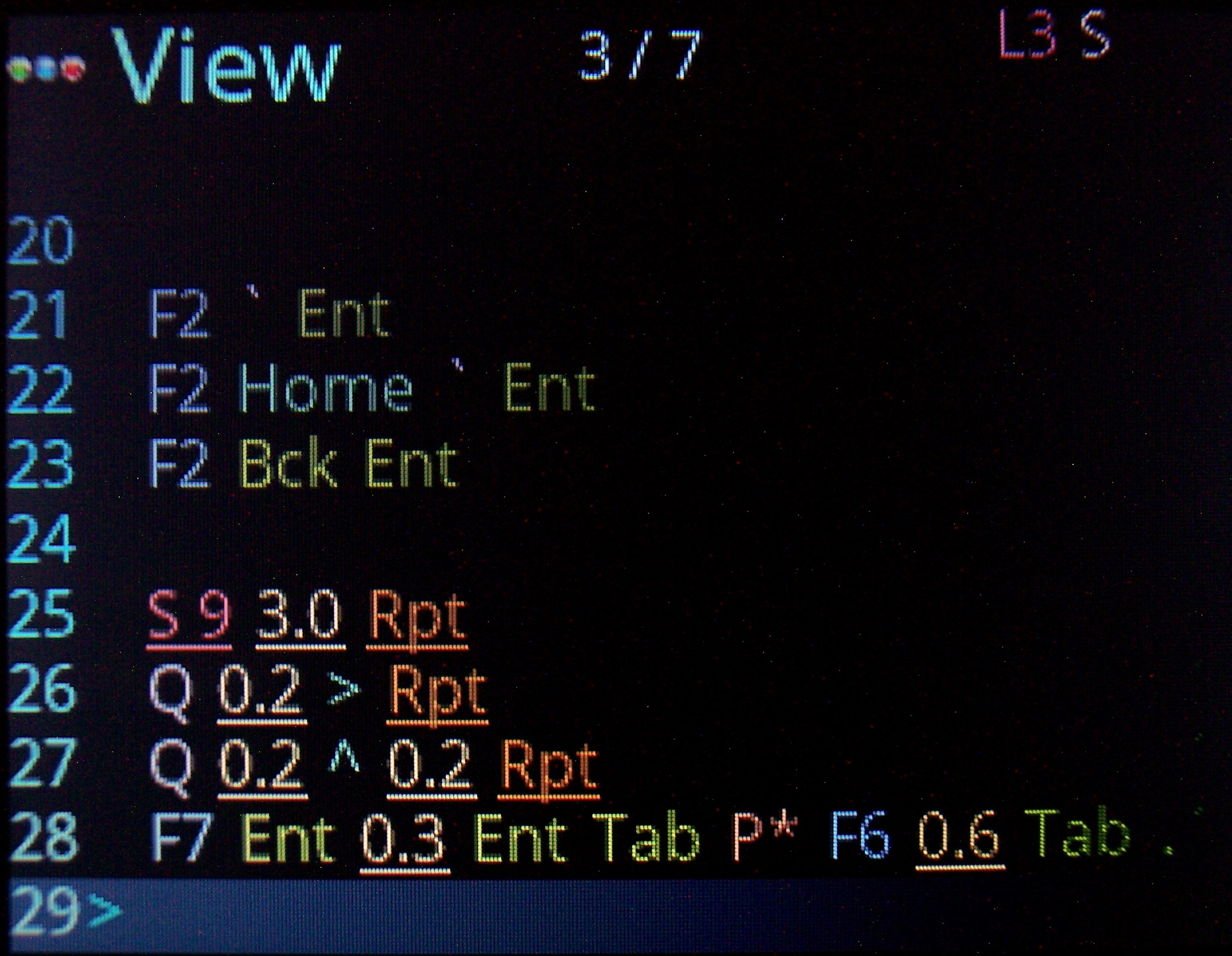
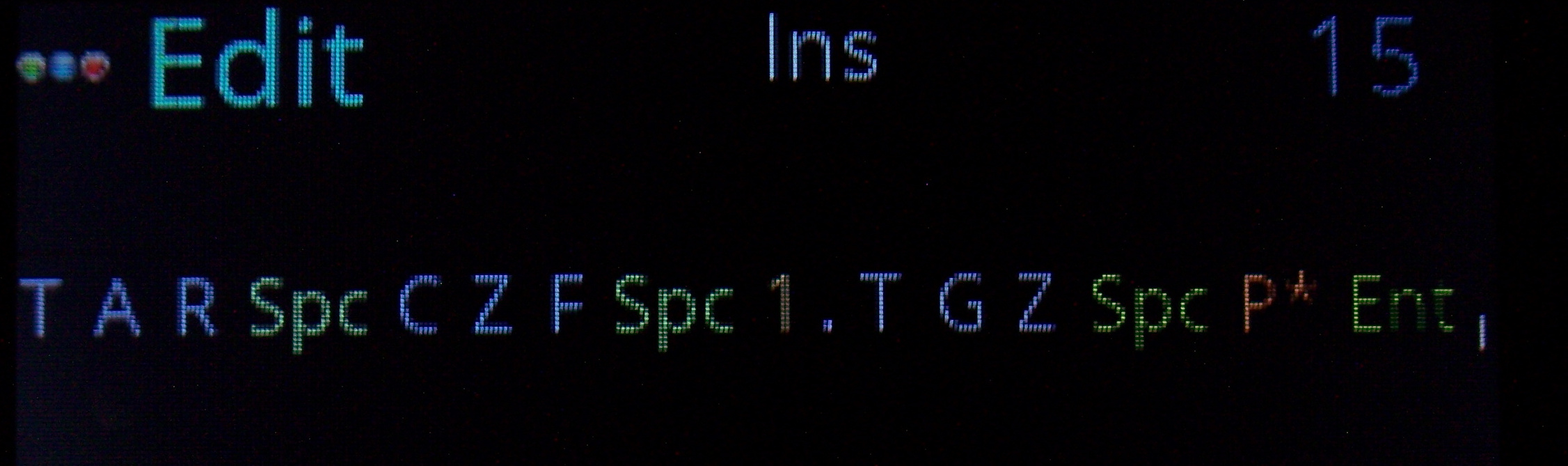
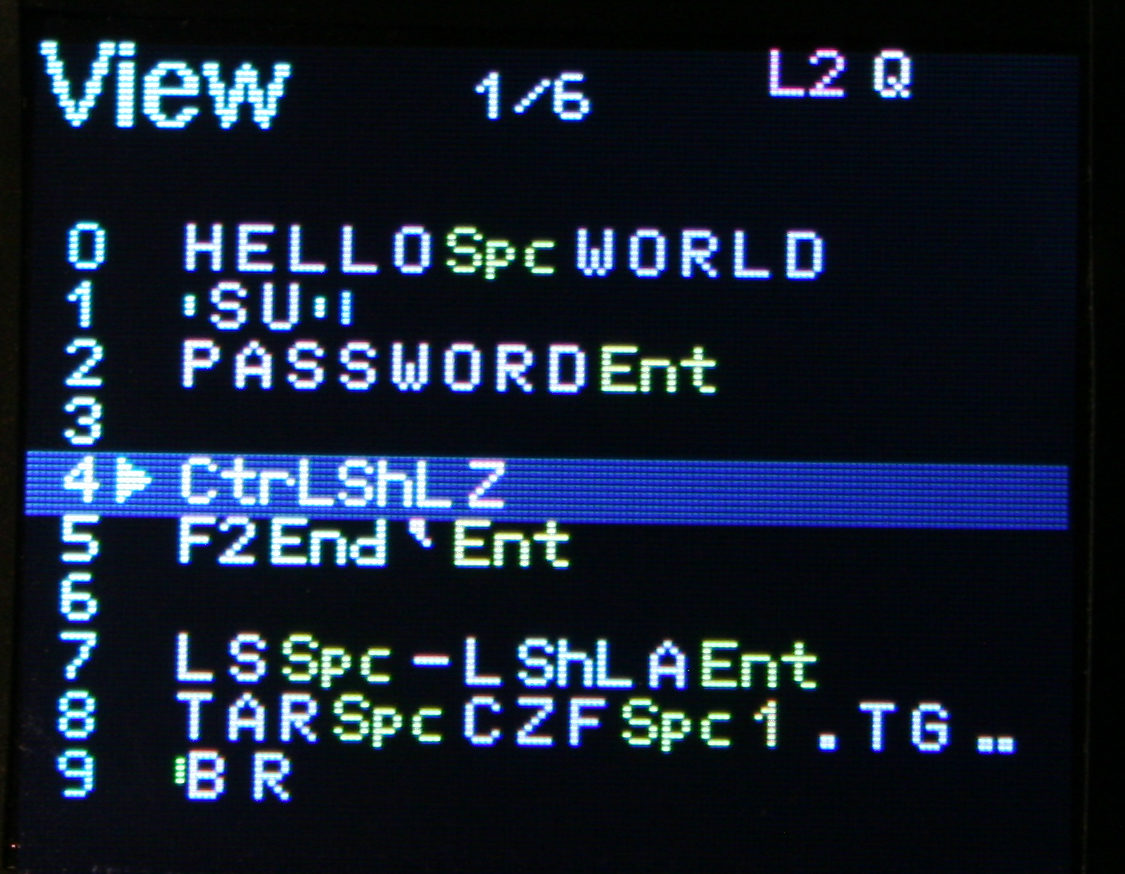
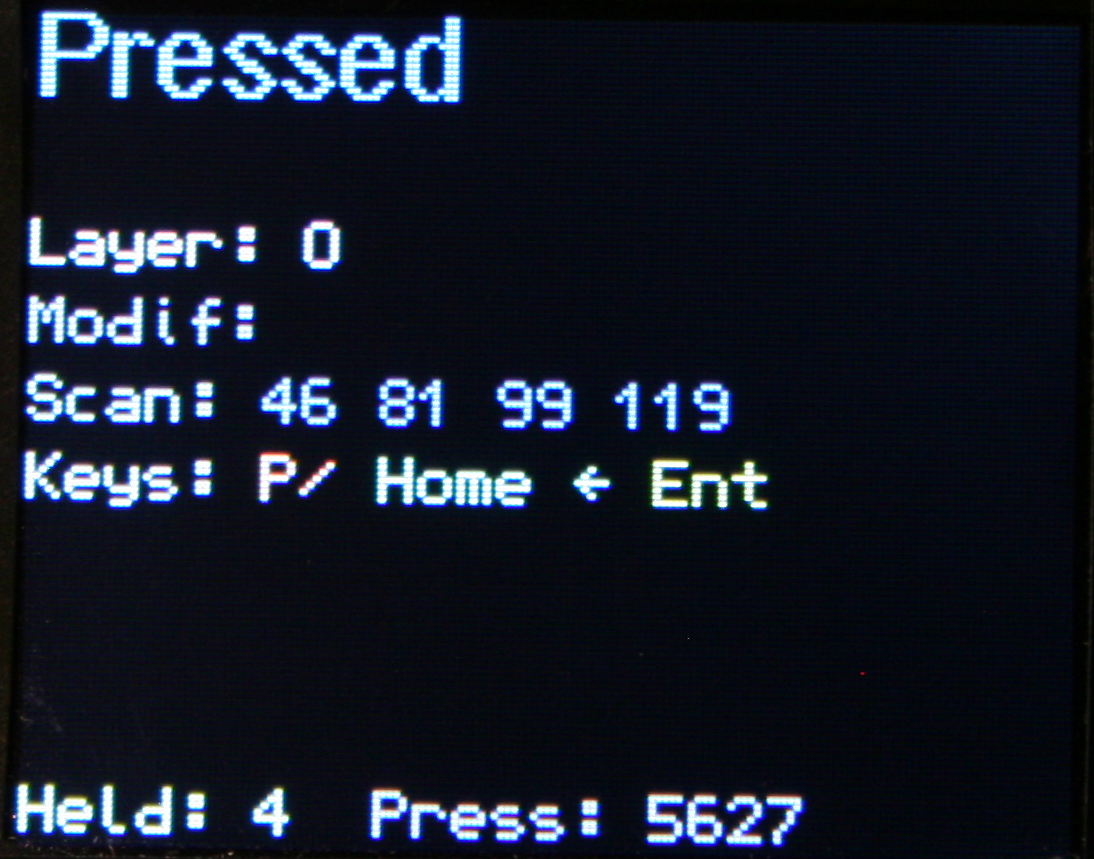
    Basically any key combinations (for key shortcuts) and any sequences of key presses (for e.g. passwords). I am showing sequence previews where possible too, so when editing Mappings (for a sequence key), when picking a key from list or Testing pressed keys (if a key runs a sequence). I am also showing in sequences View, all mapped keys that run selected sequence.

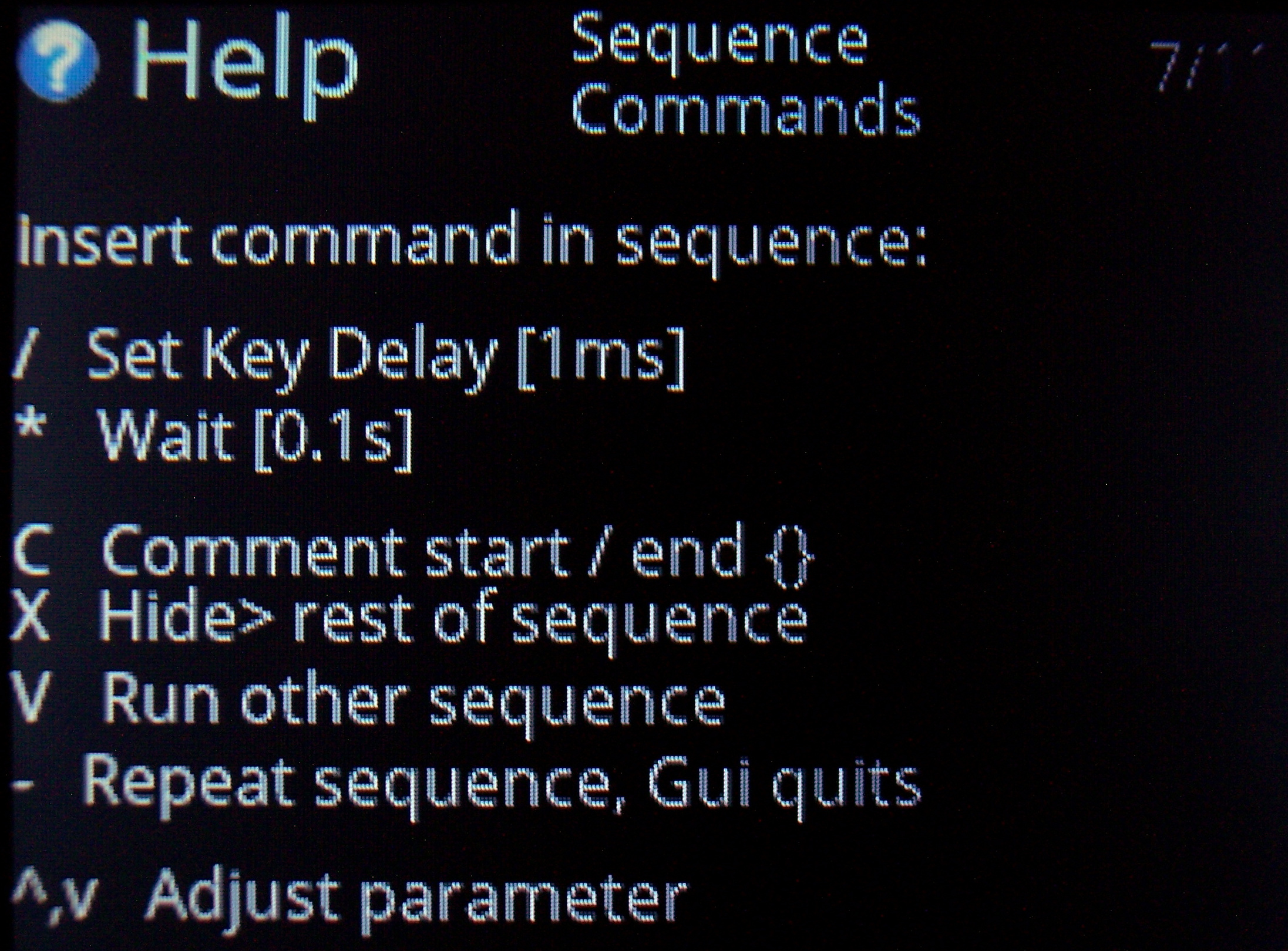
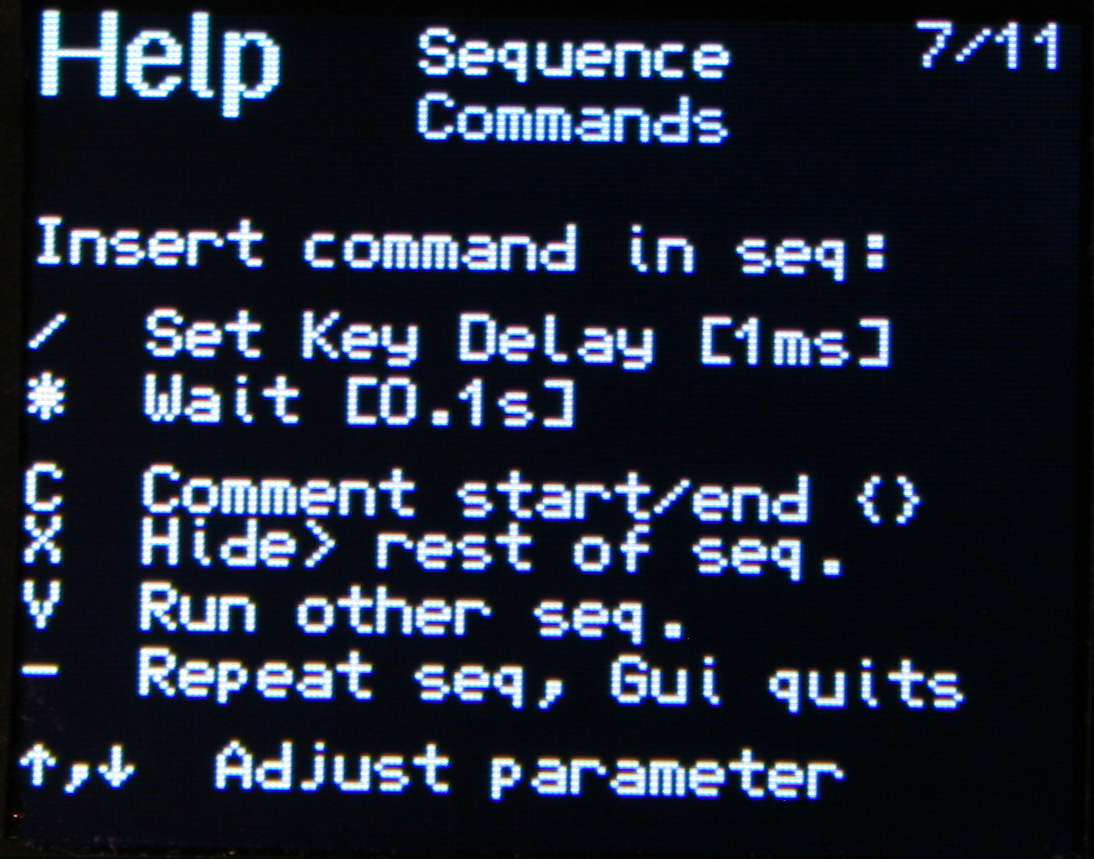
    ✅Sequence commands

    Further extension, these are special commands (beside sequence keys), that e.g. wait for few seconds (0.1s resolution), or change how slow the sequence will run (1ms resolution, useful e.g. for putty).

    • Others allow putting comments (for sequence purpose), and hiding sequence from preview (e.g. for passwords).
    • There is also a command to run other sequence(s) from this one. Also a repeat command that will do sequence (keys) continuously, until interrupted. This is e.g. useful e.g. if you want to watch a video faster, skipping parts with arrow keys after a short delay or take screenshots while watching etc. Normal keys can be used when a sequence runs too.
    • All mouse actions are available as commands too. So for example you can press a key (for a sequence) that will press button or move mouse etc. I have this way a mouse gesture done.

    ⚙️Internal functions

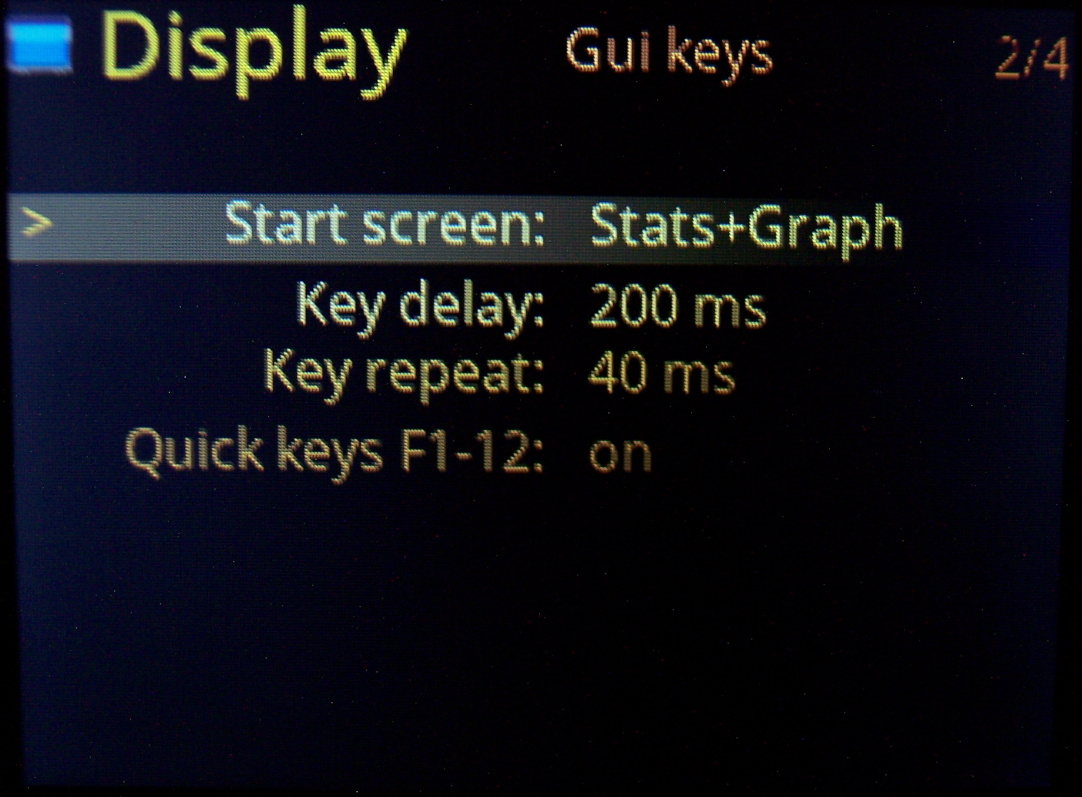
    Keys to e.g. dim brightness, toggle GUI, toggle LED light, quit sequence, lock/unlock layer, change default layer etc. This a direct way, faster than adjusting parameters in GUI.

    🎛️Testing and Setup pages

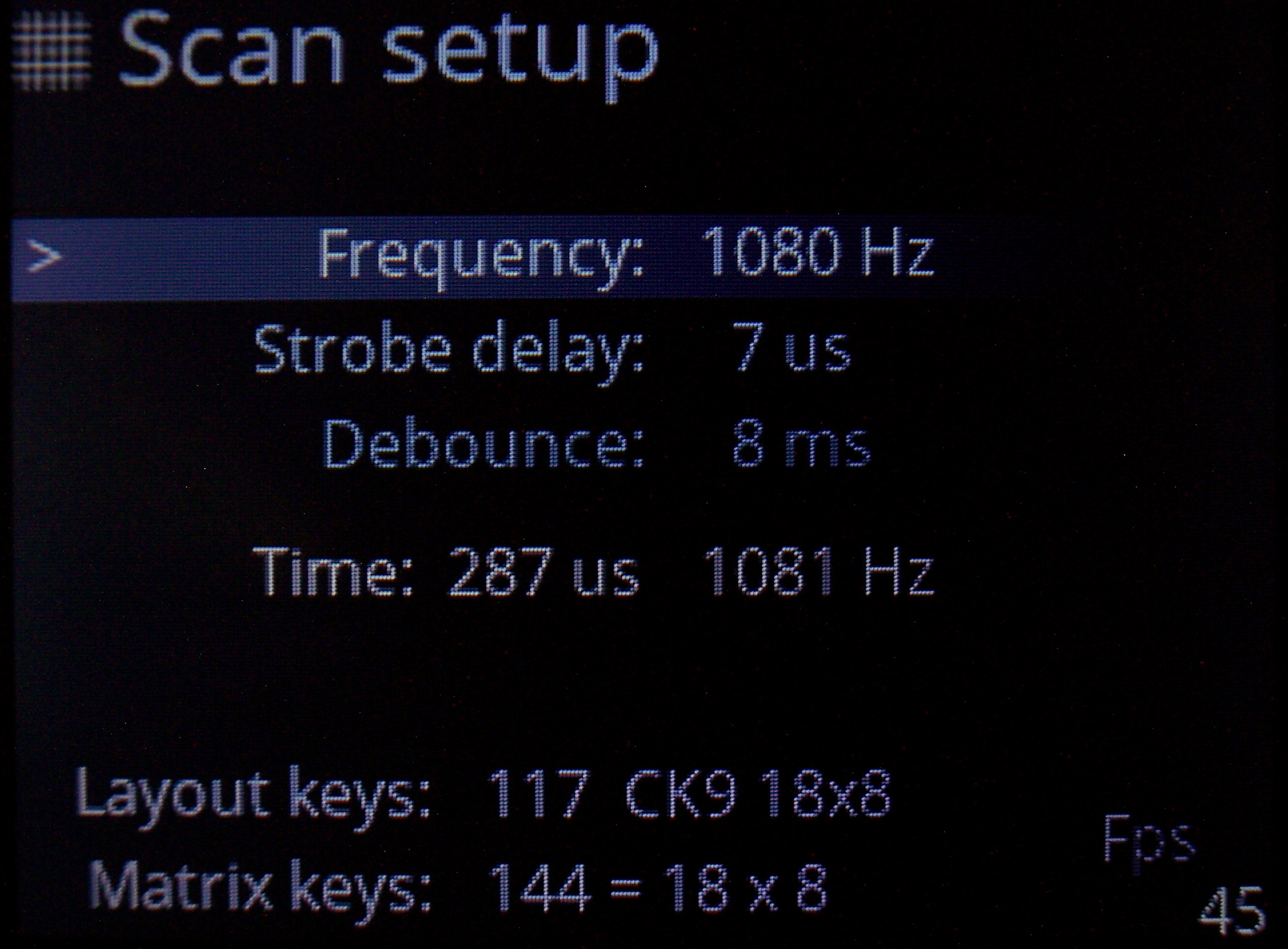
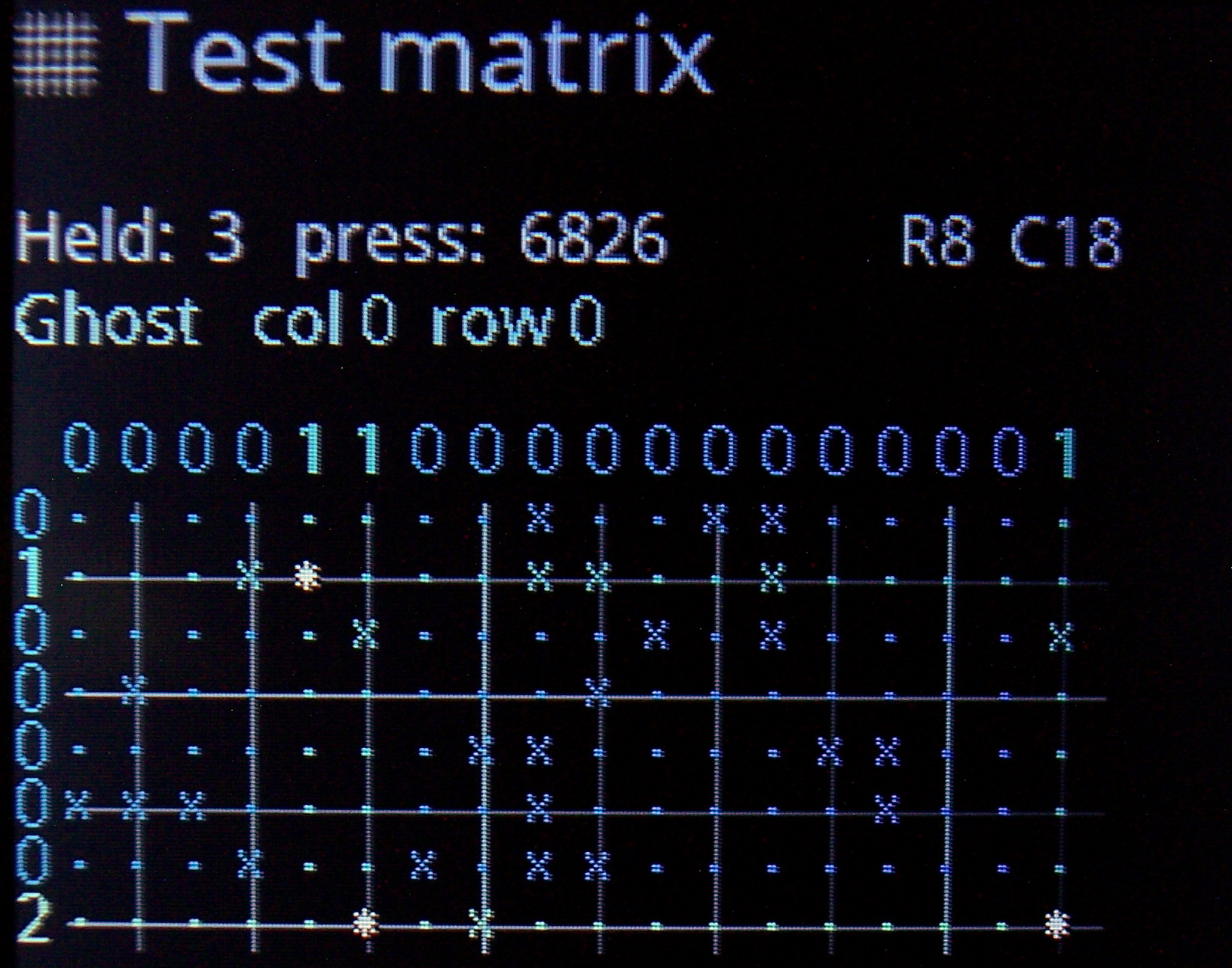
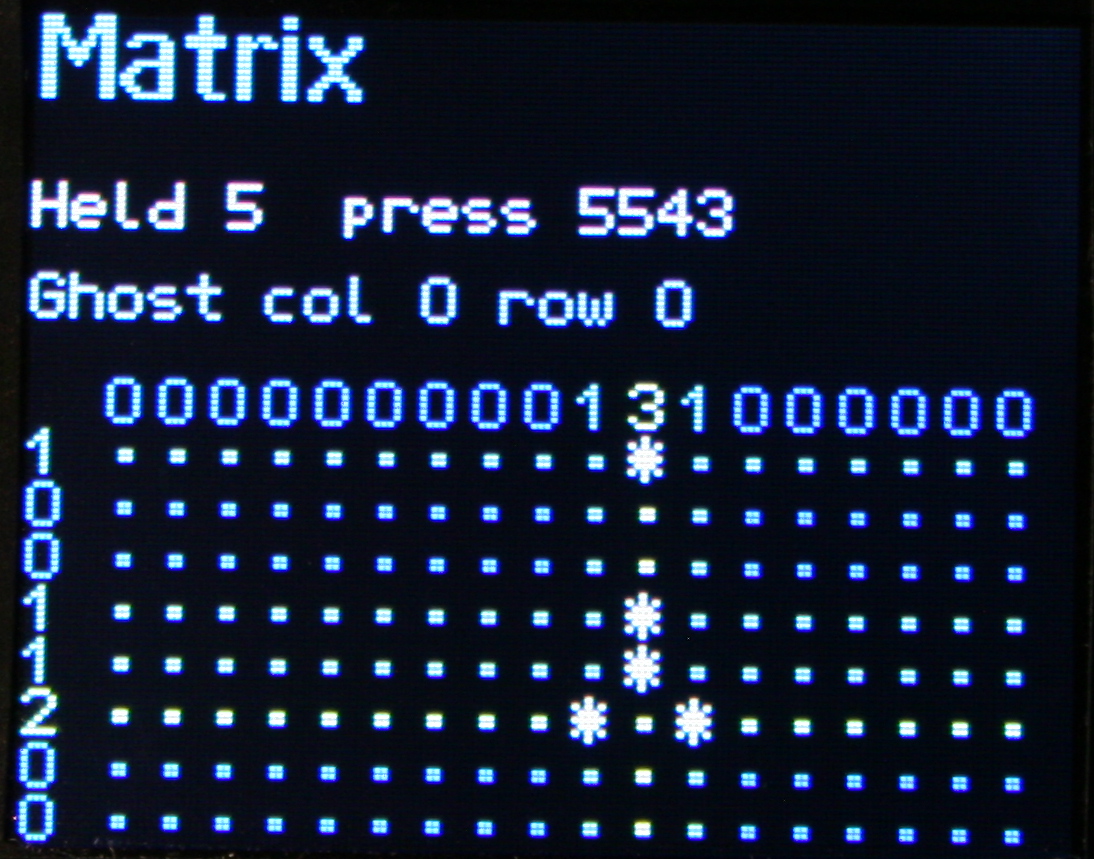
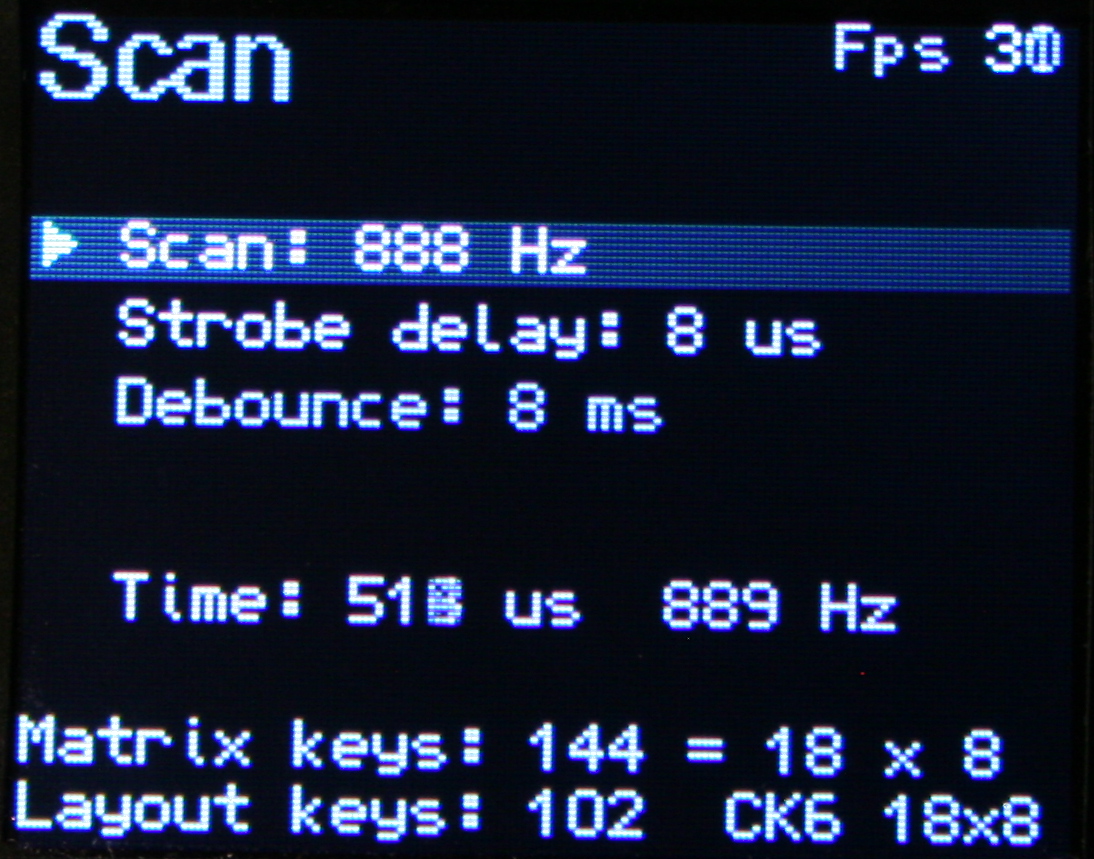
    Useful when developing and to check if everything is working properly. Scan setup is advanced and adjust which strobe delay, scan frequency, debounce time I need. Matrix page shows the 18×8 keyboard matrix, with my anti-ghosting code working and any issues from too low strobe delay.
    It now also features X marks on keys that are available in matrix but not present on layout, this makes locating new extra keys very easy.
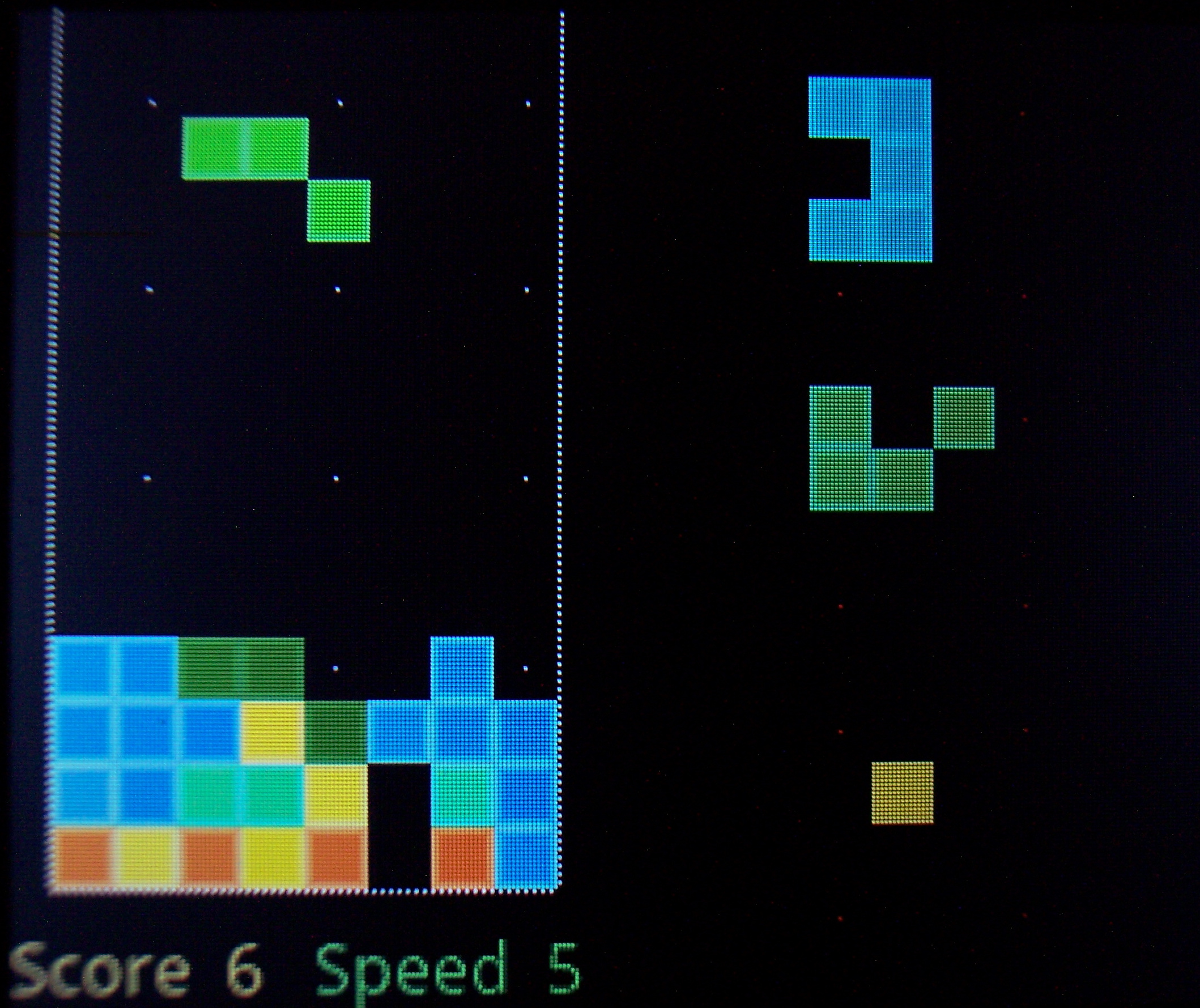
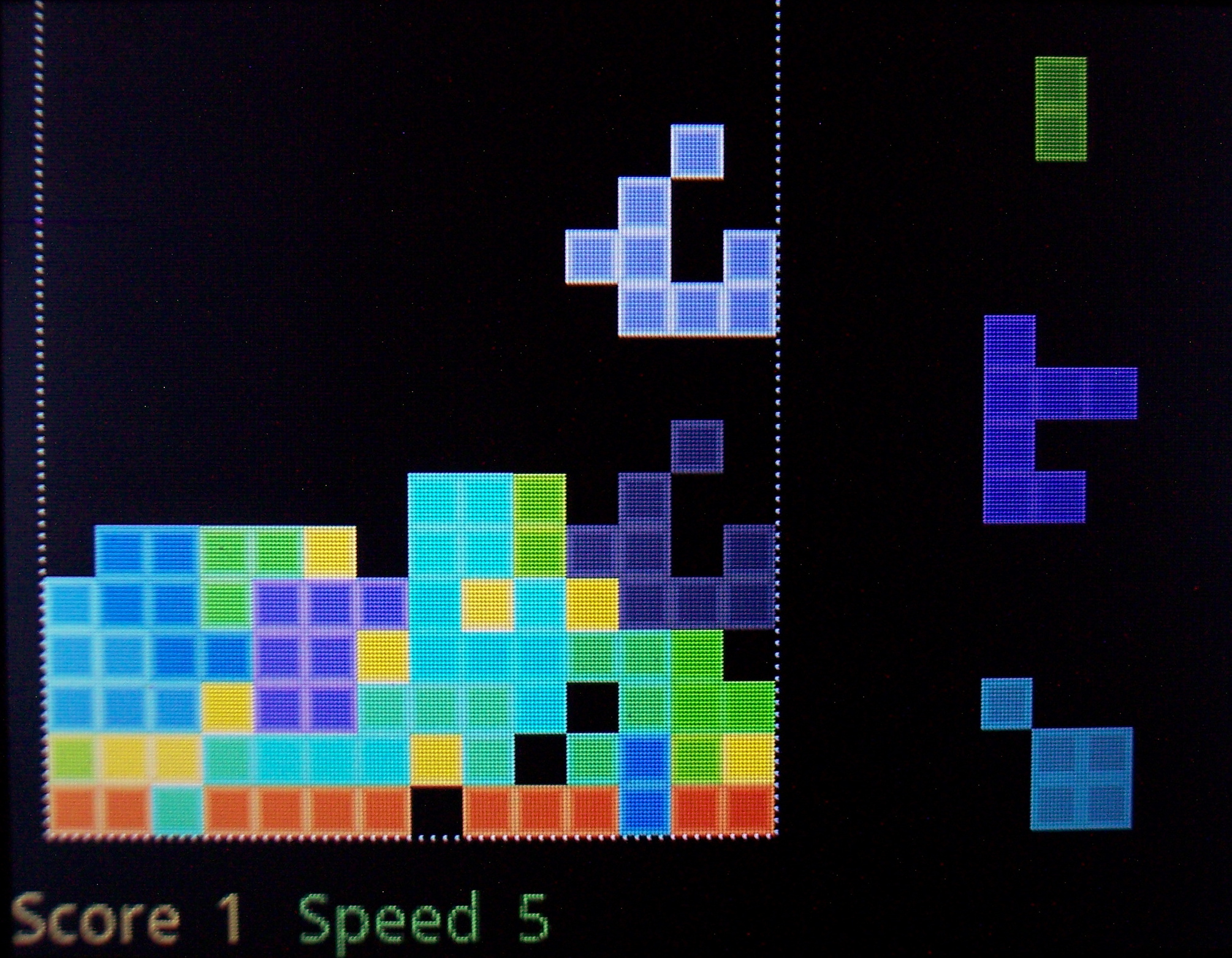
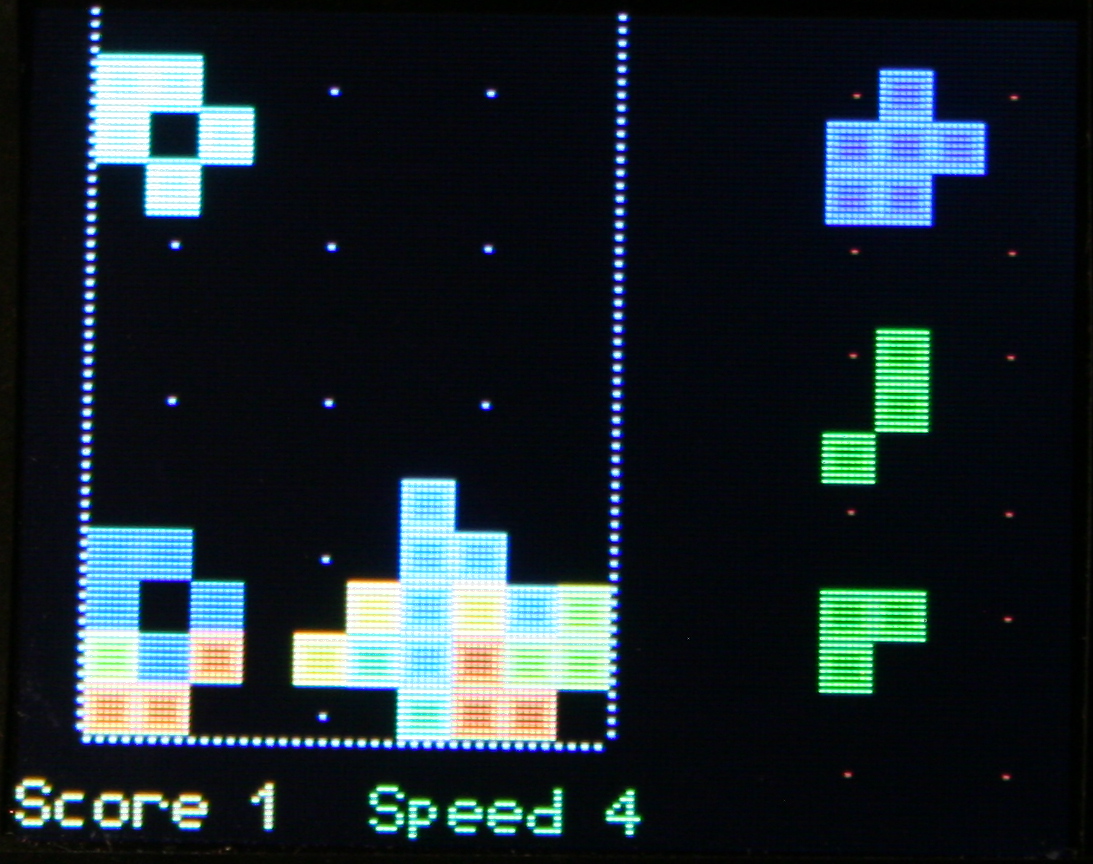
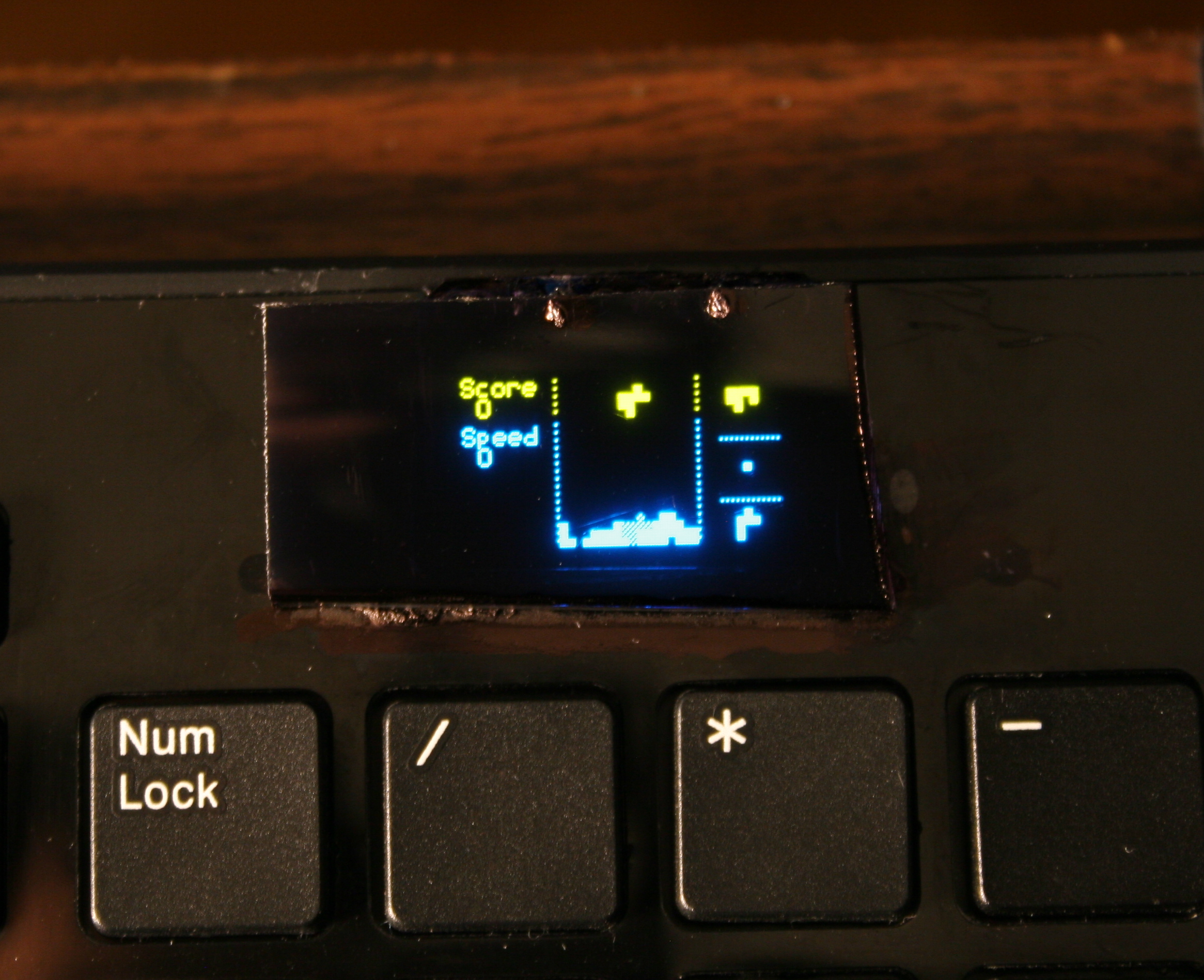
    🔮Demos and Game

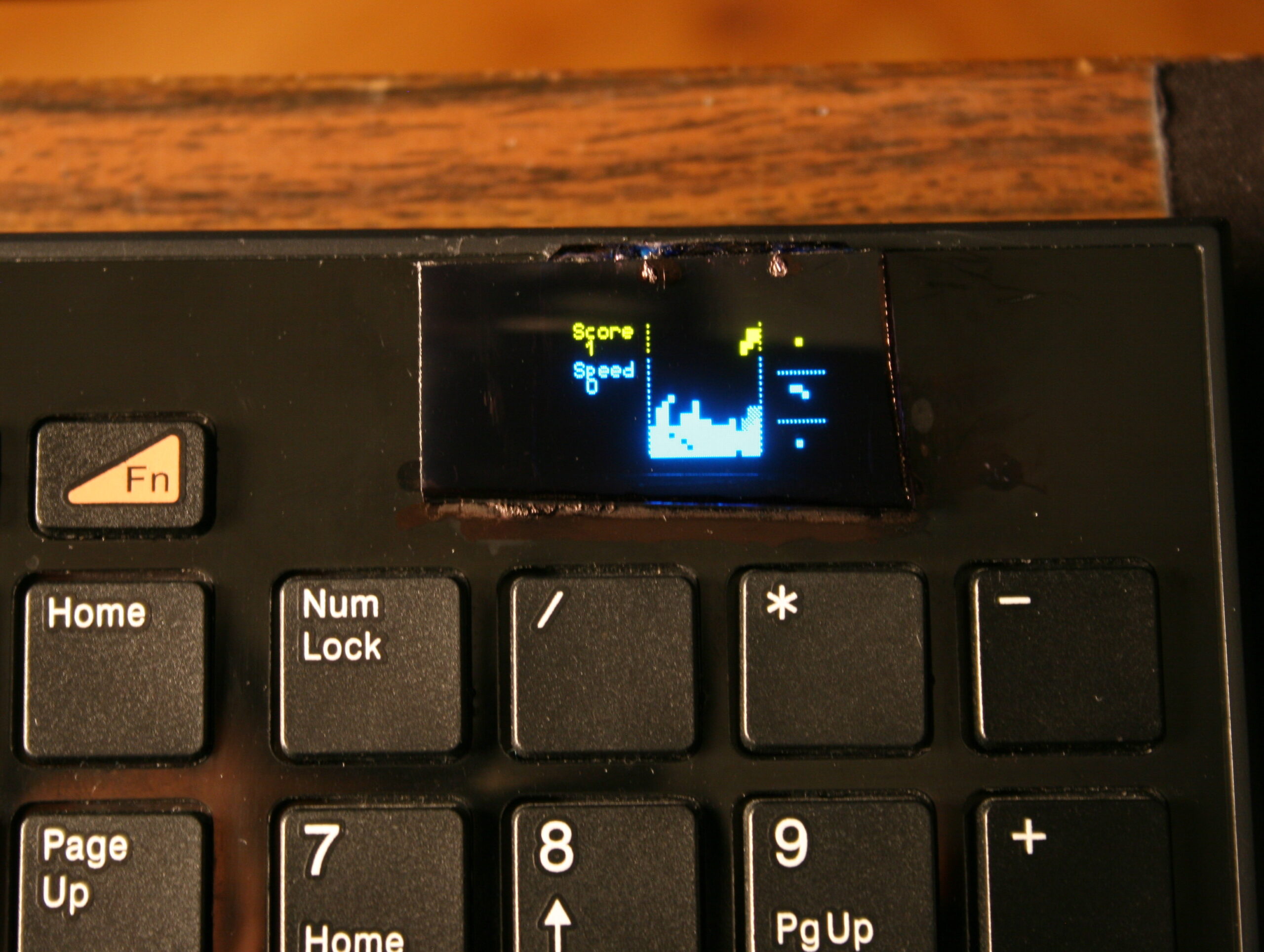
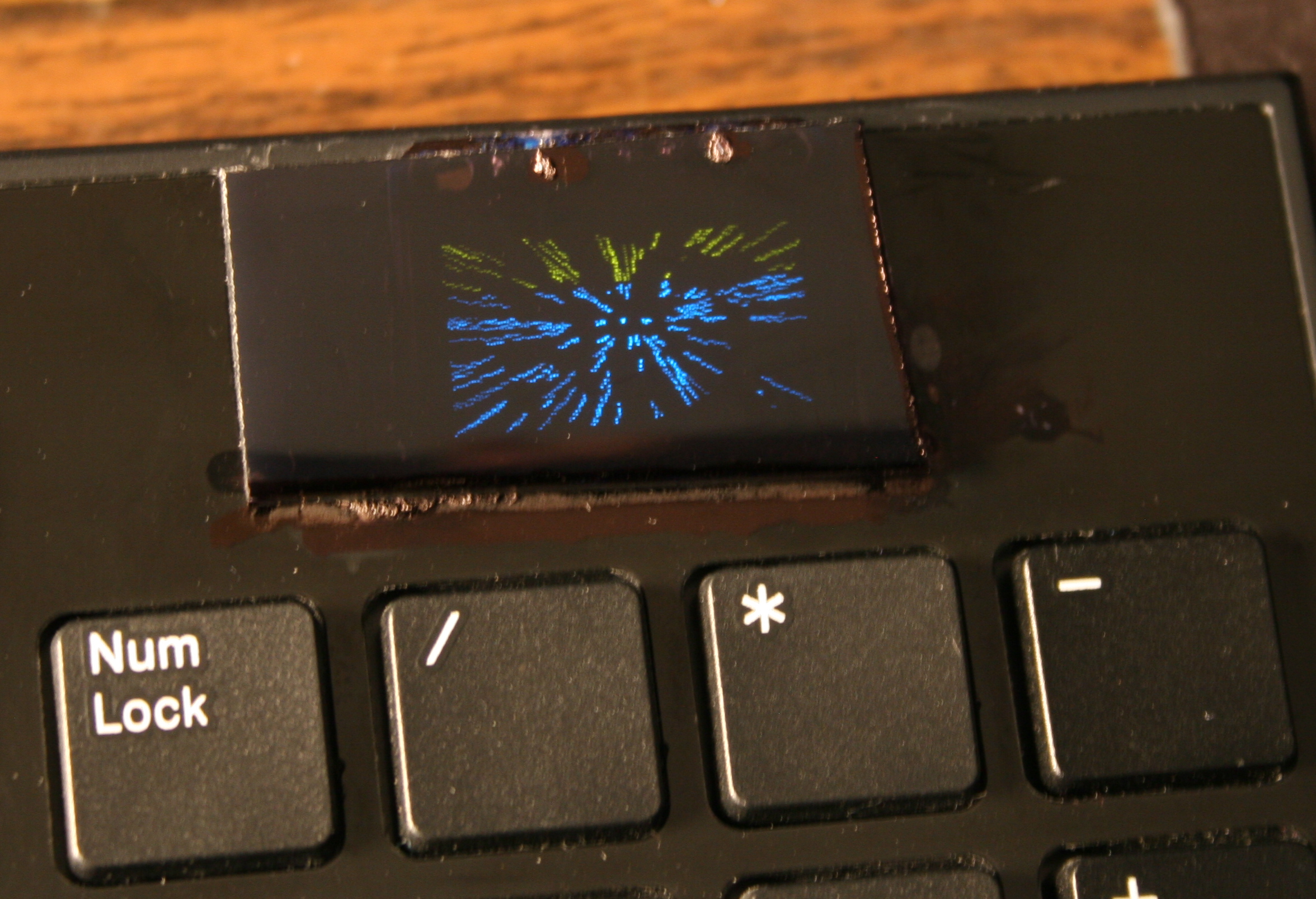
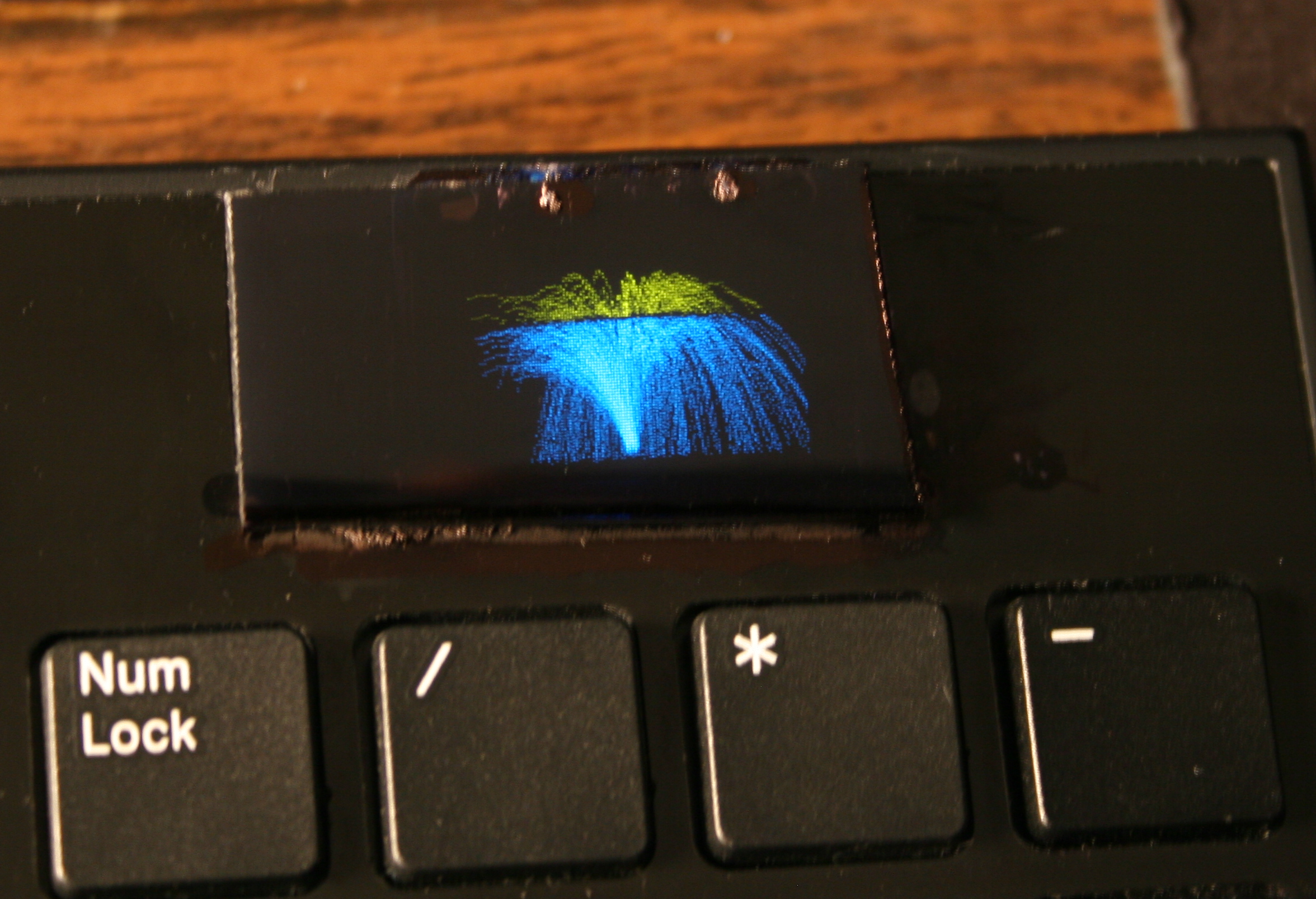
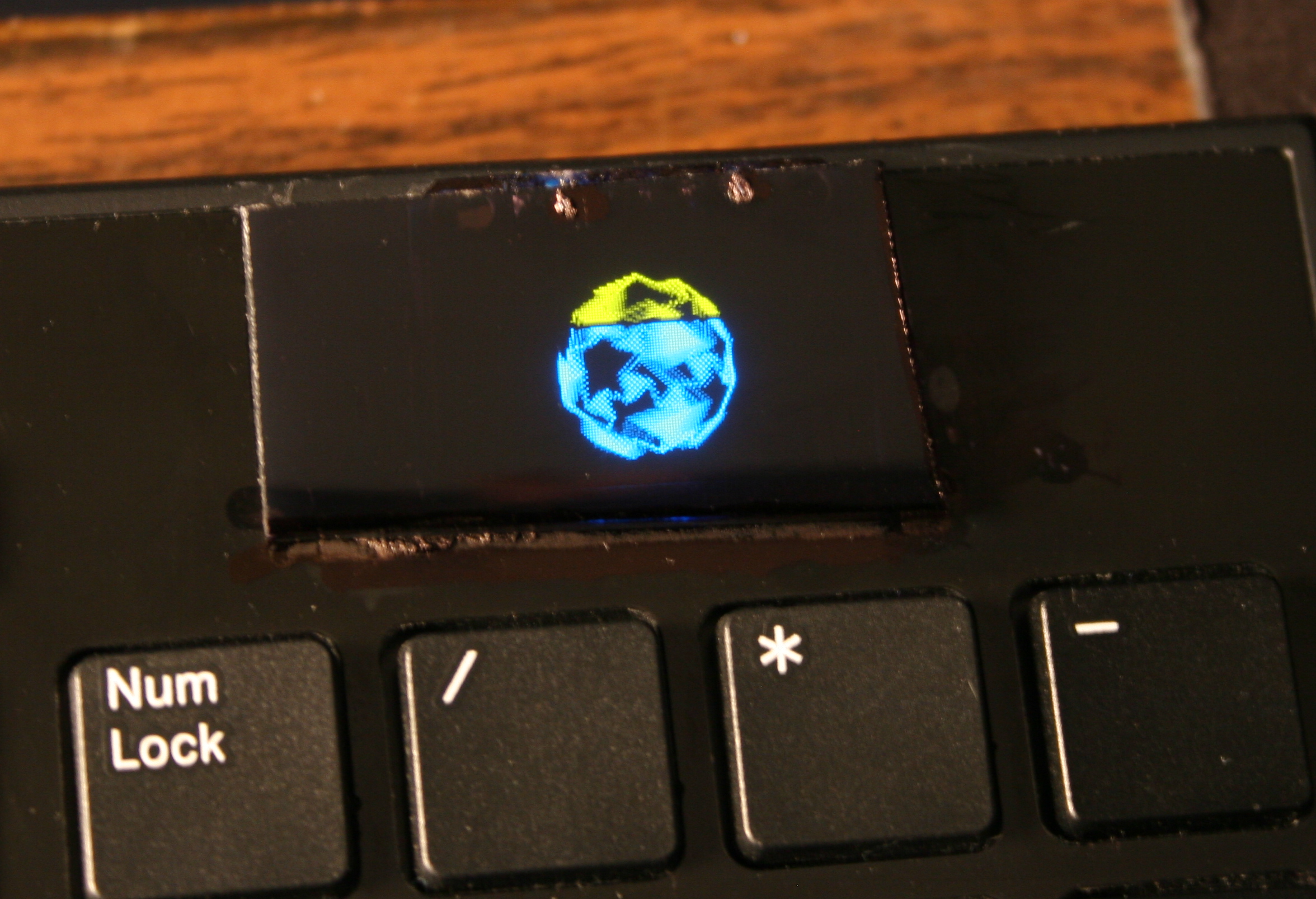
    Were already present in previous version and even on the first tiny display I used (128×64 mono). Since I have a display, and a powerful MCU, they show their drawing possibilities.
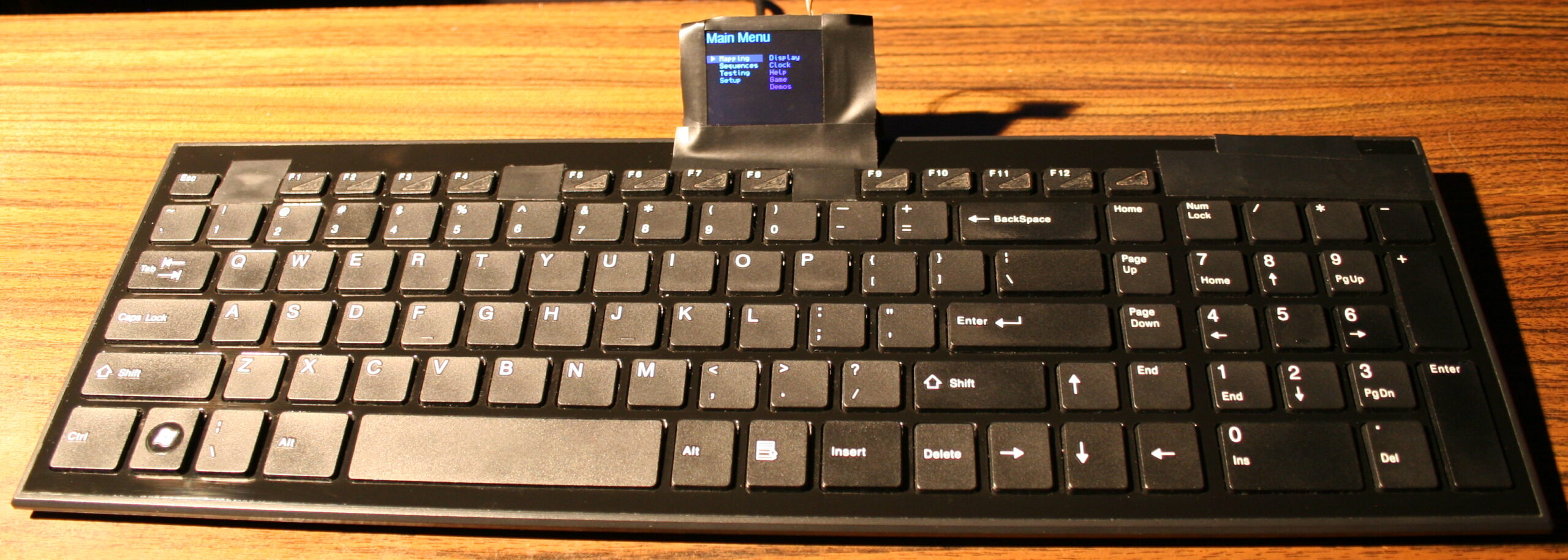
    They got extended to new resolution with few added extras. Best shown on videos, links below.

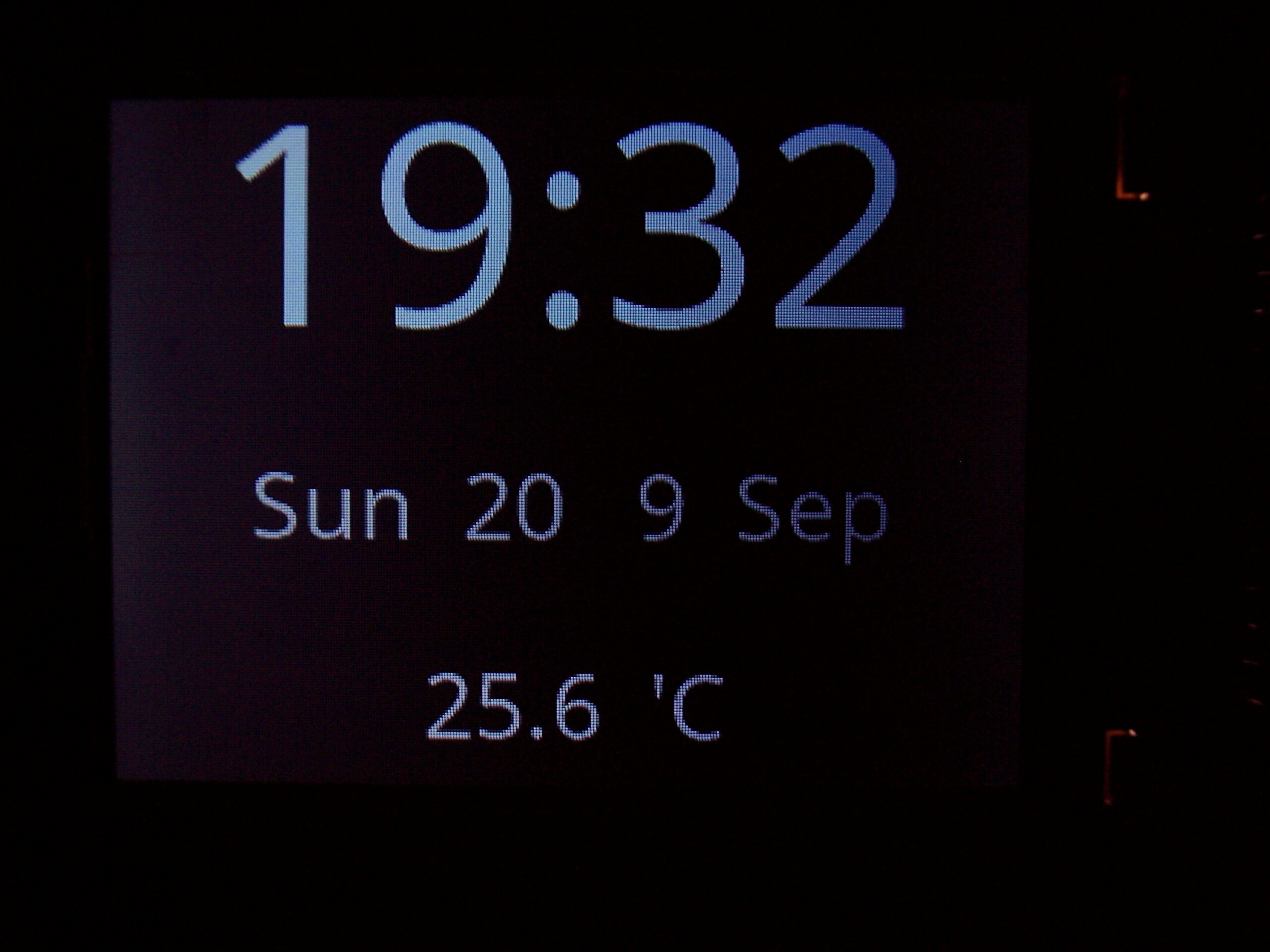
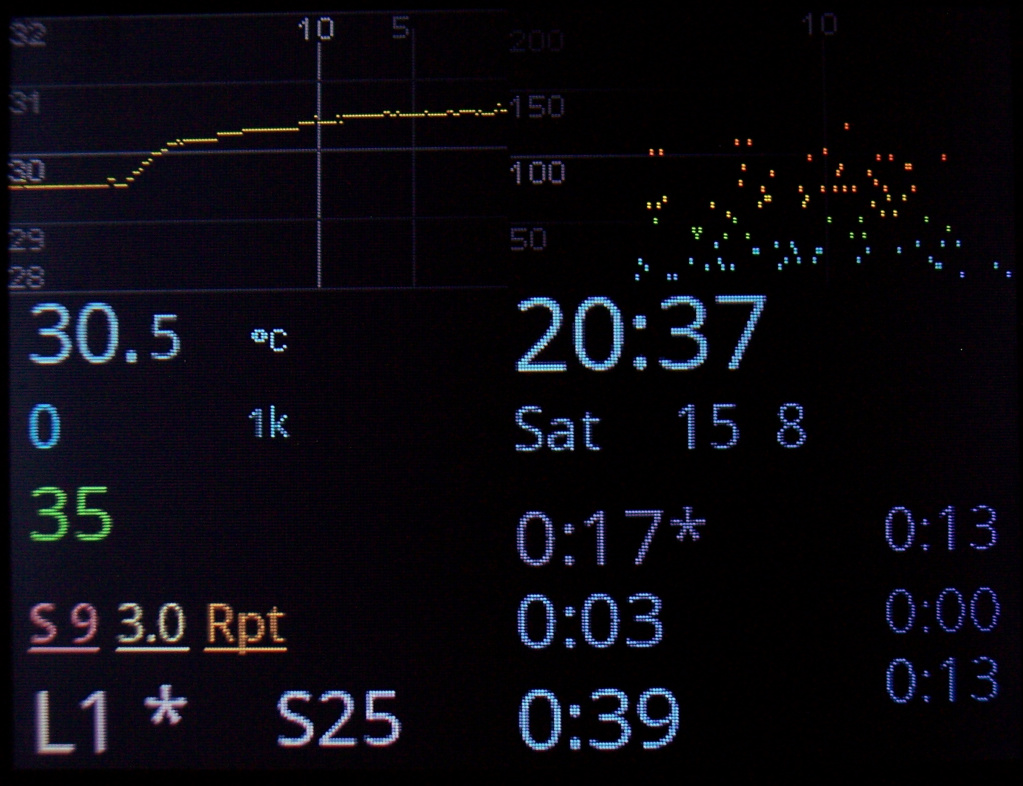
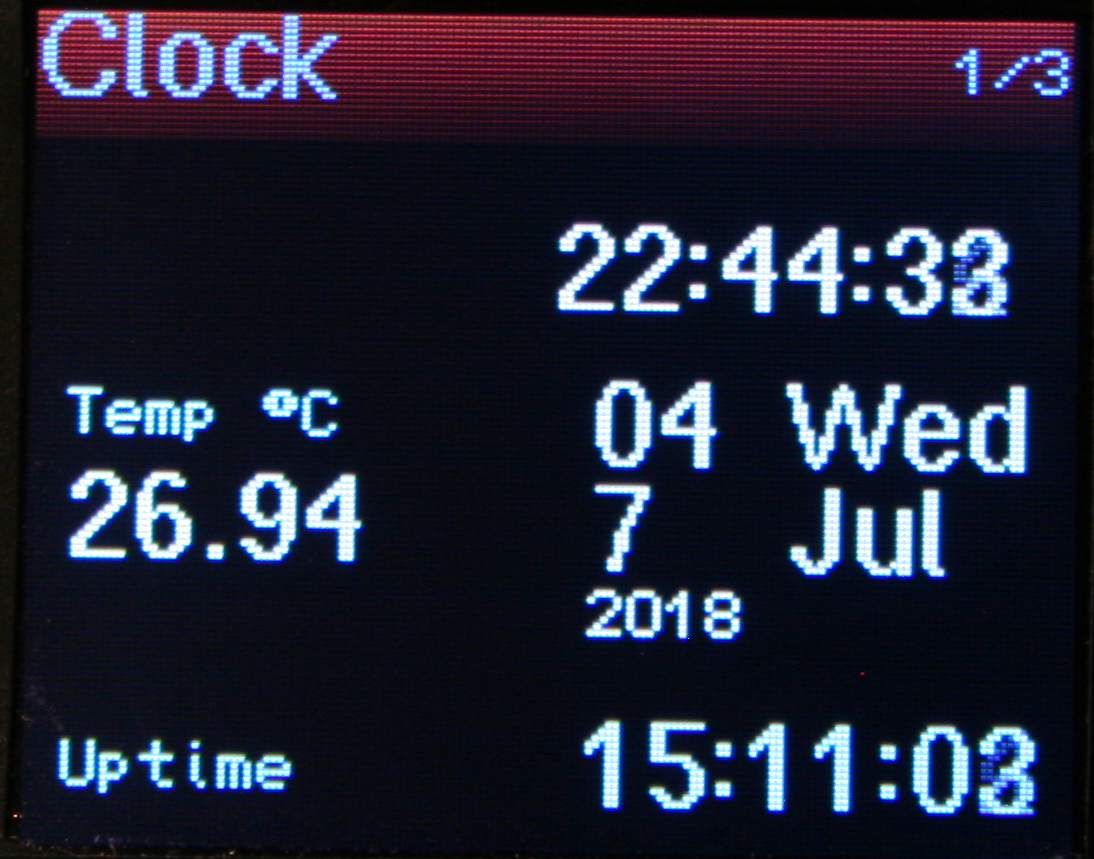
    🕙Clock

    With date (uses internal RTC, needs 3V battery).
    Also showing Temperature, read from attached DS18B20 1-wire sensor (optional).

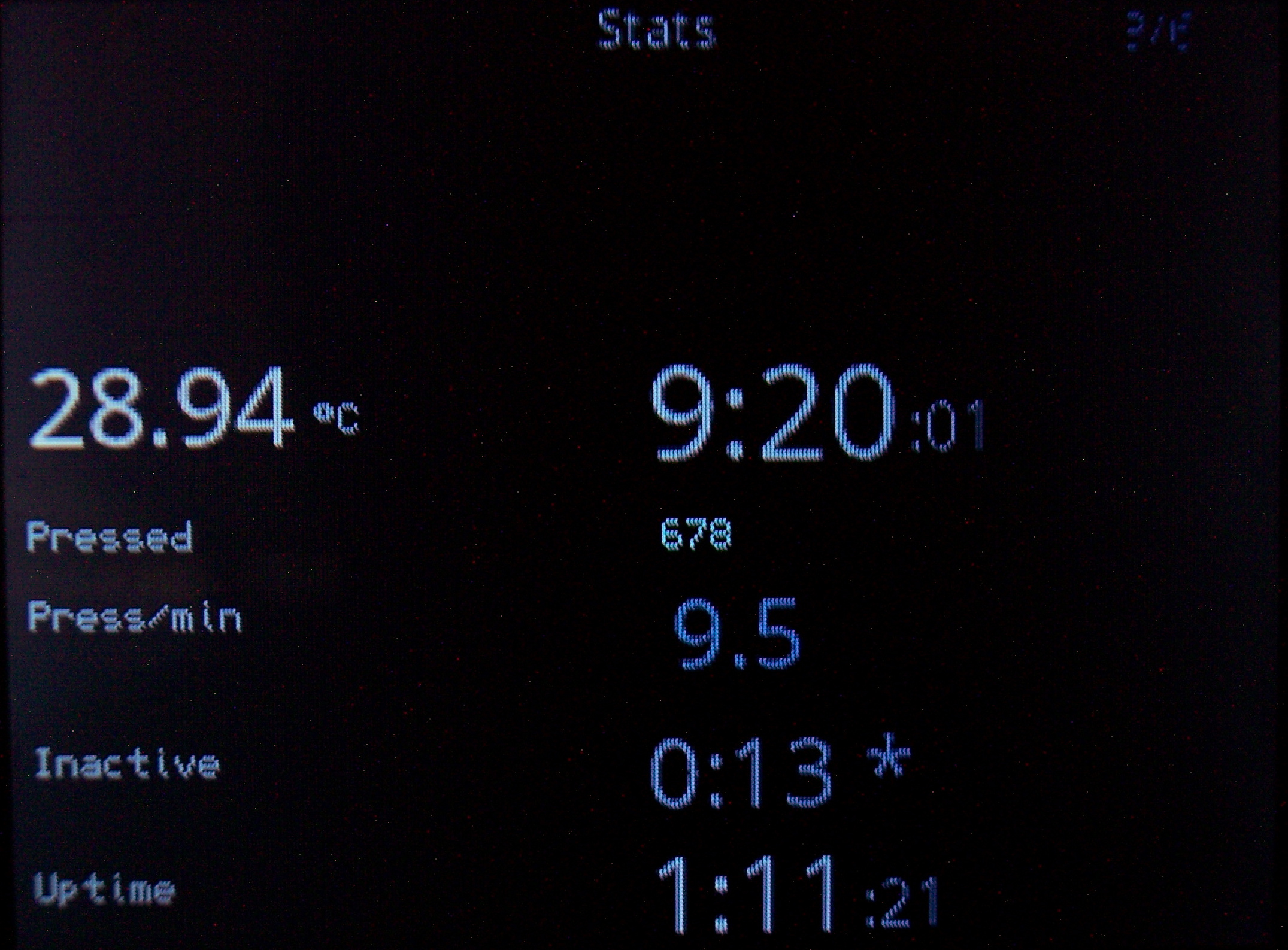
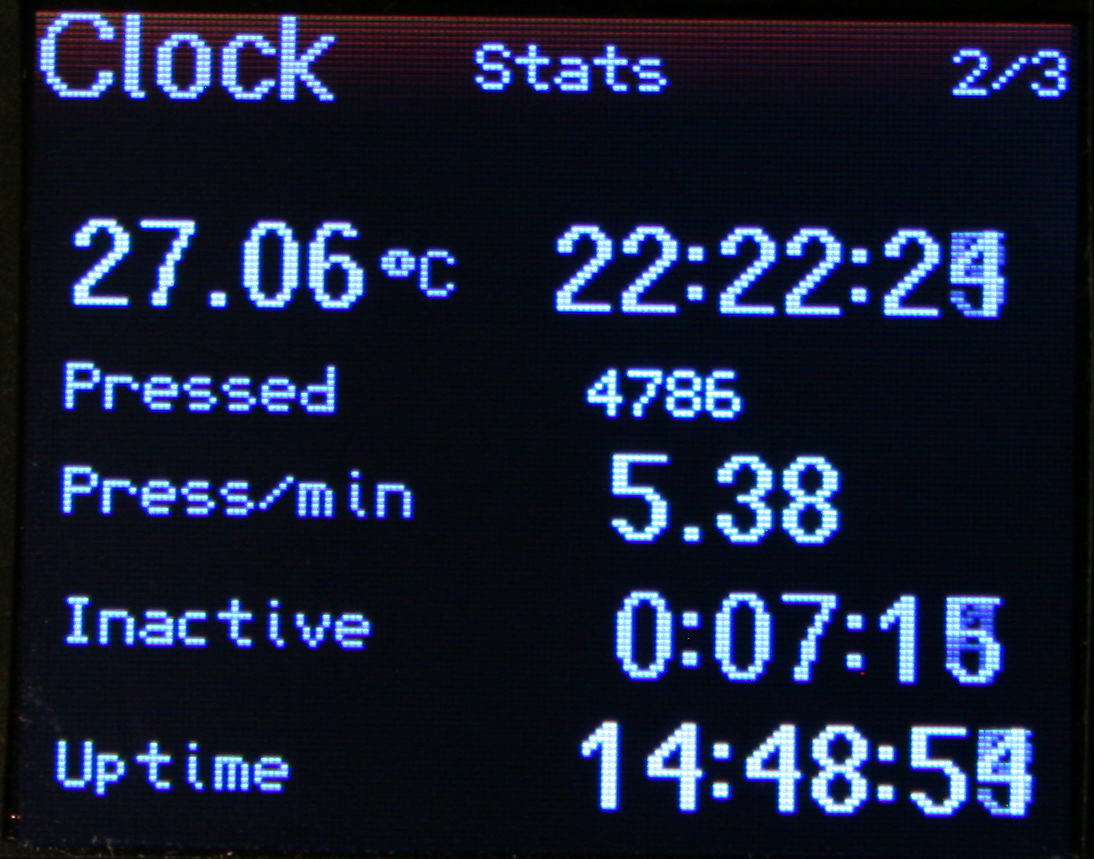
    📊Statistics

    Clock also displays (on its extended pages) keyboard use statistics:

    • ⌛Uptime.
      Time since power on or plugged in USB.
    • 🌌Late hour background.
      Will start slowly showing top of display orange at 22:00 and every 0:30 min going more visible, being yellow after 0:00 (midnight). This is to notify and motivate me to go to sleep when I sit too long at night.
    • ⏱️Active time.
      I.e. how long I use keyboard without a break (at least 5 min, can be adjusted). Changes color from value.
      This is helpful to know if I’m doing something too long on PC. After all, it is recommended to take 5 min breaks every hour, it is healthy for spine and hands.
    • ❌Inactive time.
      The opposite. Useful to know how long was I away from PC (keyboard). Also changes color when over 1 hour. Meaning I probably should have turned it off, to save power.
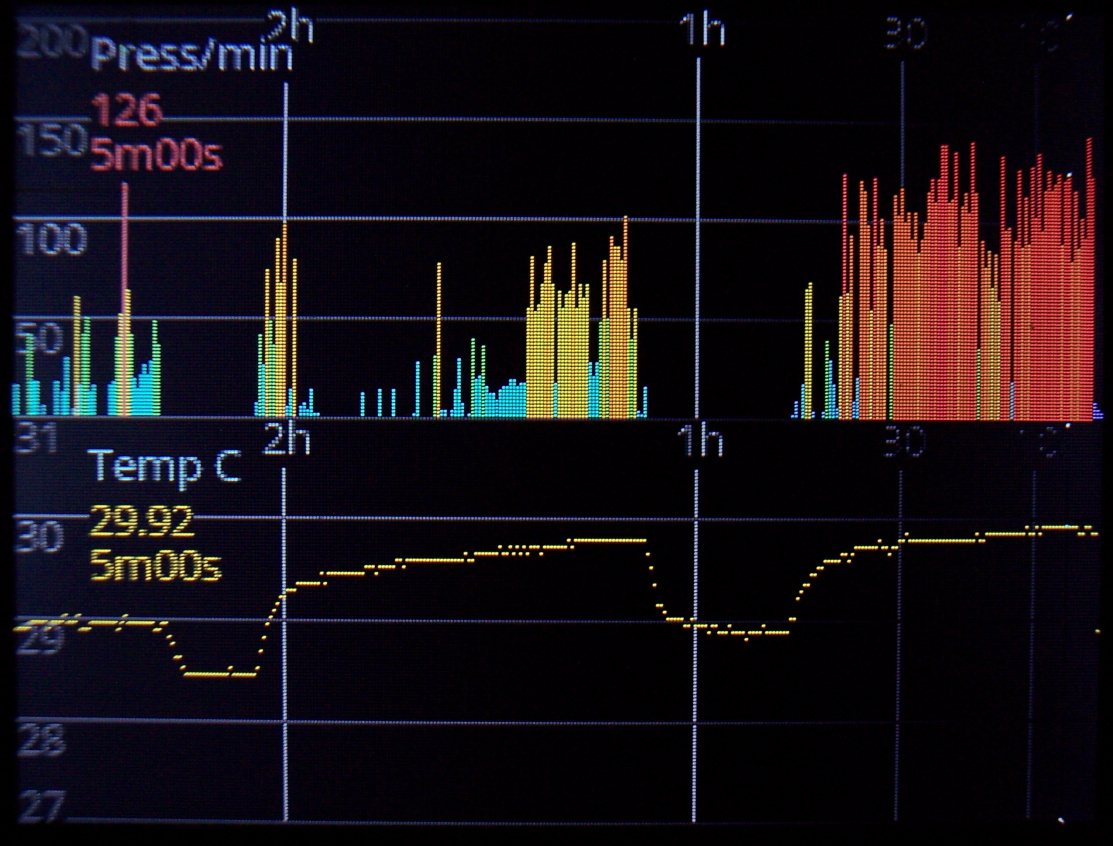
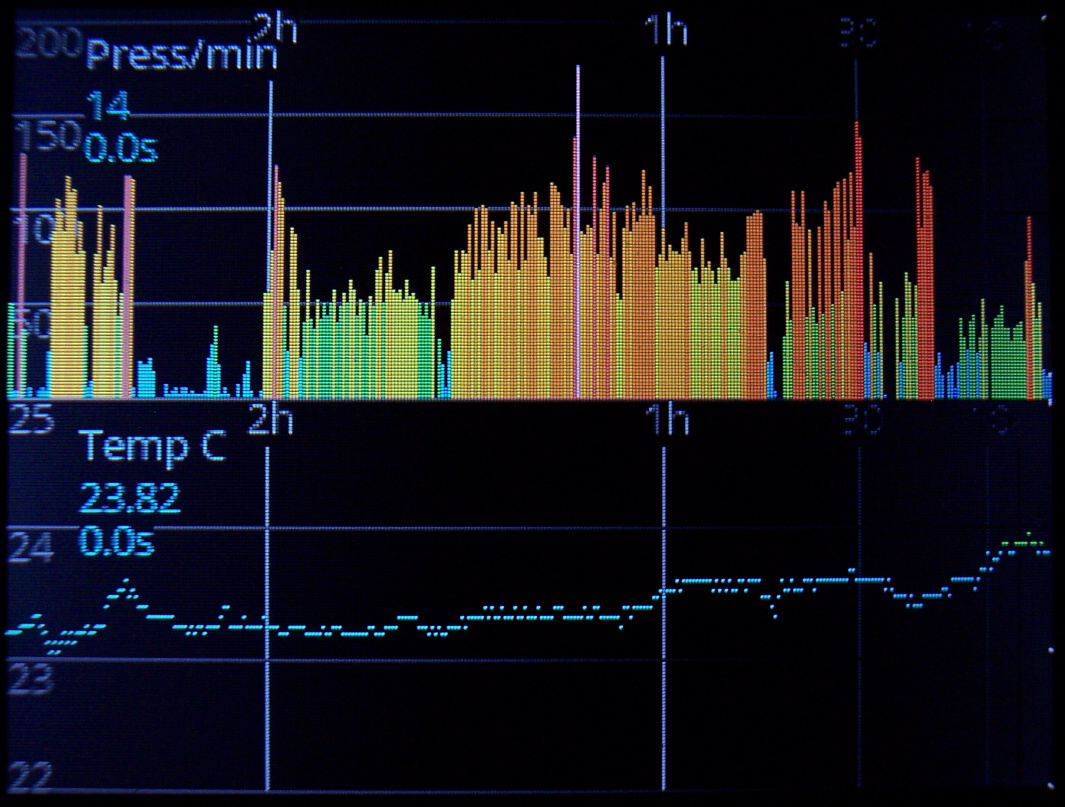
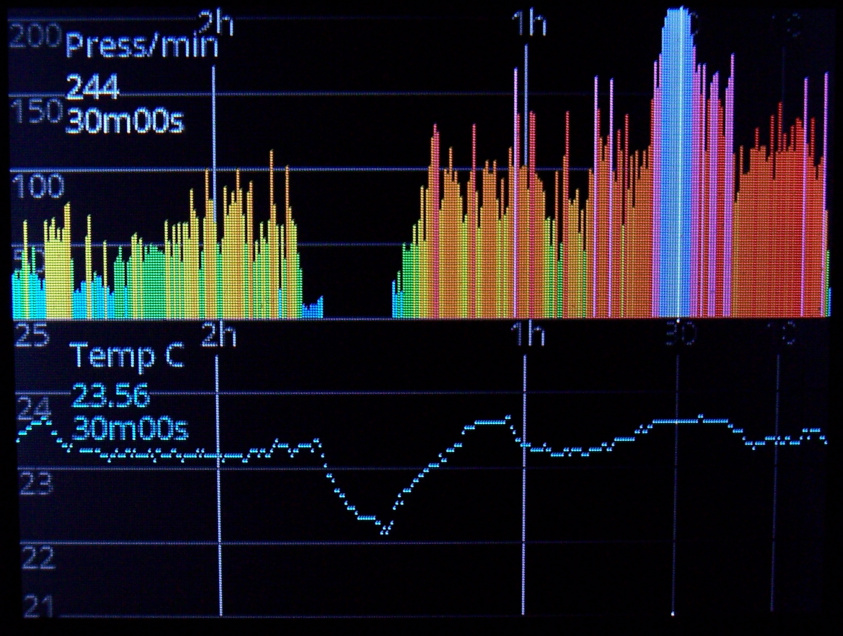
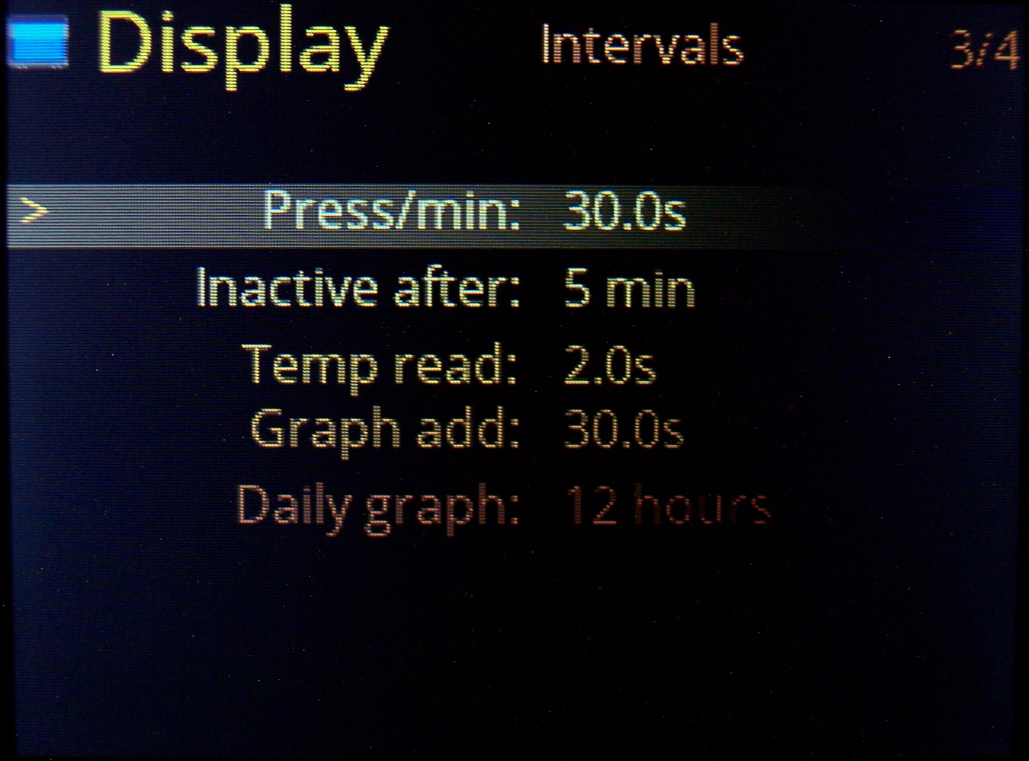
    • 👇Press/min.
      Typing frequency, so how much key presses are done every minute. A colored value on left, going e.g. red at 120, yellow starting at 50.
      Also a second value below with total average since power on, with slowly changed value. So it is useful and directly corresponds to how tired will hands be. It’d be great to keep this value below 50, but sadly writing any text (e.g. chat, email etc.) or playing a game makes it go even above 150.

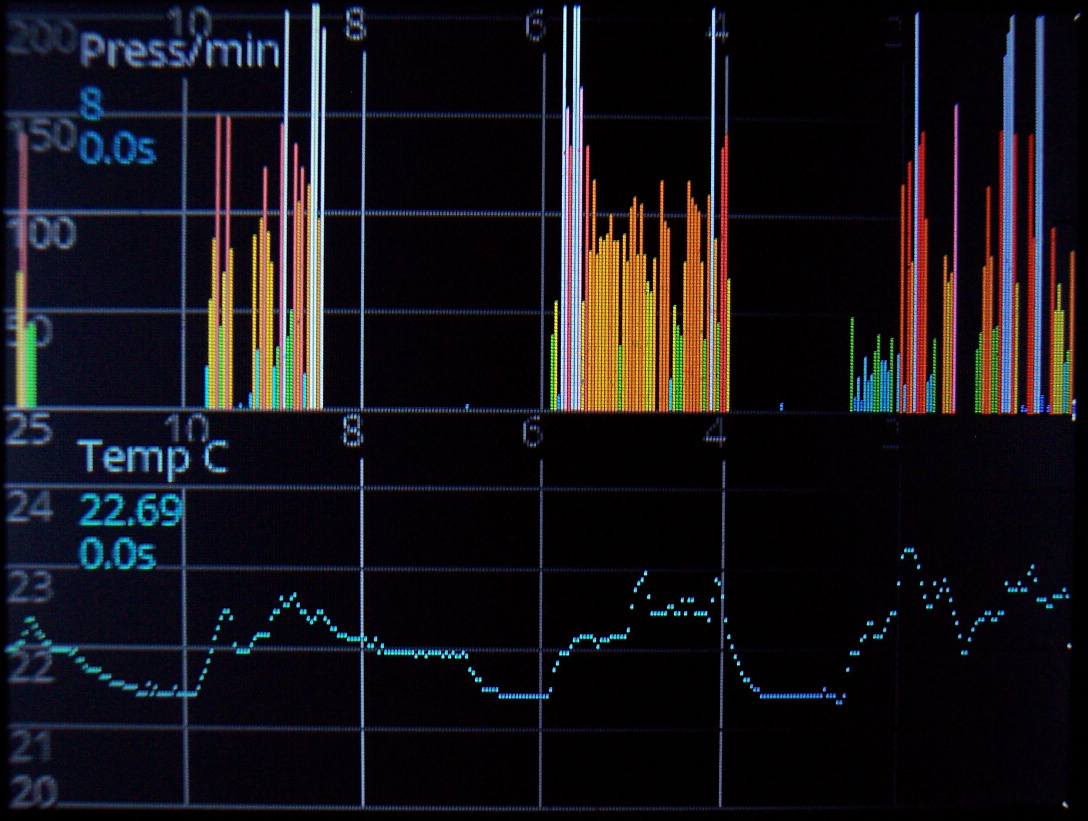
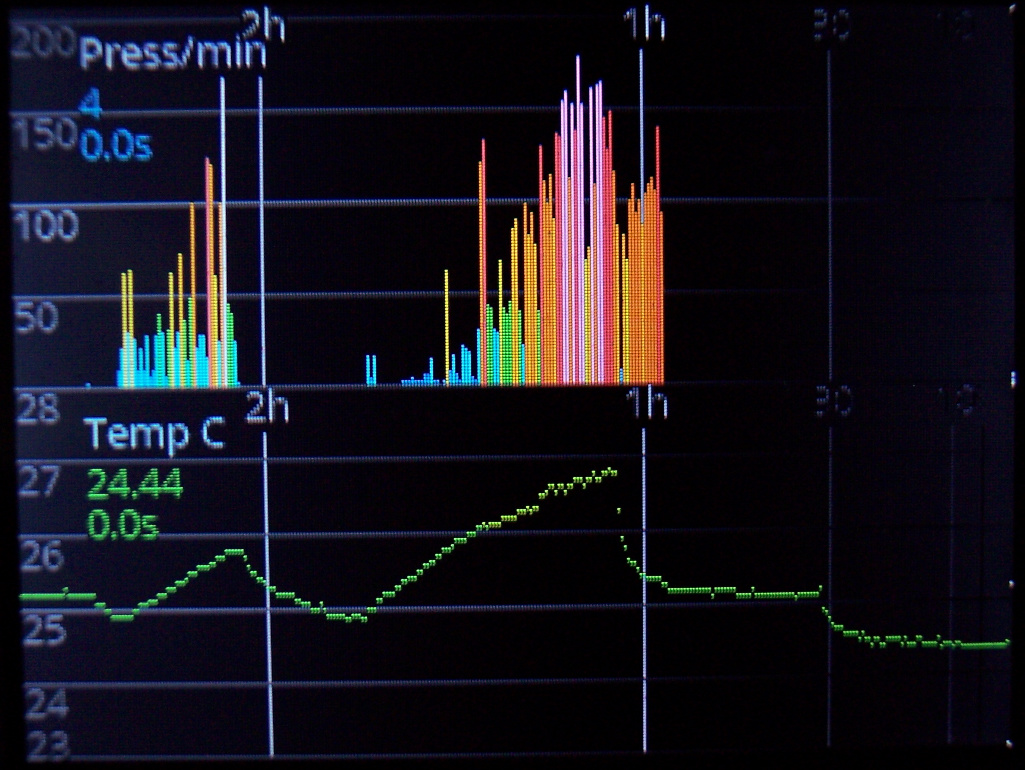
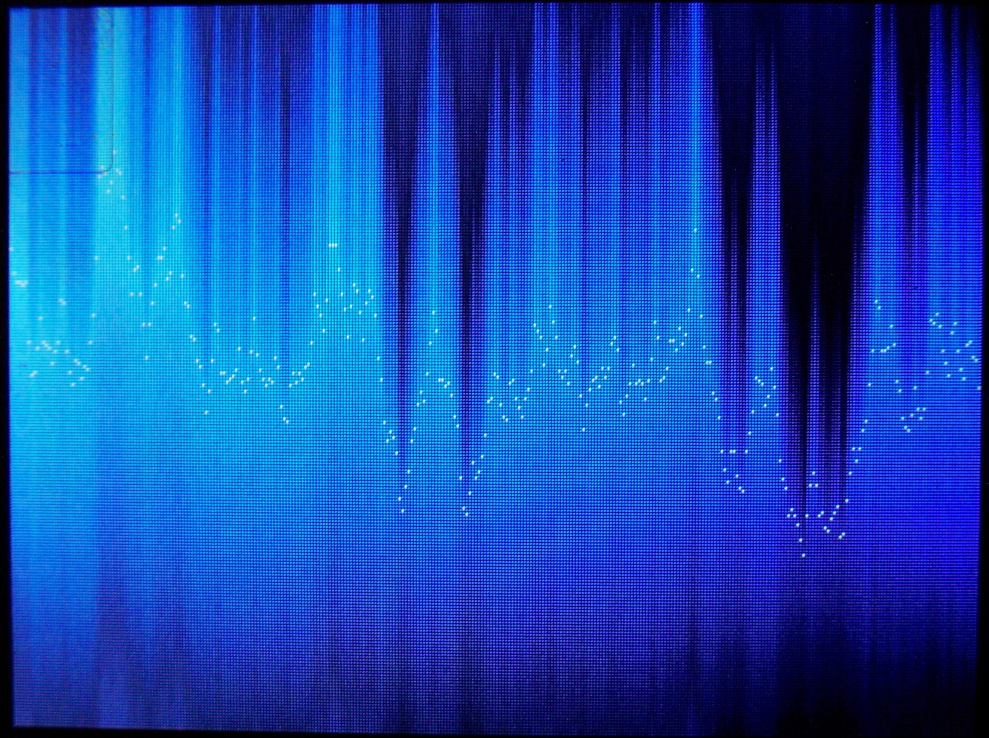
    📈Graphs

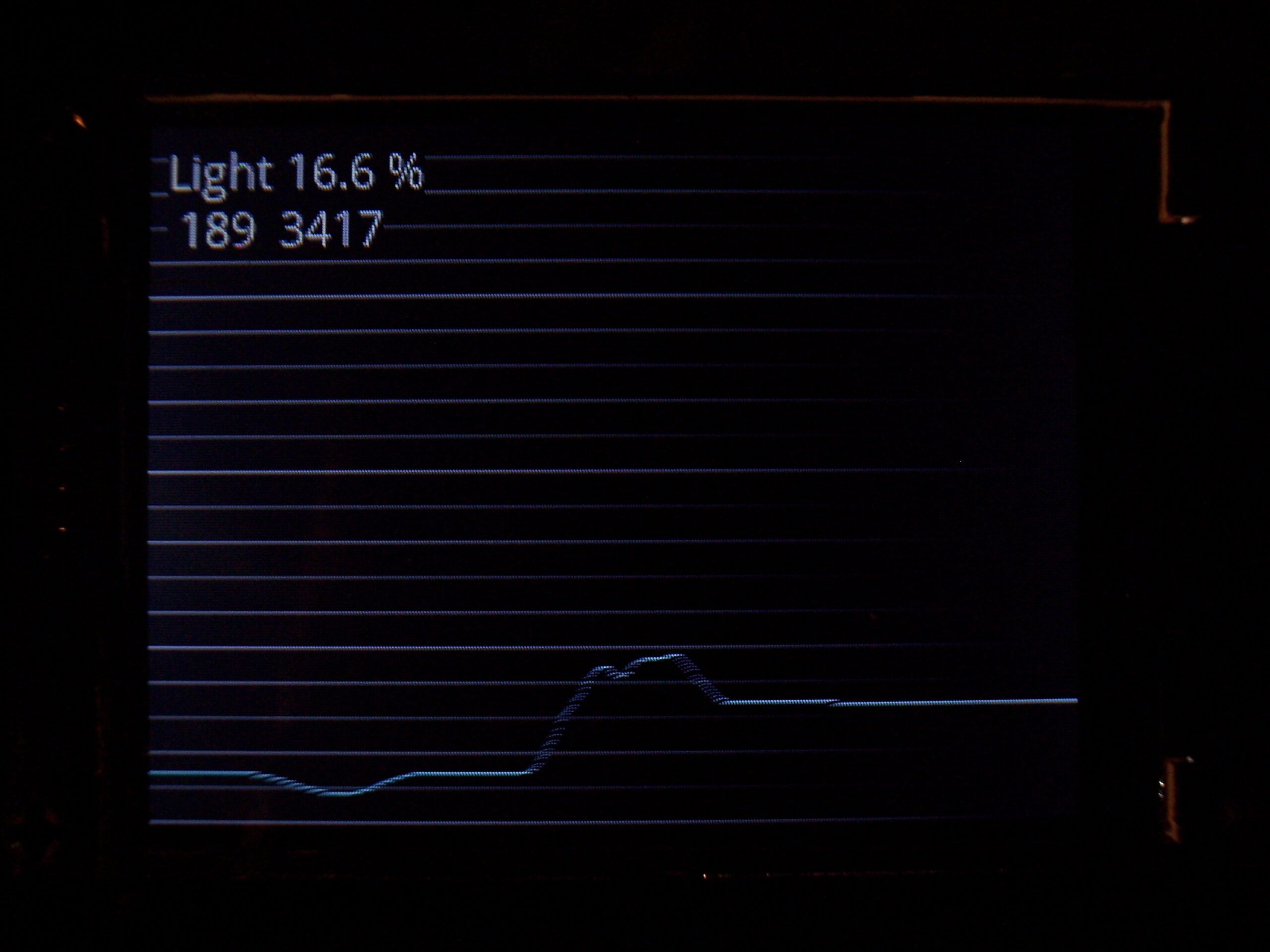
    As a part of clock, they show history of using keyboard (key presses/minute in the past hours). Second one is for temperature history. There are 320 points on display width and parameters for how often a value is added to graph.

    ⌨️Keyboard CK9

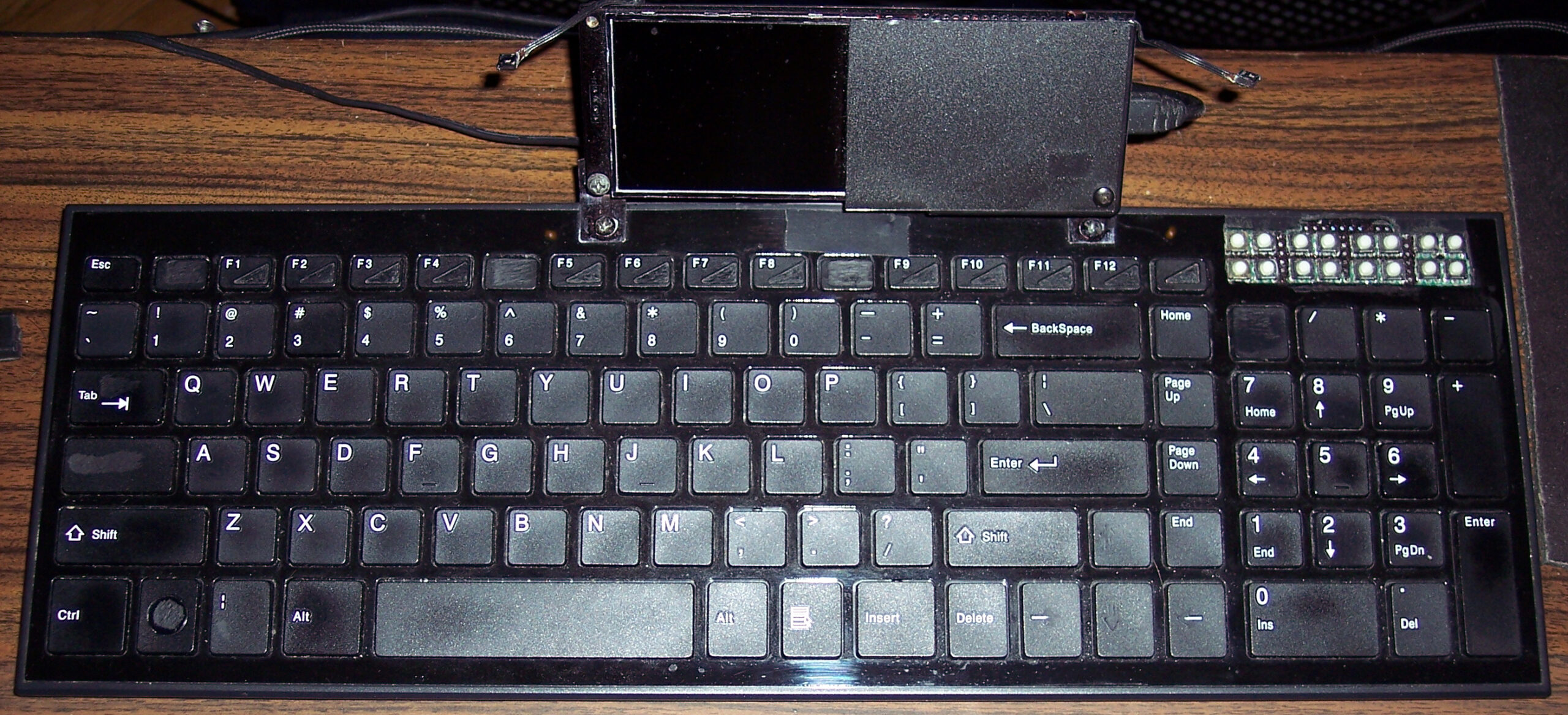
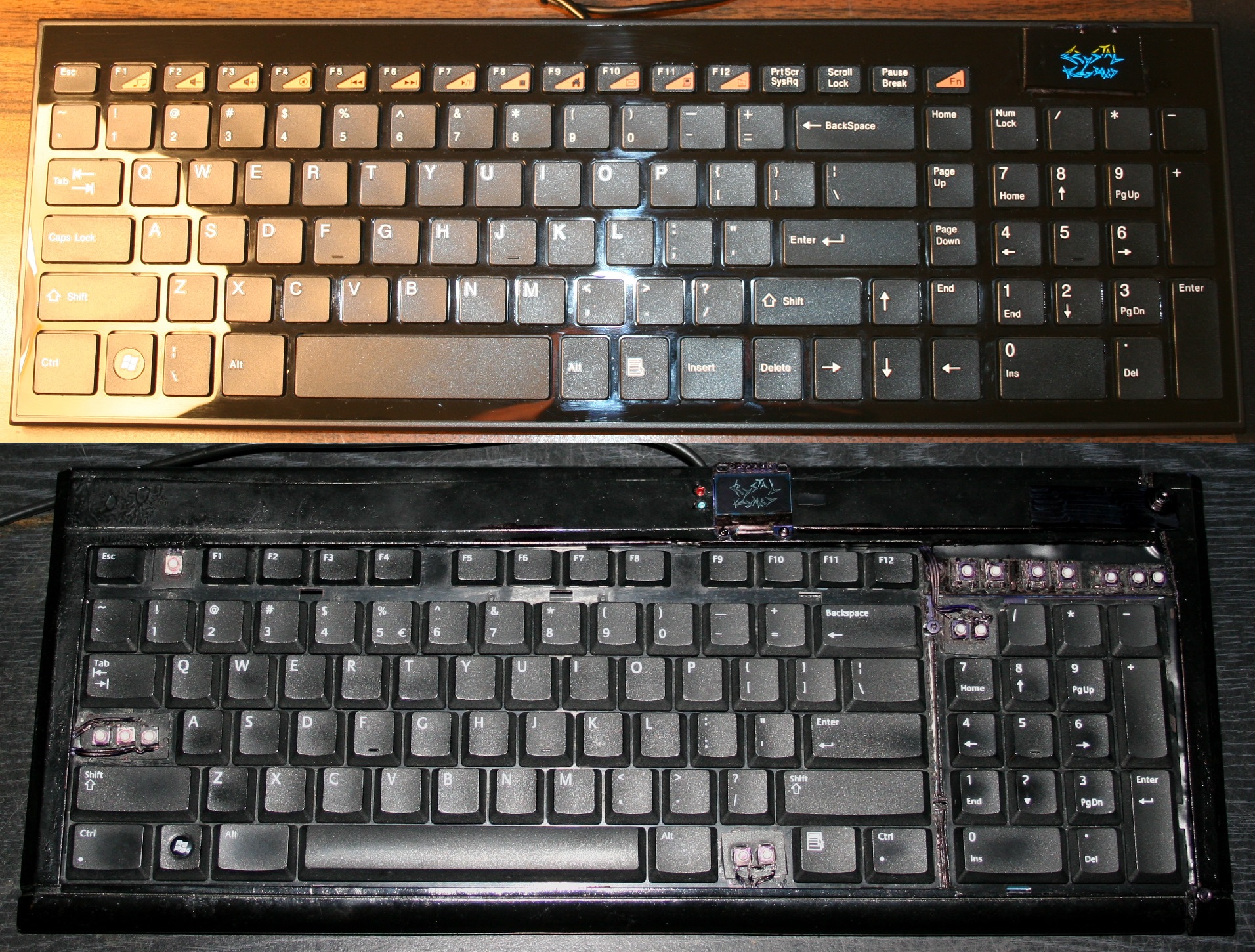
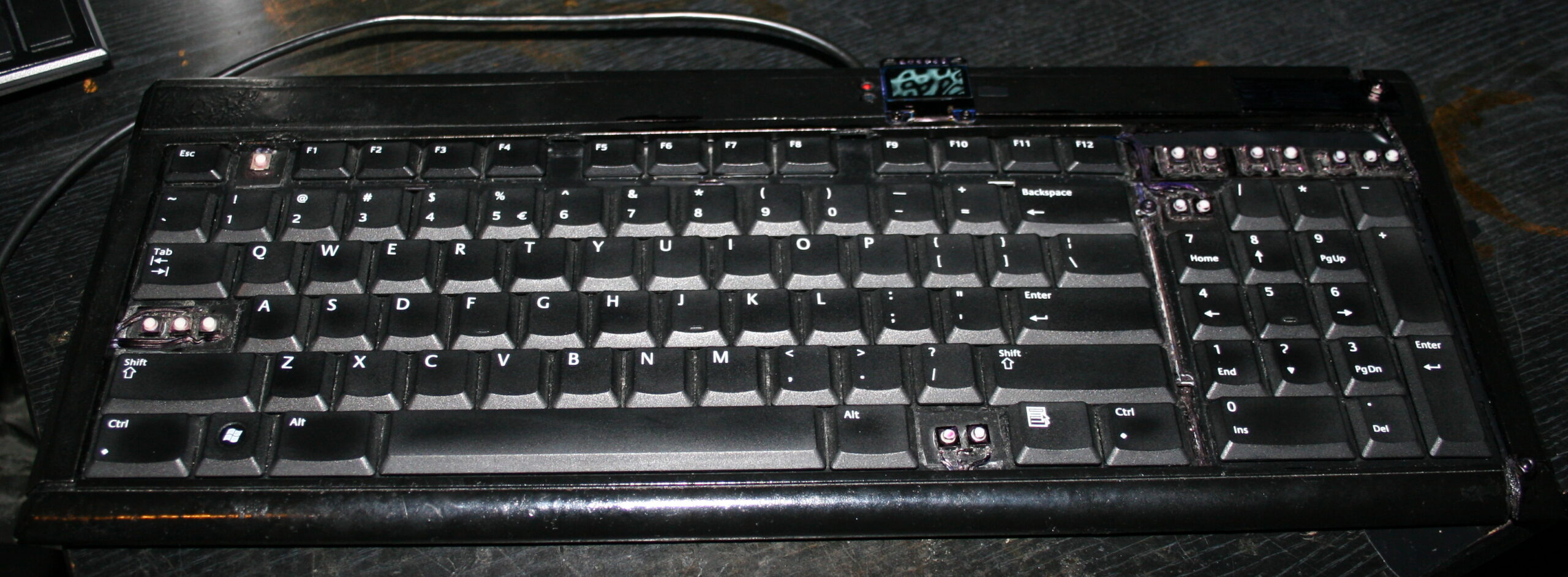
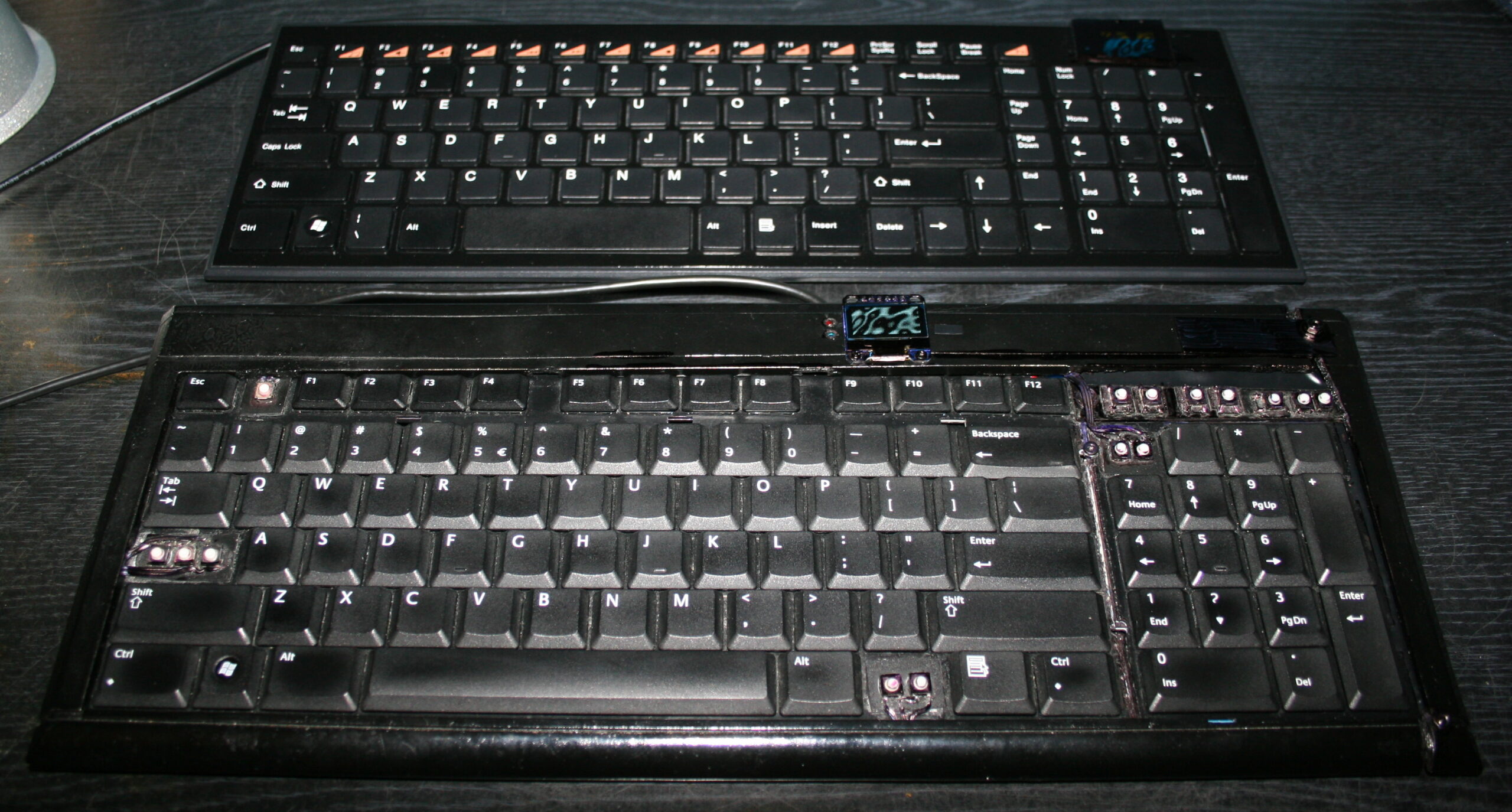
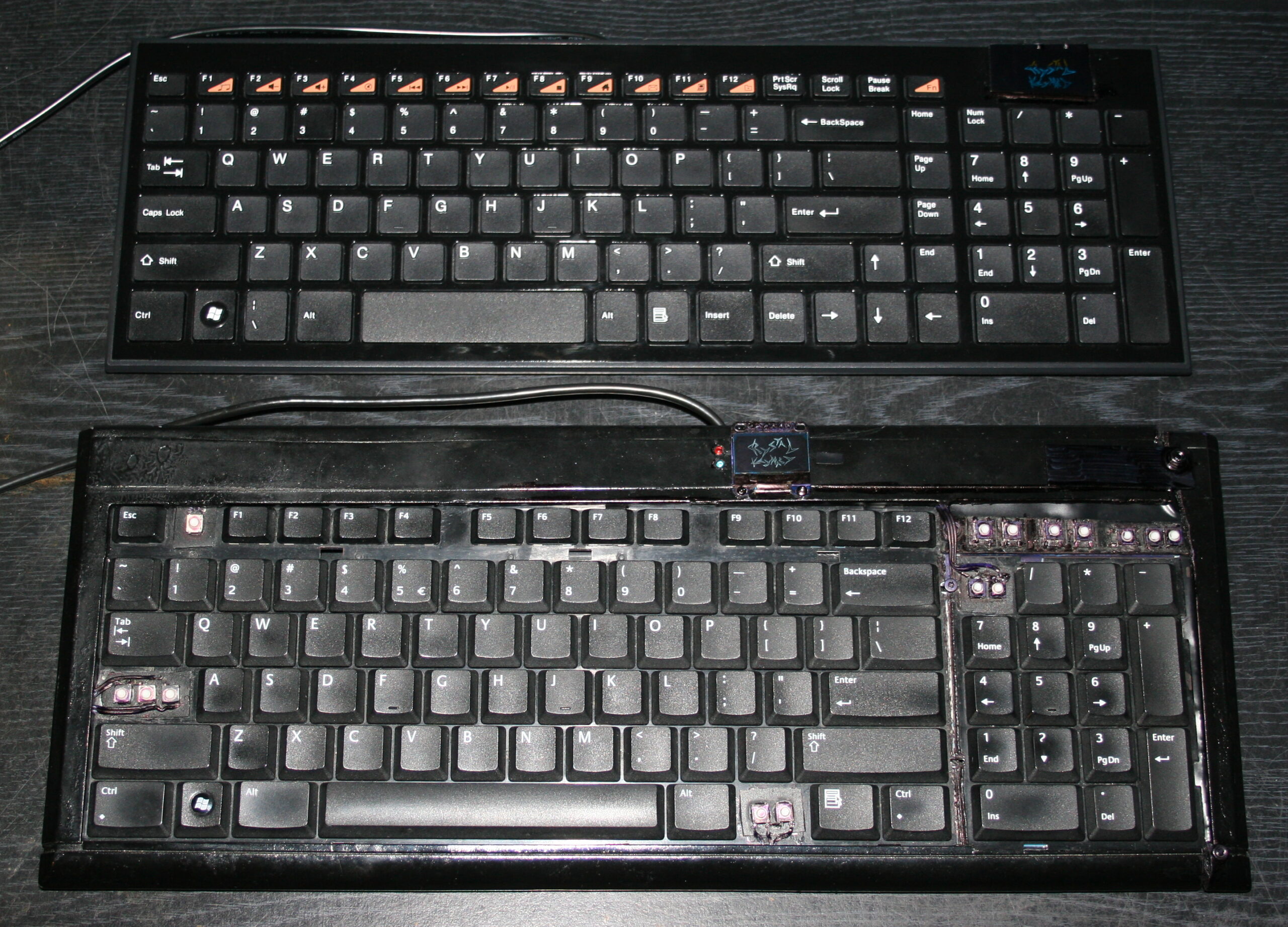
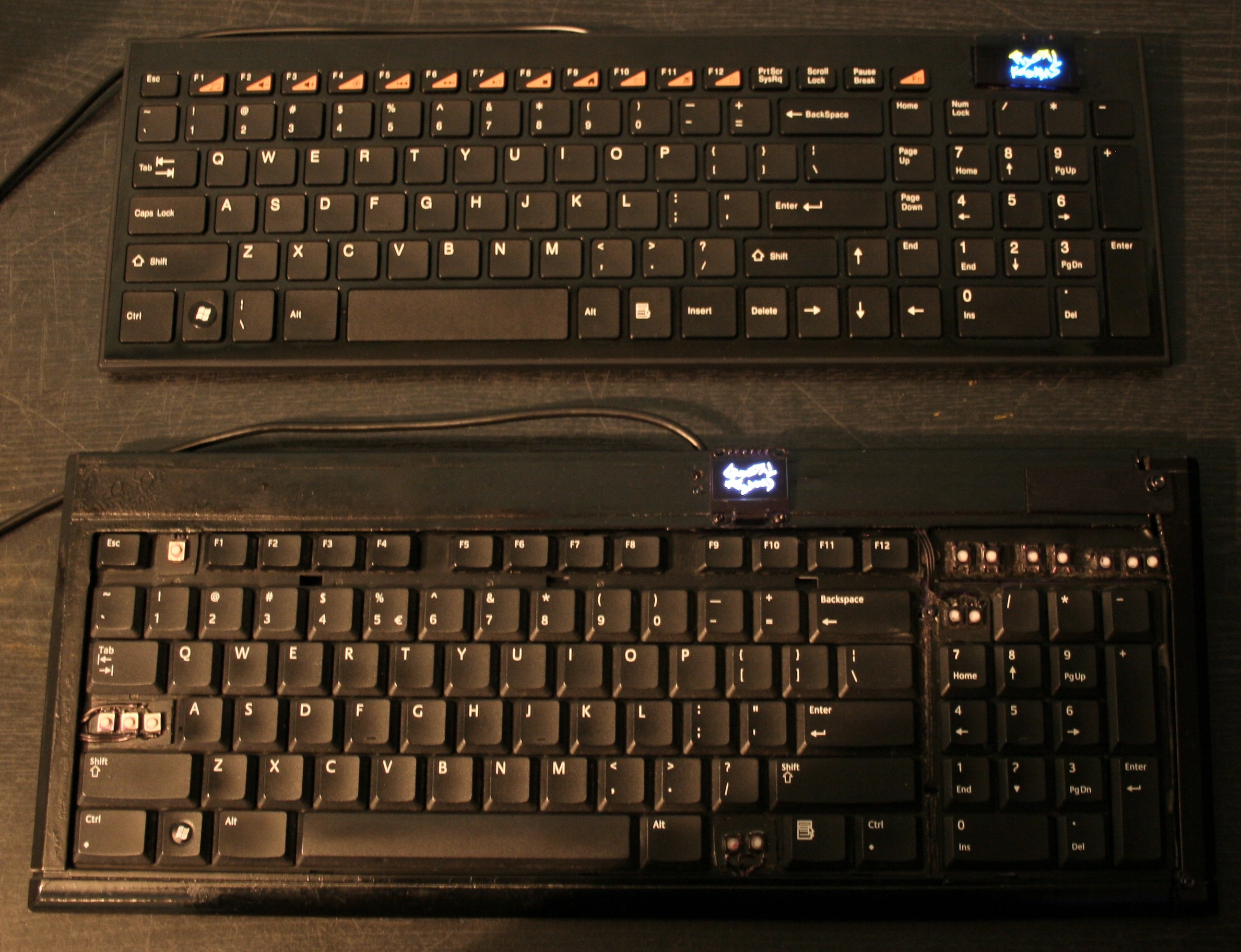
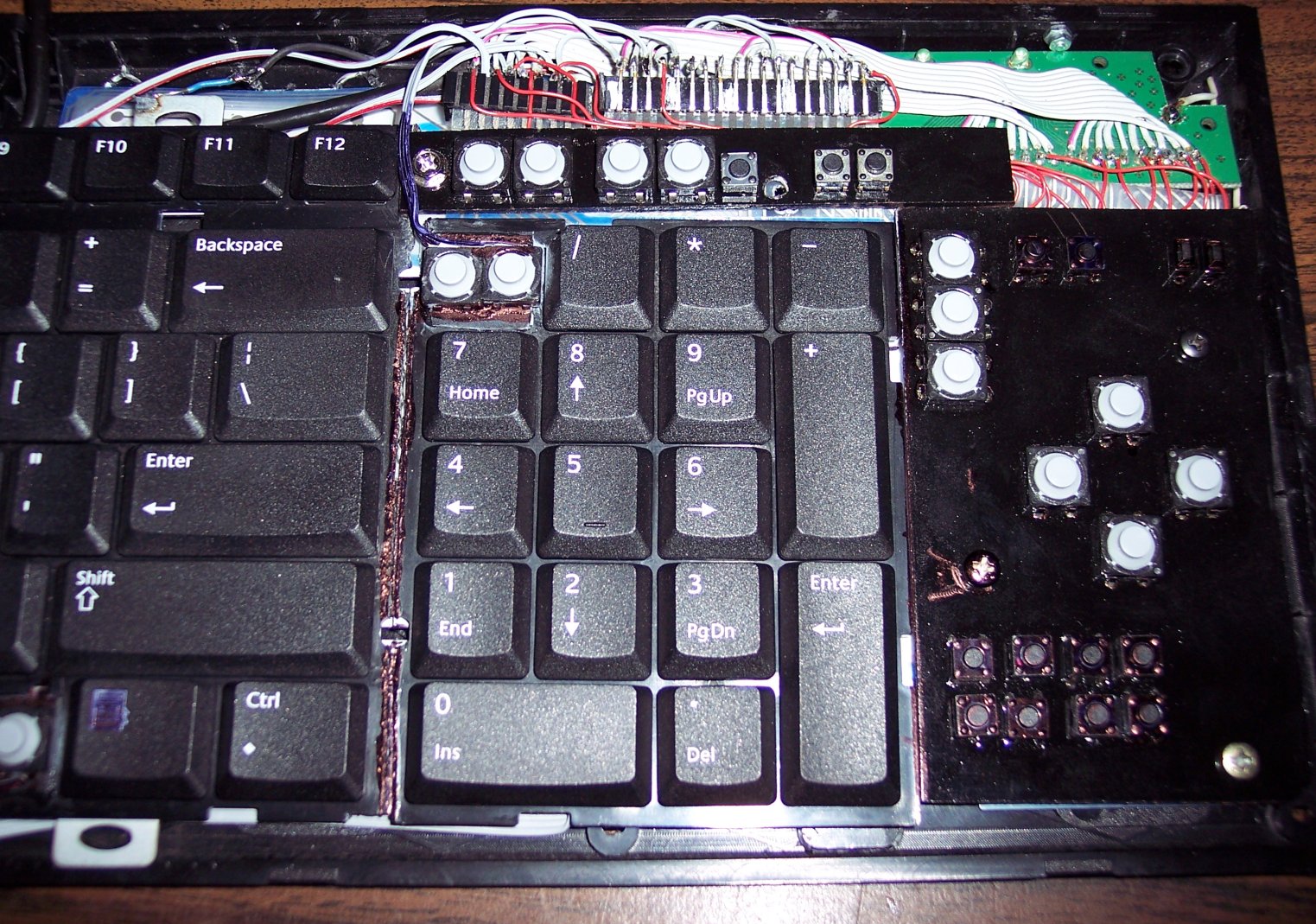
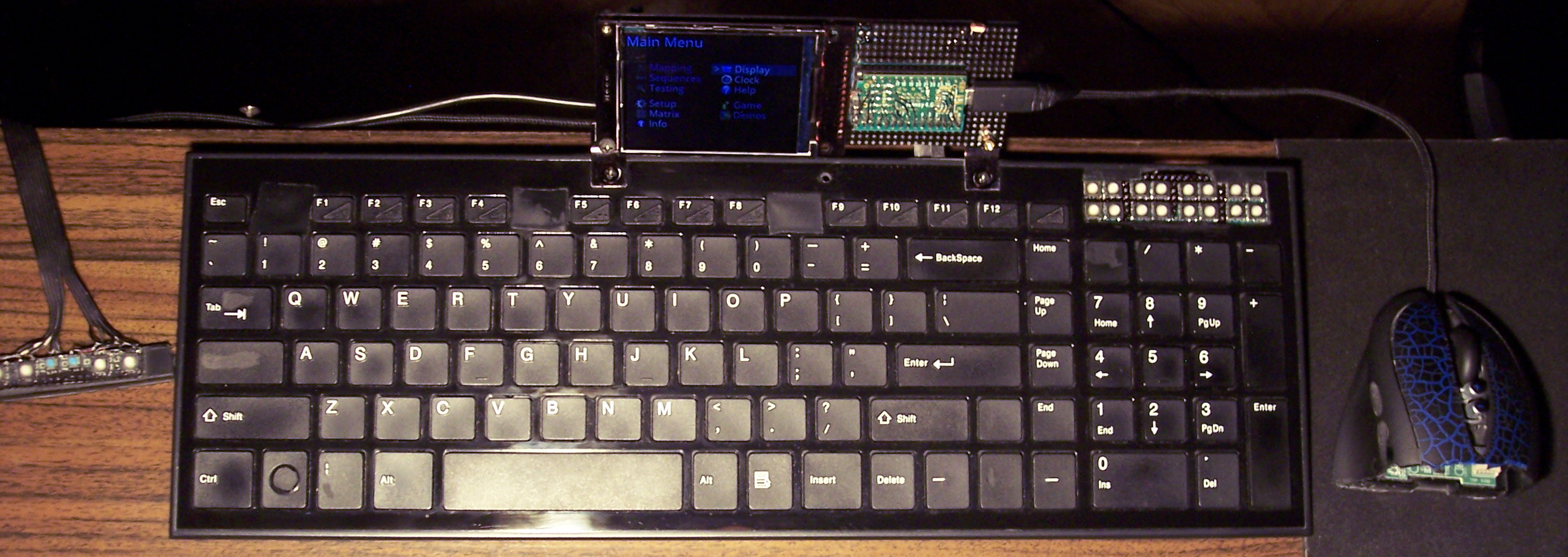
    I upgraded my 2018 keyboard CK6 with this bigger display and K.C.4 and it became CK9. I also added tiny extra keys, lots of them. Above Numpad, 2 rows of 8 or in other words 4 groups of 4. Surely will come handy for e.g. internal functions or could be extra F13-F24 keys for OS.
    The keyboard has visible tear on few keys already, well I use it since 2016 (was CK3 first). Nothing yet, compared to the 14 year old one (CK7/4/2).

    ✍️Motivation

    My previous version of KC and keyboards with it were quite useful and the 1.8″ color display was good too. The keyboard drawn on screen was minimal. Keys with one letter/digit/symbol had a 5×7 font, but 2 letters needed a tiny 3×5 font. It worked, but didn’t look great.
    So the new display is bigger 2.8″ and has about 2x resolution (320×240 vs 160×128).

    The main reason for this upgrade though was the new Teensy 4.0 with a MCU that runs at 600MHz. It seems to be the fastest one available (on a board with USB, ready to use). And is even way faster than all previous. I already didn’t like Arduino in 2014 when I got interested in MCUs (again), seemed like a stone age relic compared to Teensy 3, but today I can say they probably have computational power of a rock, when compared.

    The result is constant 45 frames per second almost always. This is what 600MHz MCU with SPI set at 60MHz for this display does, while using DMA for transfers and double buffered drawing (one buffer is being sent by DMA to display, while MCU draws new frame in second buffer, at the same time).

    ⚖️Comparisons

    Of course, there were many projects of using a big display with slow MCU even. A MCU not having enough RAM for screen buffer. But this means very low refresh rate (low Fps) and flickering (blinking when redrawn).

    There are few open source keyboard controllers, I think none of them even have a display, and some still use ATmega 8bit MCUs. Their requirements for program and RAM (memories of a MCU) are minimal, way lower than mine. And the price will be lower too. But the main flaw coming from it, is having to compile on PC and upload to MCU after any change. This is a big nope for me.

    📢Rants

    So for me, this is now the present (not the future anymore). And well honestly, whenever I see a custom keyboard picture I’m just asking: “where’s the display?”. In addition, seeing Cherry MX or any switches turns me away immediately.

    Because there is one more very important thing that is the light press modification. All my keyboards since 2005 have it and it’s just the default for me. Sadly all commercial keyboards are garbage in this matter and people continue to produce keyboards that have a tactile feel, 4mm travel and around 50 gram force to press. Well for me this is the middle ages era. This can cause injuries (Carpal Tunnel Syndrome). And I guess it feels awful for those having pain from using such keyboards.

    For my modding process (of reducing rubber dome keys press force and travel) pictures are in this gallery and I made a video of it recently (it is CK5).

    ✅Summary table

    For reference, here is a table with current status of all my keyboards, since start until present day:

    NameAssembly yearOriginal keyboardKeys actuation
    [gram force]
    Notes
    CK3 > CK6 > CK92016 > 2018 > 2020A4 Tech KX-10023 gCheaper, bit wobbly, but more keys
    CK2 > CK4 > CK72005 > 2016 > 2018Logitech Ultra X Flat33 gStiff foil, old, extra keys
    CK5, CK5b2015, 2020A4 Tech KV-300H9-18 gThe lightest foil
    CK12004Logitech Ultra X Flat25 gFirst, old, had extra keys,
    now only for testing, 1 row dead 💀

    📷Gallery

  • 2018-19 K.C. Controller ⌨️

    2018-19 K.C. Controller ⌨️

    ⏱️Overview

    This is my own keyboard controller software used in my keyboards CK6 and CK7 (upgraded CK3 and CK4), running on Teensy 3.2 (or 3.1) with a color LCD display (160×128, ST7735 chip).
    It allows editing all: key mappings, layers, sequences/macros in real time on its display.
    It is continued in newer version with Teensy 4 and bigger display.

    📂Sources

    My firmware sources are here.
    I called it K.C. (aka “Kacey”) simply from Keyboard Controller. A catchy cool name for software is a thing, isn’t it.

    The readme with all key features is visible there too. Here will be a more practical description.

    ✍️Motivation

    My previous keyboards CK3 and CK4 were quite useful.
    But there were few flaws that I wanted to improve. They had a very tiny display, sure it did the job, but wasn’t convenient to look at for longer. Since I based my code on existing kiibohd controller software, there were few problems. Any change in key bindings had to be done on PC, needed to build binary and upload it to MCU. That’s a long way to e.g. check if it’d be better if I swapped some keys. Not to mention doing it at work. Lastly, there were few bugs which I couldn’t spend more time trying to fix.

    So, it’d be better indeed to start writing my own code. And that’s what I did. Right now I can’t find a reason not to use my controller code. Sure, it was easier back then to get started, knowing there is an open source keyboard controller and it runs on Teensy 3.1, this is how I got into it. My code surely doesn’t have stuff present in kiibohd like NKRO support, keyboard LEDs animations and other fancy things I will likely never need. But it now does have features I wanted and it wasn’t that difficult to code them.

    📊Features

    So the code features are:

    • 🪟Display with menu, where you can edit everything possible (that I needed so far).
    • 🔠Key bindings (mappings), i.e. what USB codes will the physical key send to PC when pressed. There is a pick list with all common keys (and internal functions) to choose from when binding. It has group colors and group filter for easier orientation.
    • ⌨️Keyboard layout drawn on display. Shown when editing mappings. Has a cursor to move around between keys, can also jump to key by pressing it.
    • 🧮Layers. If you hold a key, whole keyboard layout changes giving you other keys. Kind of like the Fn keys on laptop but much more useful and customizable. Surely a common feature in custom controllers (like tmk or kiibohd).
    • 🔤Sequences aka Macros. Basically any key combinations (for key shortcuts) and any sequences of key presses (for e.g. passwords). Not typing passwords myself, when my keyboard could do it, was my first reason when starting with keyboard controllers back then. Sadly even in kiibohd you couldn’t change them without rebuild and upload. This then was possible in my fork of kiibohd. To be convenient, I am showing (short) sequence preview where possible. So when editing Mapping (for a sequence key), when picking a key from list or Testing pressed keys (if a key runs a sequence). I am also showing in sequences view any mapped keys that run selected sequence.
    • ✅Sequence commands are an even further extension. If you have an editor on display (basically a simpler editbox) one could put special commands (beside sequence keys), that e.g. wait for few seconds, or change how slow the sequence will run (useful for putty). Newest ones allow putting comments, useful if you have lots of sequences and want to rather see what it’s for, not what it will press. And hiding sequence from preview, useful if you don’t want to show important passwords on GUI.
    • 🖱️Mouse keys, i.e. keys that will move mouse, press mouse buttons or scroll mouse wheel. Also featuring acceleration and even parameters for it and speed in GUI.
    • I now even have mouse commands with all mouse actions possible to add in sequences. Some stupid programs don’t allow everything using keyboard and specifically want you to click with mouse. But hey, now even this could be done automagically by my keyboard.
    • 🎛️Testing and Setup pages. Those are quite useful when developing and in normal use to check if everything is working properly as intended. Scan setup is nice e.g. to check which strobe delay, scan frequency, debounce time I need. Matrix page shows the 18×8 keyboard matrix, with my anti-ghosting code working and any issues from too low strobe delay.
    • 🔮Demos and Game. Were already present in my fork of kiibohd. Now extended with new presets to color display. Best shown on videos, links below.
    • 🕙Clock with date (internal RTC, needs 3V battery) optionally also showing Temperature, read from attached DS18B20 1-wire sensor.
    • ⚙️Internal functions, e.g. to dim brightness or toggle GUI, by keys on other layer.

    ⌨️Keyboards CK6 and CK7

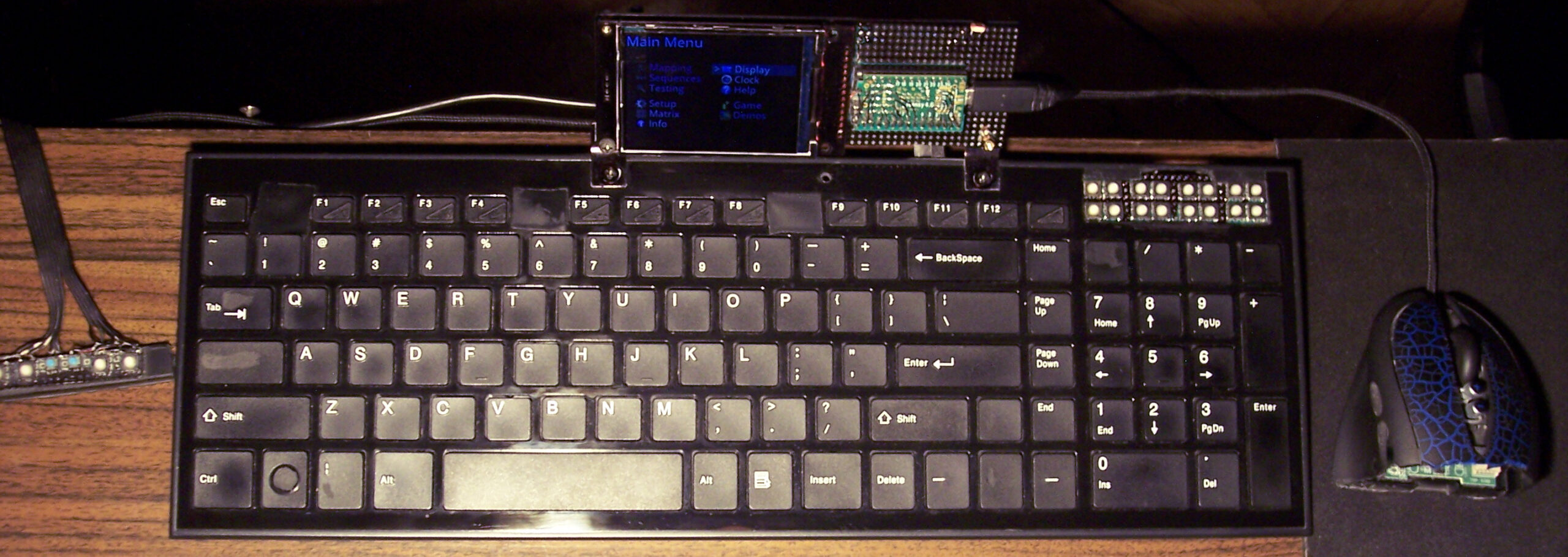
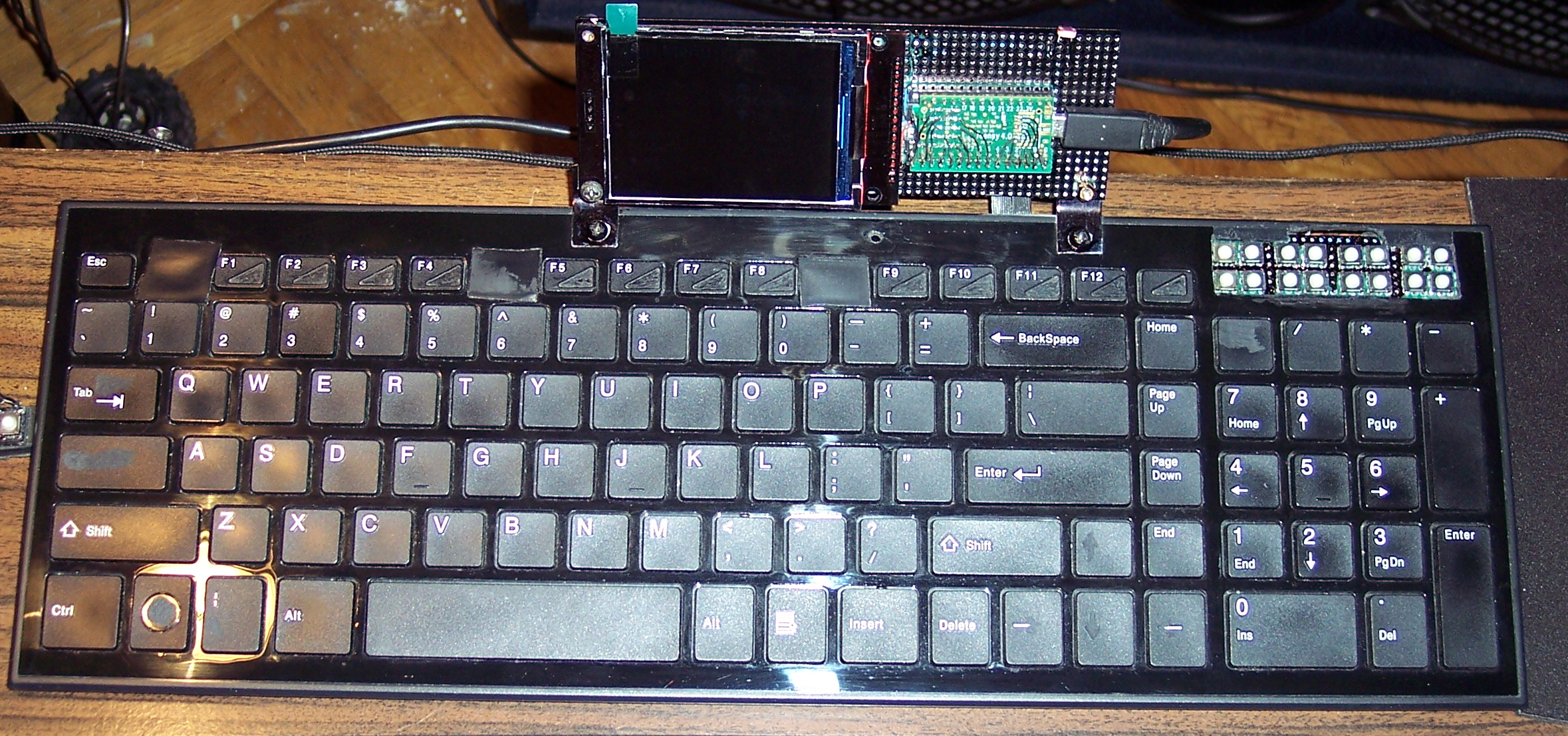
    I then upgraded my 2016 keyboards CK3 and CK4 with bigger, color display (160×128 LCD, ST7735) and K.C. They now became CK6 and CK7. Apart from the new displays and my software, the keyboards are the same.

    The CK7 is the oldest one, comes from CK4, which in fact was done from CK2 (2006) and is now 12 years old… Still doing fine. Well this proves then, that cutting and gluing rubber domes is nothing that would decrease the lifespan of a keyboard. Even recently folded keyboard foil since CK4 works okay.

    ▶️Videos

    There are a few videos of my keyboard CK7, showing most of K.C. on its display:
    (no talk and very poor quality).

    • View – Short video of keyboard and closeup at display.
    • Plasma – Quick and colorful show of presets of plasma fullscreen effect. It runs at 10-30 frames per second. Note that I overclocked Teensy 3.2 here at 120 MHz, HW SPI runs at 30MHz. My other keyboard CK6 has Teensy 3.1 at 144MHz, SPI at 24MHz, it gives about 1.5 Fps more here.
    • Demos – Showing rest of demos: 3D Polyhedrons with diagonals, Wave, Fire (not real) and the older ones: 2D waving CK Logo, Space, Balls, Fountain, Fonts.
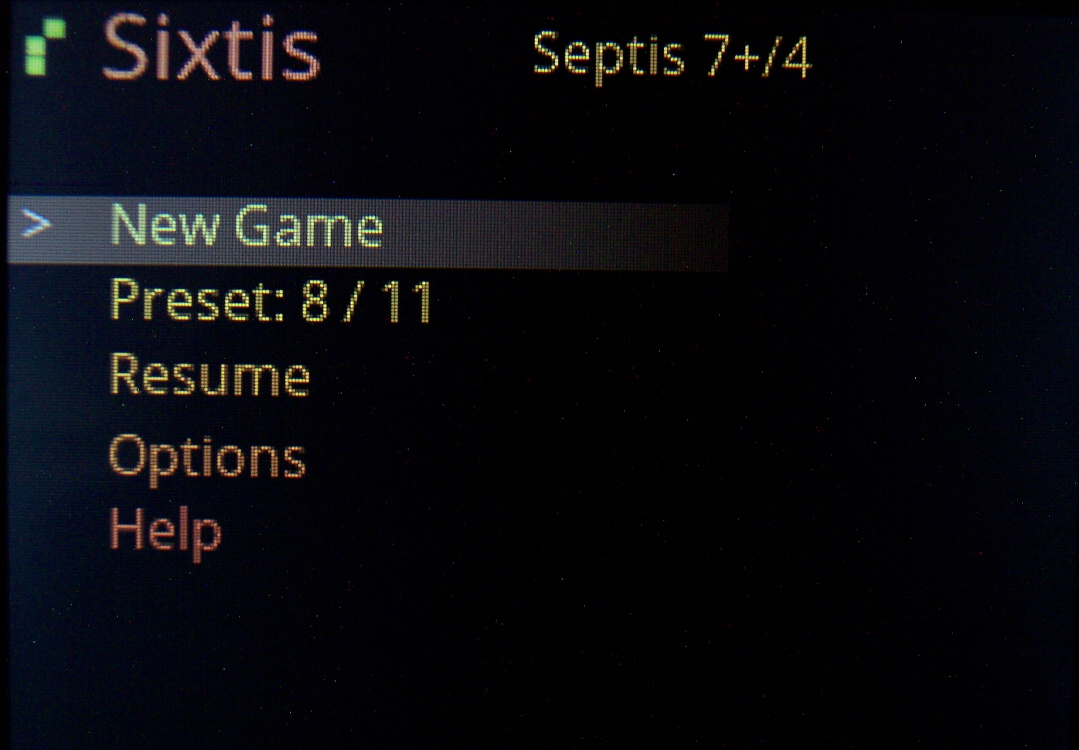
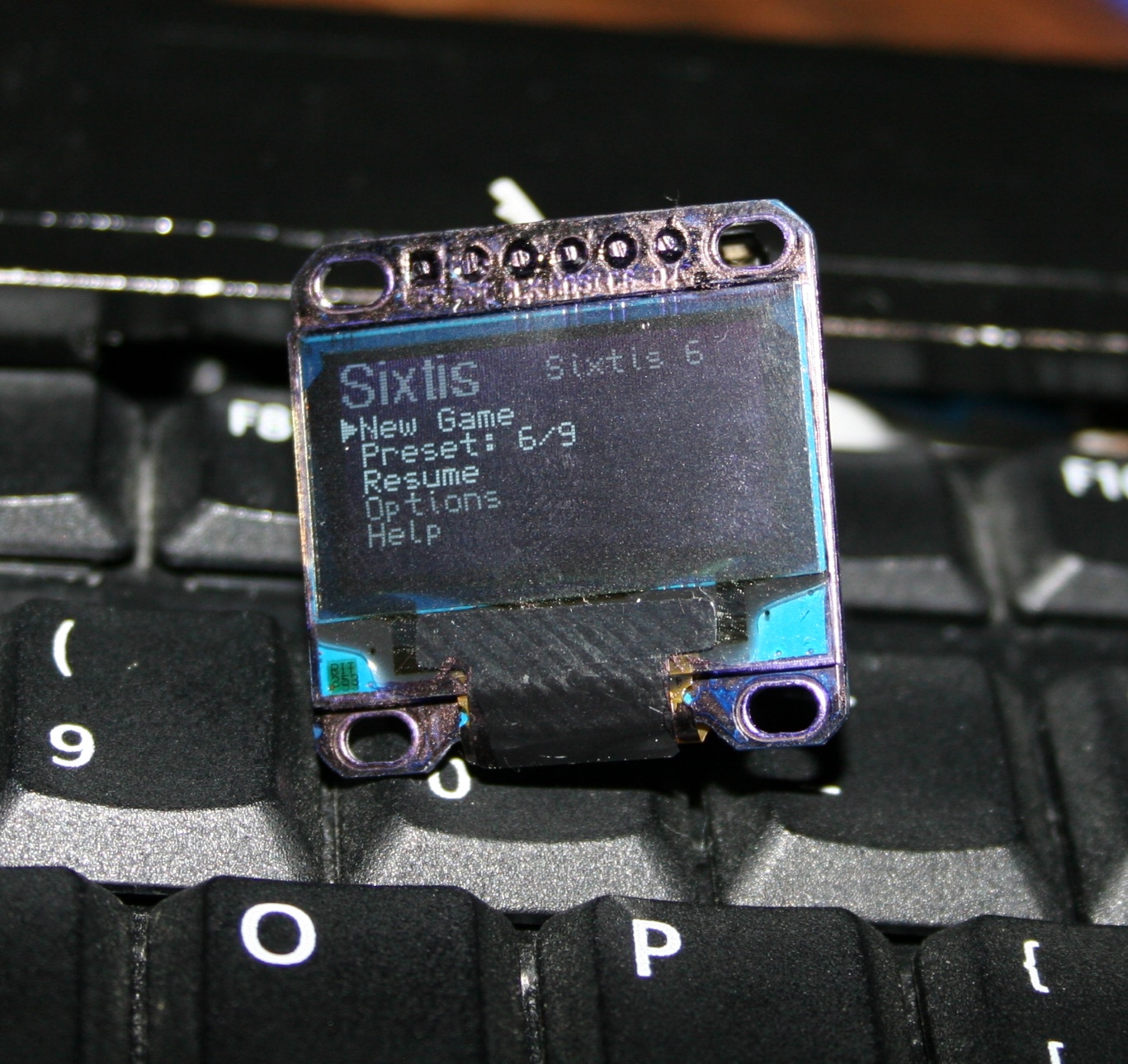
    • Game – falling blocks (Sixtis), or my version of it. It has 11 game presets, generated blocks, possibly diagonal, with many parameters for custom games.
    • Features – A detailed look at features, no sound or descriptions though. Editing mappings, sequences, testing etc.

    Link to my channel with electronics videos here, mostly from my keyboards.

    ☑️Summary

    For reference, here is a table with current status of all my keyboards, since start until present day:

    NameAssembly yearOriginal keyboardKeys actuation
    [gram force]
    Notes
    CK3 > CK6 > CK92016 > 2018 > 2020A4 Tech KX-10023 gCheaper, bit wobbly, but more keys
    CK2 > CK4 > CK72005 > 2016 > 2018Logitech Ultra X Flat33 gStiff foil, old, extra keys
    CK5, CK5b2015, 2020A4 Tech KV-300H9-18 gThe lightest foil
    CK12004Logitech Ultra X Flat25 gFirst, old, had extra keys,
    now only for testing, 1 row dead 💀

    📷Gallery

  • 2017 Crystal Keys

    2017 Crystal Keys

    ⏱️Overview

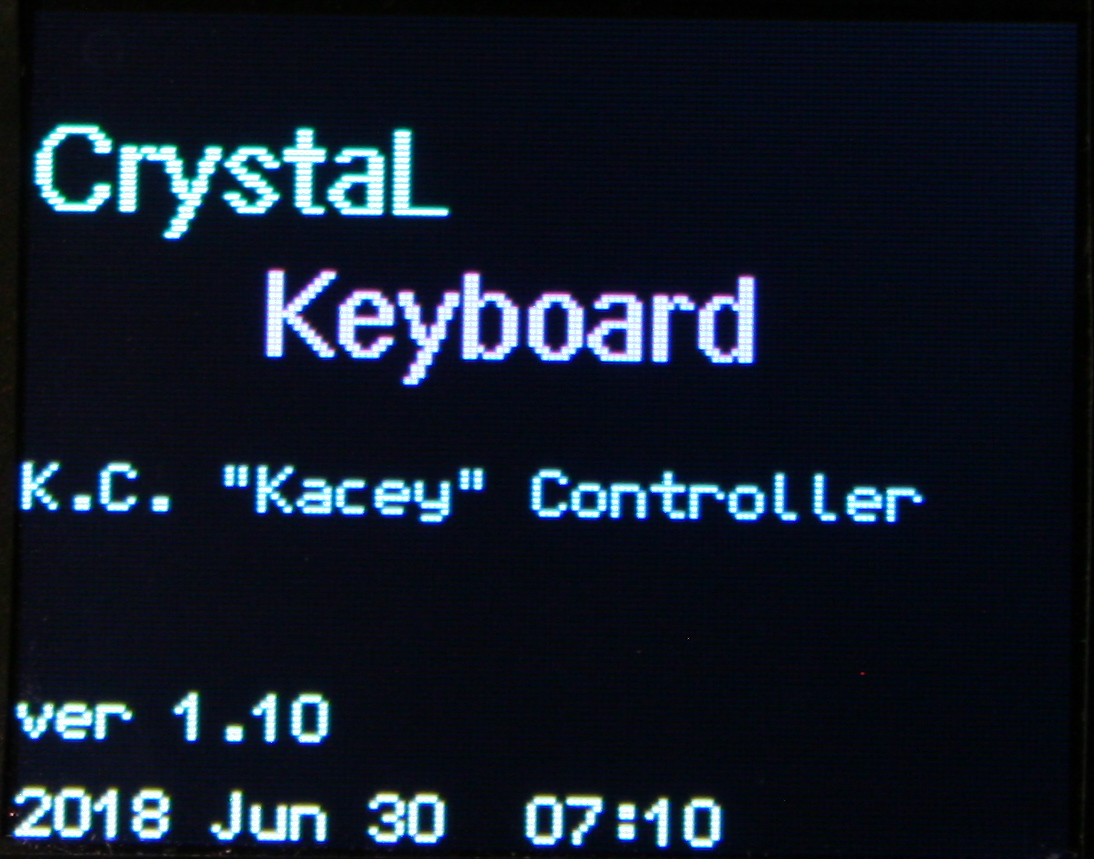
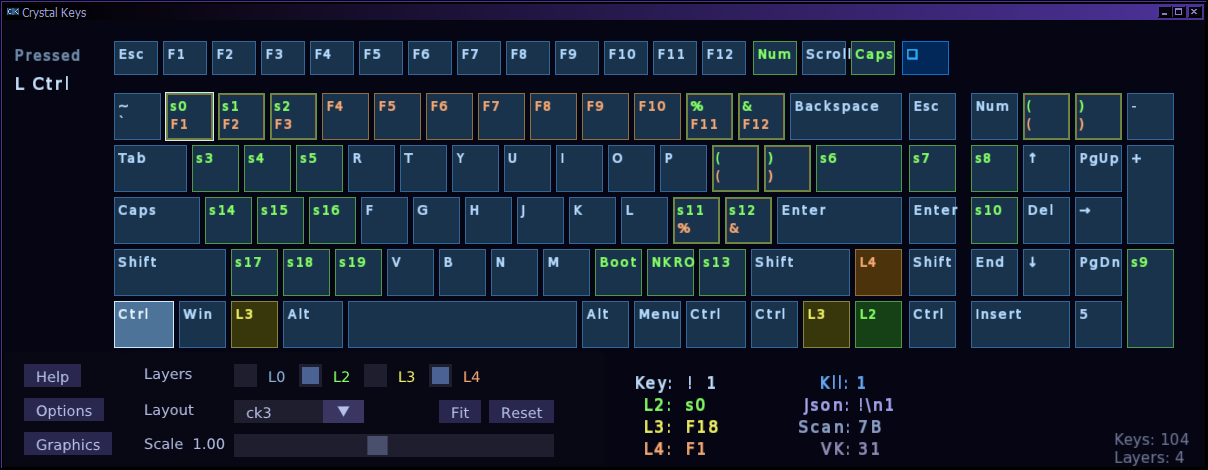
    This is the last version of my program for showing pressed keys. It now also shows keyboard layouts.

    📂Sources

    Located here. Including Windows Releases.
    Should also work fine on GNU/Linux, after building from sources.

    📜History

    The oldest version of it was useful already in 2005, when I was first tinkering with my first keyboards, later named CK1 and CK2. Program showed a list with the Virtual Key and Scan Code values of pressed (held) keys (and their names). It was useful for adding my extra keys on regular keyboards. First by finding which matrix combinations (shorting row and column) give key presses besides the present keyboard keys. Next for finding their codes and using them for binding in e.g. my audio player.

    ❌Why Qt and QML failed

    I previously did the same program using Qt and QML for GUI. Just to get a bit familiar with it and get my own opinion. The repository with it is here. I finally abandoned it after realizing that I would need extra 55 MB in over 100 extra files just to start the program anywhere else. That’s insane ?, surely for such a tiny program. Maybe a huge editing tool or other big application could benefit from Qt (and QML) and hide that size in its own resources. But definitely none of my own programs. Even my Track Editor, but for slightly different reason: to not add Qt as extra dependency for building, when we already have MyGui.

    ⌨️Layouts

    Now my keyboards CK3 and CK4 have different layouts. Hence drawing keyboard layout is a nice feature and visual addition to the list of pressed keys.

    There already is a website where you can edit keyboard layouts, for many other keyboards including ergonomic ones, link here. So I decided to save time and not create my own and just used the output from it. It saves layouts in JSON format. Thus I needed a library for C++ that parses .json files. I decided to go with JSMN which is small and fast(est), at just doing what I needed and not much more.

    🪟Program

    The program is simple and it was easy to code, right after getting familiar with SFML and ImGui. Which I already used in my previous program Color Center.

    Graphics and Gui turned out to be good, even if simply one colored and rectangular. The look wasn’t important here anyway, rather to code and use it fast. I made it basically in 2 days. But of course using parsing code and basic application with Gui from the other 2 programs and pressed keys detection from my older program.

    Additionally it features a very fast scaling of the layout through slider and can also fit window to it. And a combobox to change layout for other keyboards.

    📖Tutorials

    The first 3 versions of the program were aimed to be educational and can serve as basic tutorials for simple applications like this one.

    Namely cross-platform C++ programs using SFML, built with CMake. With possible interface using ImGui and settings saved in XML with TinyXML2.

    See archives in Releases or use Git to get tags 0.1, 0.3 and 0.5.

    Other resources for learning are in SFML tutorials.

  • 2016 Keyboards CK3,4 ⌨️

    2016 Keyboards CK3,4 ⌨️

    ⏱️Overview

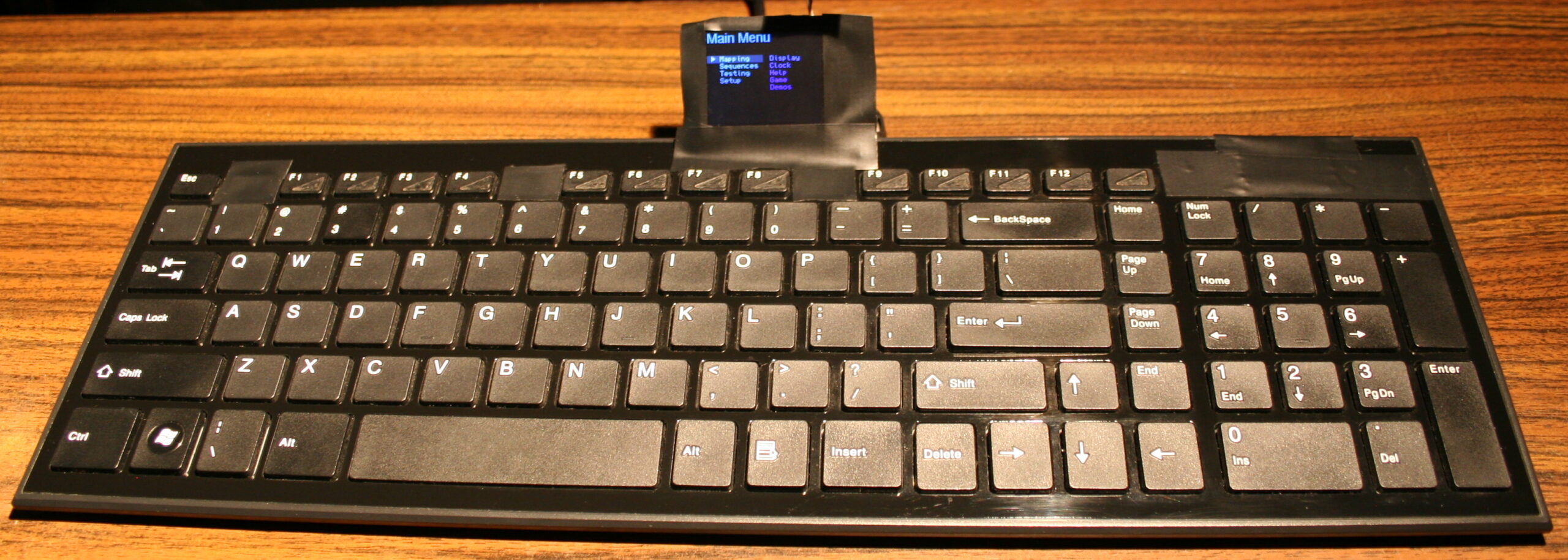
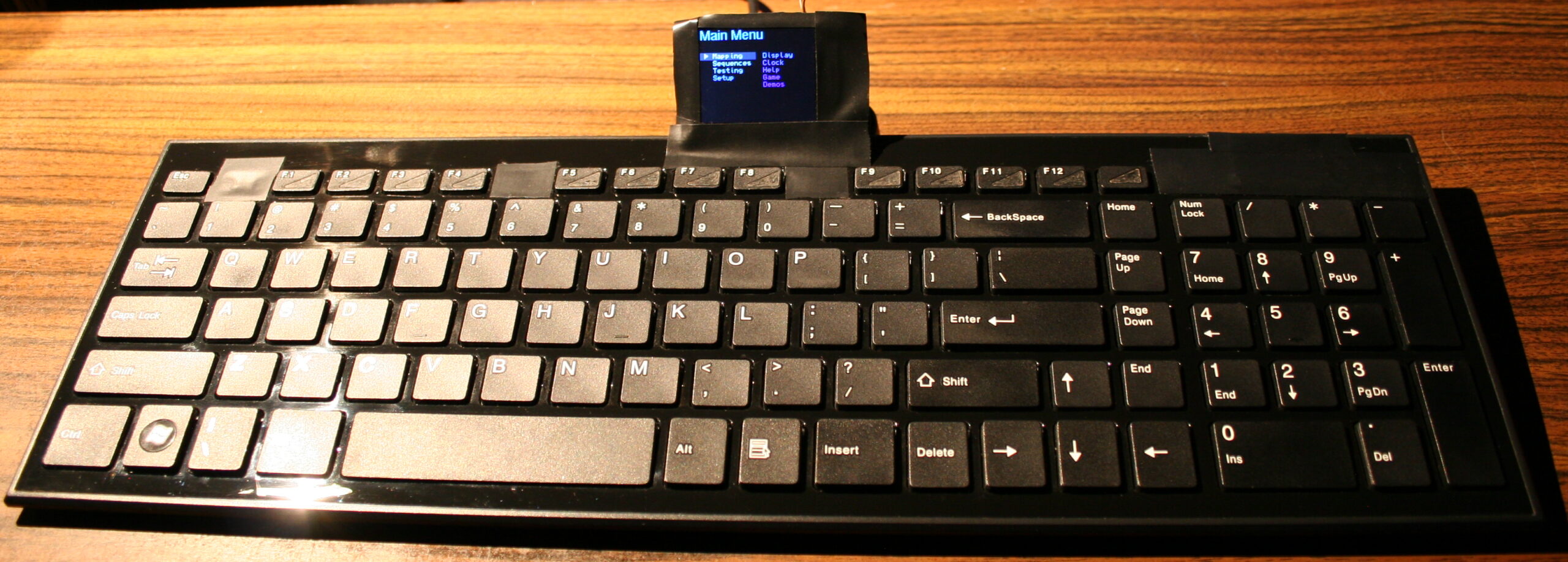
    The newer two of my heavily modified keyboards. This time having Teensy 3.1 (or 3.2) as microcontroller with a tiny 1″ monochrome OLED display. Firmware was based on Kiibohd, it was a fork with my extensions. I added display support (with a library), menu for editing e.g. macros/sequences, few demos and a game.
    I did improve them further in my newer firmware, with bigger display and later made my own in here.

    🛠️Modifications

    Light press

    Rubber domes reduction for minimized pressing (actuation) force and distance. Simply more pleasant and comfortable. Also healthier, since the risk of keyboard injuries decreases. I do it always for all my keyboards. Process with info shown here and in gallery below at end.

    ⌨️Additional keys

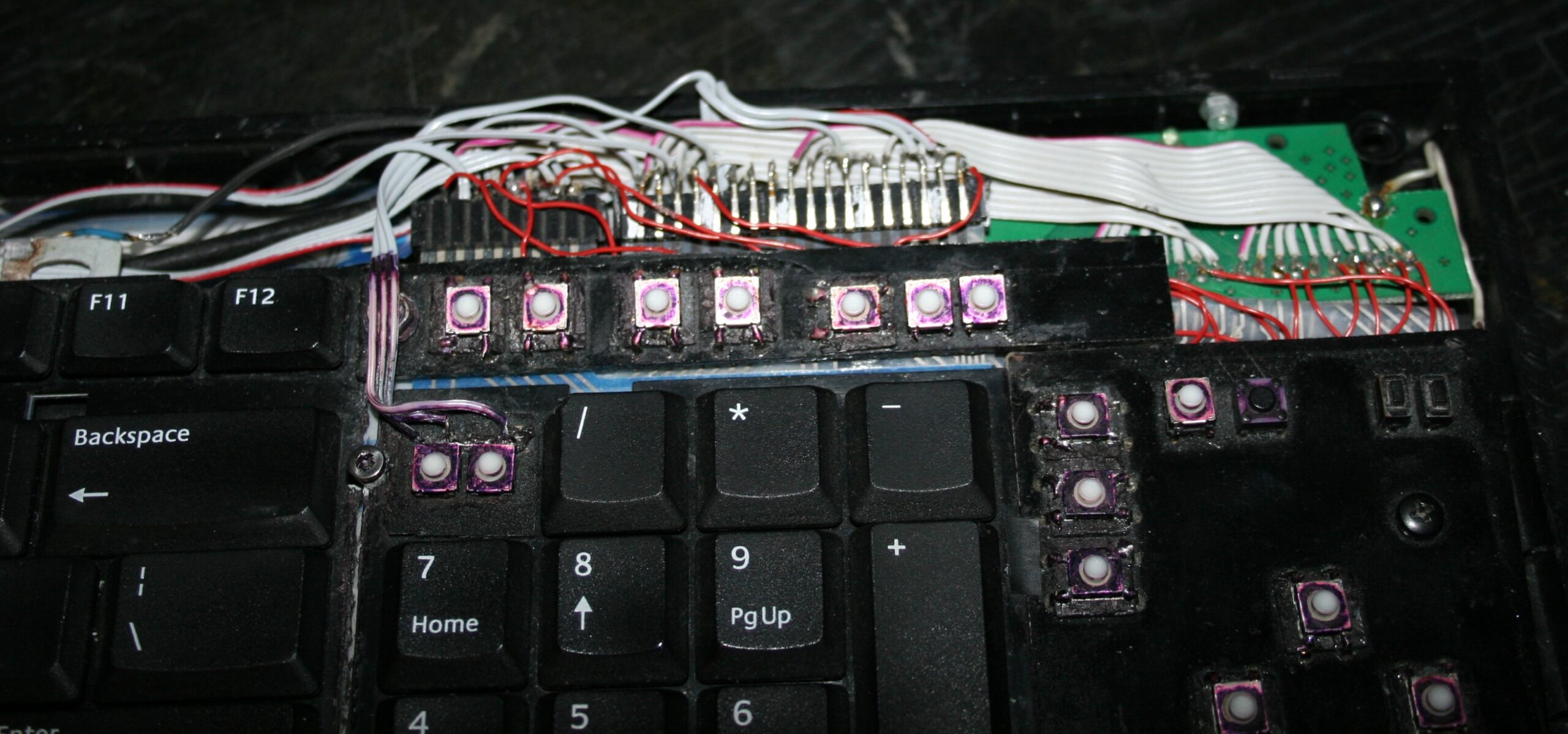
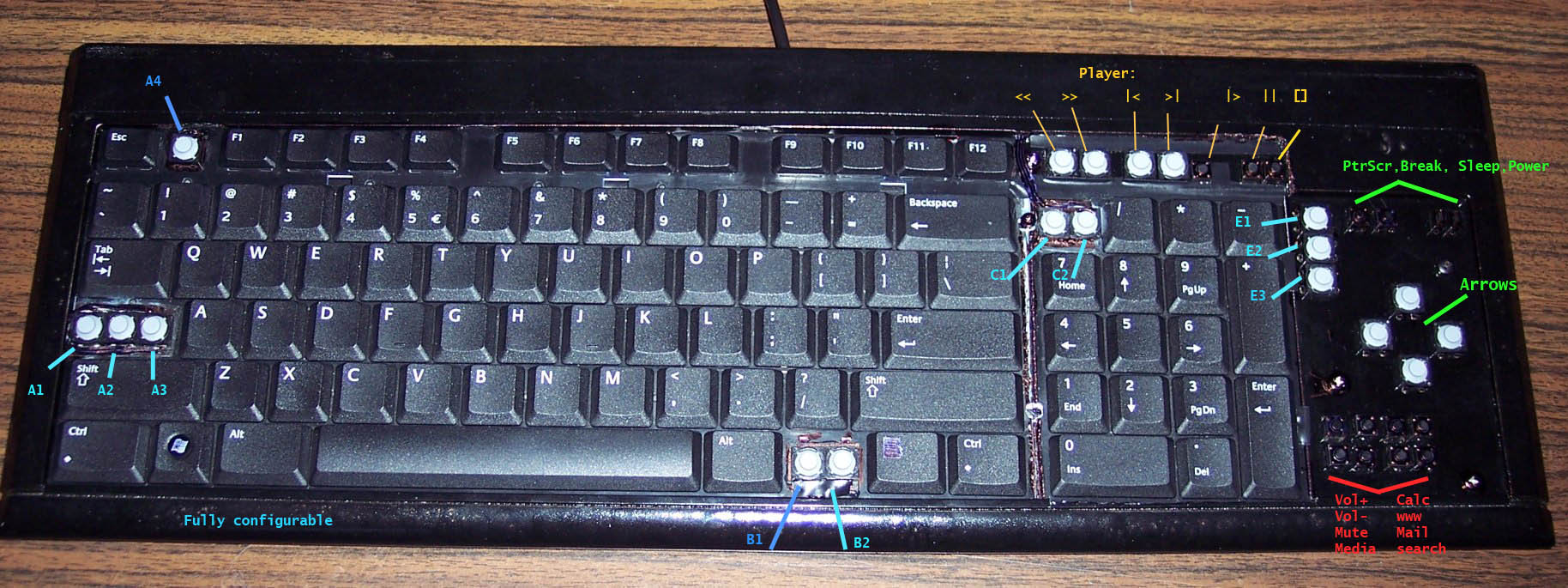
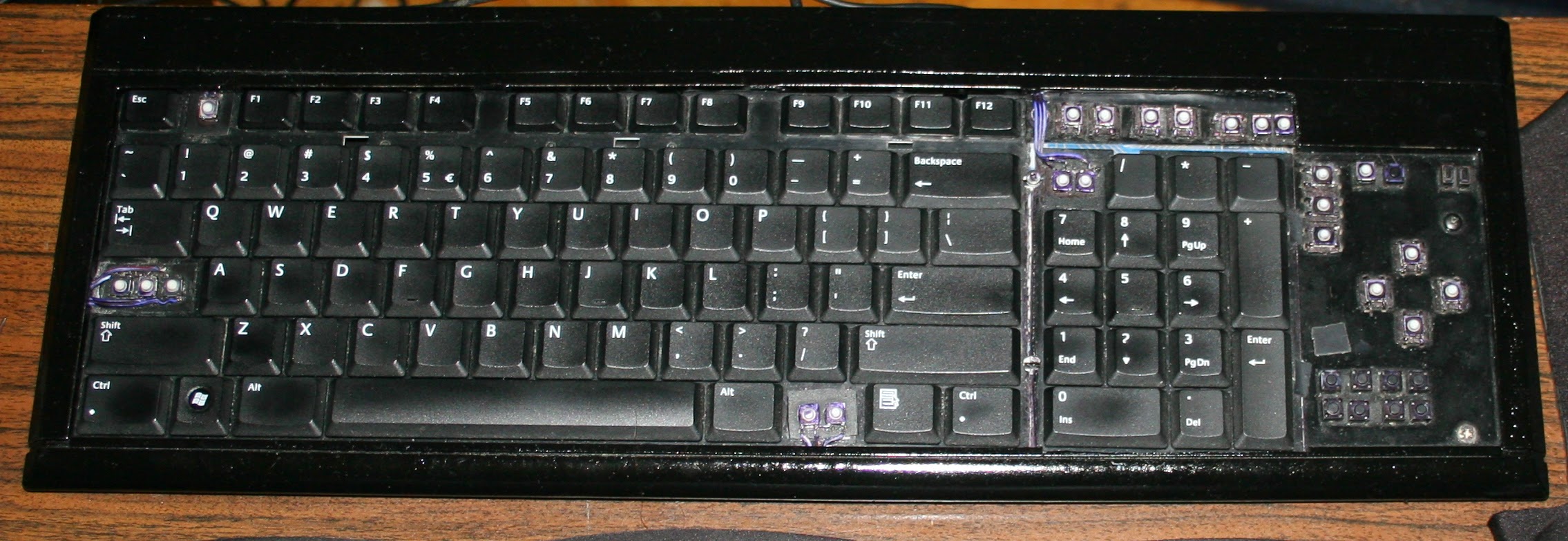
    For CK4 there are also few small extra keys. Which were present already in my earliest keyboards CK1 and CK2. Those are glued on top and are made from lightest 0,5N switches available. The row above numpad is used for my audio player control. Rest is custom. This part is optional and I didn’t do it for CK3. The disadvantage is the difference in pressing those switches and much lighter normal keyboard keys. They are smaller so you can fit more, but are less convenient to press. Lastly, regular keys can be used to switch layers instead.

    ⚙️Microcontroller (MCU)

    The second step was replacing the keyboard controller board, with my own. The hardware is composed of Teensy 3.1 (or 3.2) with a tiny 1 inch OLED display (SSD1306, monochrome, 128×64) and a bunch of wires to connect to the original keyboard’s matrix.

    The reason for this was to take advantage of already made open source Kiibohd controller allowing any imaginable keys assigned and layers. Also possible are macros, key combinations and even mouse buttons and movement simulation.
    But changing any of this required rebuilding controller software and uploading to controller, through already present USB. Which is a major flaw for me.

    📊Features

    After getting it to work, I implemented my own menu where you can edit sequences, stored in memory (remembered after power off). The sequences are very useful for not typing passwords or simply binding some useful macro combinations or commands dynamically. Which needed a display and menu for entering.

    Once I’ve done the useful stuff, I got carried away and implemented several demos on display and even a falling blocks game.
    I also wrote about it in this forum post.

    📂Sources

    The code is in my fork here with some more detail. IIRC it can’t build anymore.

    ⌛Conclusions

    It was a bit simpler to start at the time, instead of writing completely my own later on bigger display. Since the display was so tiny I didn’t yet think of drawing all keys on it. And making them rebindable on display, instead of following the way all other FOSS controllers I knew did, that requires rebuild and upload which is way slower.

    ✅Summary

    For reference, here is a table with current status of all my keyboards, since start until present day:

    NameAssembly yearOriginal keyboardKeys actuation
    [gram force]
    Notes
    CK3 > CK6 > CK92016 > 2018 > 2020A4 Tech KX-10023 gCheaper, bit wobbly, but more keys
    CK2 > CK4 > CK72005 > 2016 > 2018Logitech Ultra X Flat33 gStiff foil, old, extra keys
    CK5, CK5b2015, 2020A4 Tech KV-300H9-18 gThe lightest foil
    CK12004Logitech Ultra X Flat25 gFirst, old, had extra keys,
    now only for testing, 1 row dead 💀

    ▶️Videos

    CK3 demos, CK4 demos – showing all demos on display, it is only 128×64 resolution

    Plasma – uses dithering, since display is mono, 1 color only

    Game – blocks falling, shortly played on each preset

    Features – menu with all configuration possible back then and options, also keyboard view

    Keyboard View CK4 – shows view at CK4 keyboard

    📷Galleries

    Pictures from my keyboards are as follows (newest first) of final result and assembly for CK4 and CK3:

    CK4 final (18 Apr 2016)

    CK4 assembly (Apr 2016)

    CK3 final (11 Apr 2016)

    CK3 assembly (Apr 2016)

    CK3 rubbers cut and glued (Apr 2016)

  • 2005 Keyboards CK1,2 ⌨️

    2005 Keyboards CK1,2 ⌨️

    ⏱️Overview

    This is an older topic with less information, just for history purpose. If you’re interested see my newer keyboards or the newest ones, with more explanation, own controller and display.

    These were my first modifications for keyboards.

    They were both done on a Logitech Ultra X Flat, a well done, solid keyboard. Surprisingly different for same model made after 1 year.

    ✍️Motivation

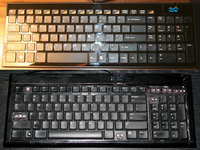
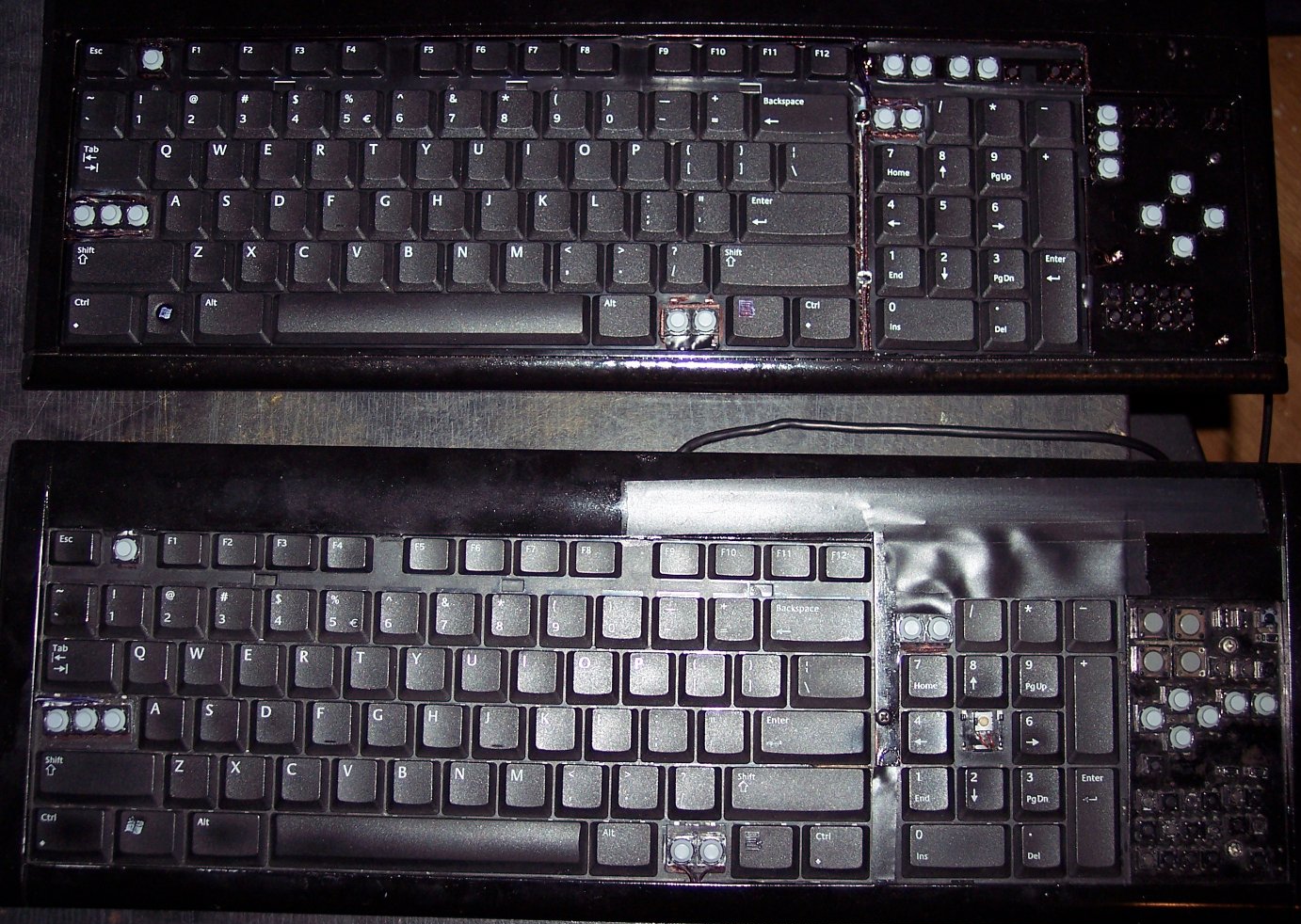
    Originally most keyboards have about 50 gram force needed to press keys, and probably 4 mm distance. After first step of cutting rubber domes the distance is about 1-2mm, the force was about 22 gram for CK1 (bottom) and 33g for CK2 (top). This can also be varied per key.

    📊Features

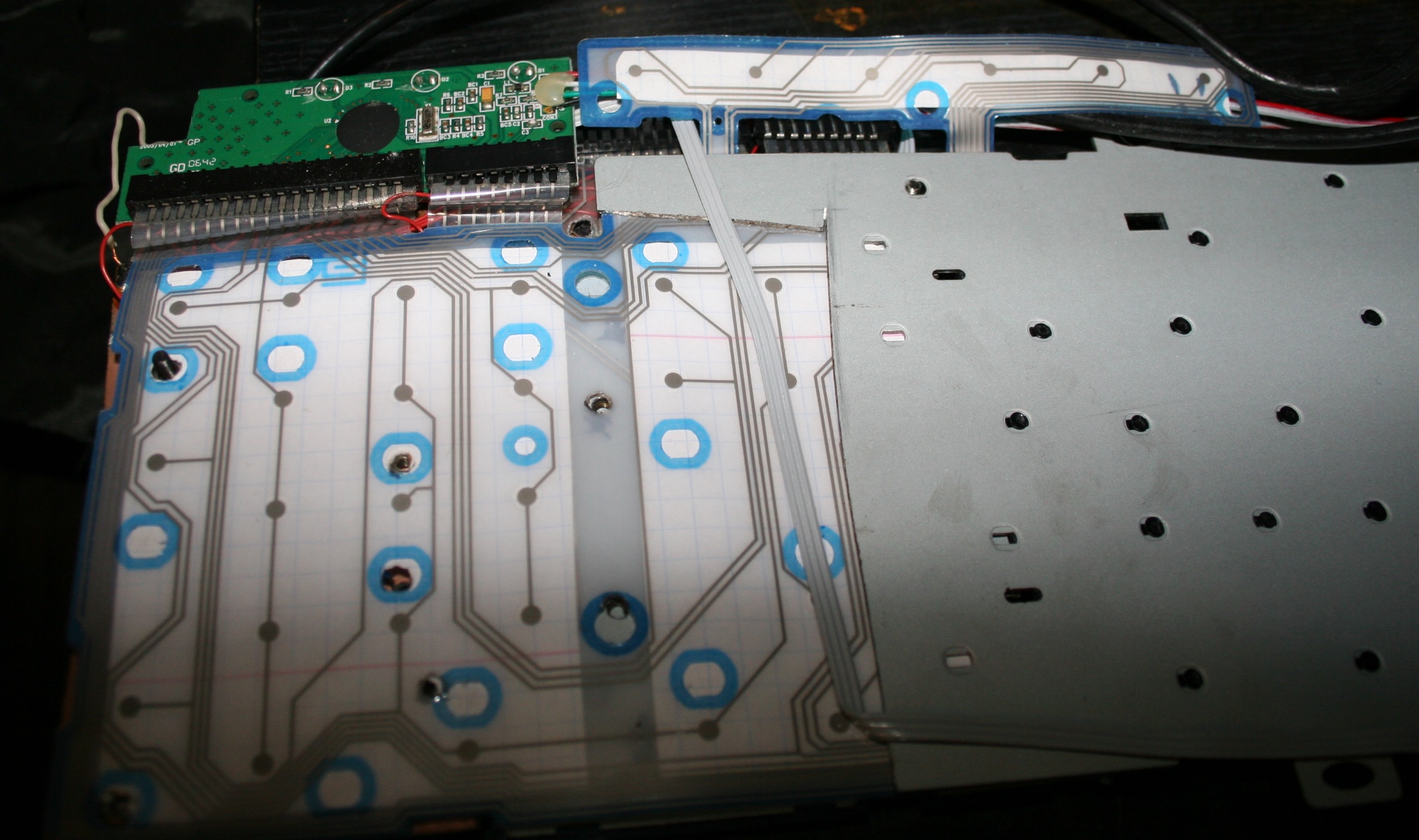
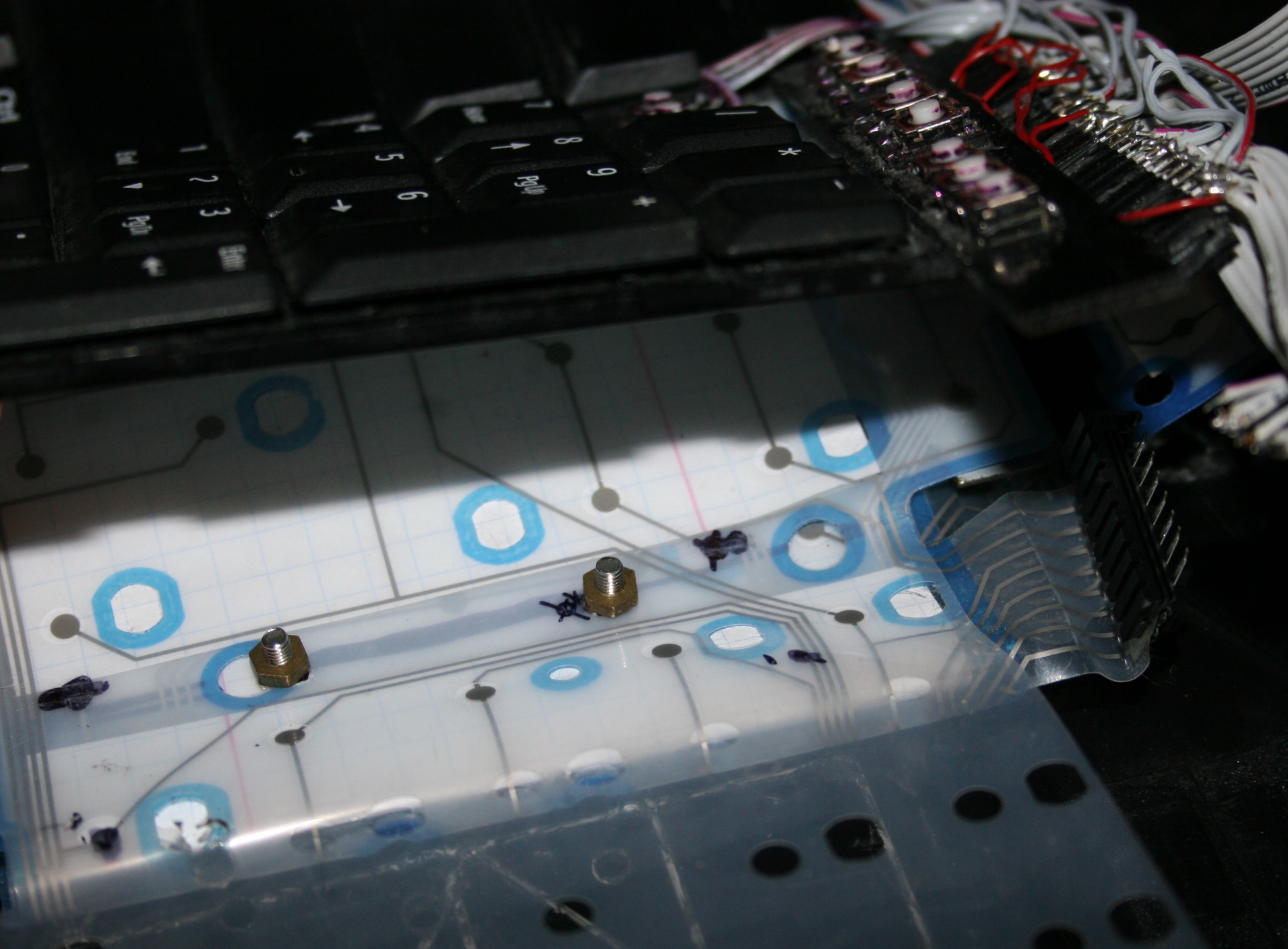
    The second step was removing the middle part with arrows. Which I find unnecessary and worse (less keys) than the same from numpad. In CK1 I’ve bent the foil and hid it under. It was risky, but the foil survived. The CK2 was different, it was made from two identical keyboards, thus no need to bend, only cut the metal and foil. That too was risky since the foil could have connections around the cut off part. It was only for numpad, the bigger part had whole foil under.

    Years later I modified CK2 further and bent the foil to create CK4 keyboard. And that’s 11 years already, so this would answer any doubts for longevity of such modifications. The number of times I disassembled it, changed something, and put it together is also quite high.

    The third step was adding extra keys. Using my oldest program for showing pressed keys and their codes, I figured out that there are more possible keys in keyboard matrix, that are just not connected. So I added them with wires and glued on keyboards. First as regular switches with metal domes, small and hard to press. Later using rubber switches, lighter to press. But turned out to be an even bigger fail since they wear out and stop connecting. They have some resistance too (like maybe 300 ohm) in addition to the resistance of foil traces (maybe 150 ohm). So finally I ended with the smallest metal dome switch I found, with force 0.5 N (50gf). It feels different than other keys but otherwise is good.

    📷Galleries

    The old galleries from my keyboards:

    CK2 final (2008)

    CK1 and 2 making of (2005 and 2006)

  • 2005-20 Keys light press mod

    2005-20 Keys light press mod

    ⏱️Overview

    This is a guide about my modification of reducing rubberdomes in keyboards to achieve a light press effect. After this procedure keyboards can have much less actuation force (needed to press keys). It is separated from my other projects which describe my keyboard controllers.

    ✍️Motivation

    My motive is pretty straightforward: I want my keyboards to require as little effort to type as possible. And I don’t want any injuries from using my keyboards. These come from fatigue, which comes from more effort to press keys. I found once a pdf writing about this in detail, but don’t have a link.
    Fatigue also comes from lots of repeated pressing, but this is another thing. I can’t change it (much) if my hobby or work needs it. I do have helpers on display in my controllers (K.C. and K.C.4) showing: total/daily key press count, rate of key presses per minute, a graph with rate over time, and time I’m active typing without a break.
    So back in 2005 I saw those rubberdomes and thought: “how about I reduce them”. Then there was immediately this problem that they need to be glued back. Well after I did all that, it actually took like 2 weeks to get used to my modified keyboard. I wasn’t sure if this mod will last, but it did. After a while of using, it was easy to understand, that keyboards are really badly and cheaply made and I think it’s just a history thing (just like the thing about this idiotic Qwerty layout), surely not a sum of only intelligent decisions.
    I’m glad I did this process, and just before writing over 120 pages of my master thesis on this modded keyboard, which now was nice to use and wasn’t meant to injure me. I did a second one for work at some point.
    I remember once on a keyboard back there was a warning about possible injuries, seemed unreal to me back then, yet it is true, I even once made such mod for a person, who paid and even later thanked me numerous times, because he is suffering from that injury and such keyboard makes less pain to use.

    ℹ️Information

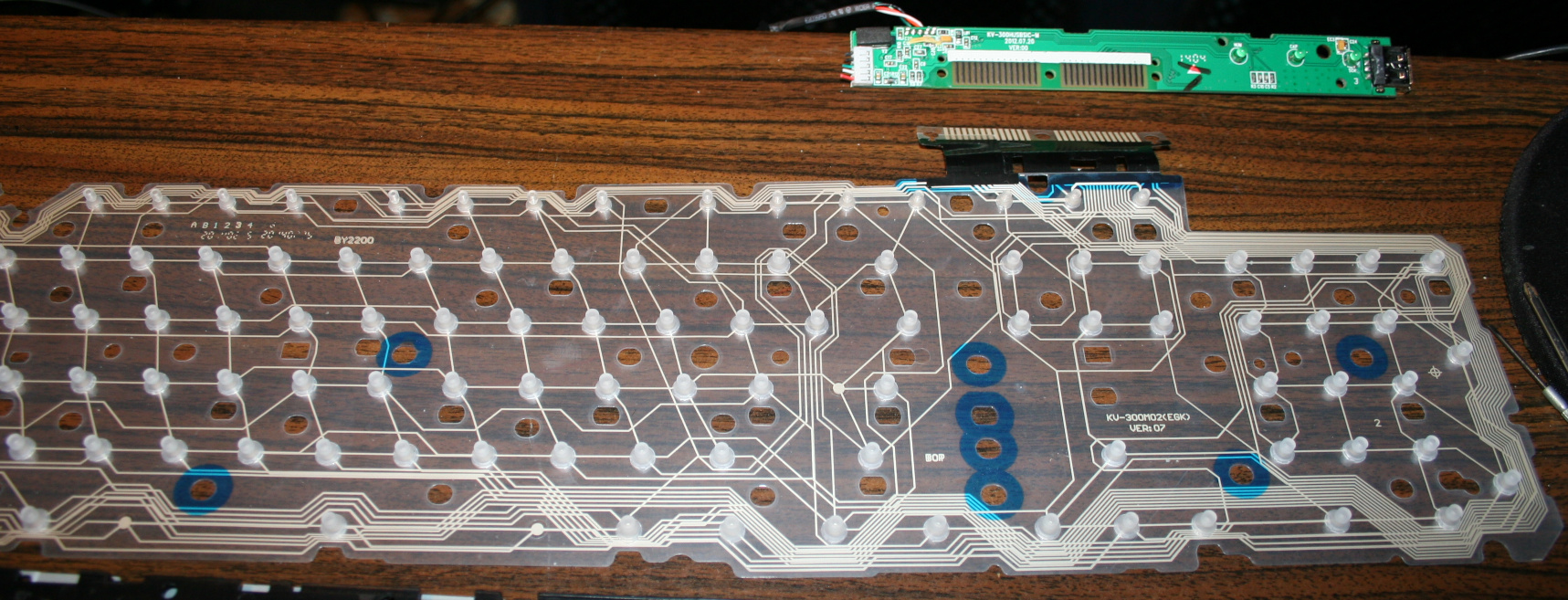
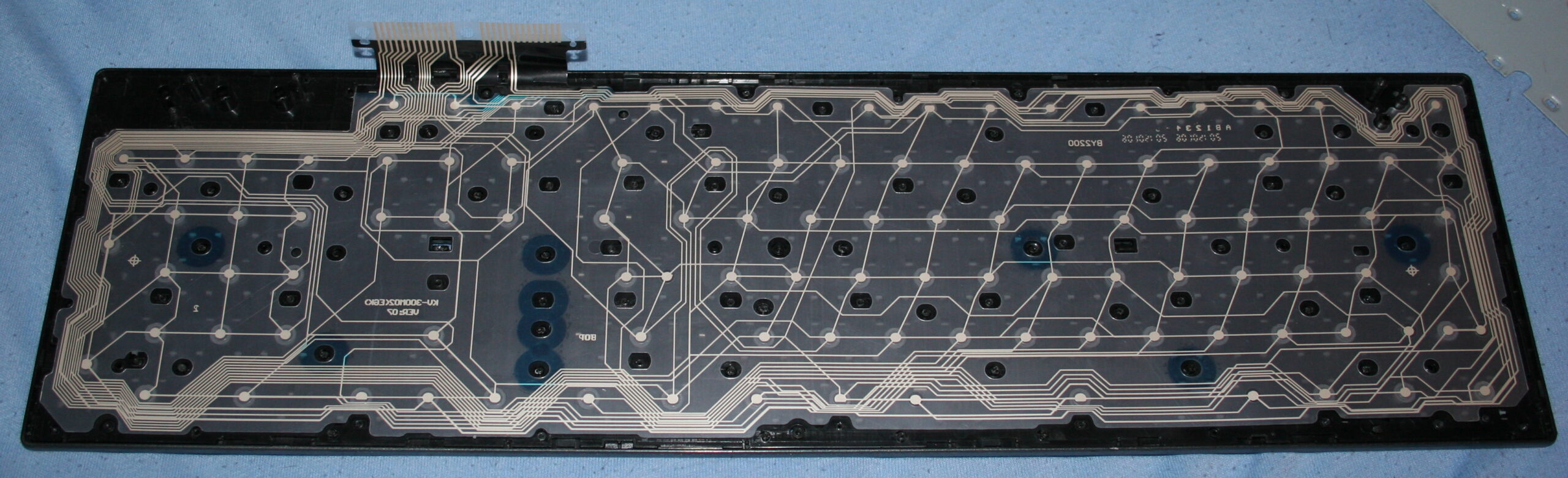
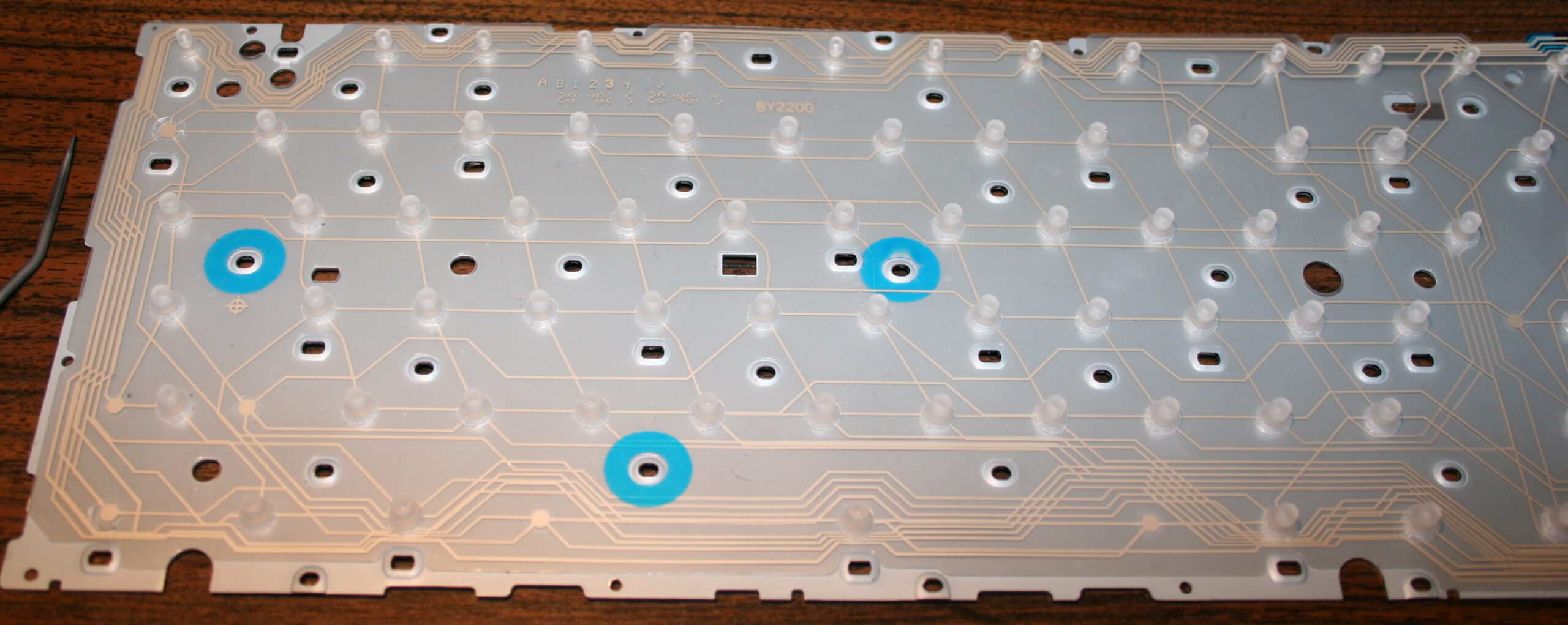
    Originally most keyboards need about 50 gram force to press keys, and probably 4 mm distance. After cutting, the distance is about 1-2mm, the force gets lower (and depends more on keyboard foil), e.g. 9 to 18 gram for CK5 (but 23 g for CK3, 33 g for CK4 etc). This can also be varied per key (more detail can be seen on pictures (galleries below), but ultimately the lowest 9 g value comes from keyboard’s foil thickness (and those 23 and 33 g values are higher because the foil was thicker in those keyboards).

    🛠️Modifications

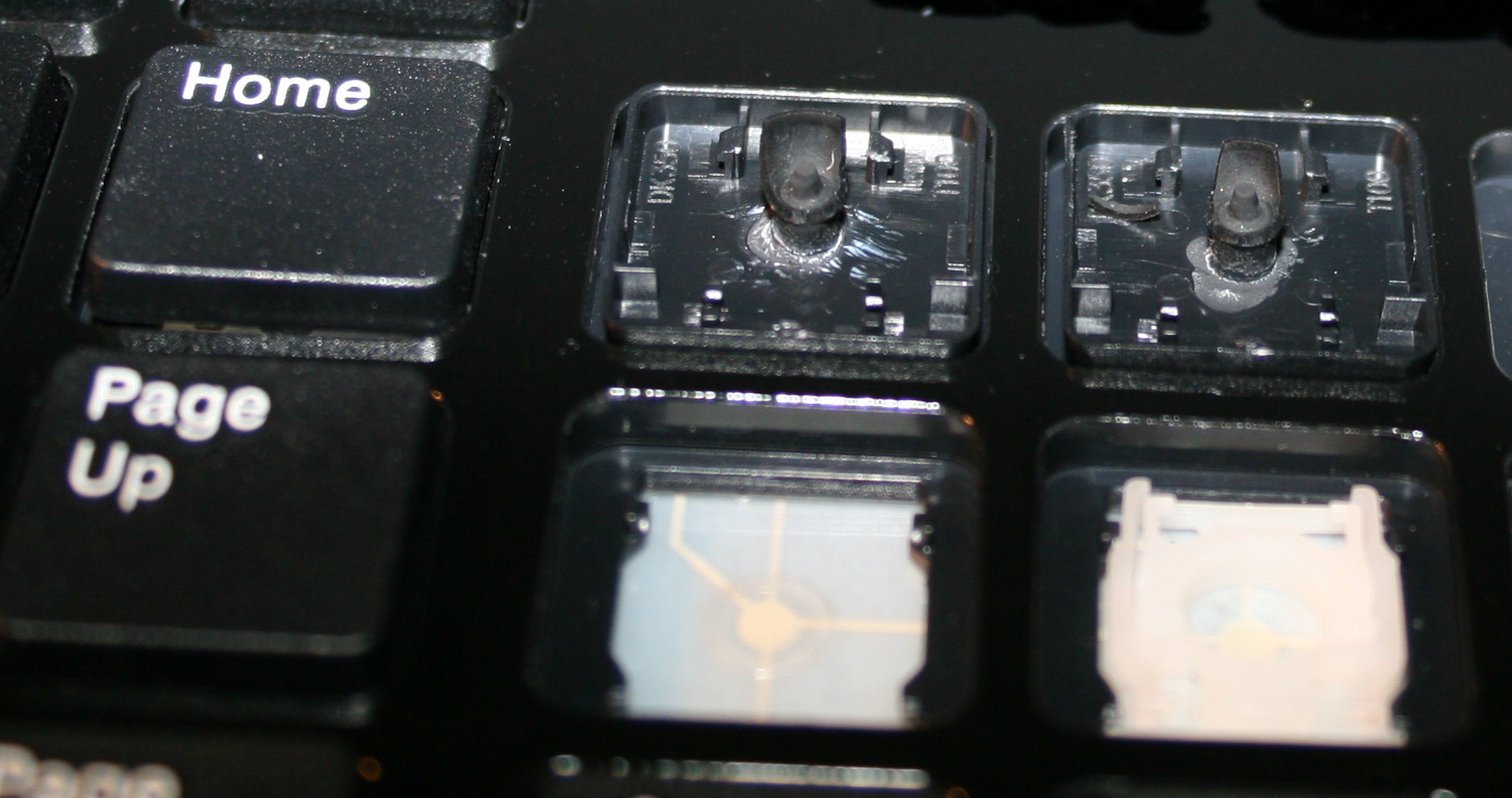
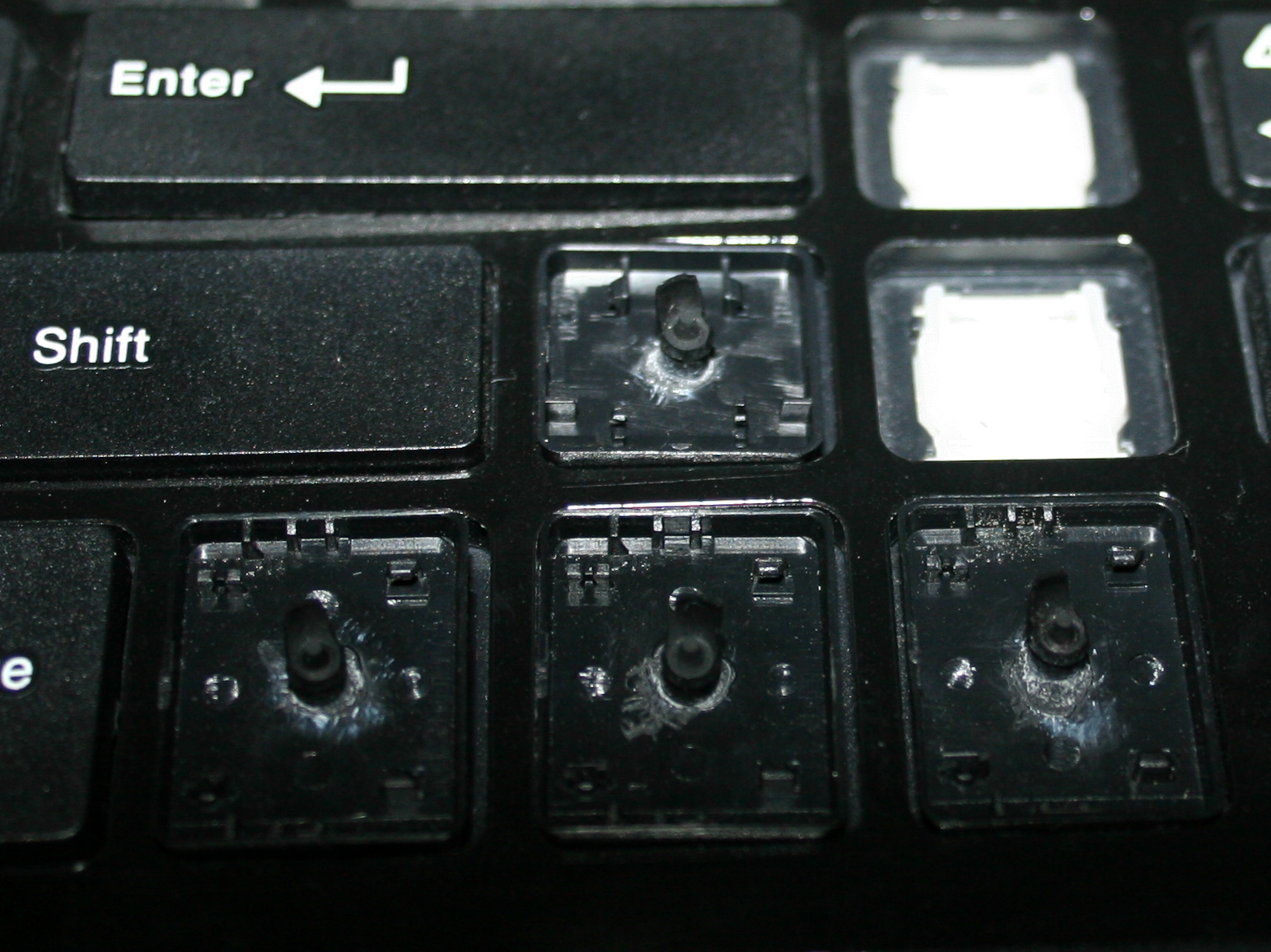
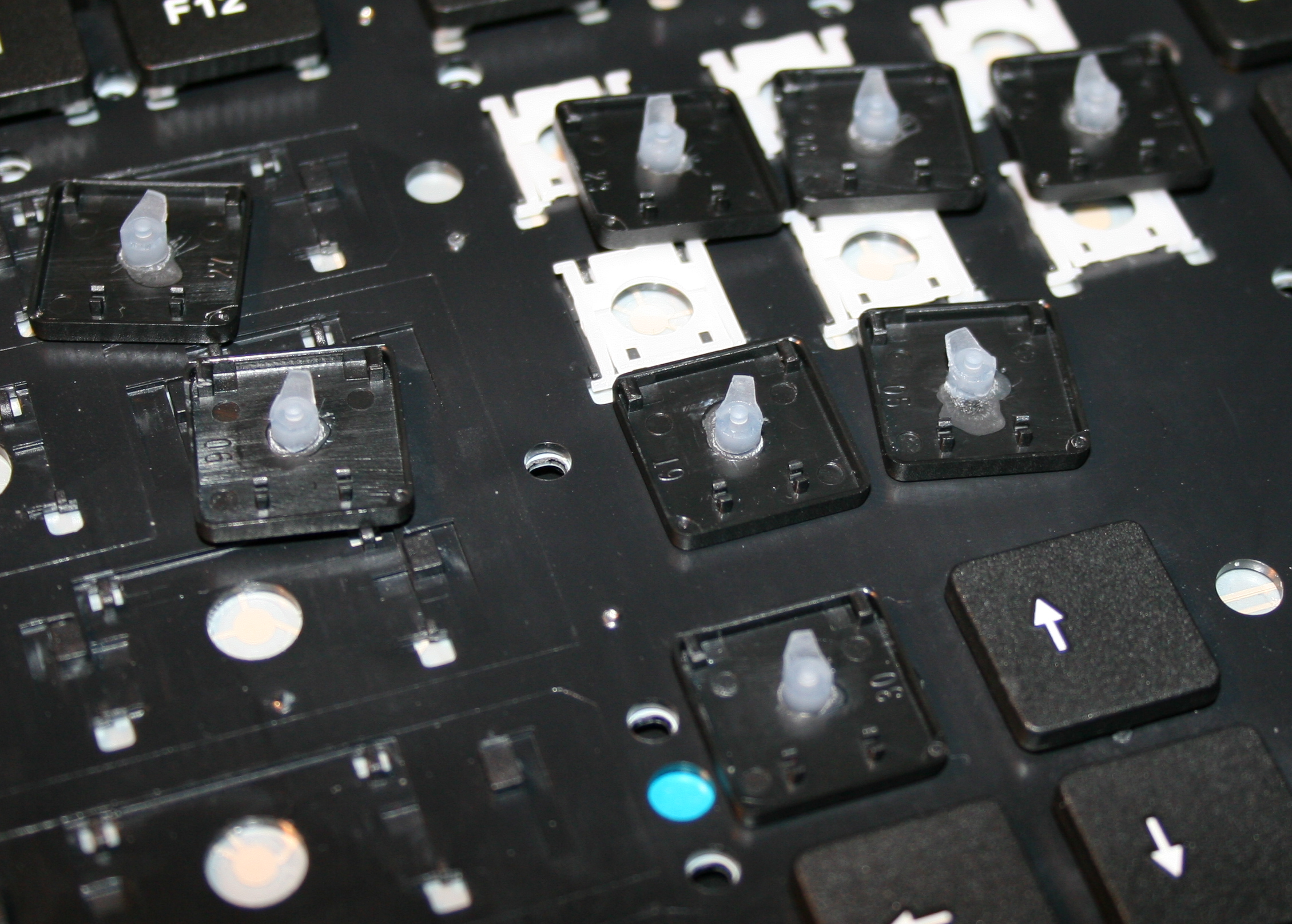
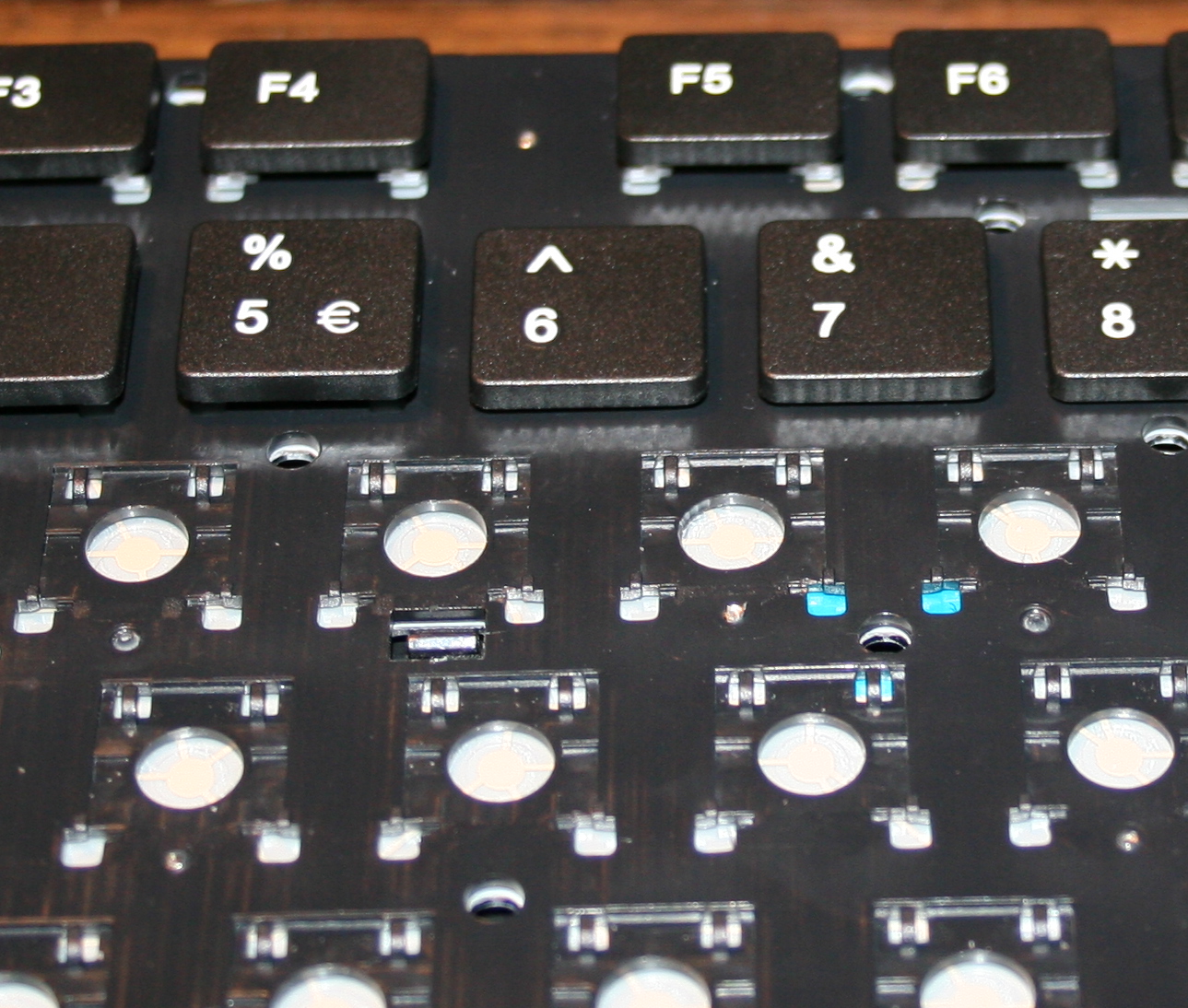
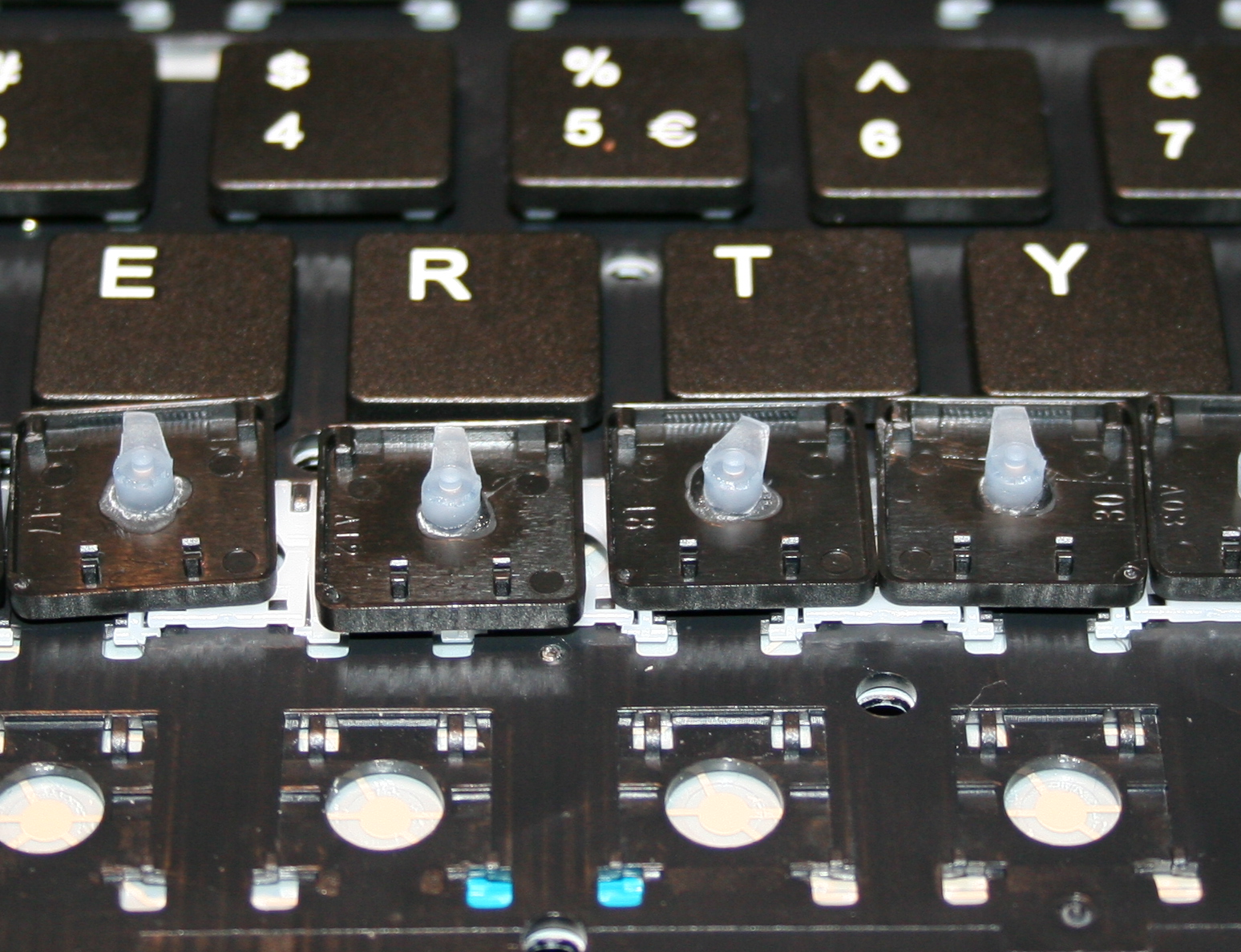
    The first operation I do, is cutting off most of all rubber domes. I aim at minimized key pressing (actuation) force and also travel distance.
    This makes the keys much softer to press. If pressing needs less effort then it will cause less fatigue. It is simply more pleasant and comfortable. Also healthier, since the risk of keyboard injuries decreases.

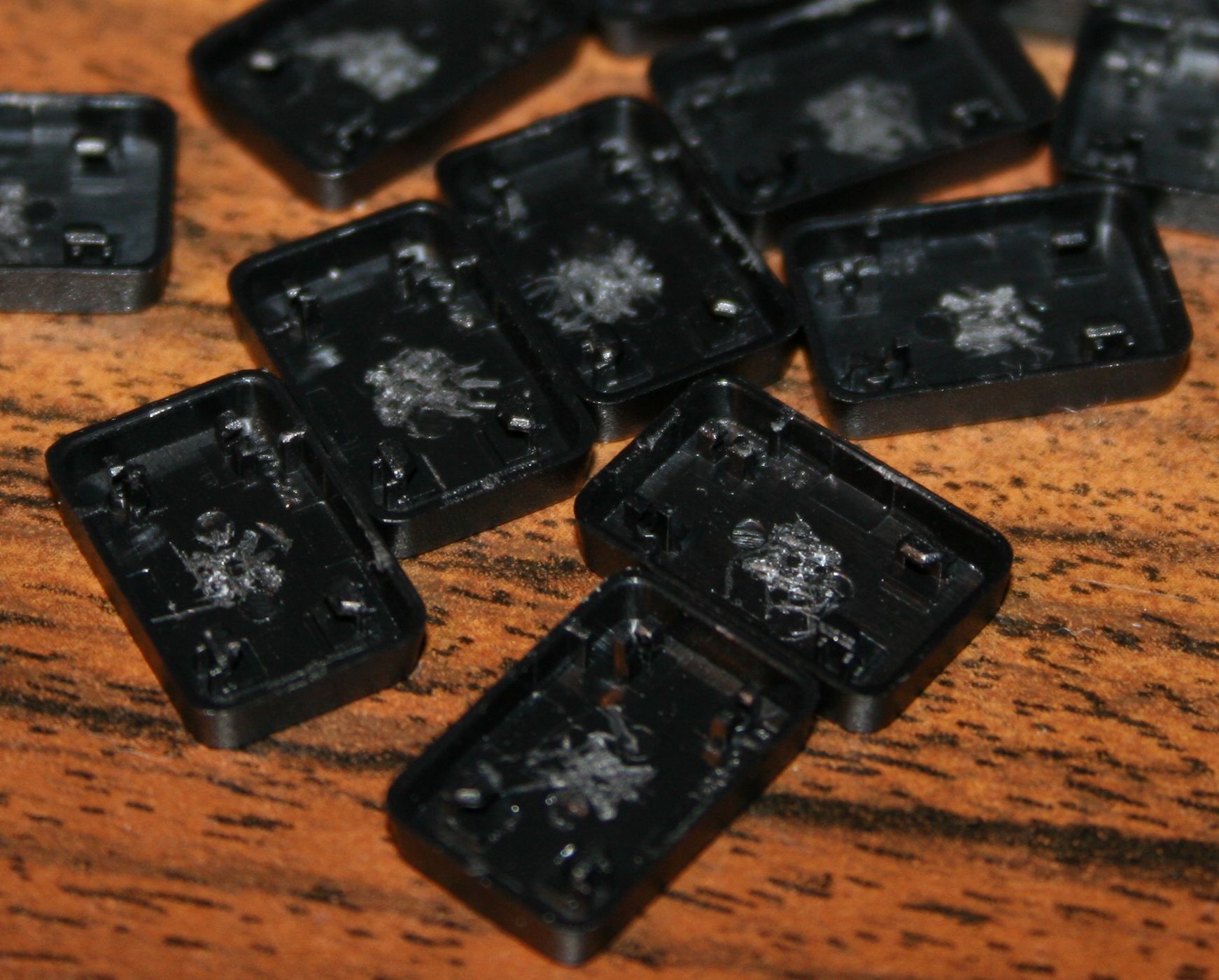
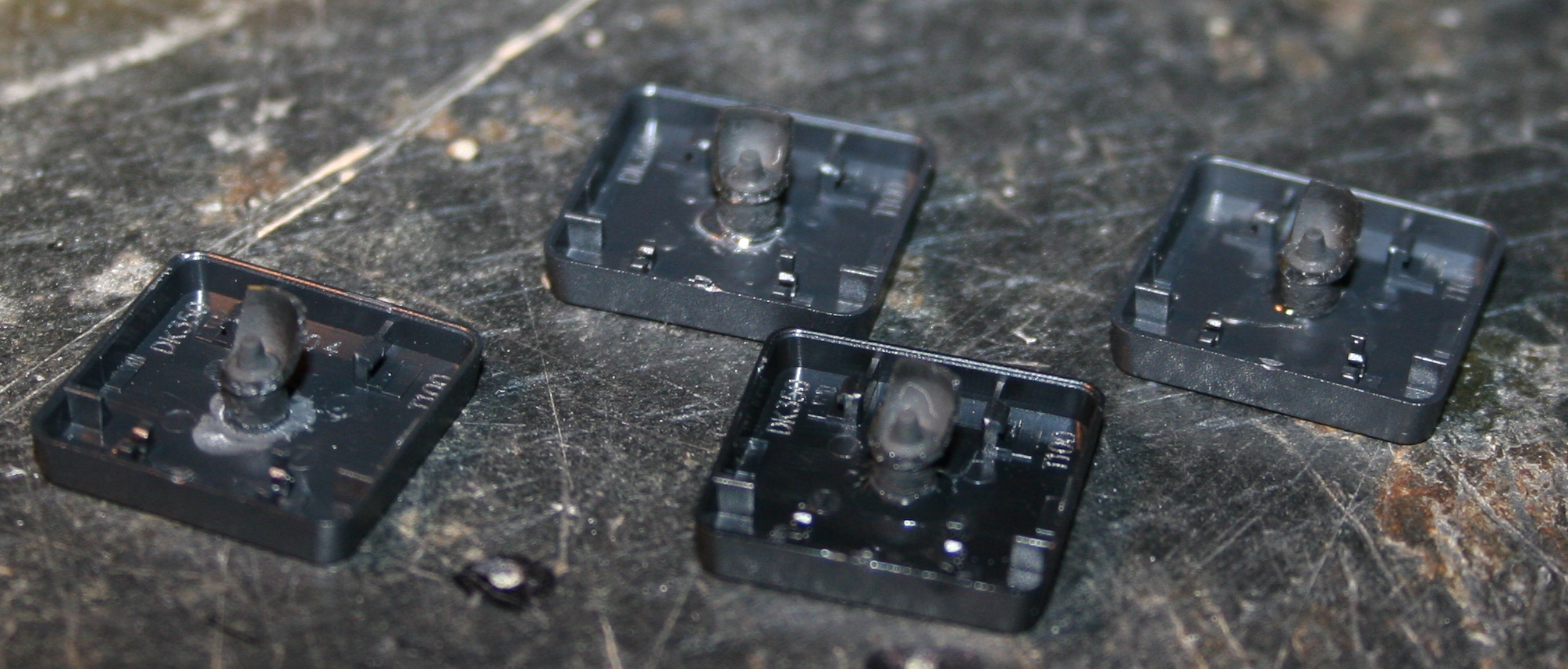
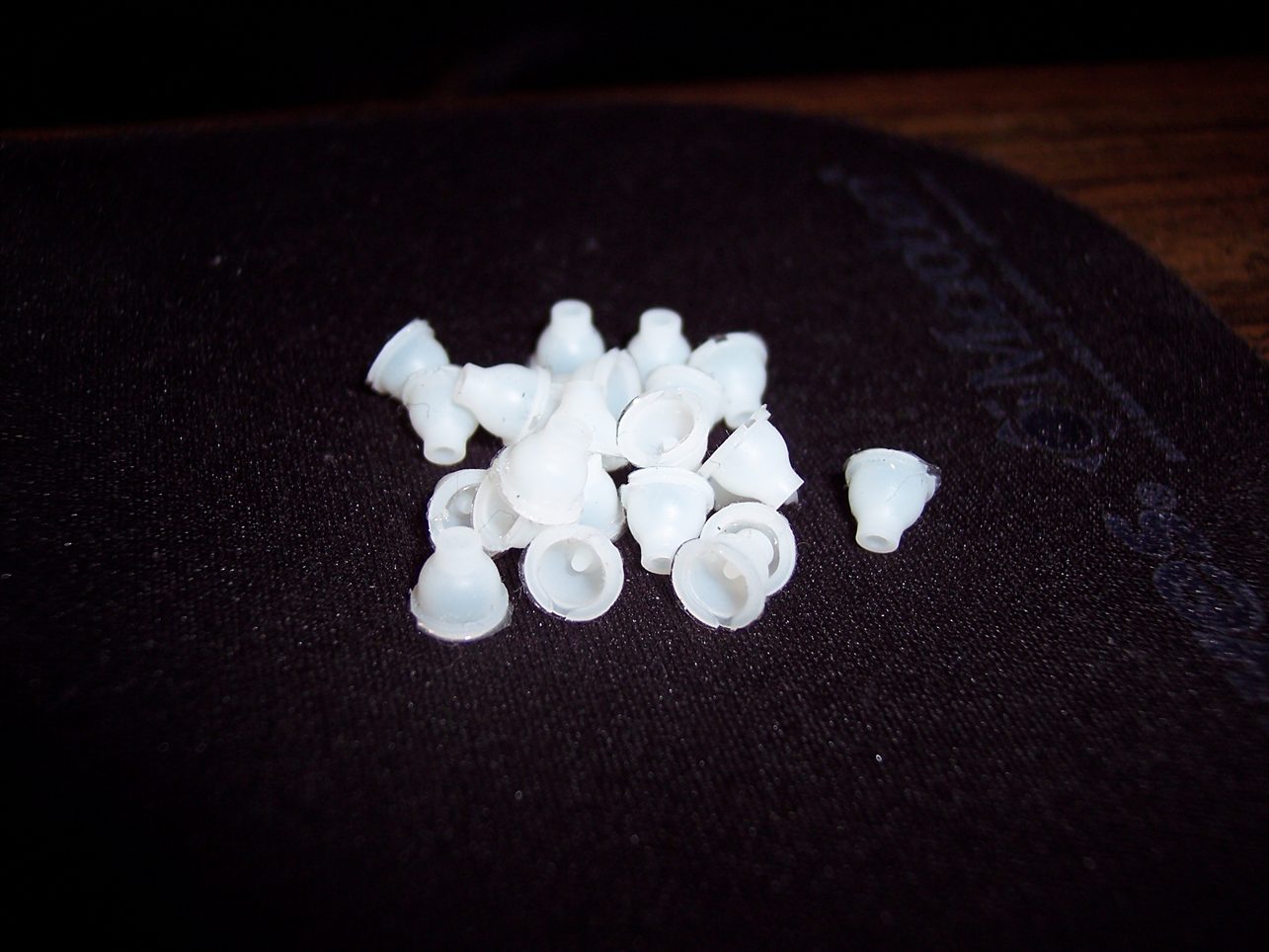
    The second is glueing them back to keys. It’s required because they are glued to foil (mostly always).

    Everytime (except once in 2020) after doing the process, I am using the keyboard myself constantly. Thus if done right, there is no risk of any key failure.

    📜History

    I already did this first on my two oldest keyboards in 2005 and 2006.
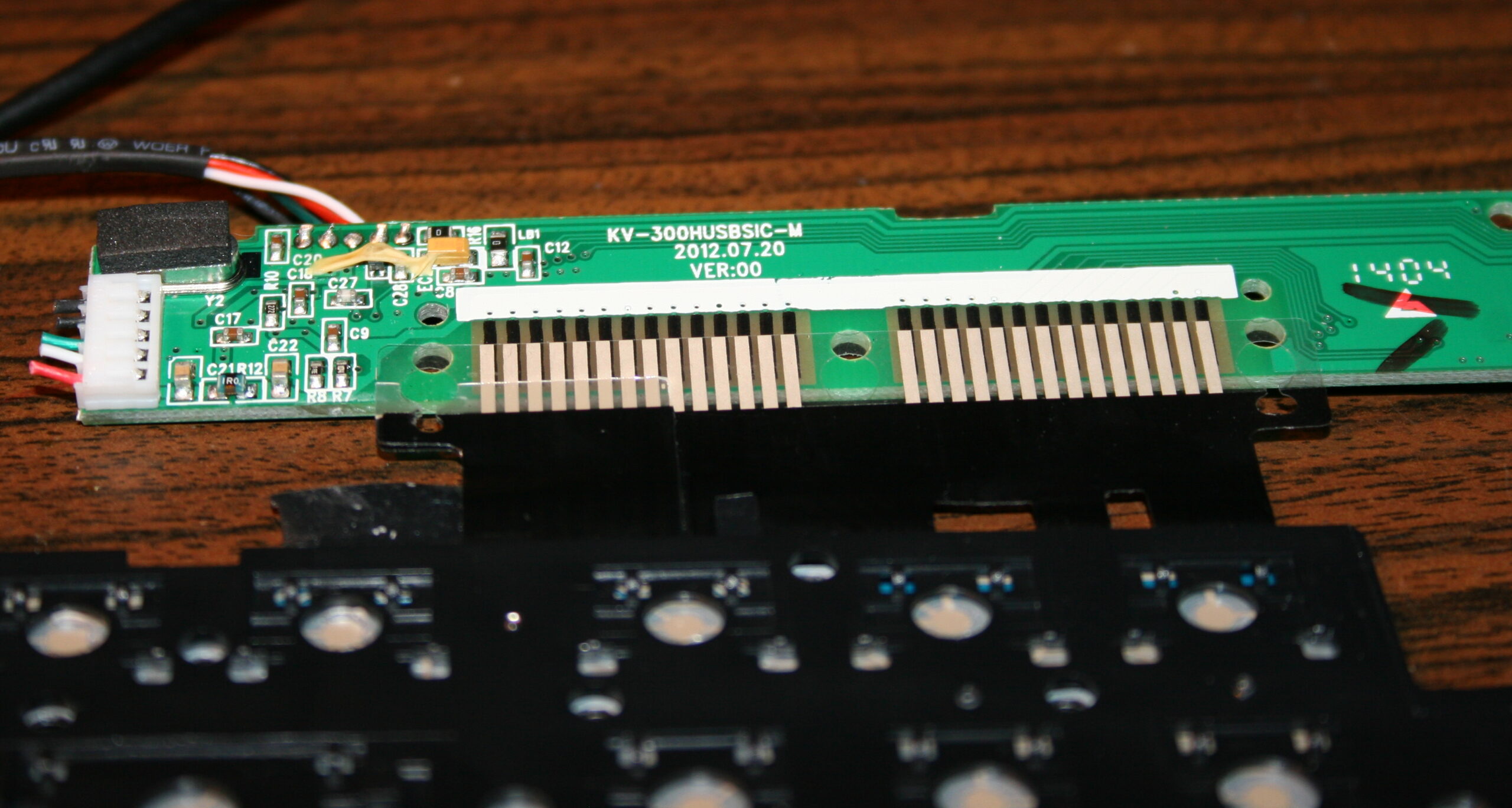
    Then in 2015 for this keyboard (originally A4 Tech KV-300H) named CK5, and again later in 2020 (another same keyboard) making the process the video.
    Next for CK3 and CK4 in 2016, which later became CK6 and CK7, and CK6 became CK9 with KC4 in 2020.

    ▶️Videos

    Video guide showing the process here, for just a few keys.
    Another video of testing force with weights after.

    🪛Steps, guide

    Steps needed, shown in video:

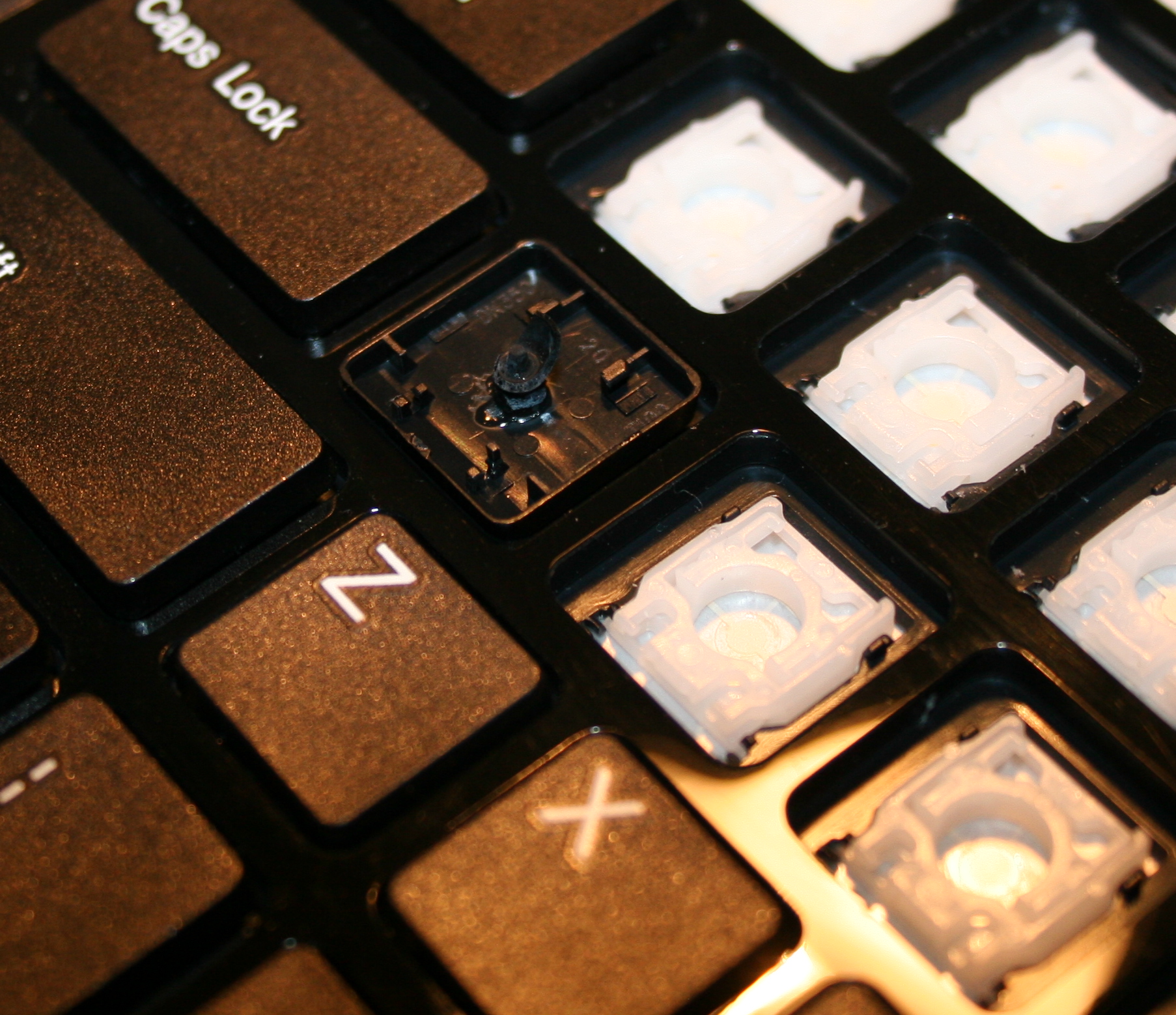
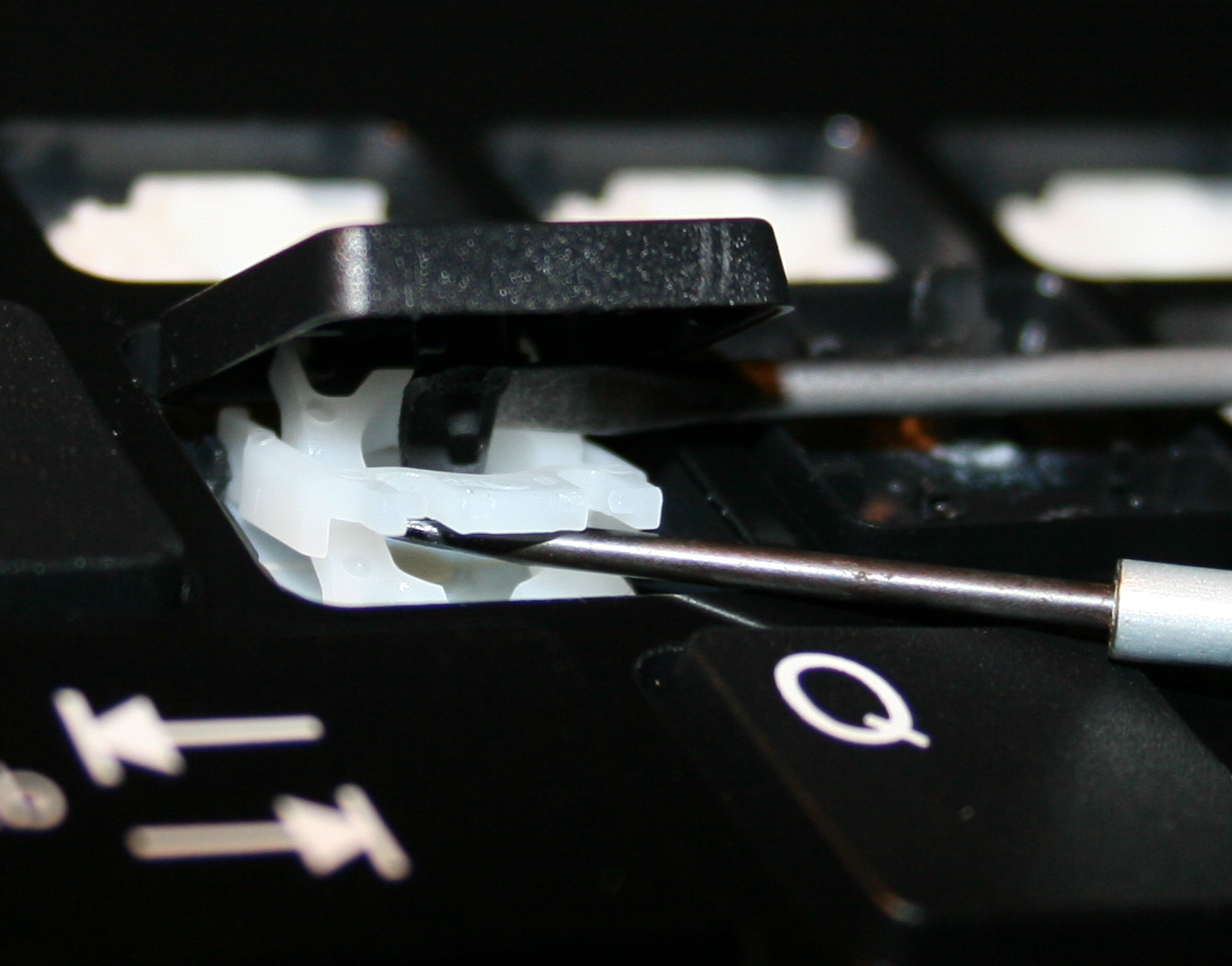
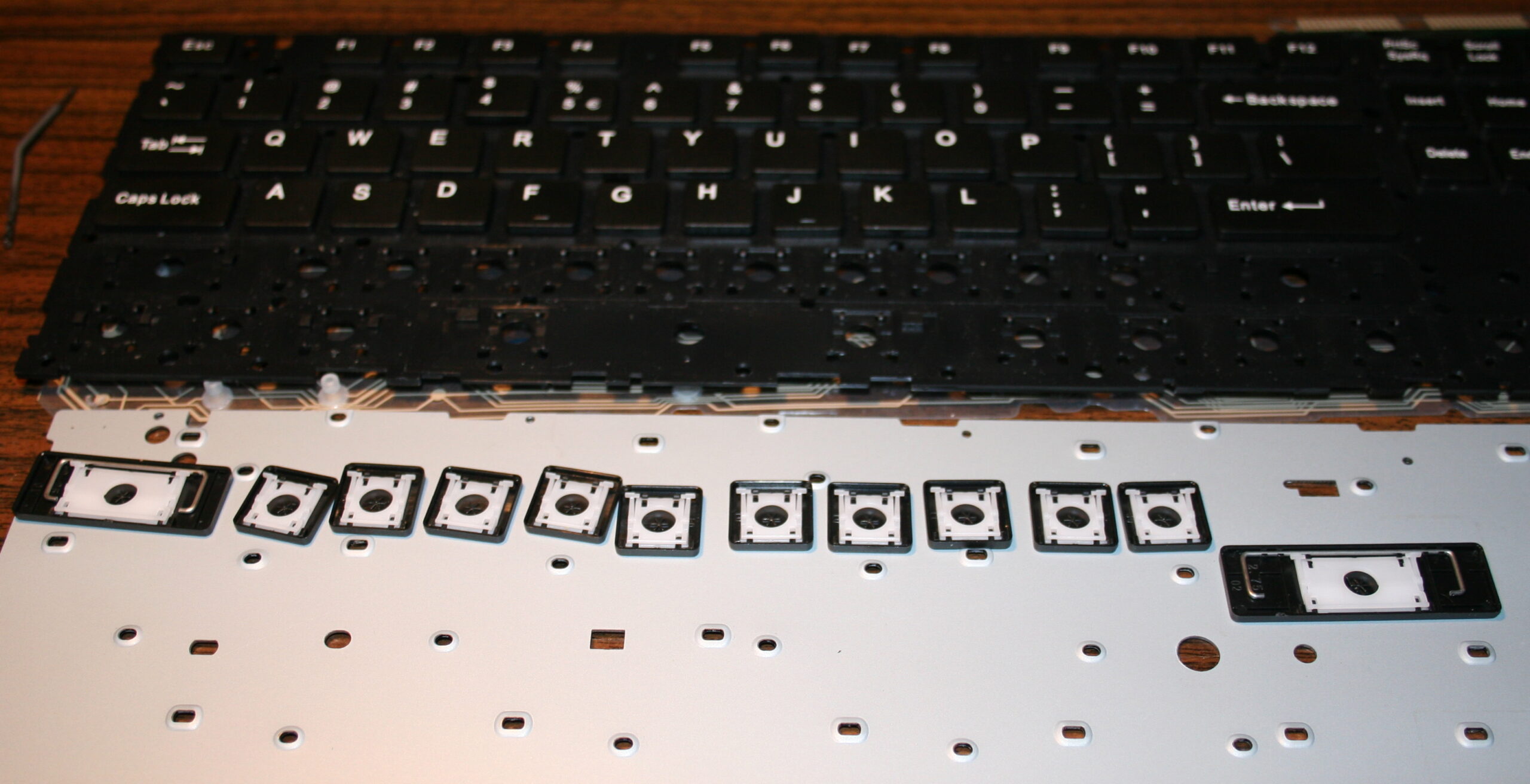
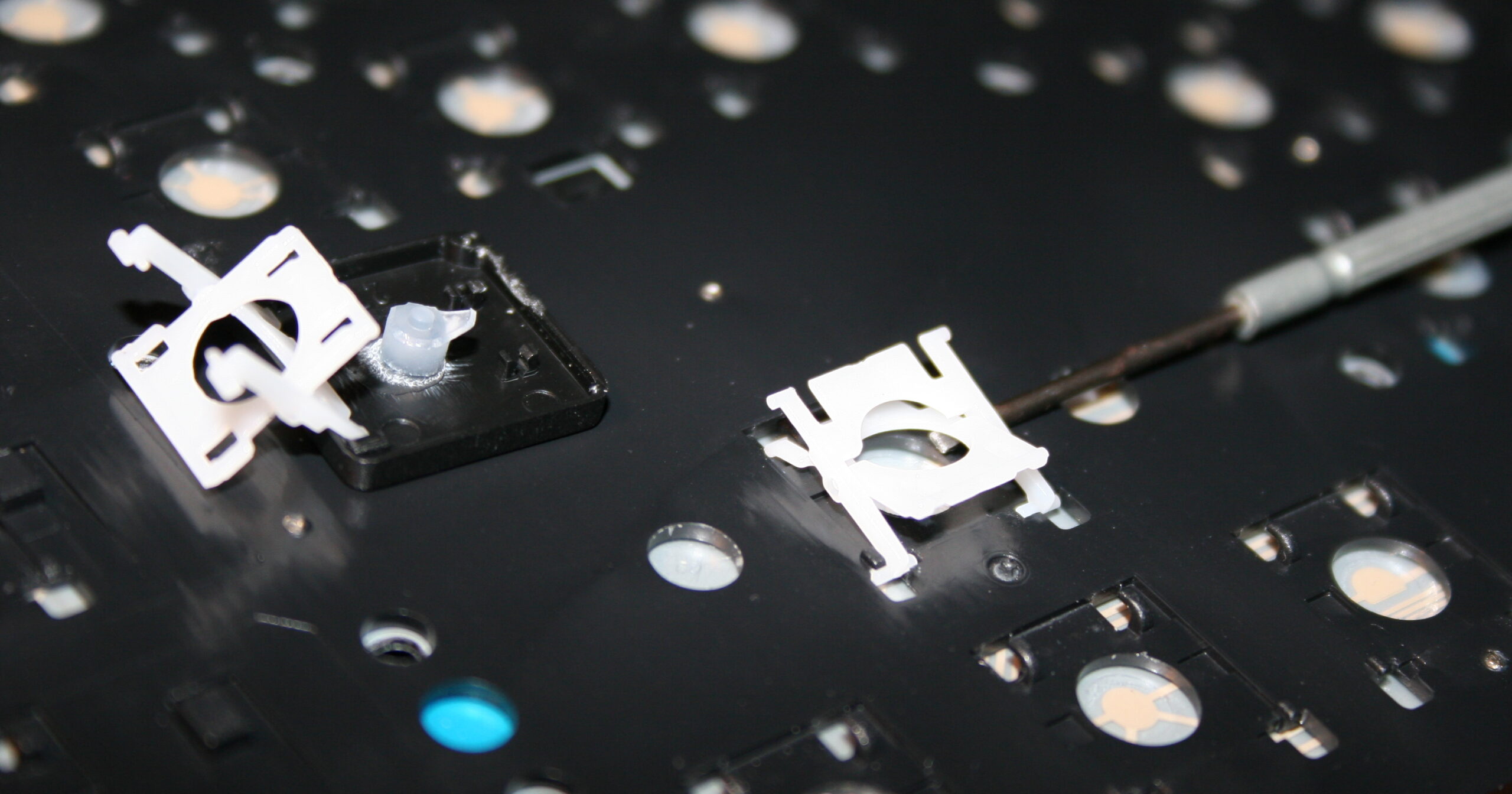
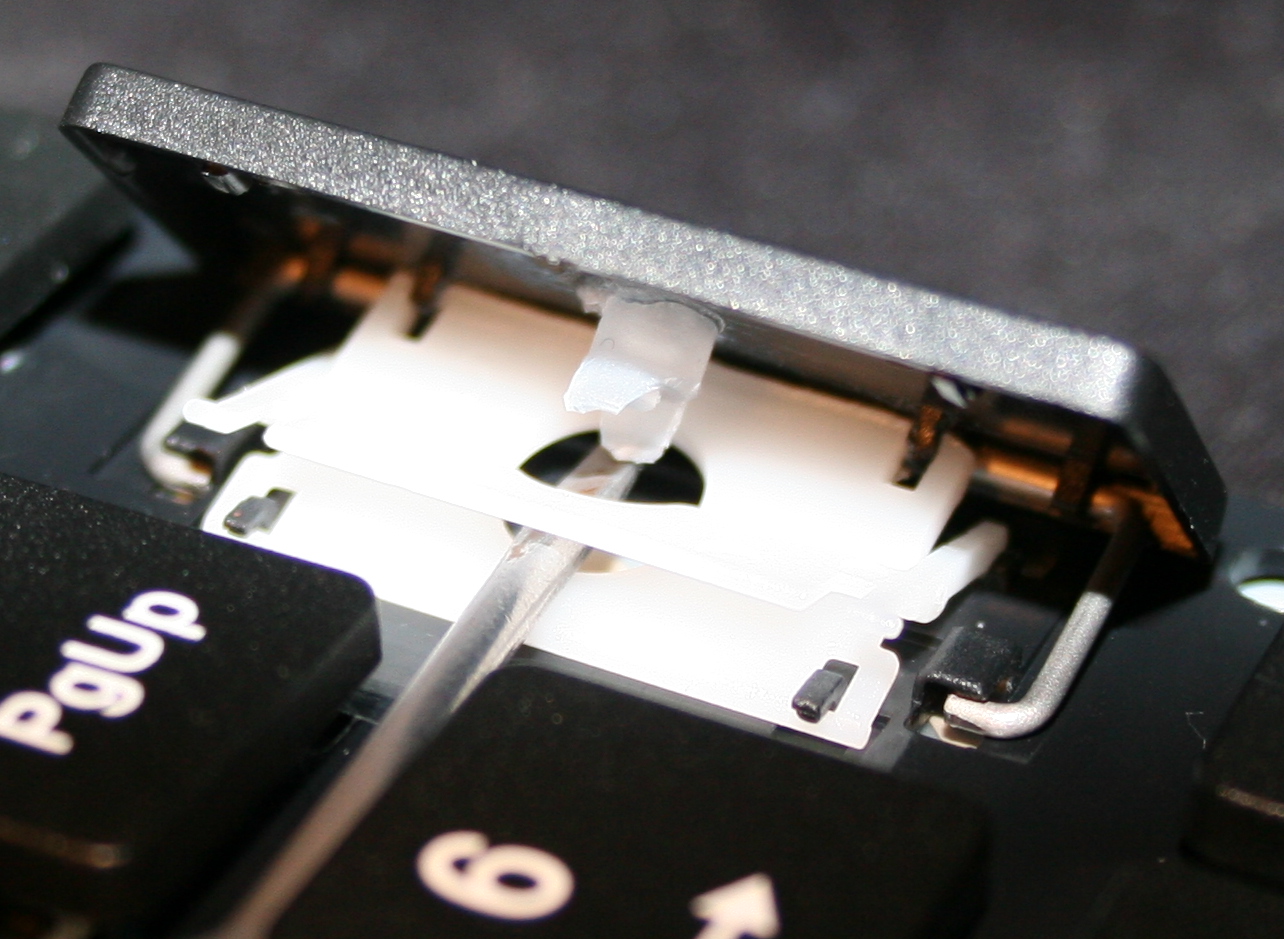
    • Getting keys off from keyboard, using a tiny flat screwdriver.
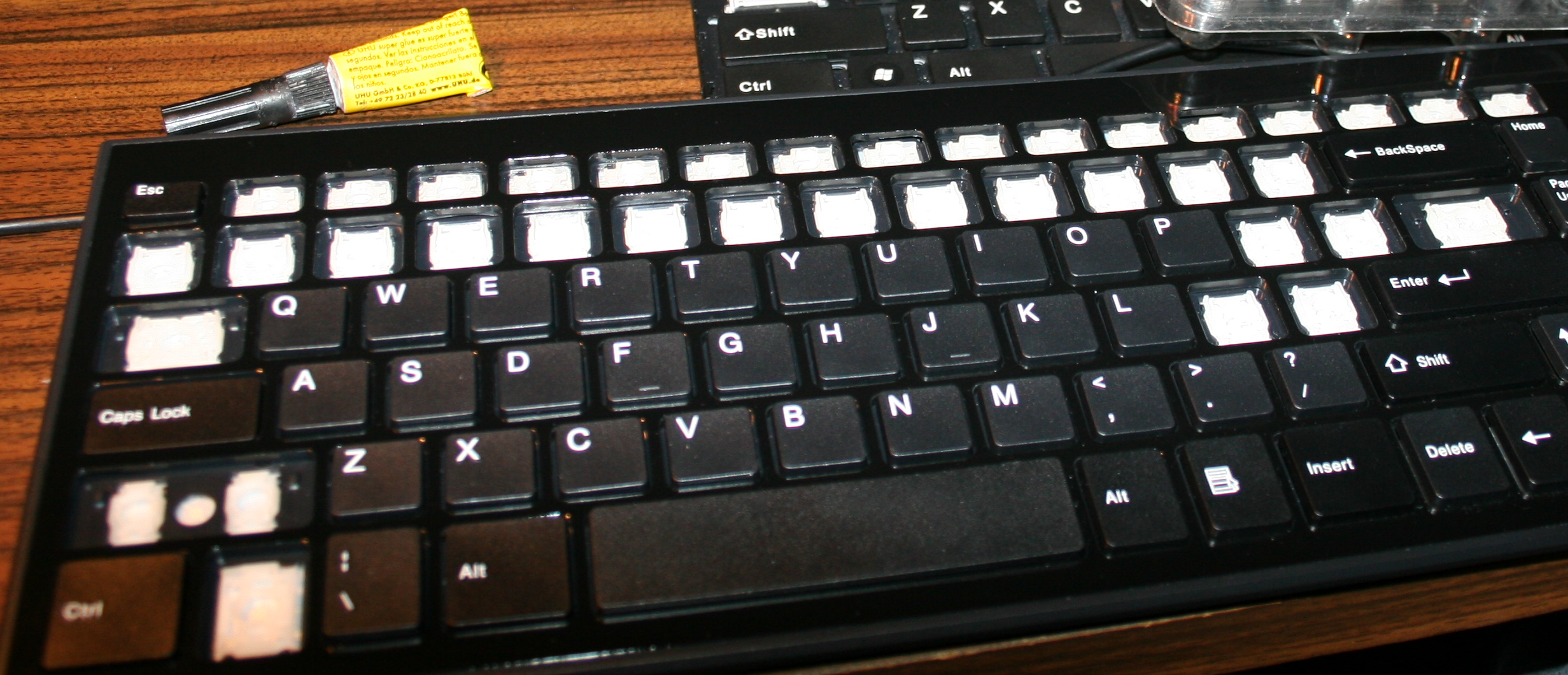
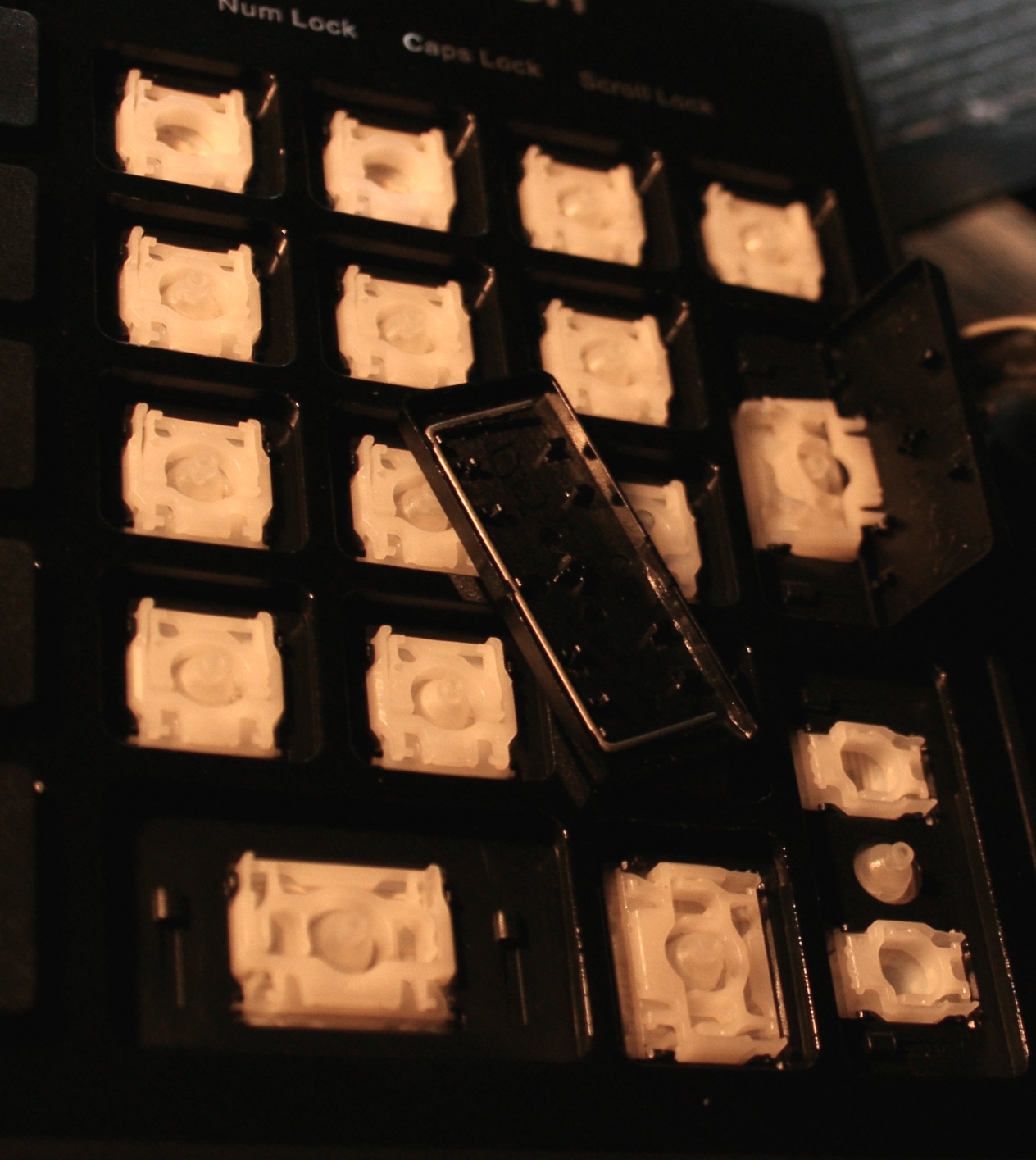
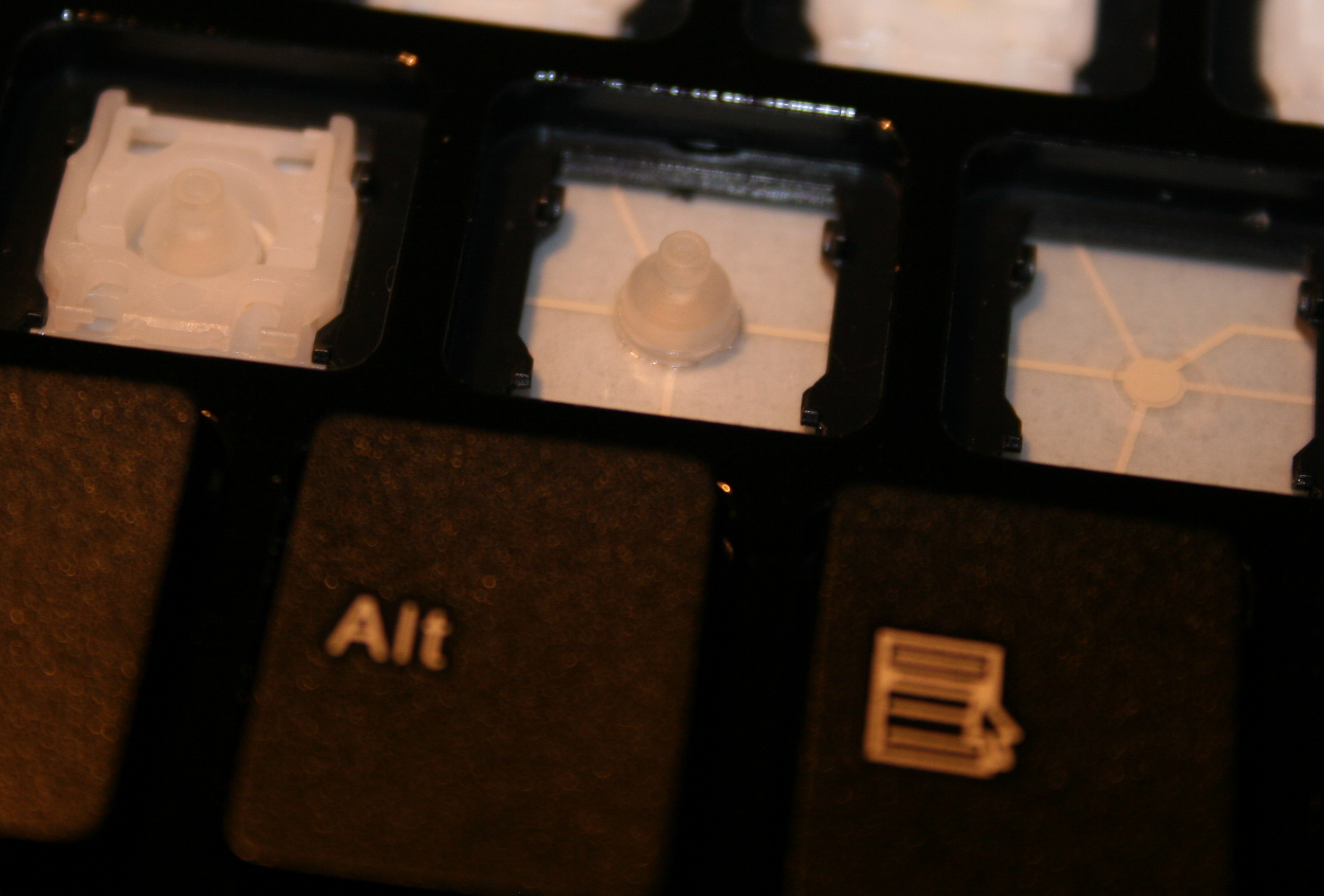
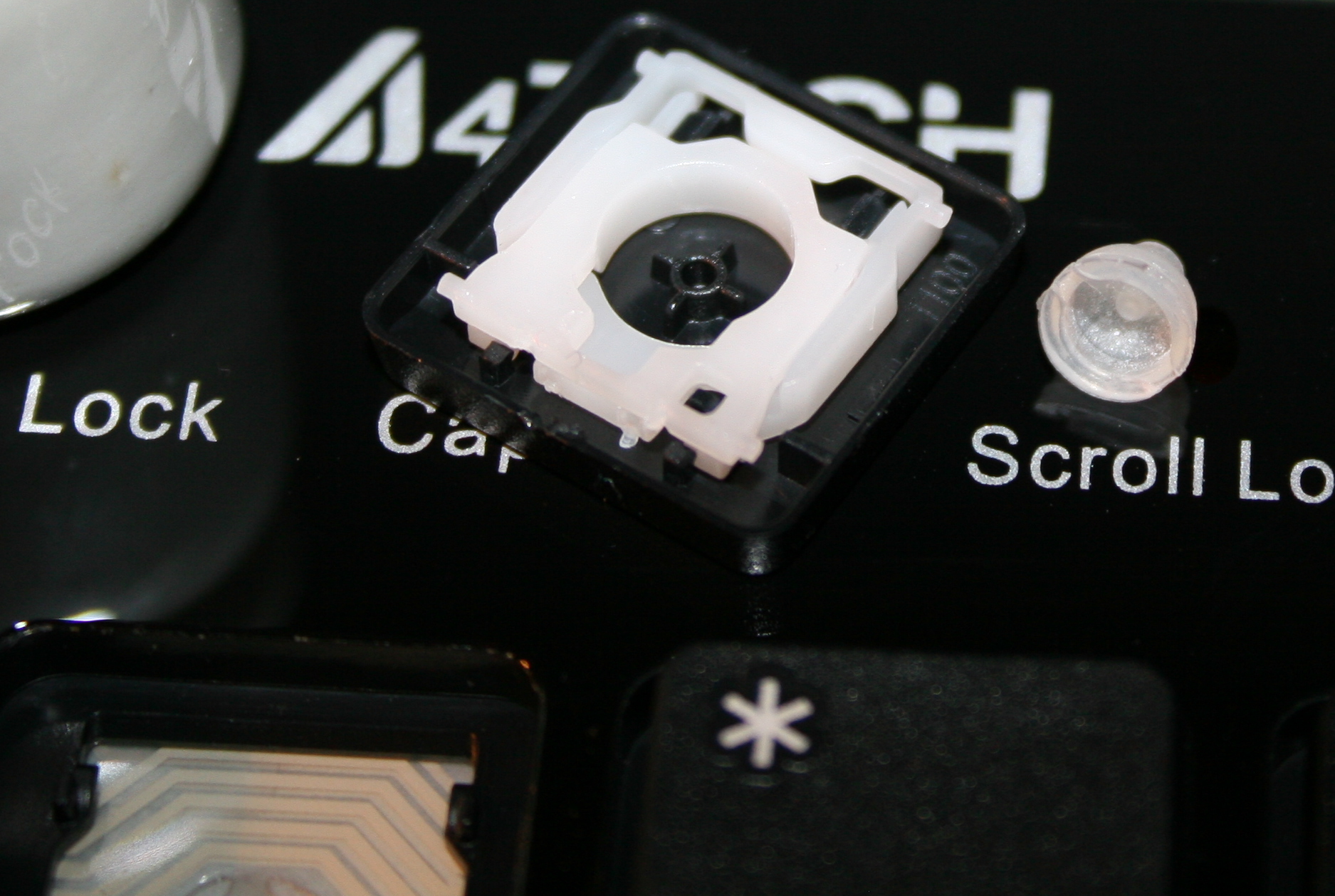
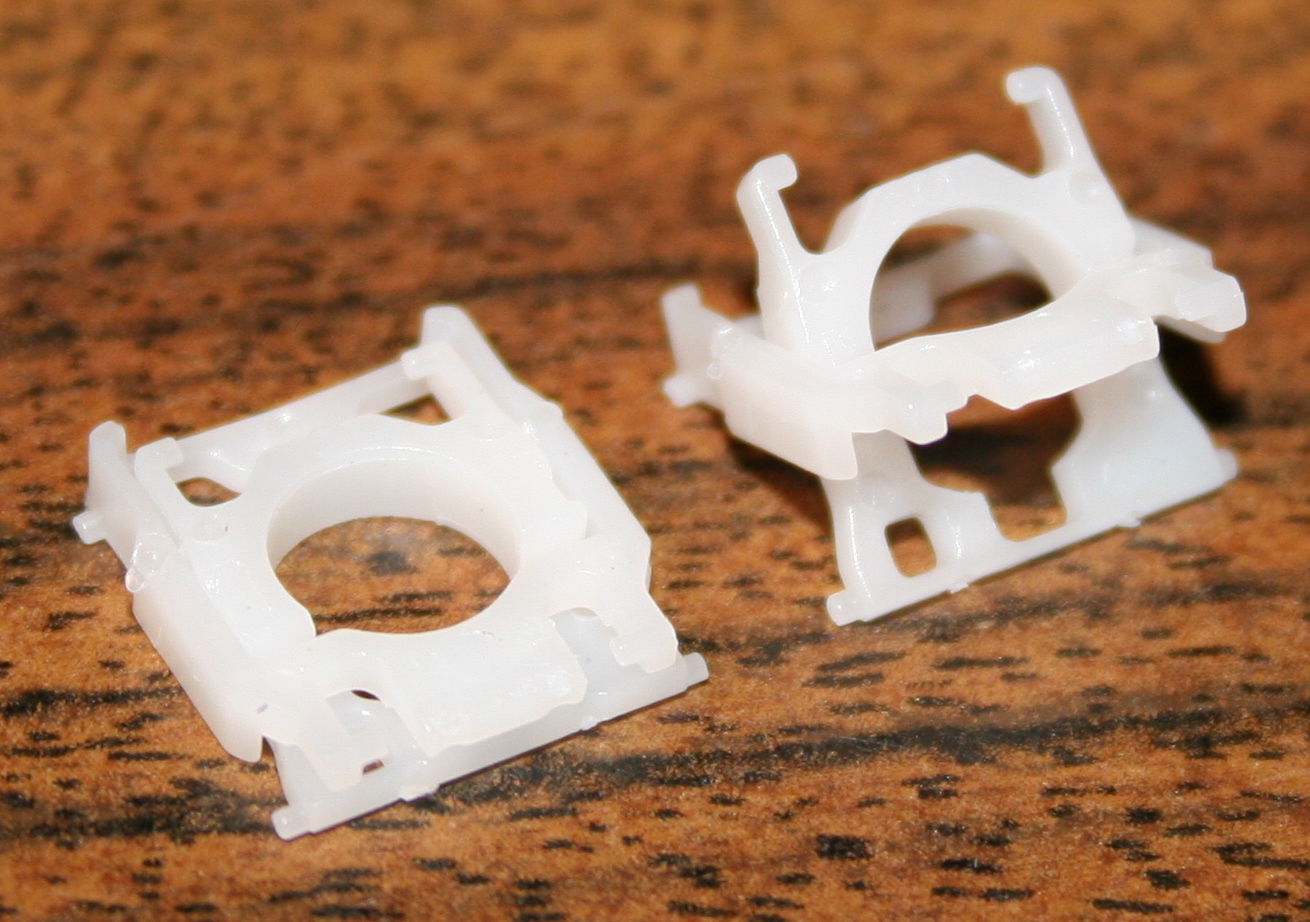
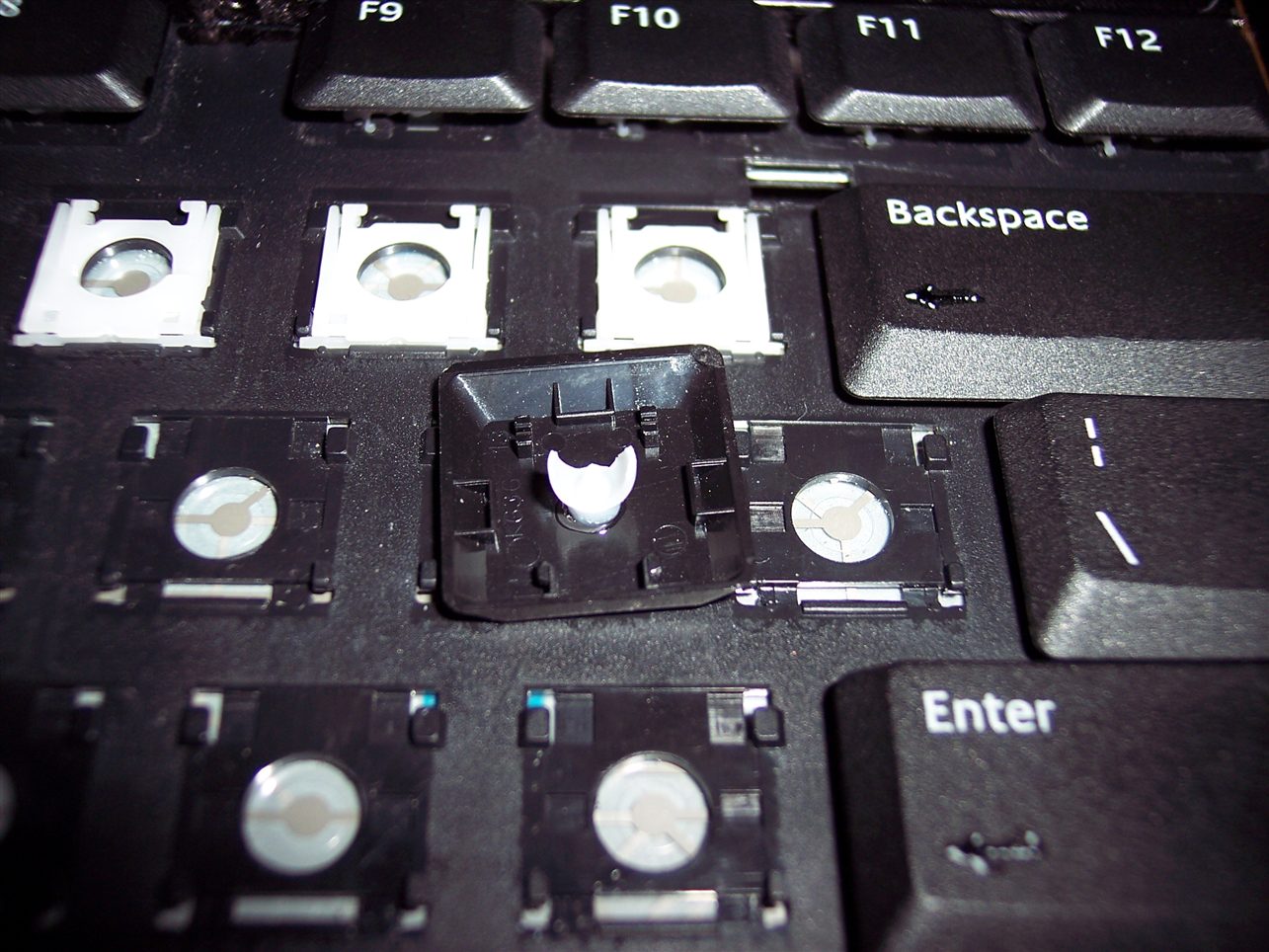
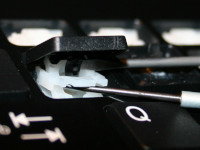
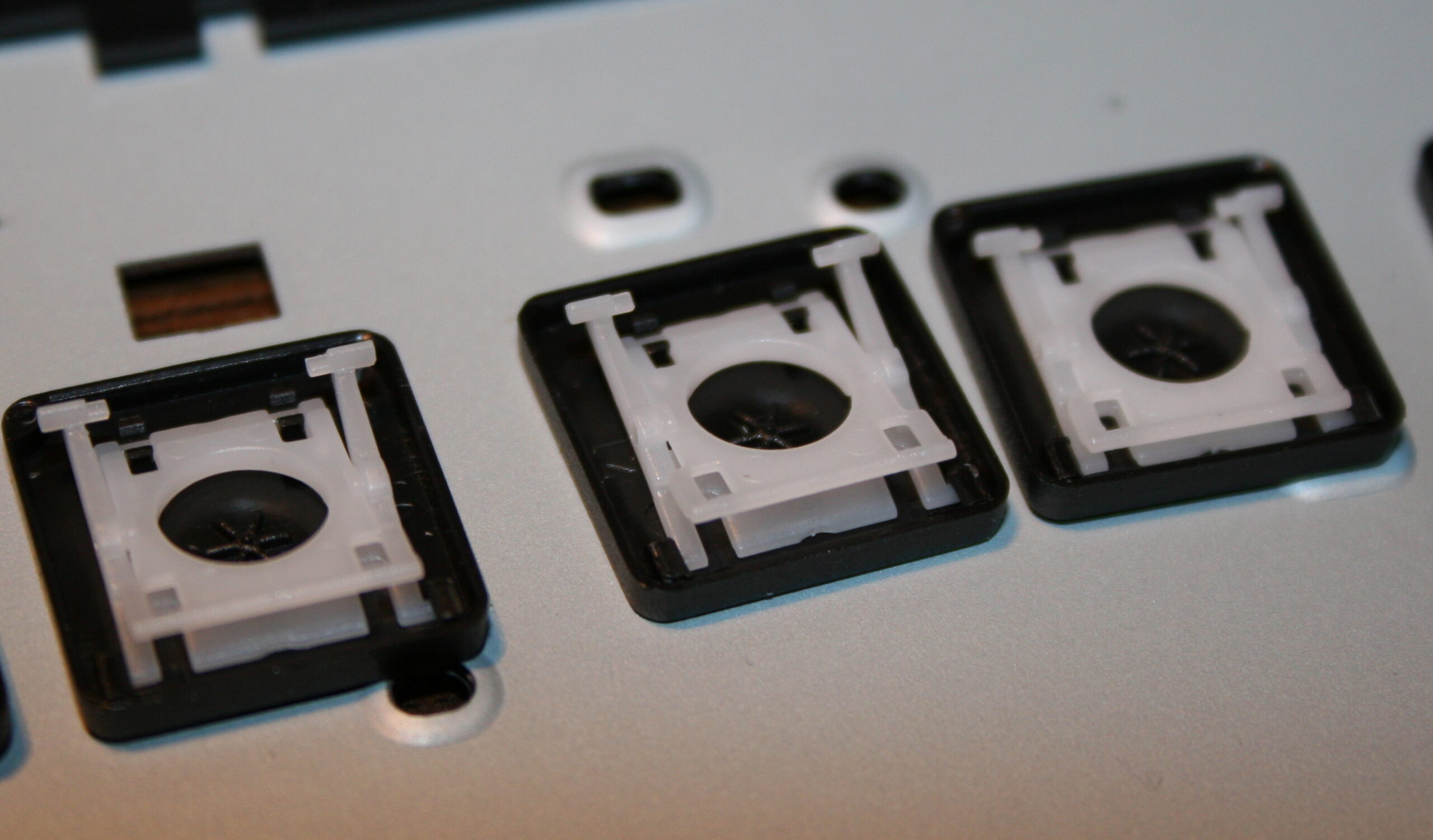
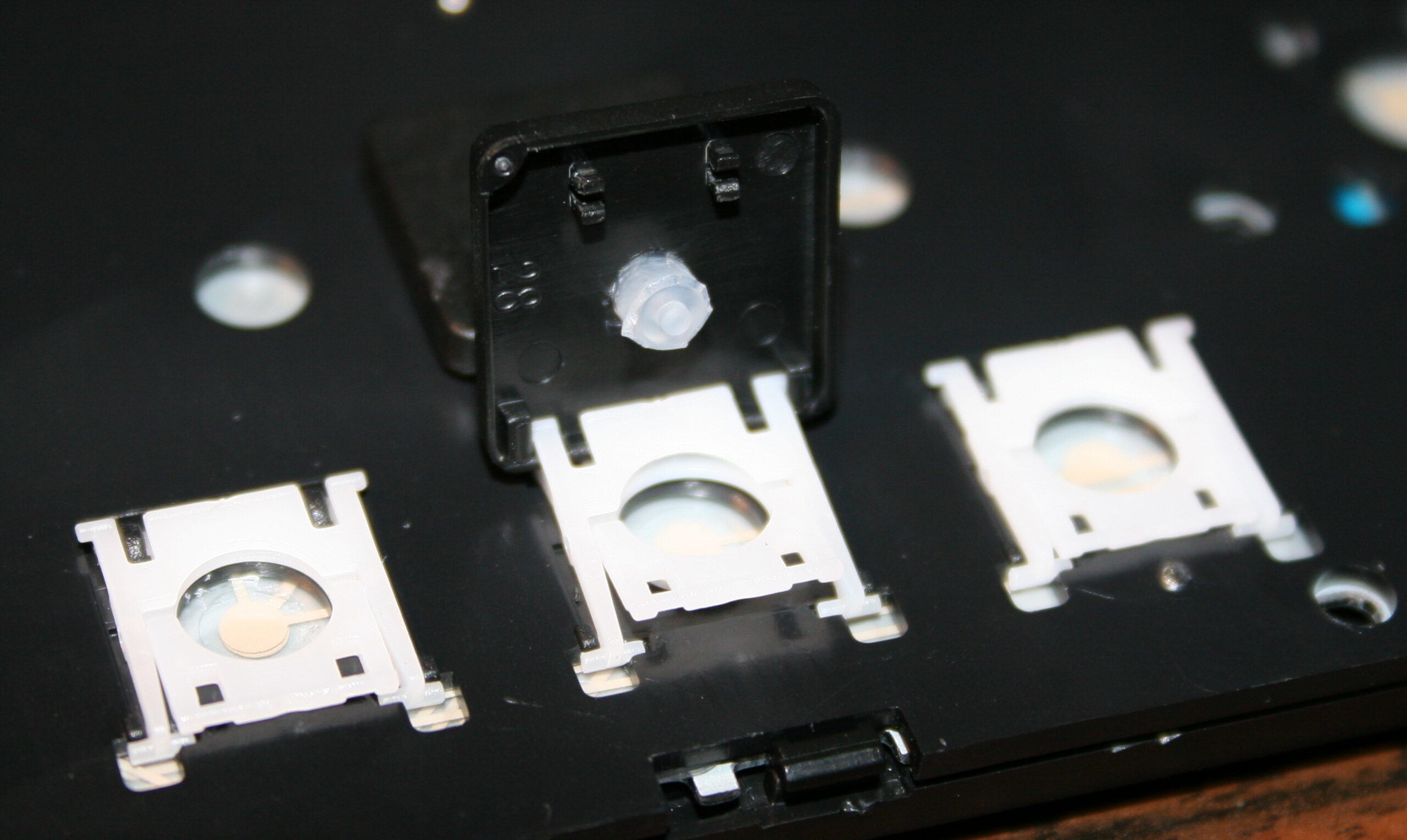
      Pushing gently (but firmly) and leveraging tiny screwdriver in 1 corner, to pop the key’s scissor lift (white) out of its “half socket” from keyboard (not from top of key).
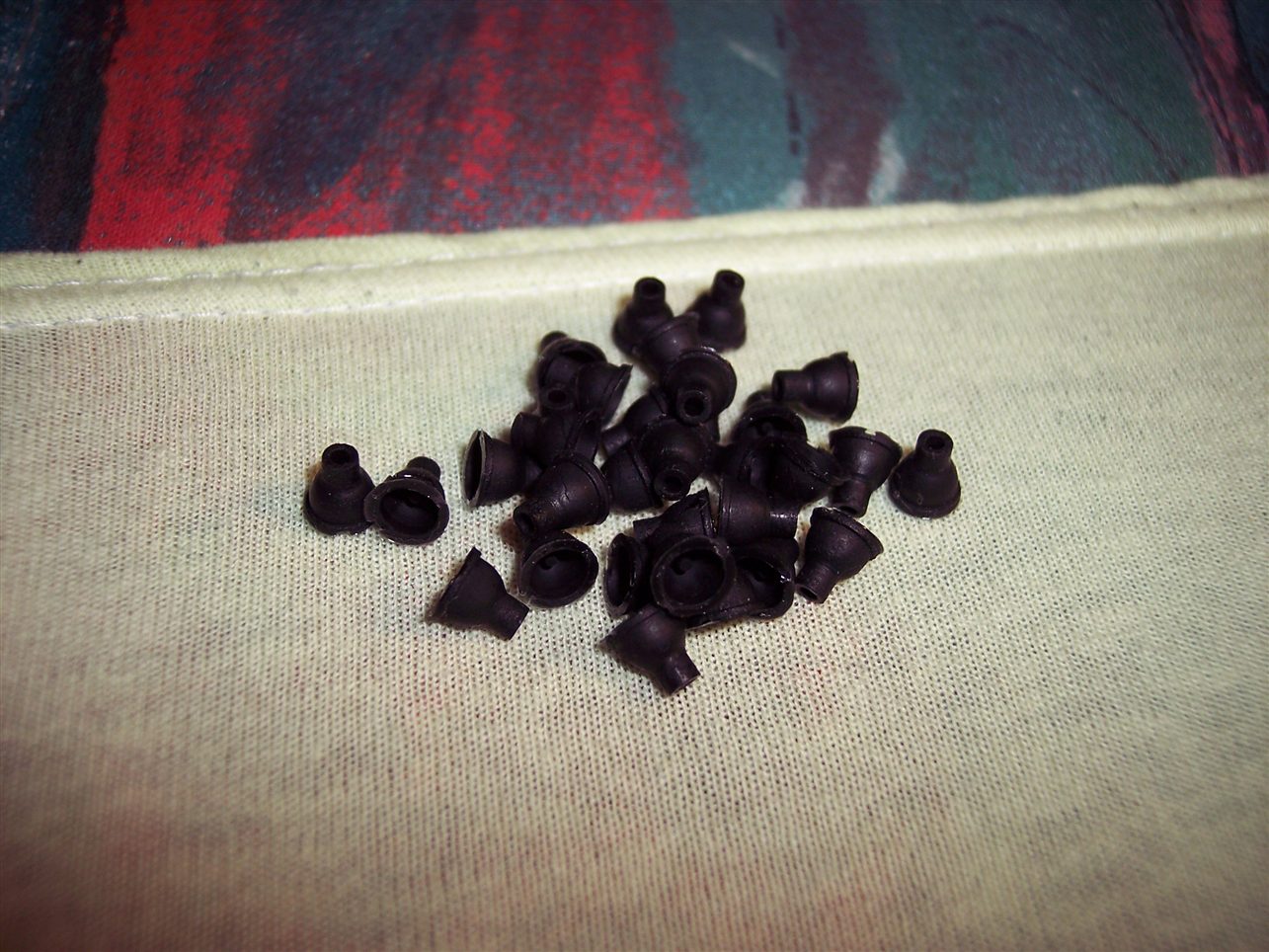
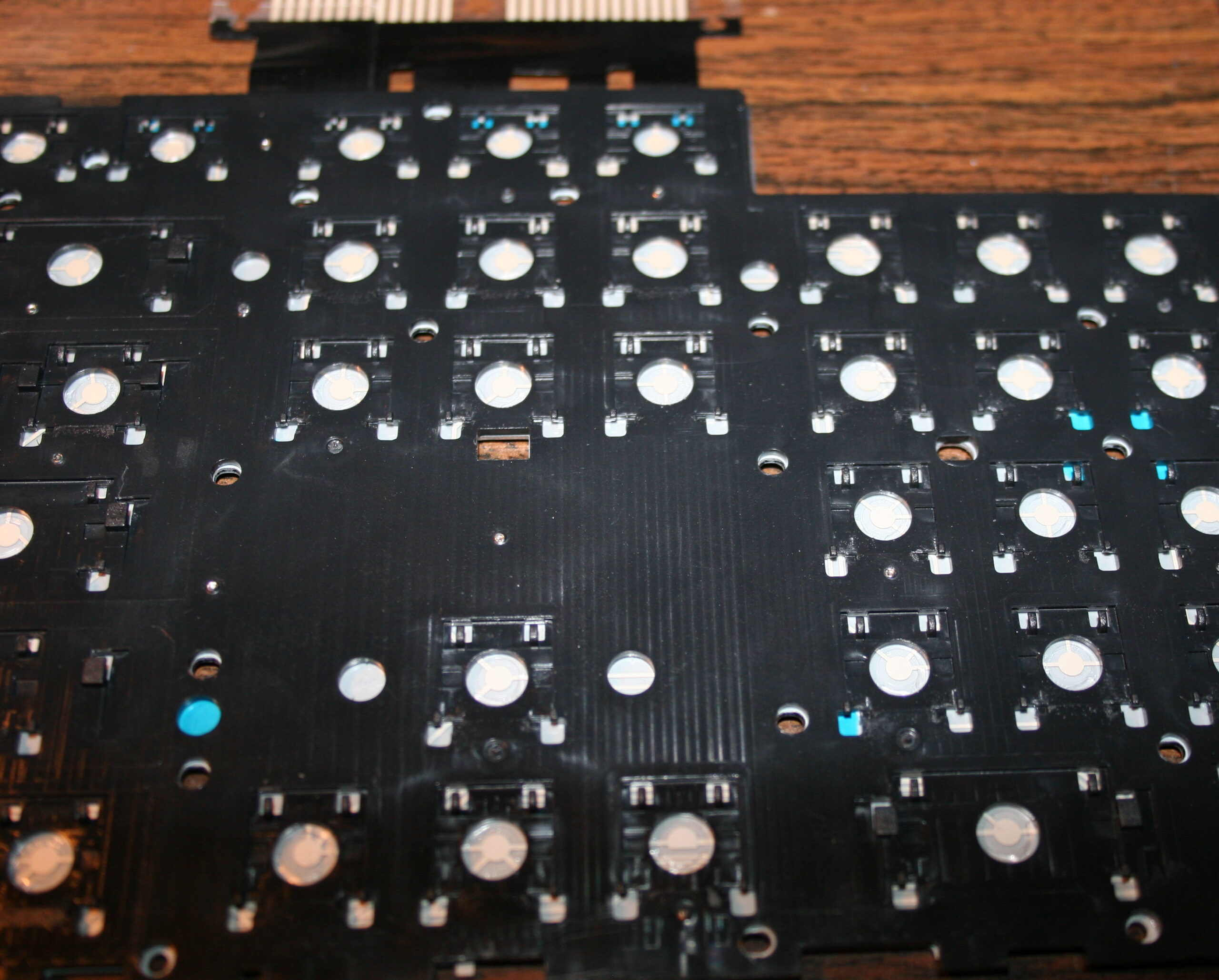
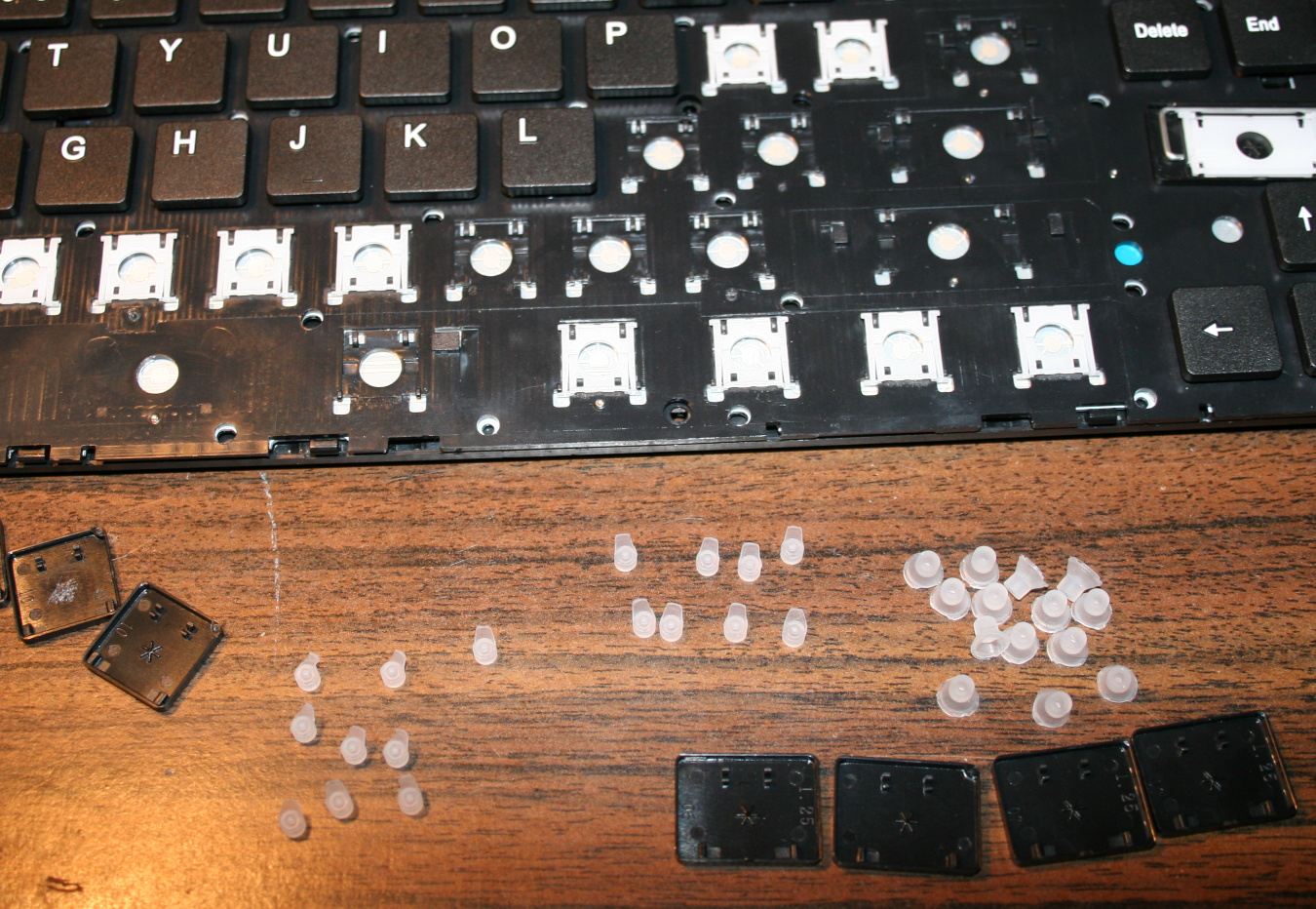
    • Getting rubberdomes off from foil, using just fingers, pinching with force.
      In laptop keyboards, the rubberdomes are separate and small.
      But on old very cheap keyboards there is 1 big rubber piece with them all. I didn’t try modding them.
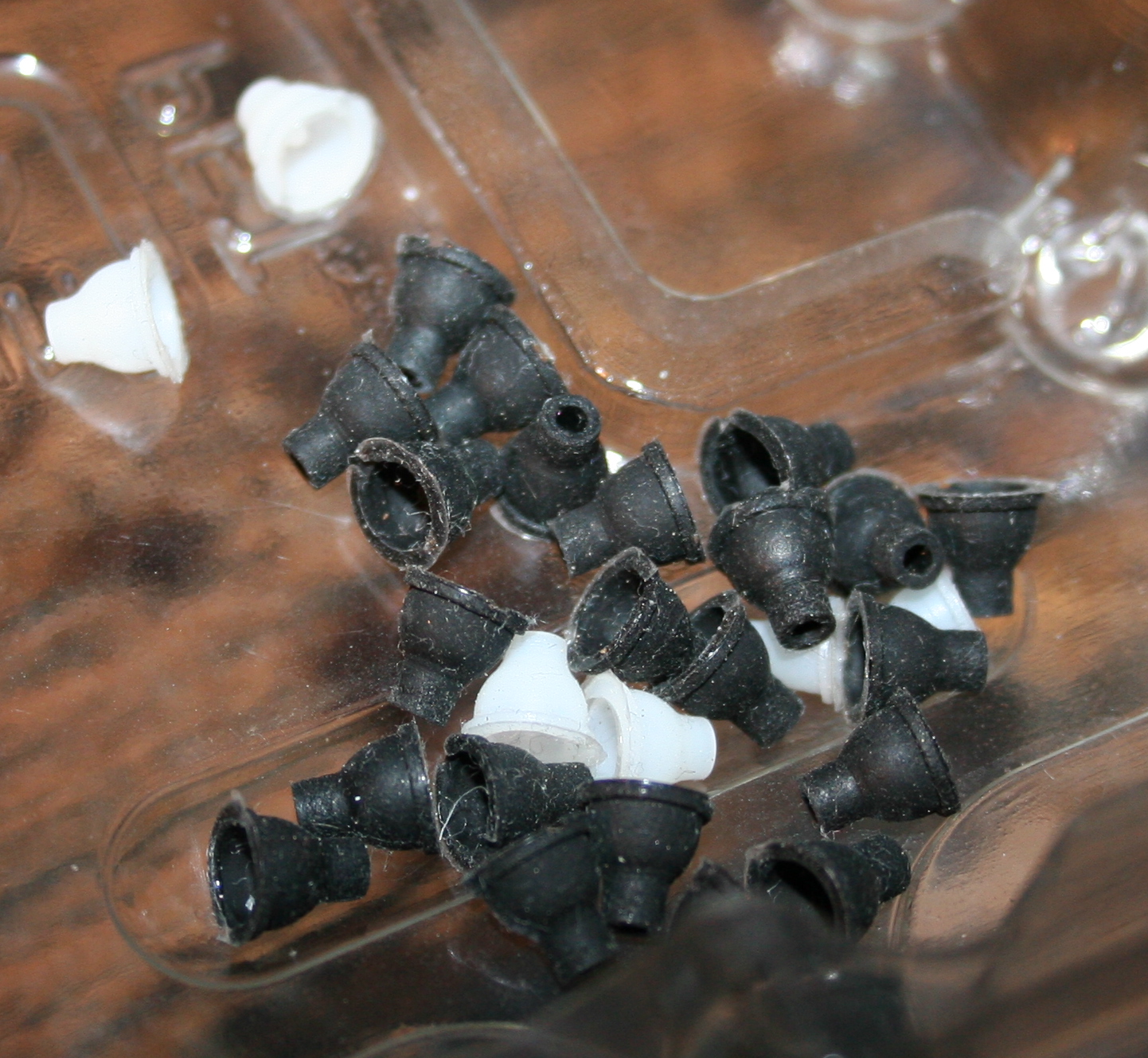
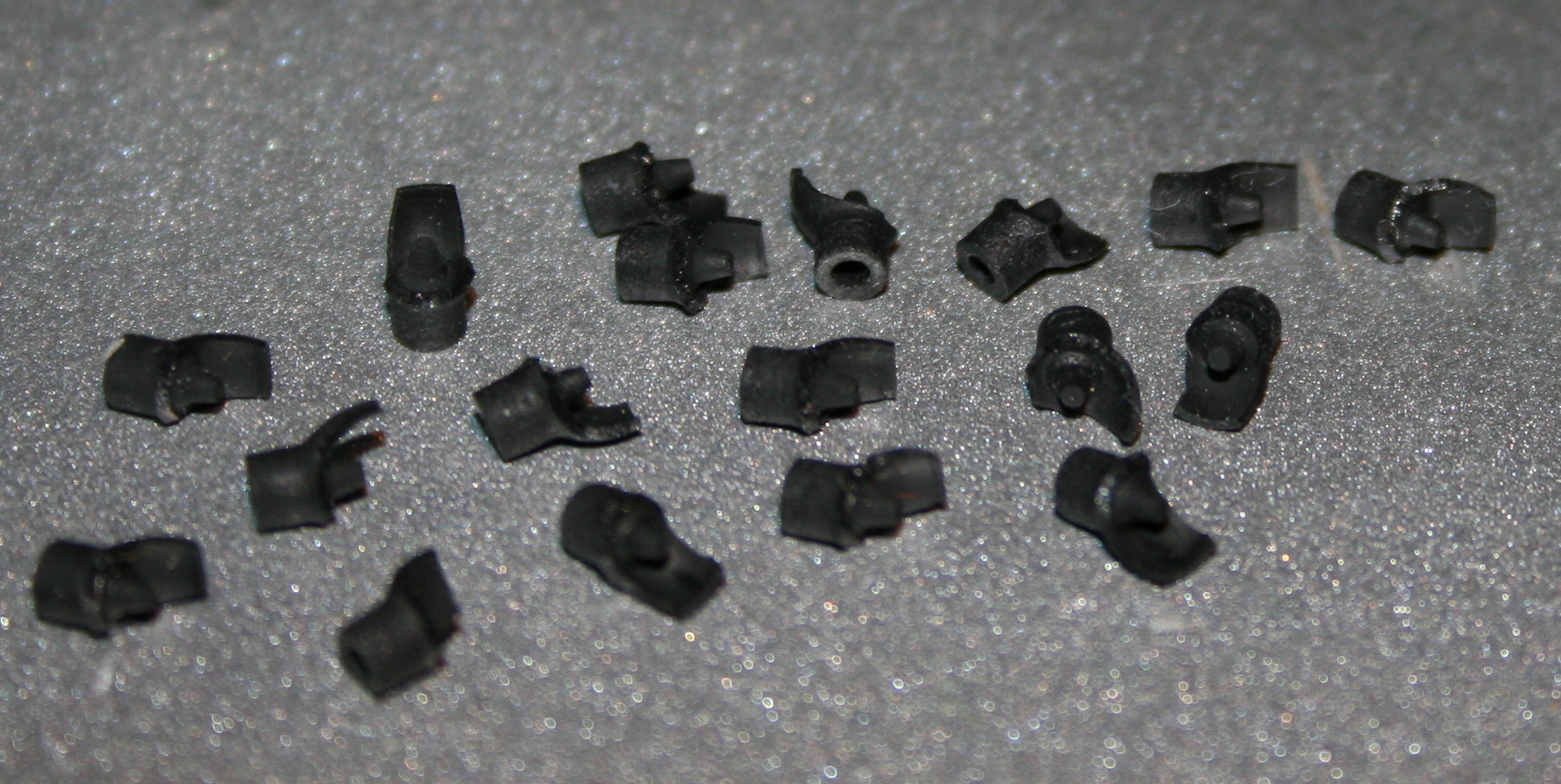
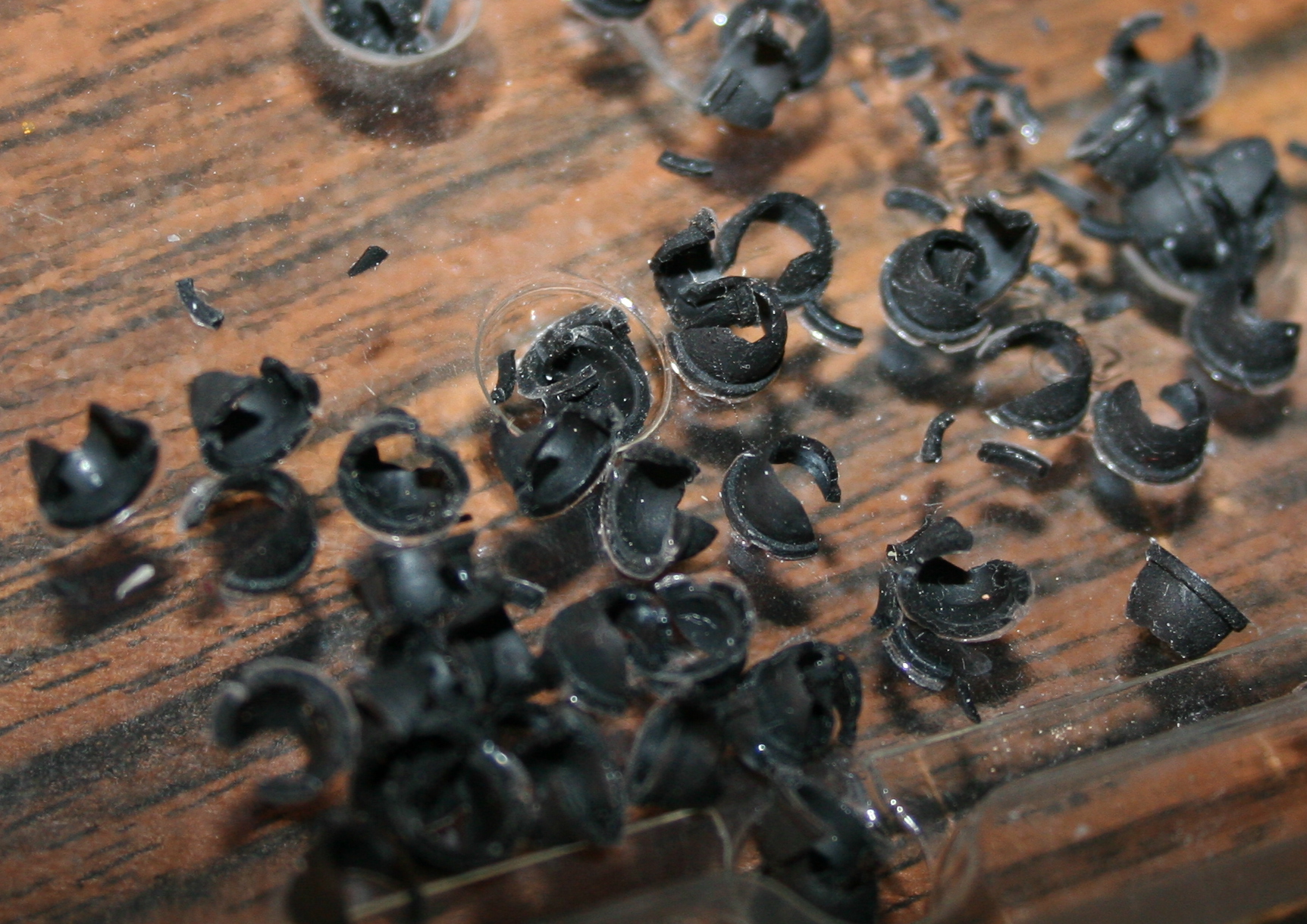
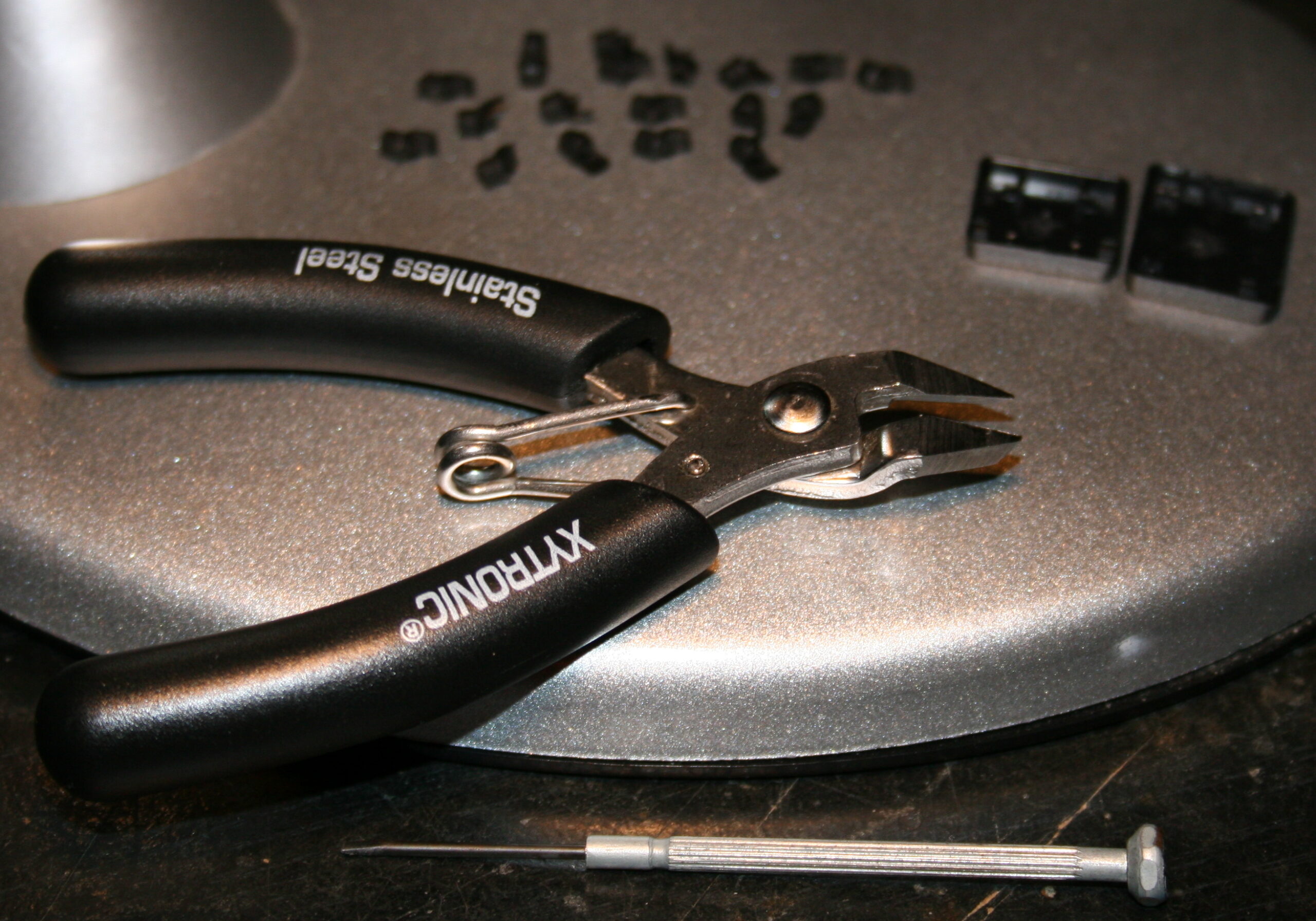
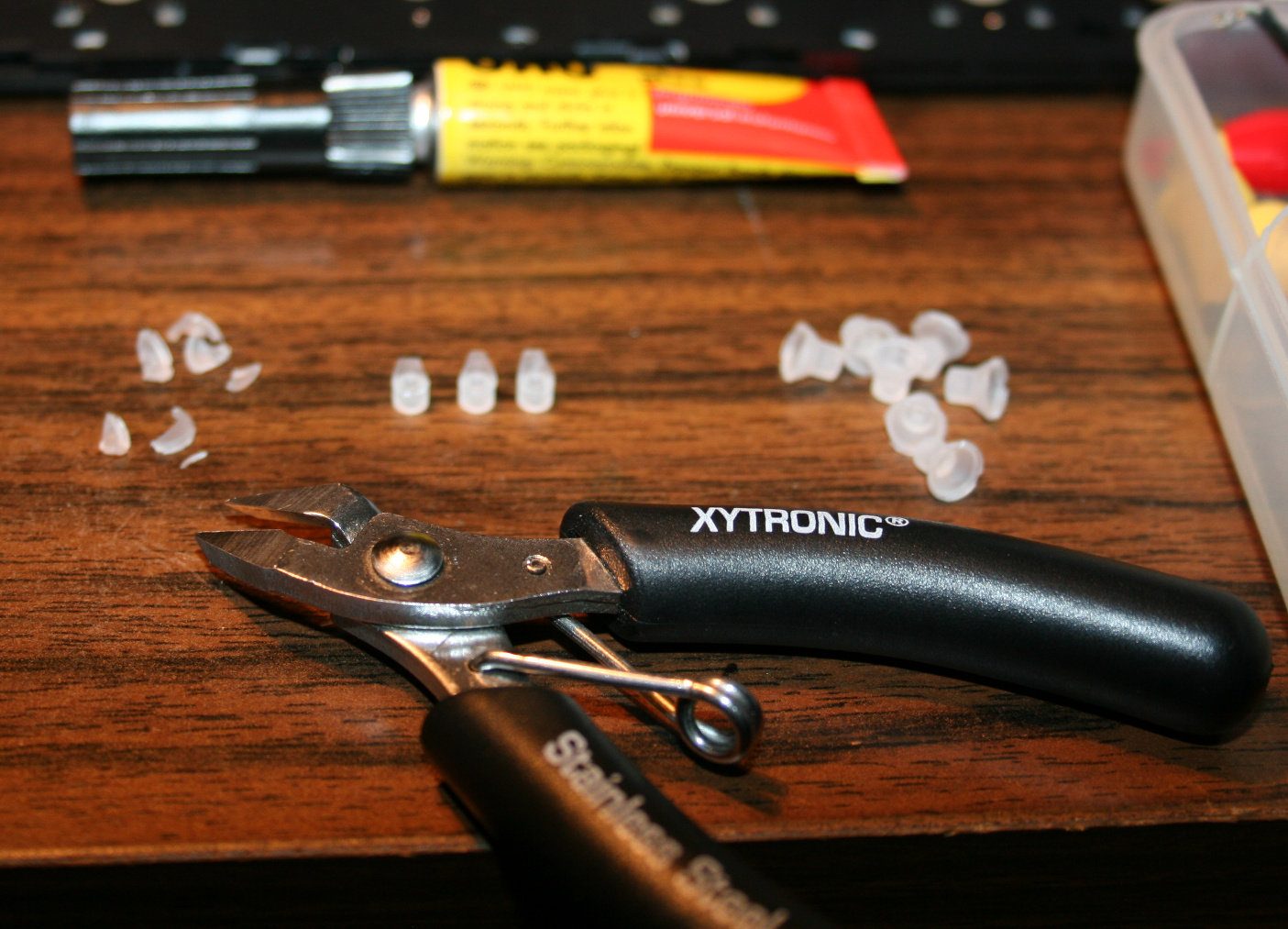
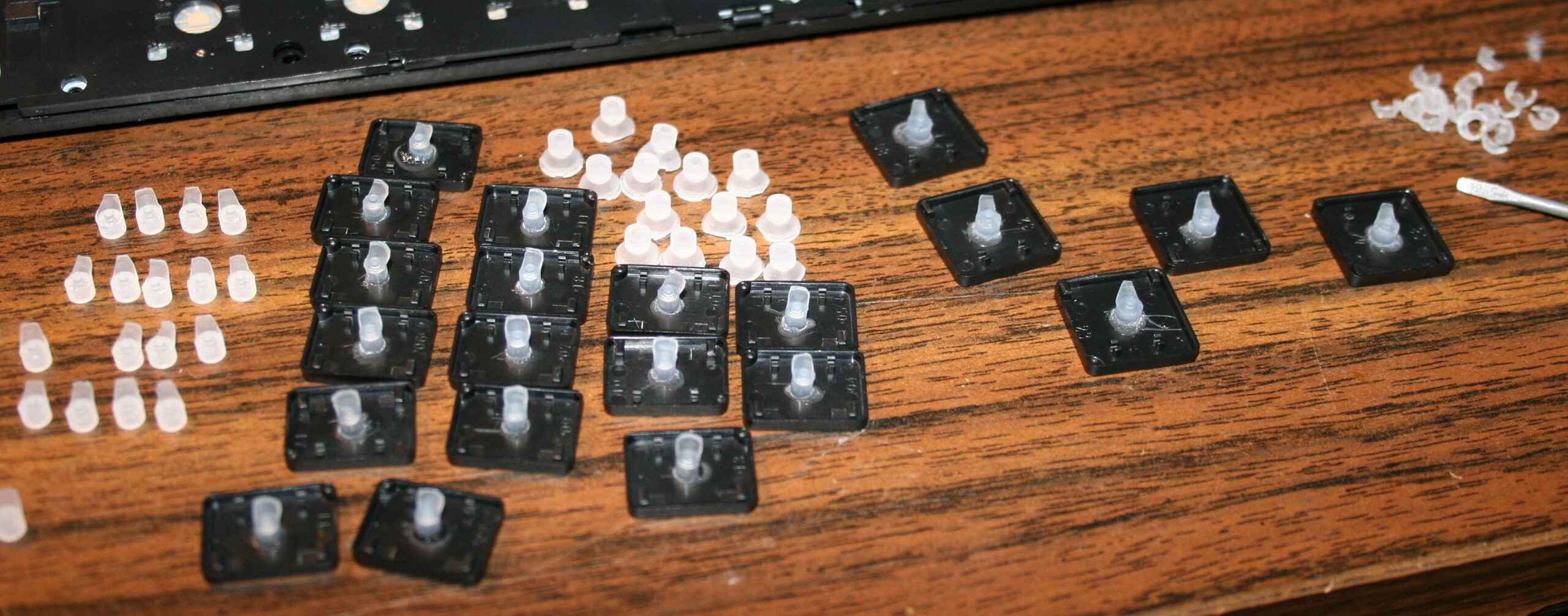
    • Cutting off rubberdomes, using small side cutters.
      The more you cut off the less force and travel. But caution for bigger keys, especially Spacebar, they need a bit more rubber width left (or in 2 places) for same force, because they are heavier.
      I did reduce modifiers (Shift, Ctrl, Alf) keys and arrows completely, without that short supporting width, they’re just resting on keyboard foil, this gives only 9 g force. Value depends on foil, and not at all on rubber because there is none left.
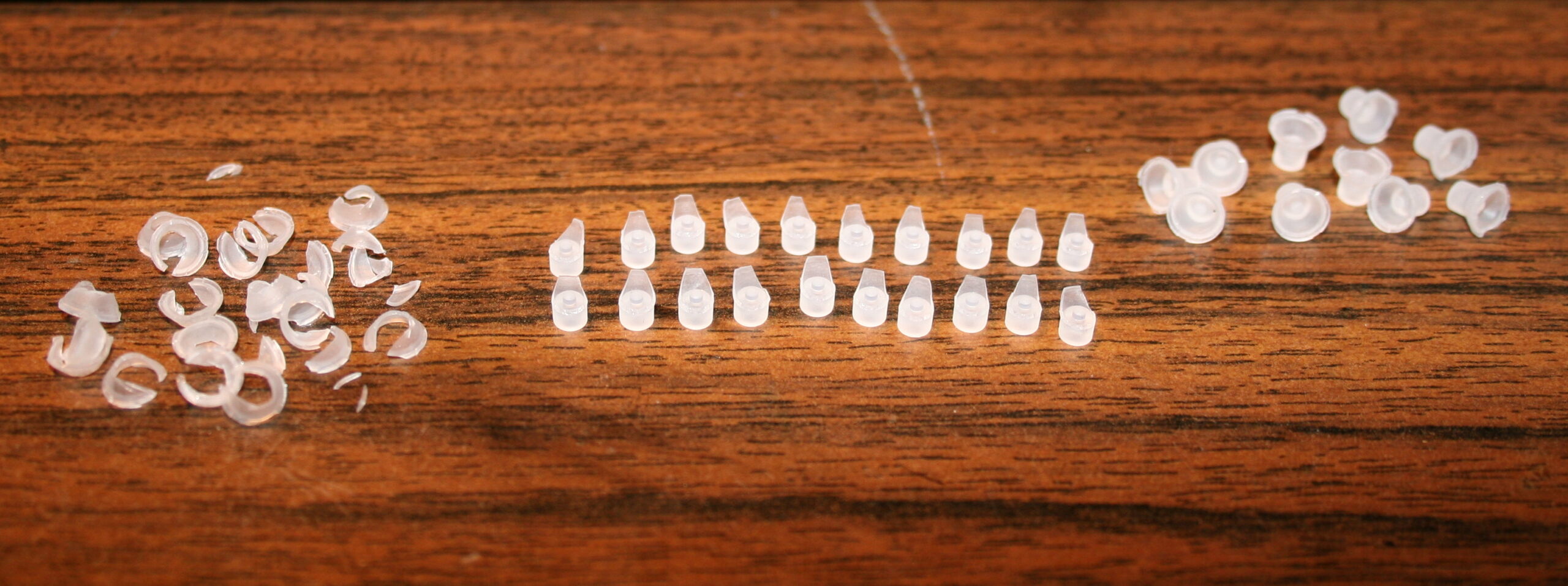
      For most keys usually few mm width and height (3-5 mm or so) is holding it above foil.
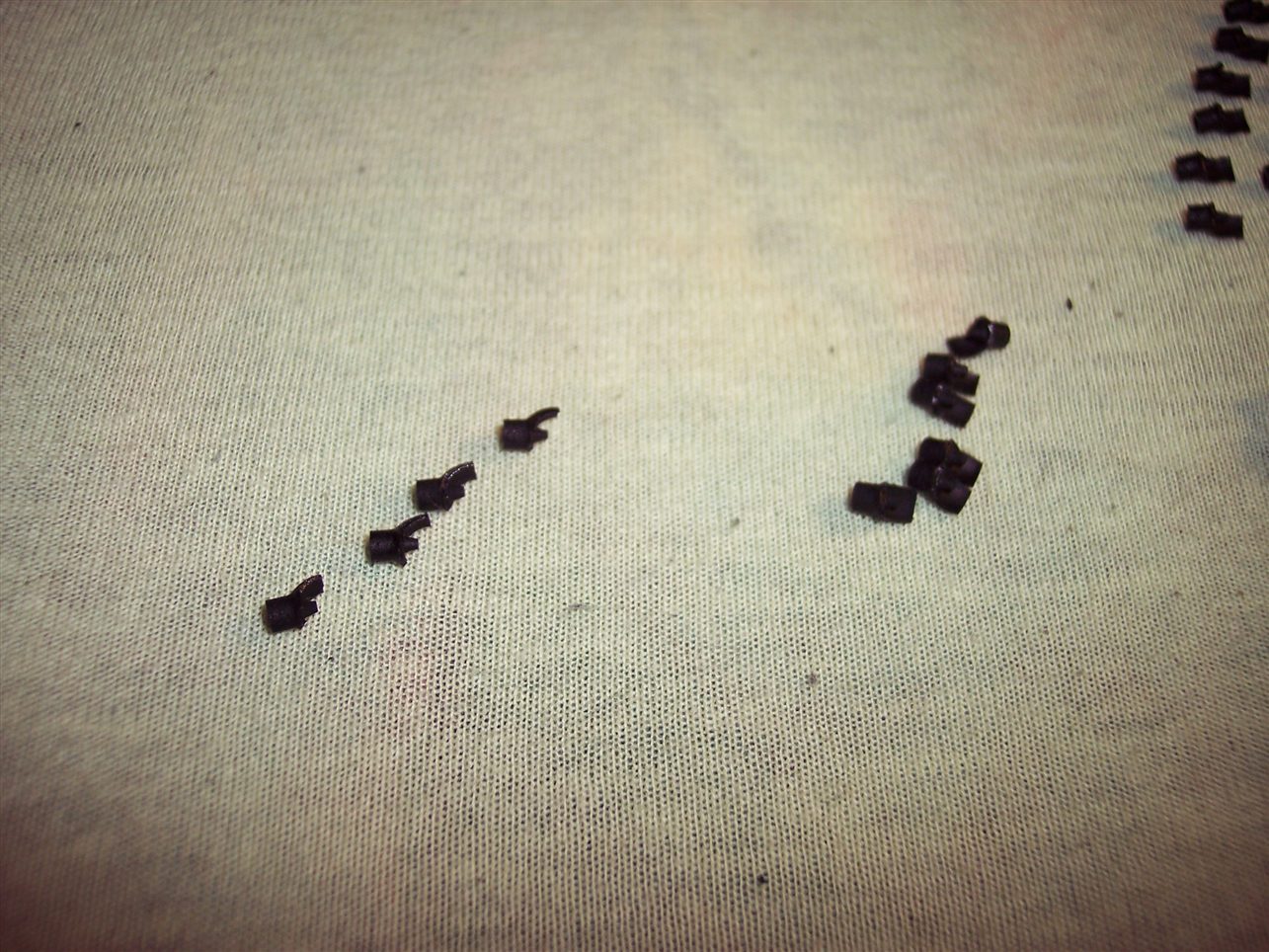
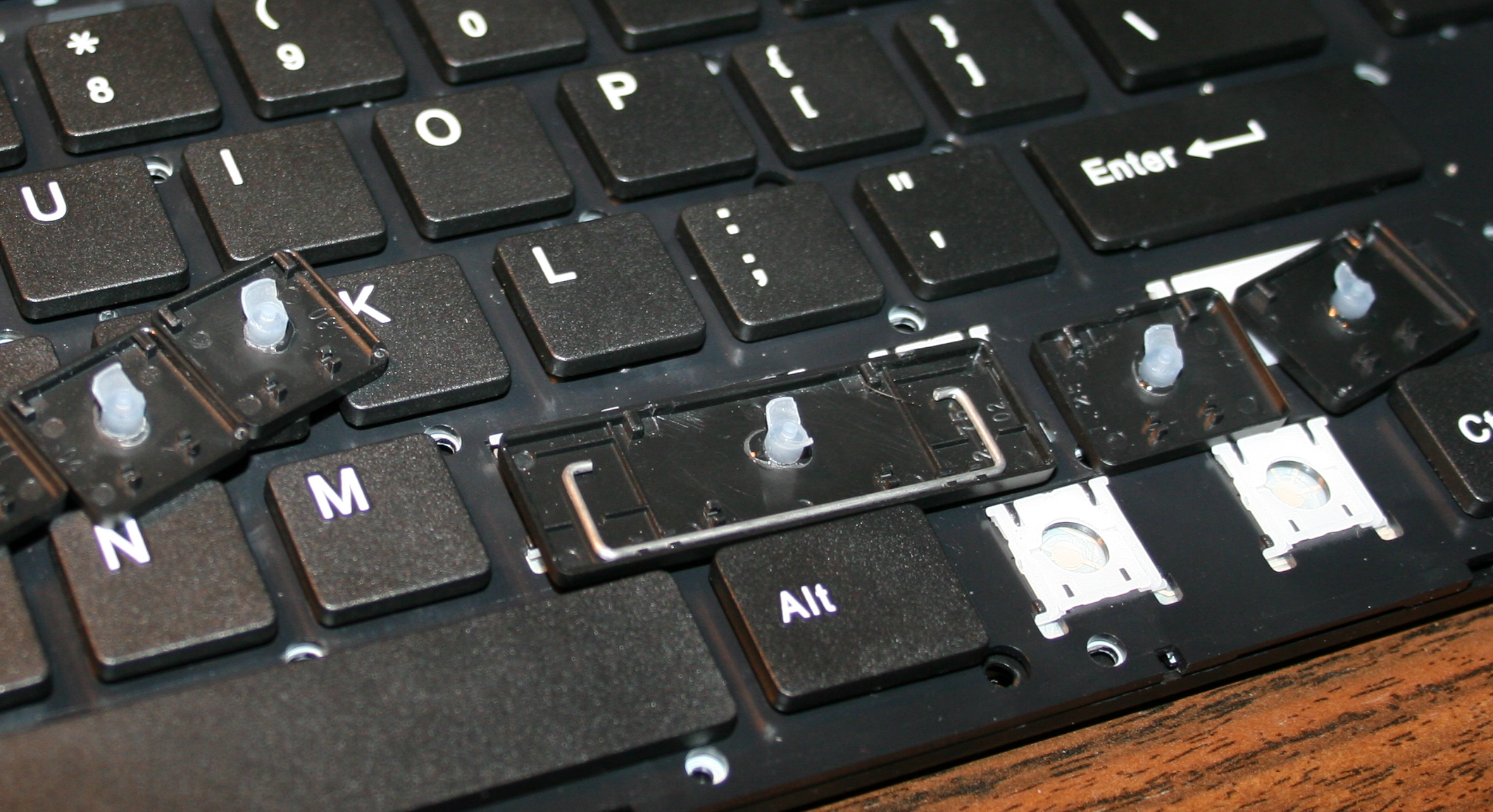
    • Removing scissor plastic (white) from key (black), using a tiny flat screwdriver.
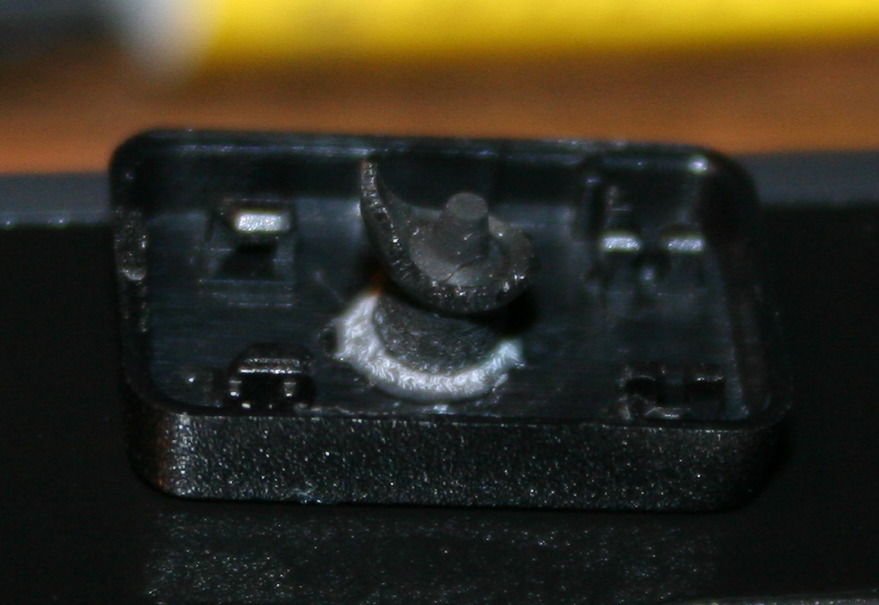
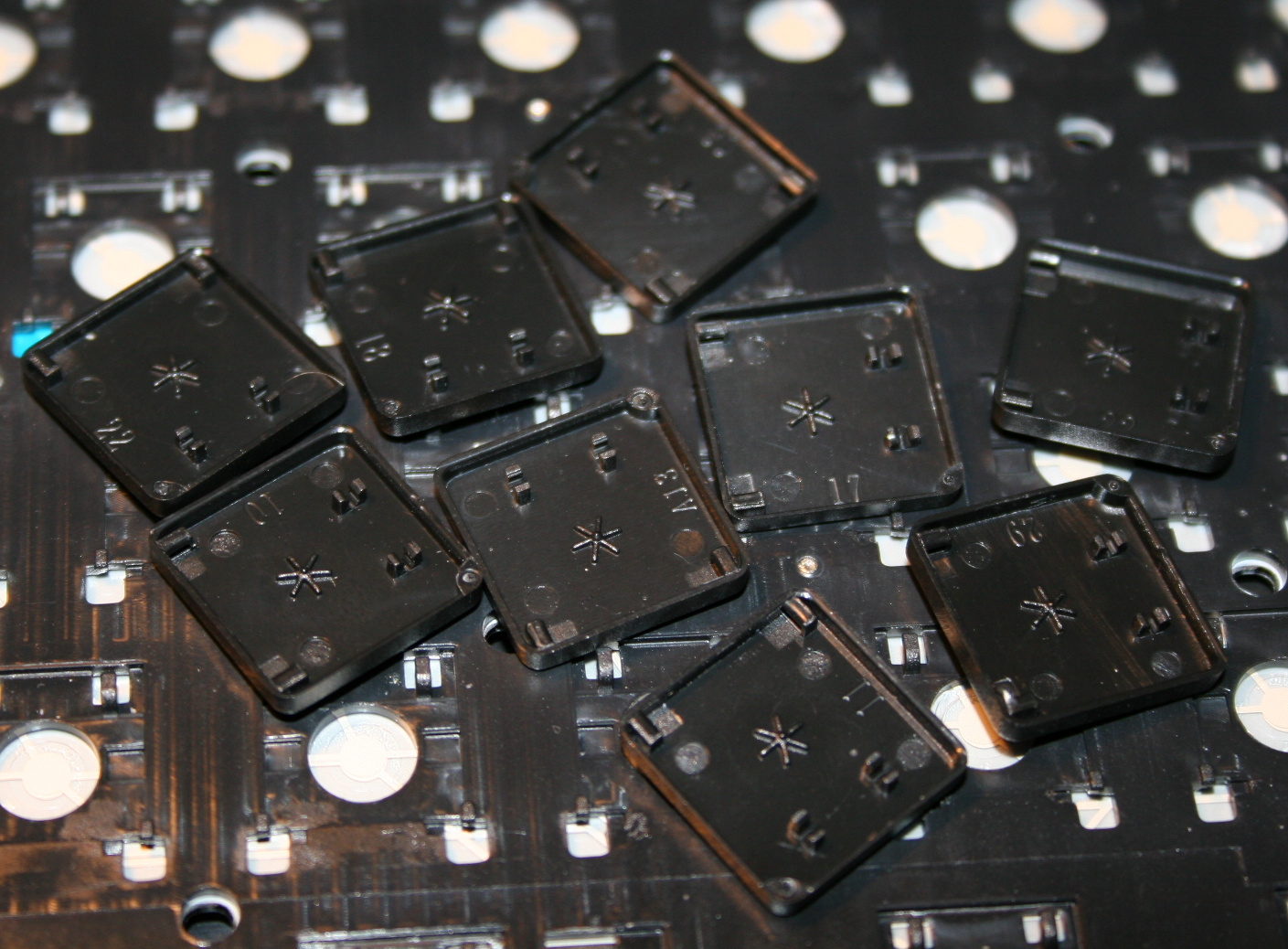
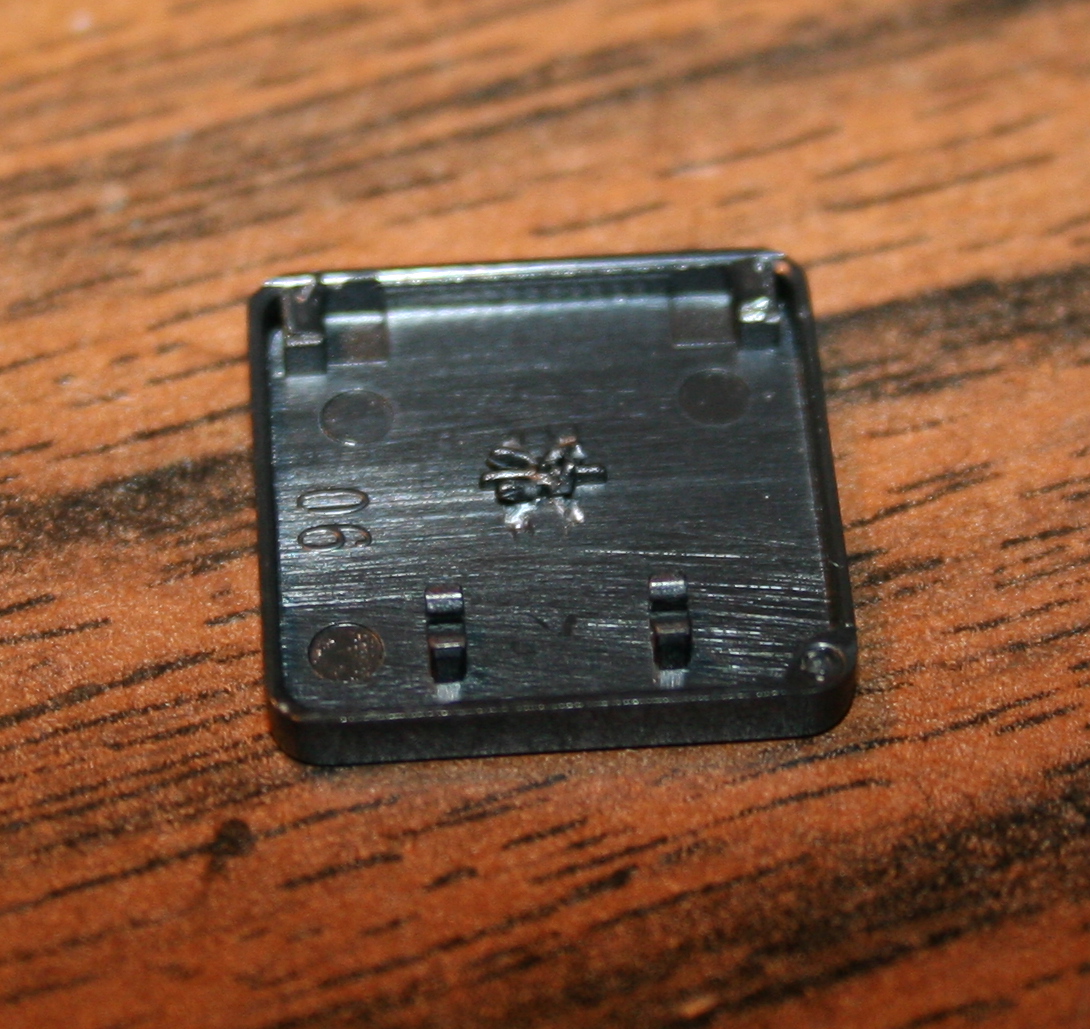
    • Optionally (if present) scraping that (stupid) star * pattern made on keys, to be flat. Can be scratched with cutters or screwdriver, may be even better so for glue.
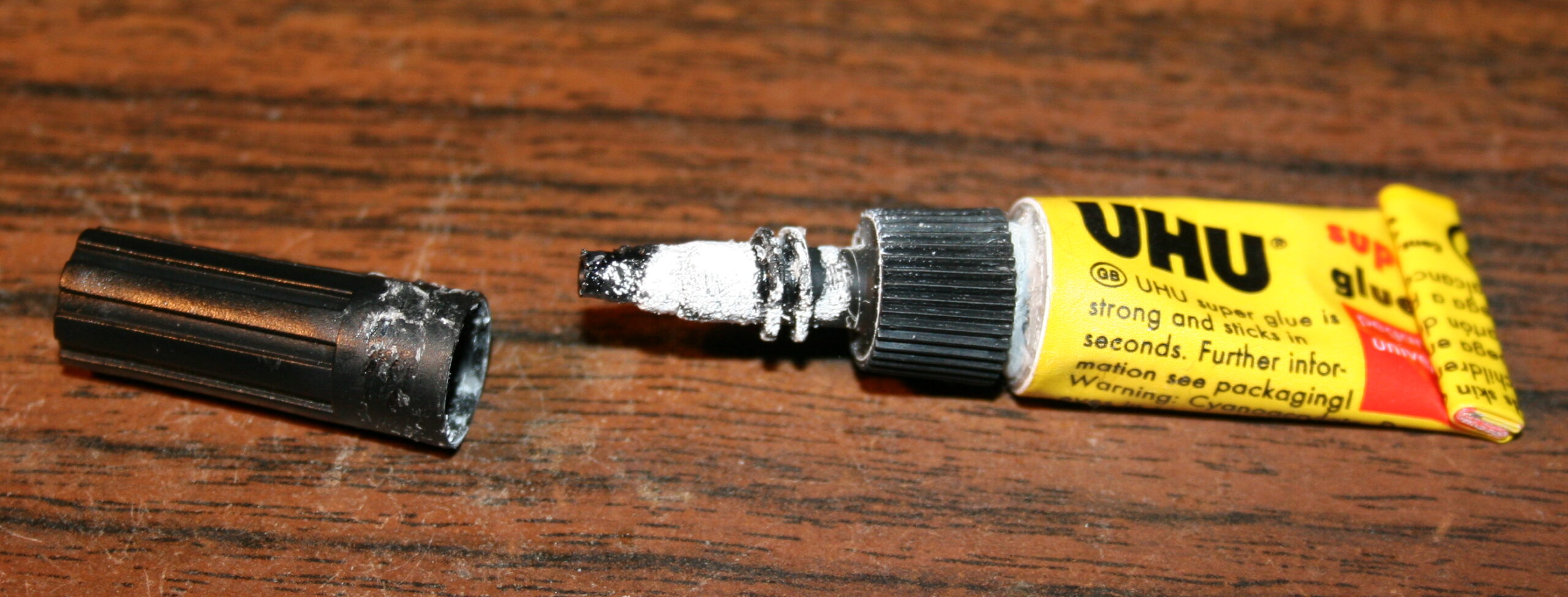
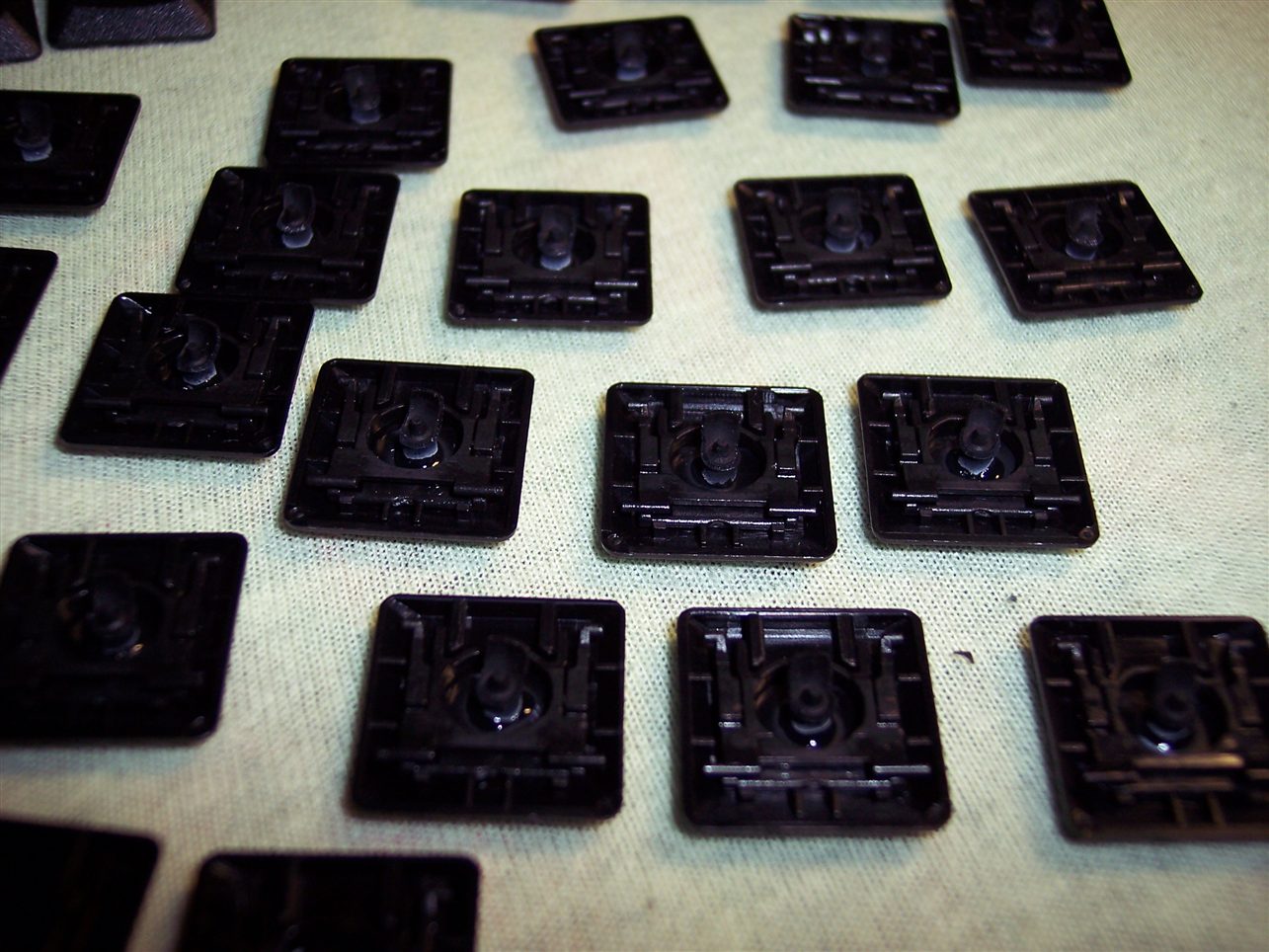
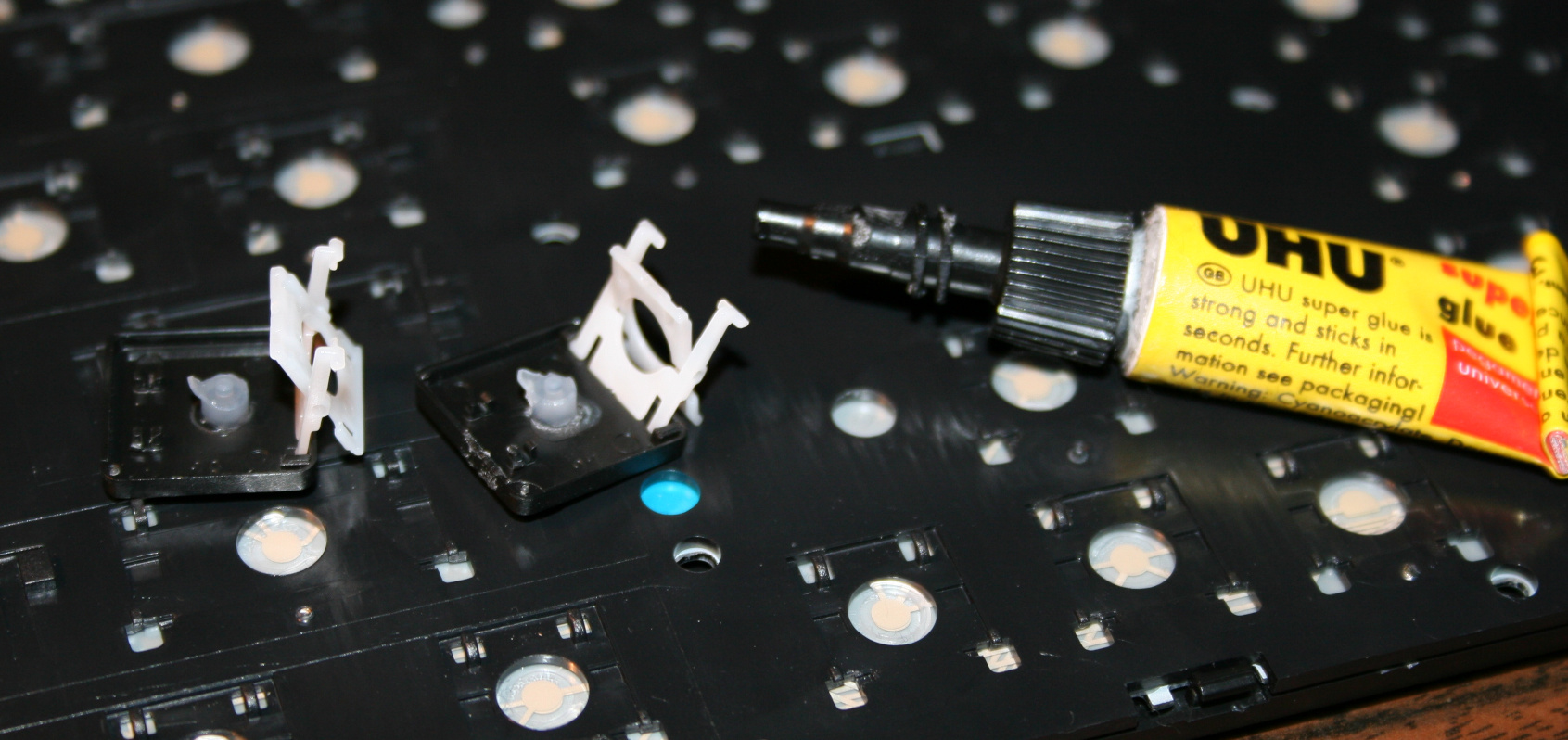
    • Glueing (reduced rubberdomes) back to keys, using any superglue (cyanoacrylate based).
      Holding with tweezers or smallest pliers for a few seconds.
    • Waiting (best about 1 minute) until glue gets solid and ready.
      On video I’m actually making this too fast. Depends also on how good or fresh (after opening) the glue is.
    • Lastly mounting keys back, rather easy after knowing how the scissor keys work
    • Repeating for each key. Unfortunately it is really boring and tedious. Took me about 2 days for 1 keyboard.

    📷Galleries

    Light press mod 9-18g (CK5, from 2015)